How to Install Violet

Overview

Violet UML Editor is a free, open-source UML diagramming tool. Follow the steps below to download Violet UML Editor 2.1.0, prepare your computer to run it, verify that it opens correctly, and provide evidence of completion.

  1. 1. Download Violet UML Editor

    Violet UML Editor version 2.1.0 is the version installed on NTC's lab computers. Download the course-provided package below.

    The download is a ZIP archive. Extract the ZIP before trying to run Violet.

    Go to top
  2. 2. Install Java Runtime Environment

    The Java Runtime Environment (JRE) is required to run Violet. If Java is not installed on your computer, use the Java download page below.

    Java downloads

    Go to top
  3. 3. Unblock Violet UML

    Some versions of Windows may block executable files downloaded from the internet.

    Go to top
  4. 4. Run Violet UML Editor

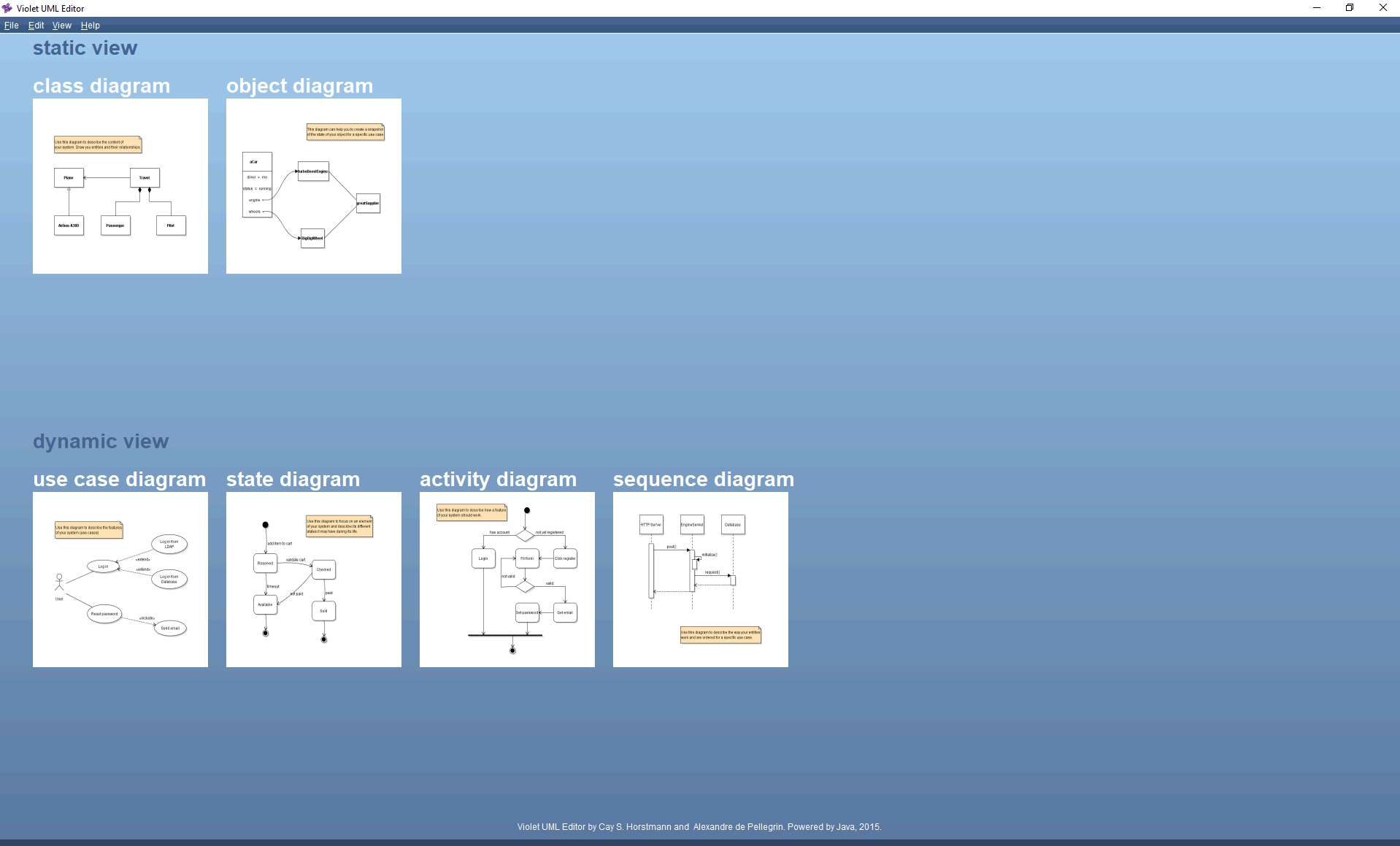
    Ensure that Violet UML Editor runs correctly. After opening Violet, the start screen should look similar to the example below.

    Violet UML Editor 2.1.0 start screen showing static-view and dynamic-view UML diagram choices.
    Violet UML Editor 2.1.0
    Go to top
  5. 5. Provide evidence of completion

    Capture a PNG image showing Violet running on your system, then upload that PNG to Canvas as directed by your course.

    © 2026 Northcentral Technical College

    Go to top
  6. 5. Submit Your Screenshot to Canvas

    Submit the following screenshot directly to Canvas. Each screenshot must be readable, include enough surrounding context to verify the required evidence, and avoid unrelated or sensitive information.

    1. Violet UML Editor running on your system with the Violet start screen or diagram choices visible.

    © 2026 Northcentral Technical College