Install OneDrive
1.Overview
OneDrive is a file hosting service by Microsoft that allows you to access files on any device OneDrive is installed. OneDrive can be used to store assignments and other content that you create for coursework, as it greatly reduces the possibility of your files getting lost or destroyed.
2.Install OneDrive
OneDrive is automatically installed on Windows 10 devices and NTC computers.
OneDrive DownloadA
Download OneDrive from the link above if it is not already installed or needs to be reinstalled
3.Configure OneDrive
A
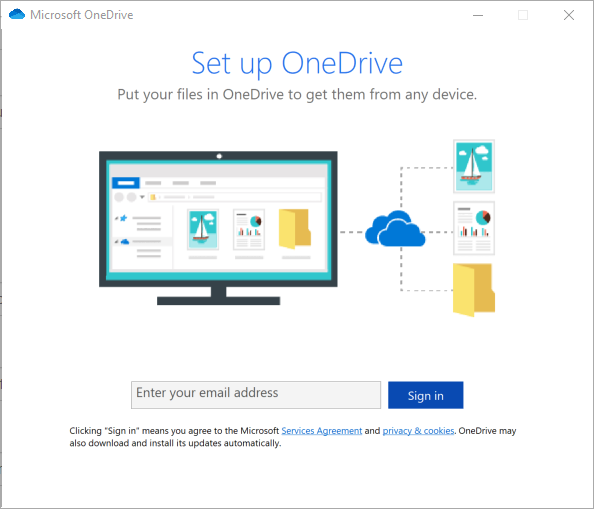
Open the OneDrive app. It will prompt you to sign in with an email. Use your student email address
B
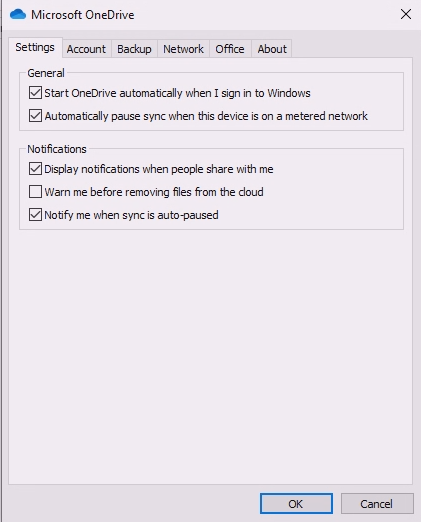
Once signed in, click on More -> Settings. A new window should pop up. Click on the Settings tab
C
Under the Notifications section, uncheck the box for Warn me before removing files from the cloud
D
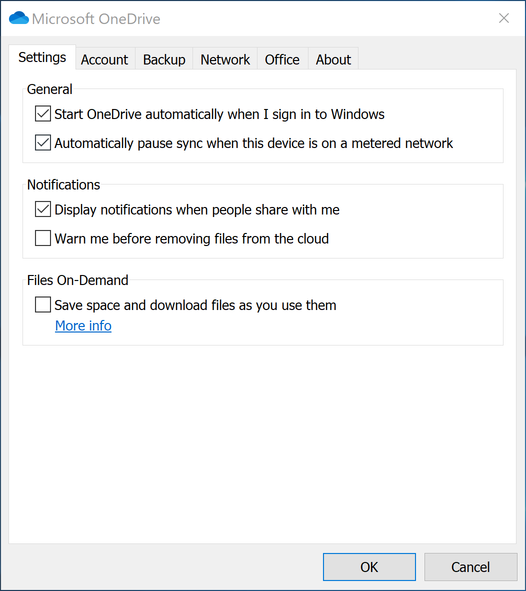
Under the Files On-Demand section, uncheck the box for Save space and download files as you use them
Ignore this step if you do not have this section in your settings.
E
Click Ok to save the changes
4.Use OneDrive
A
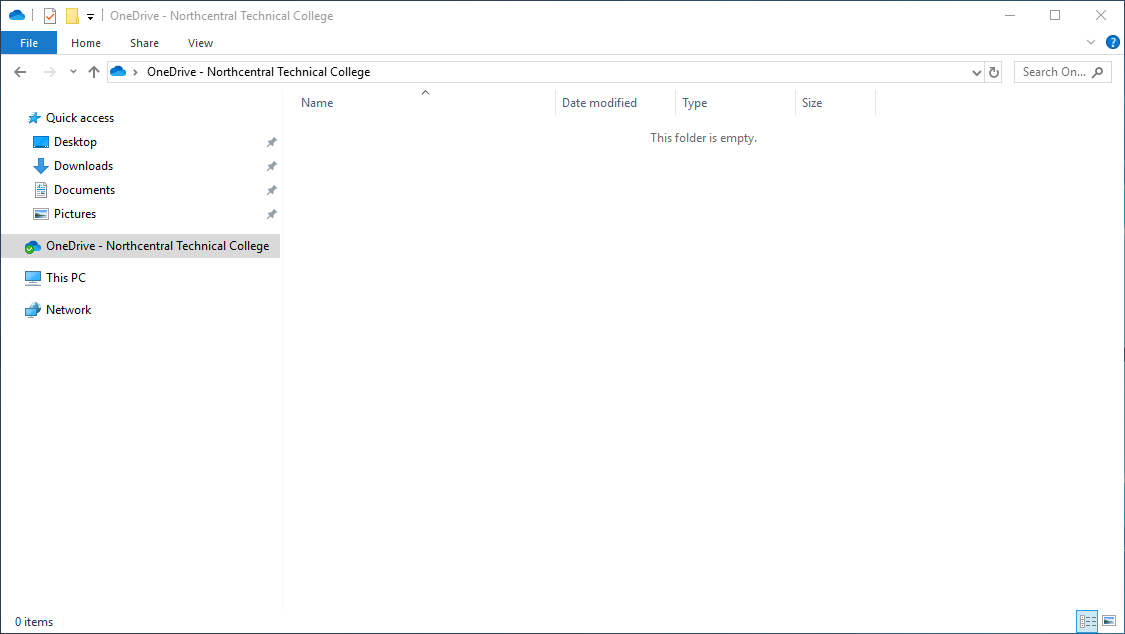
Open File Explorer and navigate to the OneDrive - Northcentral Techincal College folder on the left
B
You can now store files in that folder and access them on any computer that you are signed into OneDrive on
5.Submit Your Screenshot to Canvas
Submit the following screenshot directly to Canvas. Each screenshot must be readable, include enough surrounding context to verify the required evidence, and avoid unrelated or sensitive information.
- File Explorer showing the OneDrive - Northcentral Technical College location visible and accessible.