0.0 Install Slack

Overview

Ensure that Slack is installed on your machine and that your profile is professional.

1. Join the Slack Workspace

A. Follow the link below and enter your student email.

You need to use your student email with your name in it not your student ID number, e.g. hernandezc@students.ntc.edu.

Slack Sign-up
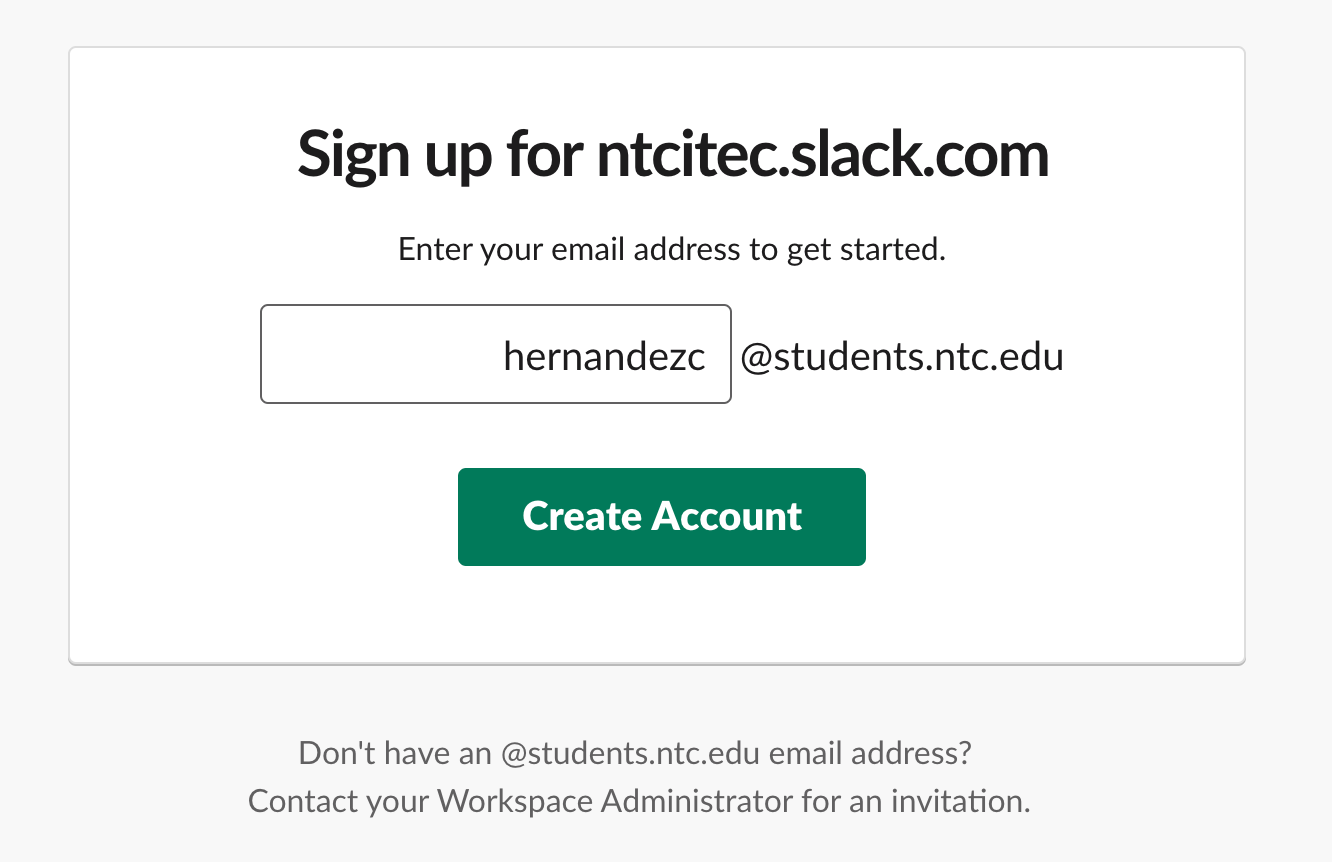
Sign up for a new account Slack
Sign_up_for_a_new_account___Slack.png

If you cannot find or have not receiving this email please reach out to your instructor via email.
B. Check your e-mail to confirm your account.

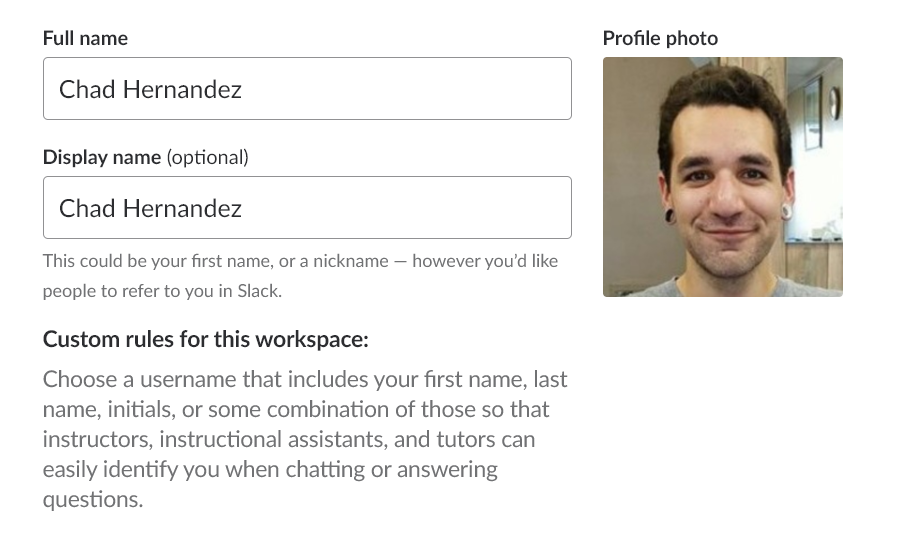
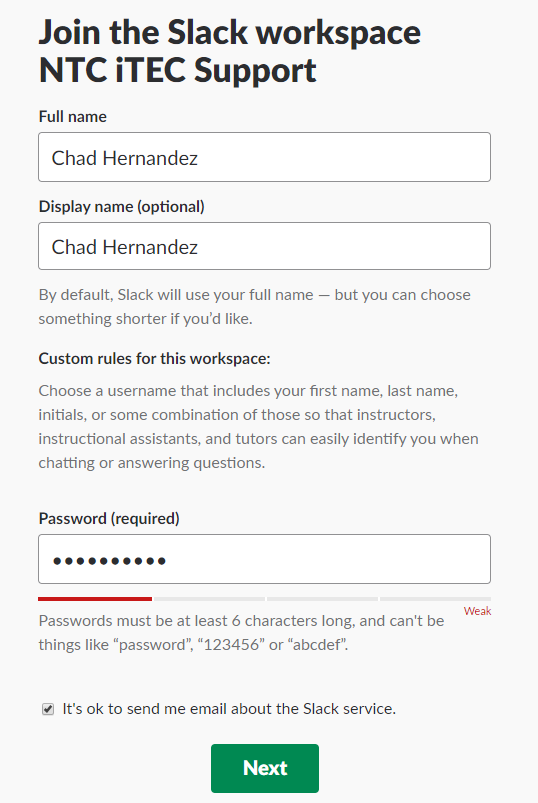
C. In the next window set up your Name and Password. Your Full Name and Display name should be identical.

Screenshot from 0.0 Install Slack, page 3

User Info

2. Close the browser

3. Download Slack

There is also a mobile app for Slack that we recommend you install on your phone though it is not required.

A. Go to the link below, download the Slack desktop app and start the install process.

Slack Download

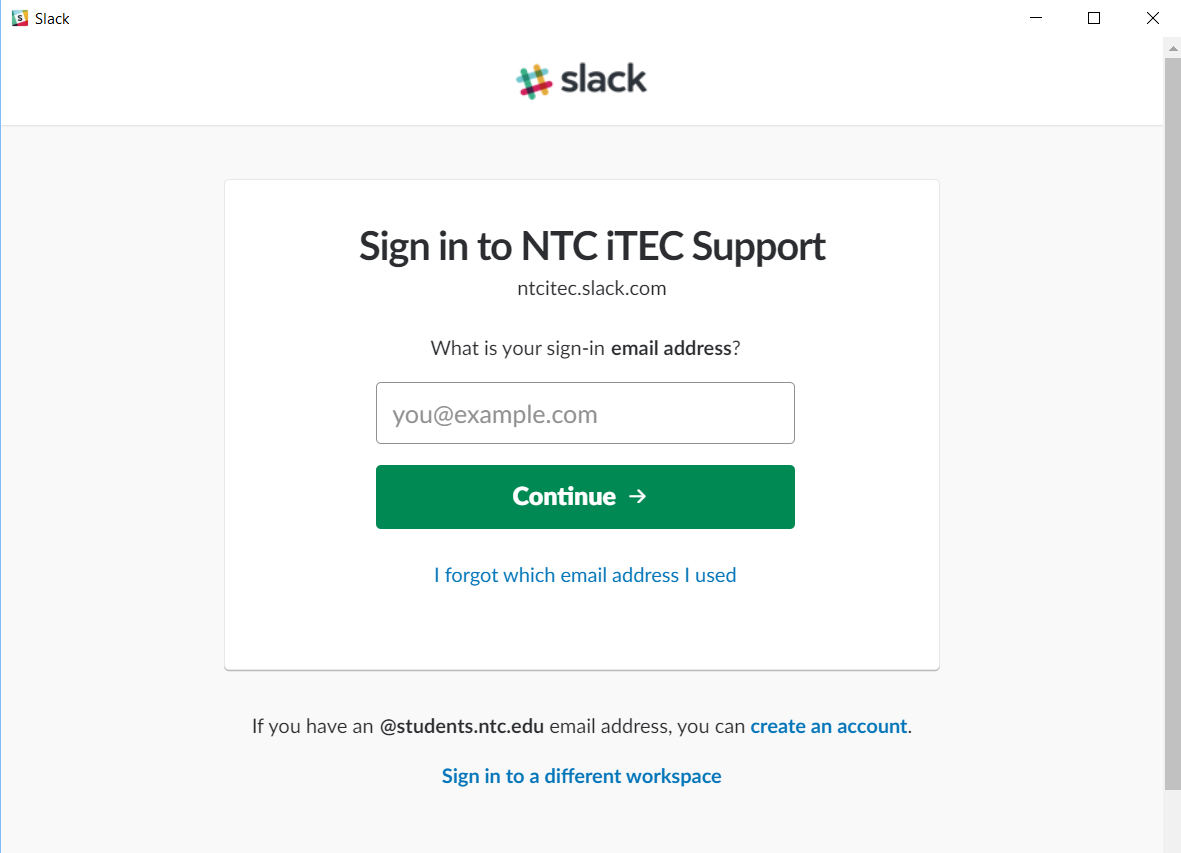
B. At the sign in page, enter ntcitec as the Slack URL and click 'Continue'

Screenshot from 0.0 Install Slack, page 4

Workspace Sign-In

C. At the User Sign-In, enter your student email and click 'Continue'

Screenshot from 0.0 Install Slack, page 5

User Sign-In

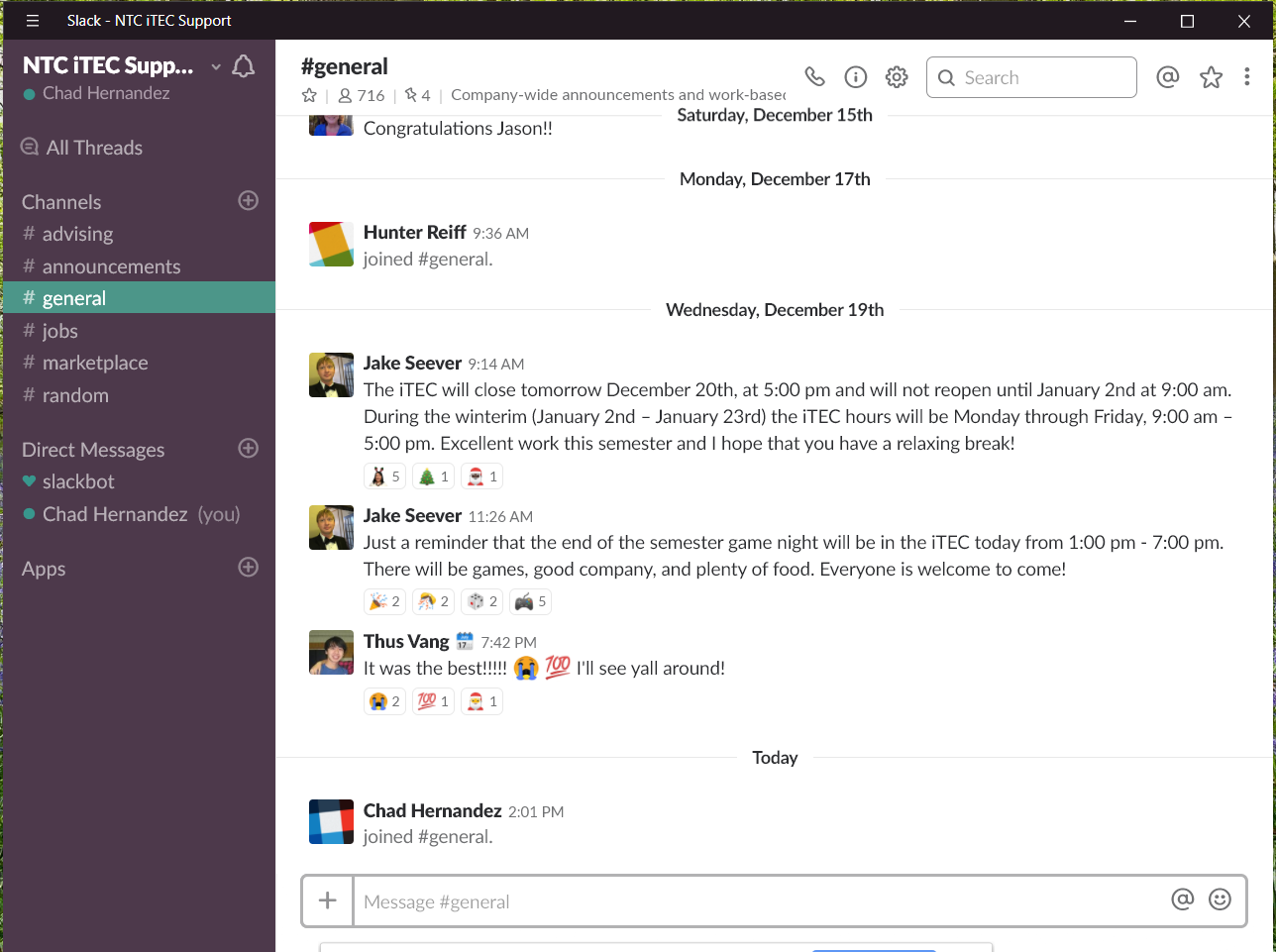
D. You will be directed to the default general channel.

Screenshot from 0.0 Install Slack, page 6

General Channel

4. Update Your Information/Preferences

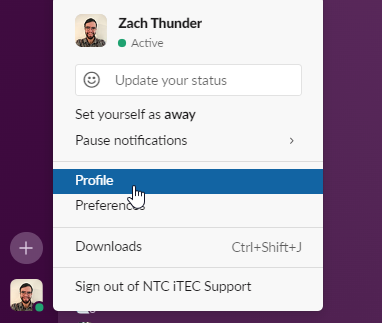
A. Click on your profile picture in the bottom left and choose 'Profile'

Slack Profile
Slack Profile.png

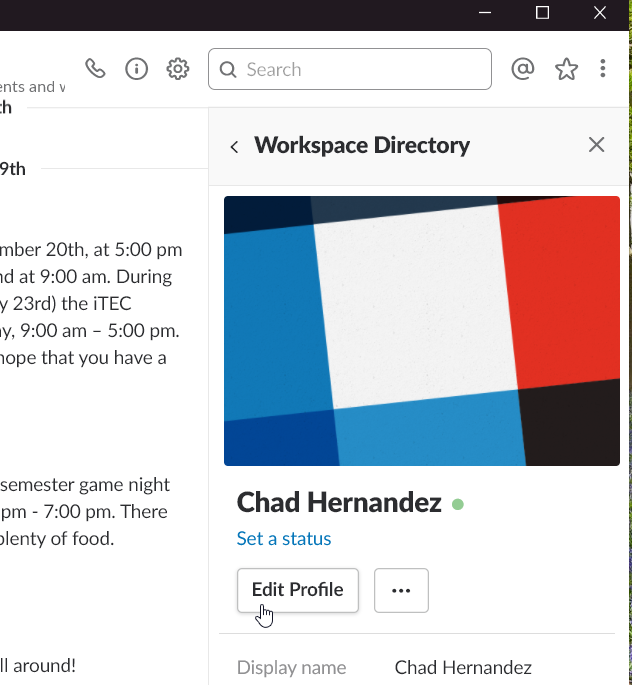
B. Click 'Edit Profile'

Screenshot from 0.0 Install Slack, page 7

Edit Profile

C. Upload a professional, non-group, unobscured picture of your face and save.

Screenshot from 0.0 Install Slack, page 8

Edit Photo

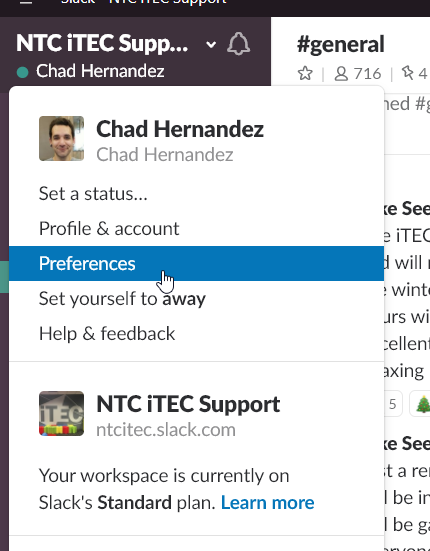
D. On the menu dropdown choose 'Preferences'.

Screenshot from 0.0 Install Slack, page 9

Preferences

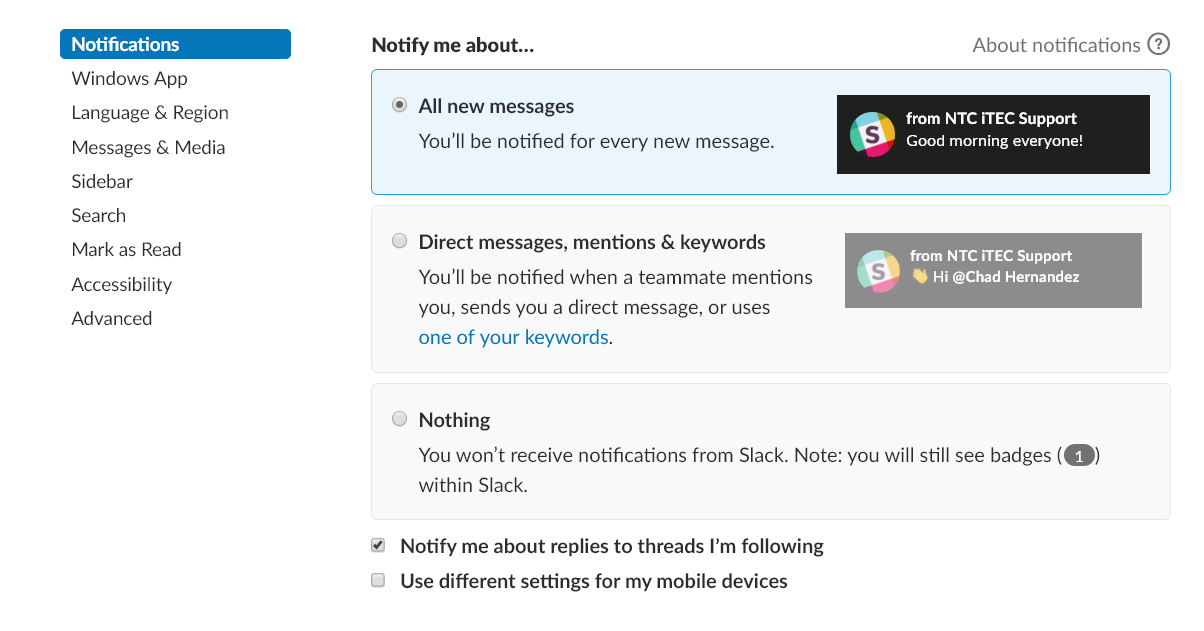
E. On the 'Notifications' tab, select 'All new messages'.

Screenshot from 0.0 Install Slack, page 9

Notifications

5. Message your instructor on Slack

If you are completing this assignment as a part of Intro to Python, no f-channel will be created. It is however, a requirement for IT Development and Design Fundamentals.

In our main programming courses, f-channels are one of the ways that instructors provide support and feedback. Your f-channel will be used to support your learning process in Programming Concepts, Object-Oriented Programming, Object-Oriented Design, and Advanced .Net Programming. Although it is often fastest to get help by simply posting in a given courses main channel (i.e. fundamentals, programming-concepts, etc), this is another way to provide more personalized support. Often the f-channels will also include instructional assistants, tutors, and instructors from other sections allowing us to respond based on who is online.

6. Submit Screenshots to Canvas

Submit the following screenshots directly to Canvas. Each screenshot must be readable, include enough surrounding context to verify the required evidence, and avoid unrelated or sensitive information.

  1. Slack desktop app open in the NTC iTEC workspace, showing that you are signed in and can access the workspace.
  2. Your Slack profile showing your full/display name and professional profile photo.
  3. Slack Notifications preferences showing All new messages selected.
  4. Your direct message to your instructor introducing yourself, naming the course, and requesting an f-channel.

© 2026 Northcentral Technical College

Back to top