In JavaScript programming, you will use developer tools often in your development process. You have already been using these with the usage of console.log. There are many other things we can use in the developer tools to aid in our app building process. You can open the developer tools through the browser menu. It is different for each browser. There is usually a shortcut key combination to open them as well. There is also a right-click menu item entitled. ‘Inspect Element’ that opens the tools.
One of the tabs you will use often is the network tab. All server file calls are recorded here.
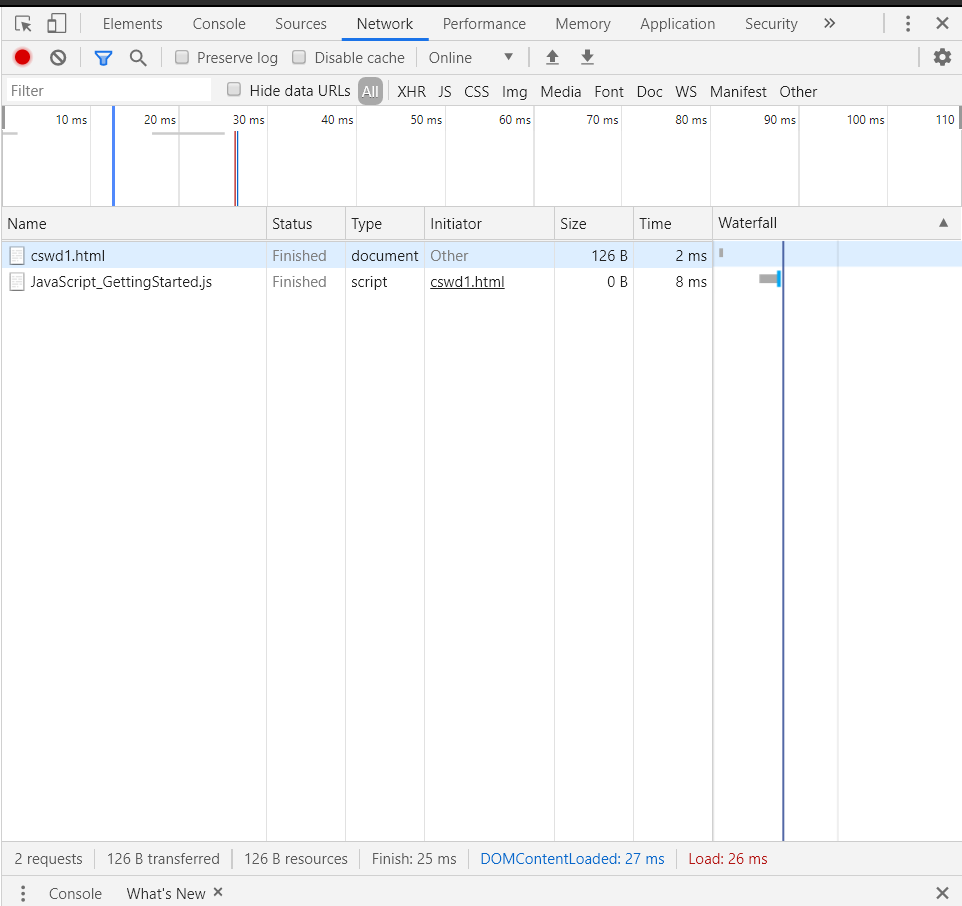
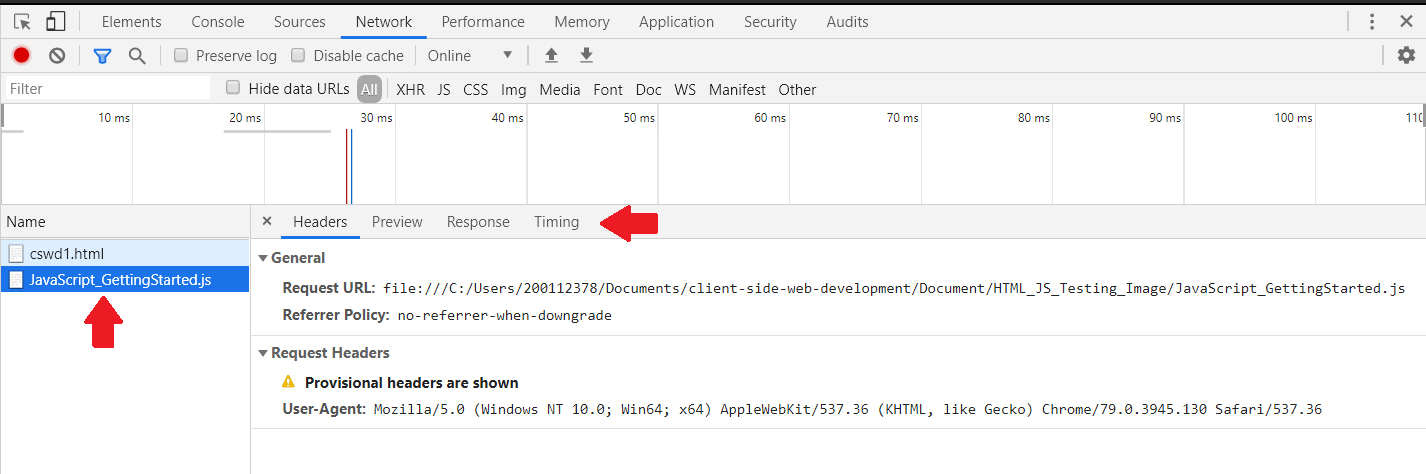
When you click on an entry, you can see the headers, response and performance of the response.
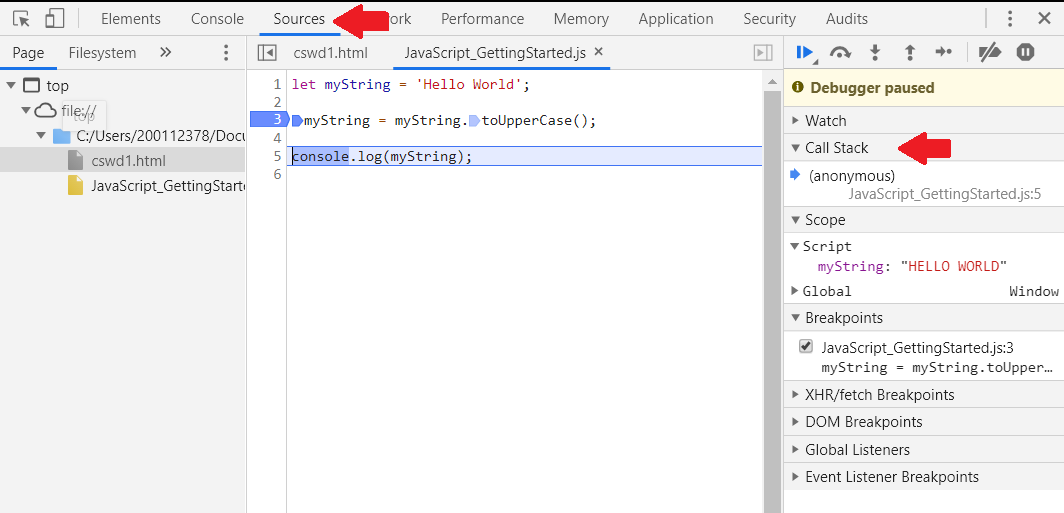
Another tab you can use is the sources tab. On this tab, you can set breakpoints, watch variables, look at scope and even view the call stack.
Note: Make sure you do not store sensitive information, such as passwords, etc. These are easy to grab by hackers. Always make the assumption that your code can be read by anyone.
We can make it harder by minifying our code, which removes spaces and comments. This is not foolproof as there are ways to unminify the code.
We can also use obfuscation to make our code more difficult to “decode”. There are several tools that make this possible. One online tool is JavaScript Obfuscator (https://javascriptobfuscator.com/). JavaScript Obfuscator uses the following example JavaScript code…
Note: Due to the code always prompting a message when the page is loaded, it has been commented out. Lines 14 and 15 should be be uncommonted for the code to work. It should execute the code automatically without the need to reload the page.
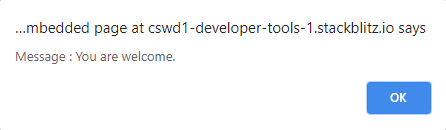
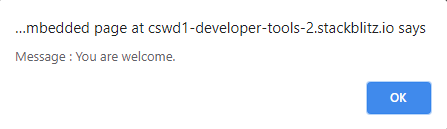
The following image will show a message stating, "Message : You are welcome."
If we run this code through the obfuscator, it returns the following…
Note: Due to the code always prompting a message when the page is loaded, it has been commented out. Lines 21 and 22 should be be uncommonted for the code to work. It should execute the code automatically without the need to reload the page.
The following image will show a message stating, "Message : You are welcome."
This is harder for a hacker to hack. Not impossible, so always assume that your code is hackable. These are just ways we can make it as difficult as possible to deter malicious individuals from exploiting our code.
Another tip is to not use global variables. This also makes it easier for hackers to use your code.