Acceptance criteria
- The invitation has been accepted using the required account.
- The profile contains the requested identification details.
- Course-channel membership is arranged by the administrator as specified.
Slack
Work through the stories in order. Use the acceptance criteria to check each feature, and complete the nested tasks using the specified names, values, and scenarios.
NTC ITEC Slack team
NTC ITEC Slack teamThe link above will take you to a sign-up page for the Slack team. Use your NTC student email address to sign up, if you have not already been invited.
After signing up, complete the registration process by logging in to your NTC student email and clicking the link provided in the Slack invitation email. If you do not see the invitation email, check your junk or clutter folder.
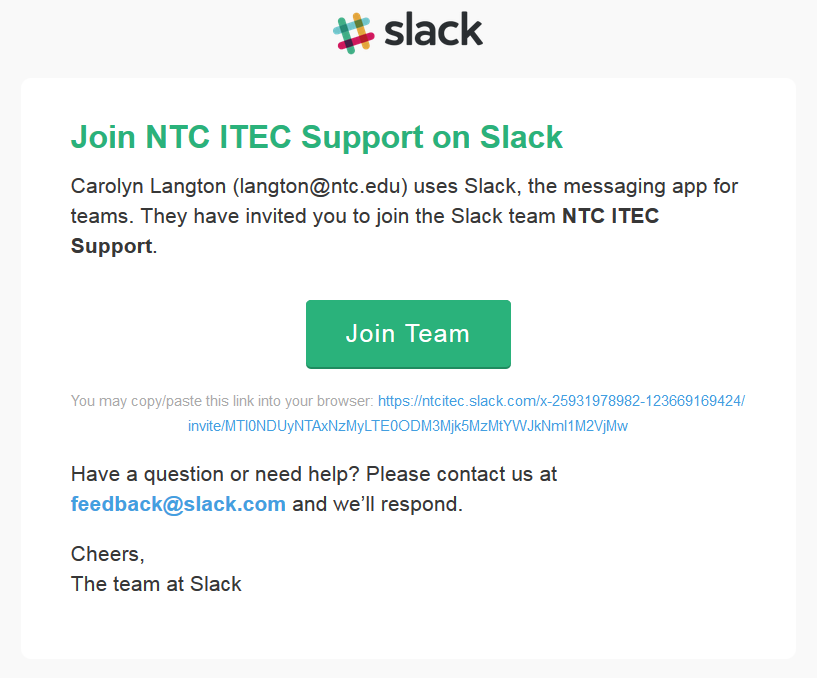
If the Slack team administrator has already invited you, you will receive an invitation email from Slack, as shown in the image below. Use the link in that email to join the team and set up your username and password.
Once you've created your Slack account with the NTC iTEC Support team, update your profile to include your first and last name and a photo. This will help your instructors, instructional assistants, tutors, and peers to know who you are when you post in Slack. To update your profile, click on your username anywhere in Slack and then click on Edit your profile.
Review these guides to getting started in Slack. They cover the basics of a Slack team, including channels, messaging, file uploads, preferences, notifications, and more.
Slack: Getting started for new users
Slack: Getting started for new usersSlack: Video guides
Slack: Video guidesEach IT course has its own private channel with a name that reflects the number and name of the course (e.g. Web Design 1's channel is 211web-design1, Intro to Computer Support's channel is 104support, etc.).
Your instructor or the team administrator will do this for you, as you cannot add yourself to the course channels. This process can take up to 24 hours (or longer on the weekends). If you are not added to the channel within 24 hours of joining the team, contact your instructor or the team administrator for assistance.
name program semester a little extra about yourself (career goals, hobbies, or accomplishments, for example)
To take a screenshot, press the Print Screen button on your computer. Alternatively, you can use the Snipping Tool application, which allows you to take a snippet of part of your screen.
Return to each story and verify its acceptance criteria. Preserve the submission format and destination stated in the activity; a reading, setup guide, lab, video demonstration, and oral final may require different evidence.
Join the course workspace Introduce myself to the course