Acceptance criteria
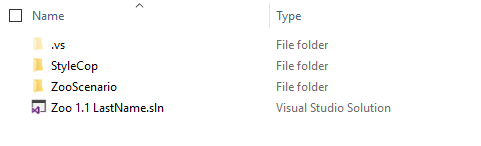
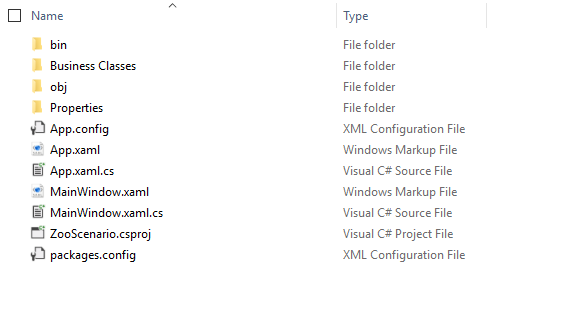
- The StyleCop folder is beside the solution, and packages.config is in the project folder.
- The project and assembly configuration contain the required entries.
- NuGet packages are restored and the required DLLs are unblocked.
Install StyleCop
These are instructions for how to install StyleCop and our custom rule set for the Programming classes. Most if not all of the start code will have this set up, but any time you set up a new Project you will need to take these steps to add StyleCop to that project.
Work through the stories in order. Use the acceptance criteria to check each feature, and complete the nested tasks using the specified names, values, and scenarios.
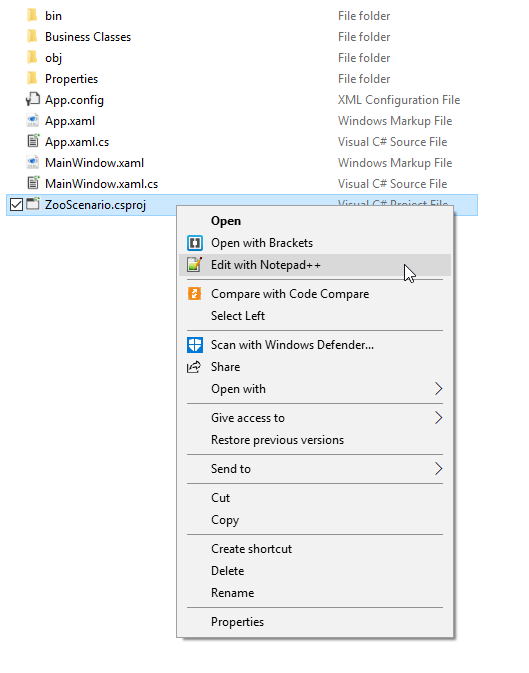
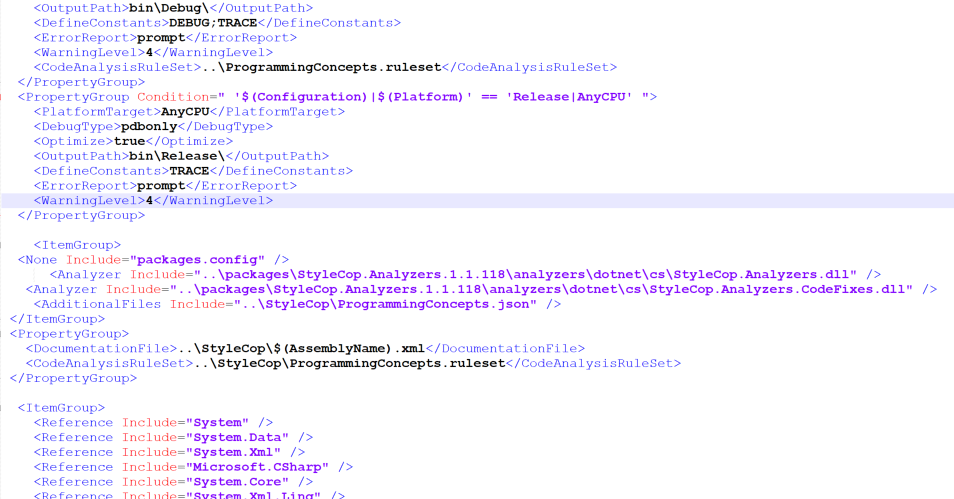
<ItemGroup>
<None Include="packages.config" />
<Analyzer Include="..\packages\StyleCop.Analyzers.1.1.118\analyzers\dotnet\cs\StyleCop.Analyzers.dll" />
<Analyzer Include="..\packages\StyleCop.Analyzers.1.1.118\analyzers\dotnet\cs\StyleCop.Analyzers.CodeFixes.dll" />
<AdditionalFiles Include="..\StyleCop\ProgrammingConcepts.json" />
</ItemGroup>
<PropertyGroup>
<DocumentationFile>..\StyleCop\$(AssemblyName).xml</DocumentationFile>
<CodeAnalysisRuleSet>..\StyleCop\ProgrammingConcepts.ruleset</CodeAnalysisRuleSet>
</PropertyGroup>
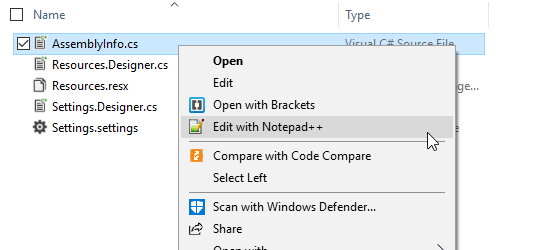
#pragma warning disable SA1005, SA1009, SA1111, SA1507, SA1512, SA1515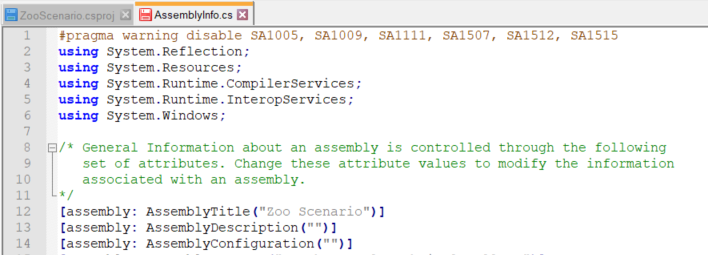
#pragma warning restore SA1005, SA1009, SA1111, SA1507, SA1512, SA1515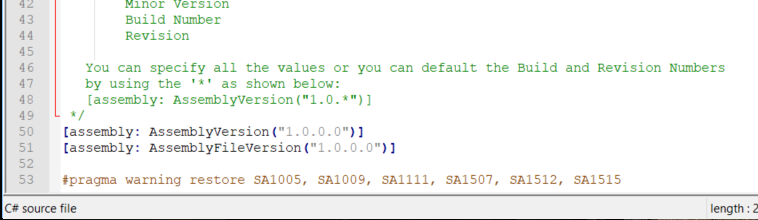
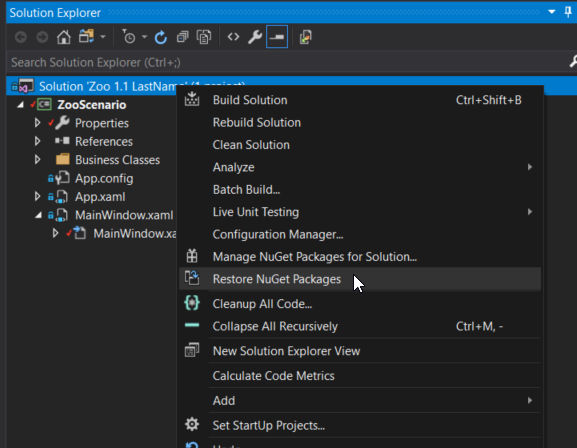

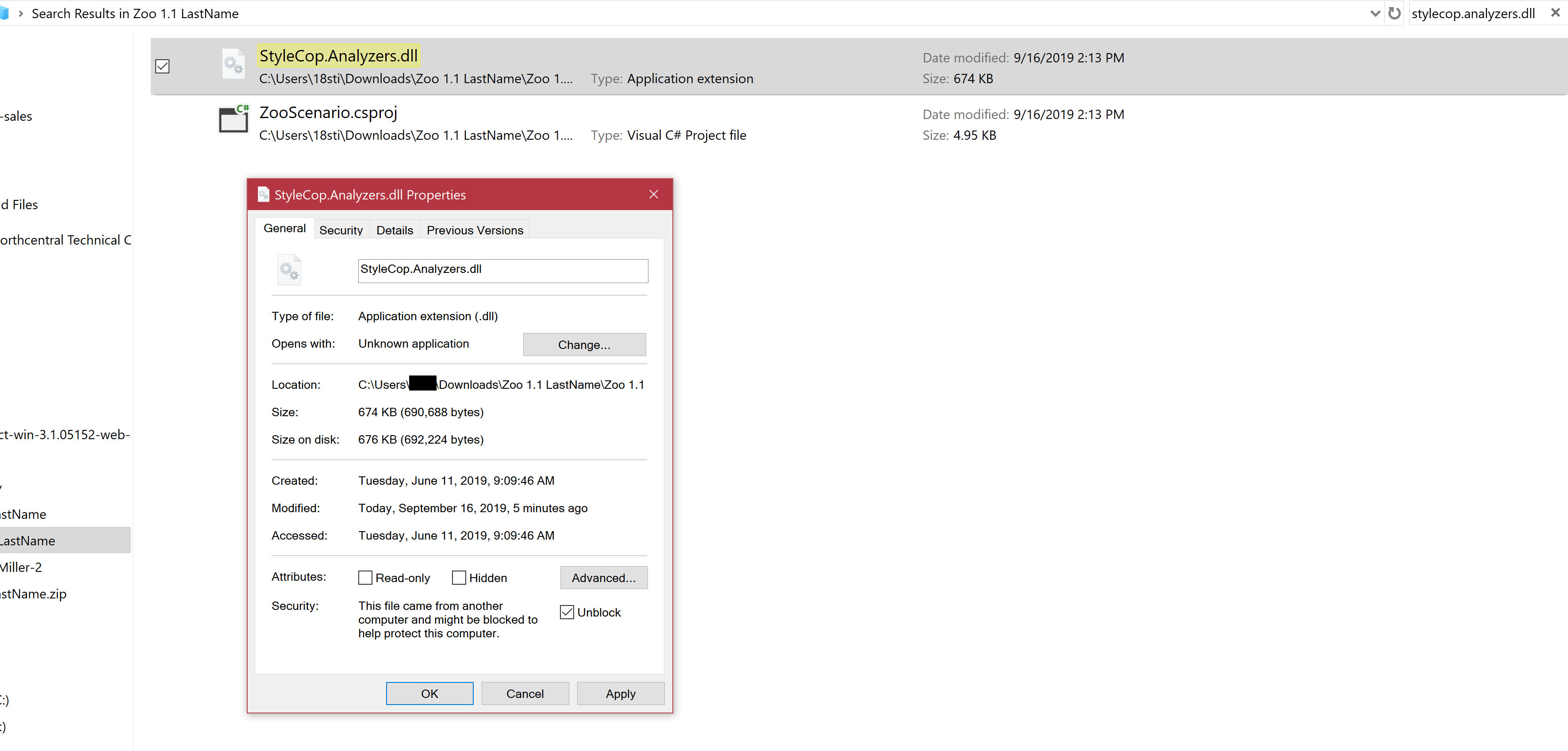
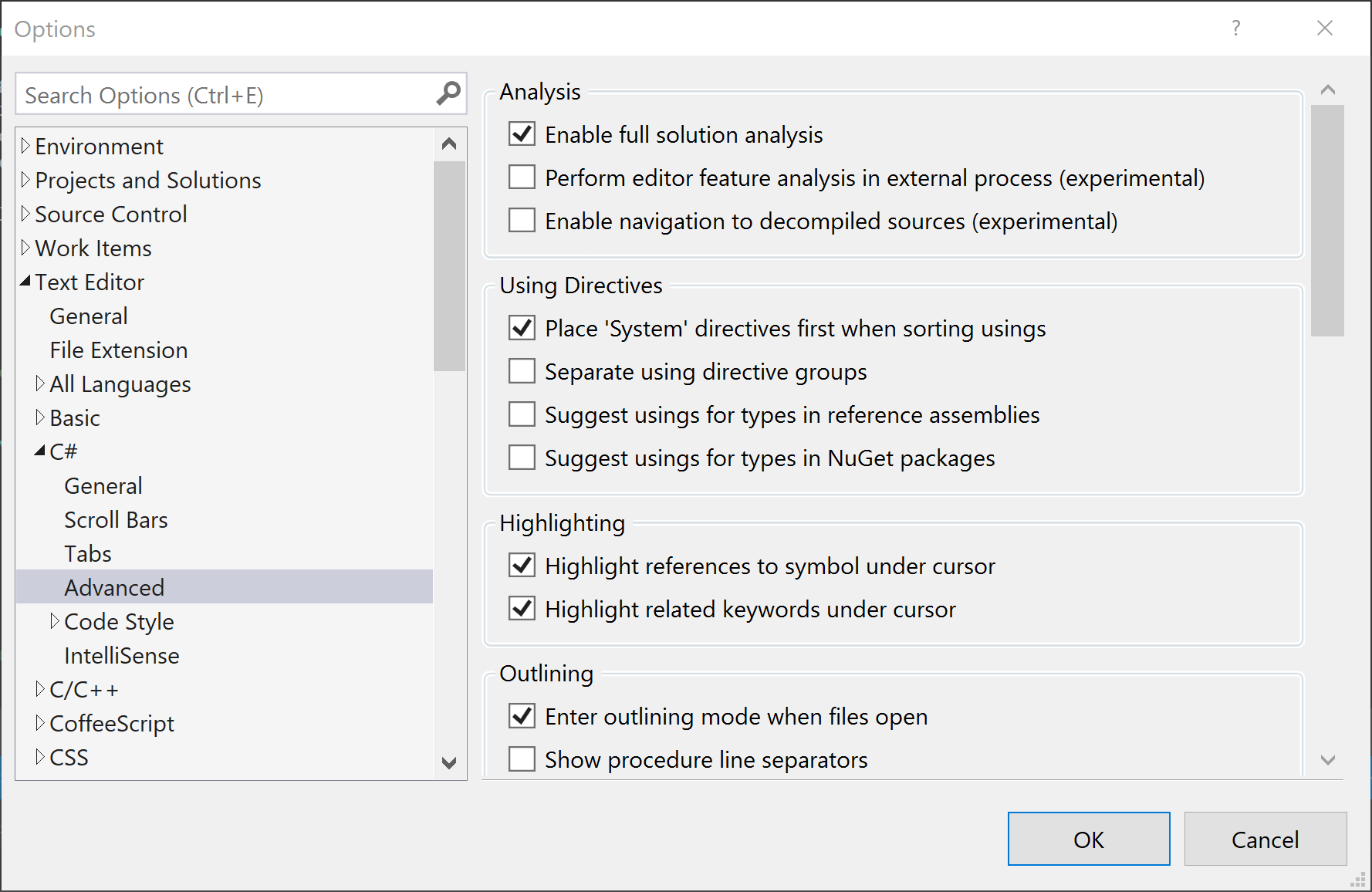
In this step there will be a simple summary tag missing to demonstrate.
Make sure the Build + IntelliSense is selected from the drop down.
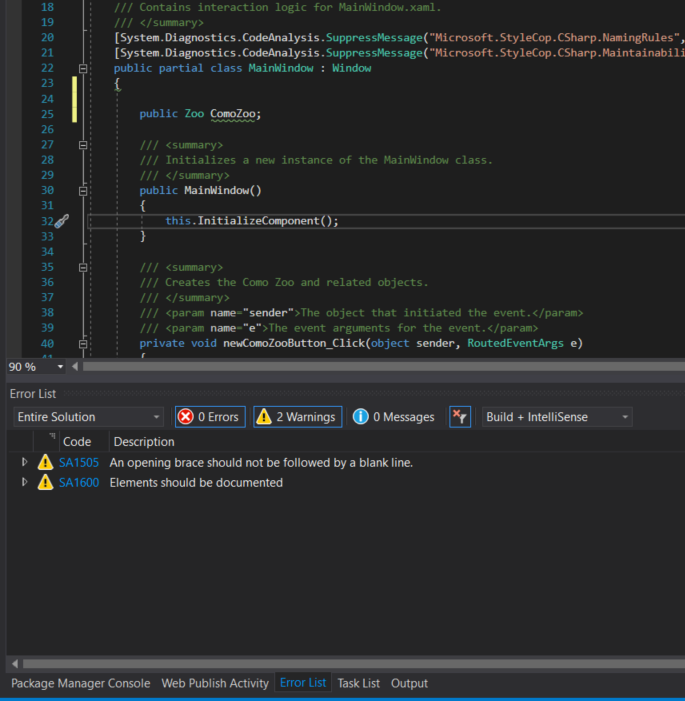
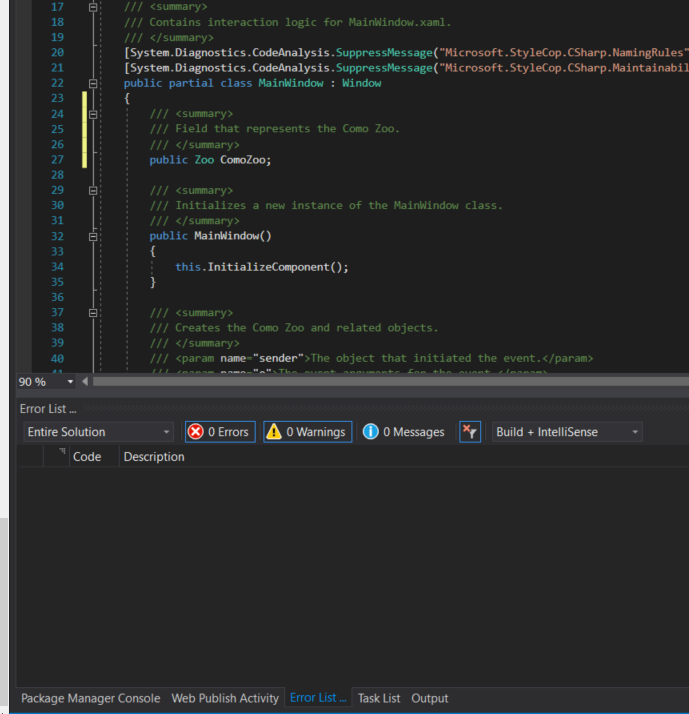
Return to each story and verify its acceptance criteria. Preserve the submission format and destination stated in the activity; a reading, setup guide, lab, video demonstration, and oral final may require different evidence.
Integrate StyleCop with the project Verify the editing and analysis settings