The assignment covers Anonymous Methods, Lambda, and Advanced Delegates.
Work through the stories in order. Use the acceptance criteria to check each feature, and complete the nested tasks using the specified names, values, and scenarios.
If you want, you can follow along with the instructor-led lab video.
1.If you want, you can follow along with the instructor-led lab video.
AIf you want, you can follow along with the instructor-led lab video.
Anonymous Methods
Acceptance Criteria
Acceptance criteria
Press F10. The calculateArea delegate should have the Value of a Method with a Double return and an Int32 parameter.
Press F11. The debugger should jump up to the method body that returns 0.
Continue to press F11. The debugger should step through the method body and return 0.
Press F11 on the call to calculateArea. The debugger should step into the opening curly brace of the method body.
Continue to press F11. The area variable should be assigned 5541.76944....
Instructions
2.Anonymous Methods
ADefine an anonymous method using a delegate.
An 'anonymous method' is a method written "on the fly" that does not require a method header definition. We use anonymous methods when we need some functionality, but don't need other "things" using that method.
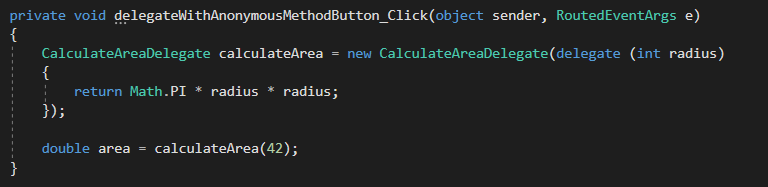
1In the delegateWithAnonymousMethodButton_Click:
Define a CalculateAreaDelegate type delegate named calculateArea.
Assign the delegate to an anonymous method and return 0 for now.
The delegate keyword in this case is the replacement for the method header. The delegate defined in the Delegates class is the real method header. It knows what return type and parameter are needed.
The curly braces is the method body. It might seem odd at first, but you are really just writing a method within a method.
Define a local double type variable named area and assign it to the call to calculateArea, passing in 42.
Check Your Work:
Set a breakpoint on the line of code that assigns calculateArea
Start the application and click 'Delegate with anonymous method'.
Press F10. The calculateArea delegate should have the Value of a Method with a Double return and an Int32 parameter.
Press F11. The debugger should jump up to the method body that returns 0.
Continue to press F11. The debugger should step through the method body and return 0.
2In the delegateWithAnonymousMethodButton_Click:
Replace the 0 with the code below:
Math.PI * radius * radius;
The Math class has a property PI that returns the proper PI so we don't have to continually try to find/memorize it.
Space out the method to make it more readable.
Snip: Clean Anon Method
Add an additional call to calculateArea, passing in 17.
Check Your Work:
Set a breakpoint on the line of code that assigns calculateArea
Start the application and click 'Delegate with anonymous method'.
Press F10. Note that the debugger does not step into the method; this is because we are only defining a method not calling it.
Press F11 on the call to calculateArea. The debugger should step into the opening curly brace of the method body.
Continue to press F11. The area variable should be assigned 5541.76944....
Press F10. The area variable should now be 907.9202....
Press F10. The area variable should now be 907.9202....
We were able to change the functionality of the anonymous method very easily from a return of 0 to a return of a Math function because nothing else was dependent upon it.
3In the delegateWithAnonymousMethodButton_Click:
Paste the code below below the definition of the calculateArea delegate.
calculateArea += newCalculateAreaDelegate(delegate (int side)
{
double a = side * side;
Console.WriteLine("Area of square: " + a);
return a;
});
This code plugs another anonymous method into the delegate, but with different finctionality. This one gets the area of a square.
Replace the method body of the first anonymous method with the code below:
double a = Math.PI * radius * radius;
Console.WriteLine("Area of circle: " + a);
return a;
Check Your Work:
Set a breakpoint on the closing curly brace of the delegateWithAnonymousMethodButton_Click
Start the application and click 'Delegate with anonymous method'.
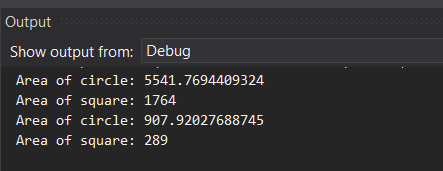
Your Output should look like the image below.
Snip: Area Output
The point of this is to show that as long as the anonymous method takes an int and returns a double you can do anything within the method body.
BDefine a delegate using a lambda.
Lambda expressions (the => symbol) simply put are delegate definition shortcuts.
This should look relatively familiar to the last step. Instead of explicitly defining a delegate type and parameter, the parameter and return are both implicitly defined.
Rename radius to r.
CalculateAreaDelegate calculateArea = r => Math.PI * r * r;
Many times lambda notation looks odd because it is very scrunched together. It is important to remember that the definition after the = is the parameter and the definition after the => is the method body.
Go to the Delegates class and change the return type from double to string.
If you go back to the MainWindow you can see that there are errors in the code you just wrote. That's because the lambda expression is getting the return type from the delegate definition in the Delegates class.
Snip: Delegate Error
Change the return type back to double.
Define a local variable of type double named area and assign it to the call to calculateArea and pass in 42.
Assign area to the call to calculateArea and pass in 17.
Check Your Work:
Set a breakpoint on the line of code that defines calculateArea.
Start the application and click 'Delegate with lambda'.
Press F10 to step over the variable definition. The calculateArea variable should now have a Value of Method and a Type of CalculateAreaDelegate.
Press F11 on the call to calculateArea. The debugger should step into the code to the right of the lambda expression. Additionally, if you hover over the r variable to can see that the value is 42.
Snip: Debug Lambda
Continue pressing F11. The values of area should be 5541.76944...
2In the delegateWithLambdaButton_Click:
Add curly braces around the method body to make it into a "statement lambda".
CalculateAreaDelegate calculateArea = r => { return Math.PI * r * r; };
Statement lambdas can have multiple lines of code inside the body. Current leading practices have no more than two or three lines when doing these.
Replace the code in the method body with the code below:
double a = Math.PI * r * r;
Console.WriteLine("Area of circle: " + a);
return a;
Plug an additional method into the calculateArea variable using a lambda expression that can calculate the area of a square. Use s for the parameter.
Check Your Work:
Set a breakpoint at the end of the delegateWithLambdaButton_Click event handler.
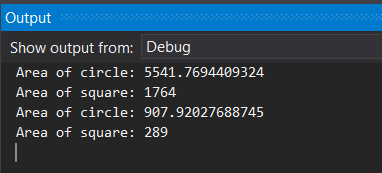
Start the application and click the 'Delegate with lambda' button. Your Output window should show the following:
Snip: Lambda Output
Funcs
Acceptance Criteria
Acceptance criteria
The Output at the end of the event handler should be the following:
The completed implementation satisfies this requirement: Define a new Func with an input type of int and an output type of double named calulateArea.
The completed implementation satisfies this requirement: Assign calculateArea to a new Func with a parameter named radius and return the area.
Instructions
3.Funcs
Recall back to 6.2. When using a delegate type we can explicitly define one as we did in the Delegates class or create them on the fly using things like Funcs, Actions or Predicates. In the case of Funcs, all you need to do is define the input and output.
ADefine a Func delegate with an anonymous method.
1In the funcWithAnonymousMethodButton_Click:
Define a new Func with an input type of int and an output type of double named calulateArea.
Assign calculateArea to a new Func with a parameter named radius and return the area.
Plug in an additional anonymous method to calculate area that would return the area of a square. Use side as the parameter name.
Define a local variable of type double named area and assign it to the call to calculateArea, passing in 42.
Assign area to an additional call to calculateArea and pass in 17.
Check Your Work:
Set a breakpoint on the line that assignscalculateArea to a new Func.
Start the application and click 'Func with anonymous method'.
F11 through the event handler to see what the debugger does.
The behavior should be exactly the same as the delegateWithAnonymousMethodButton_Click except we didn't use an explicitly defined delegate type.
BDefine a Func delegate using a lambda.
1In the funcWithLambdaButton_Click:
Paste the code below:
Func<int, double> calculateArea = r => Math.PI * r * r;
This should look familiar. This is the same structure of the delegateWithLambdaButton_Click, but we haven't used the defined CalculateAreaDelegate type.
Plug in an additional method to the calculateArea delegate that calculates the area of a square. Use s for the parameter.
Define a local variable of type double named area and assign it to the call to calculateArea, passing in 42.
Assign area to an additional call to calculateArea and pass in 17.
Turn the lambda expressions into statement lambdas and copy and paste the code from the delegateWithLambdaButton_Click event handler.
Check Your Work:
Set a breakpoint on the line that defines calculateArea.
Start the application and click 'Func with lambda'
Step through the event handler to see what the debugger does.
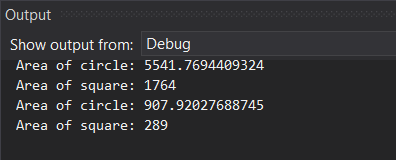
The Output at the end of the event handler should be the following:
Snip: Func Lambda Output
Actions
Acceptance Criteria
Acceptance criteria
Step through the event handler. The debugger should step through the Action's method body twice.
Your Output window should show the two strings "Hello, world!" and "Goodbye."
The completed implementation satisfies this requirement: Call myAction, passing in "Hello, world!" as the argument.
Instructions
4.Actions
As with Funcs, Actions are another type of delegate, but that only define an input and return nothing.
ADefine an Action delegate using an anonymous method.
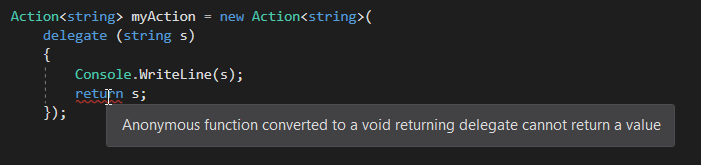
After Console.WriteLine, return s. An error should occur because you cannot return anything with an Action type delegate. Remove the return statement.
Snip: Action Error
Call myAction, passing in "Hello, world!" as the argument.
Call myAction again, passing in "Goodbye." as the argument.
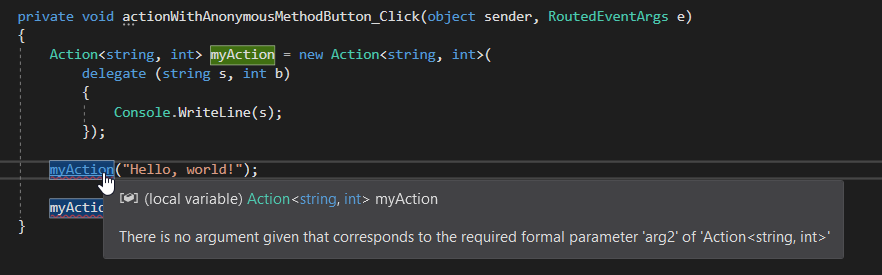
Modify the Action definition so that it takes an additional argument of type int. Note the error that occurs about argument parameters not being met. Remove the int parameter.
Snip: Argument Error
Check Your Work:
Set a breakpoint on the line of code that defines the myAction delegate.
Start the application and click 'Action with anonymous method'.
Step through the event handler. The debugger should step through the Action's method body twice.
BDefine an Action delegate using a lambda expression.
1In the actionWithLambdaButton_Click:
Paste the code below:
Action<string> myAction = s => Console.WriteLine(s);
This does exactly the same thing as the previous step, but without the explicit defintions.
Call myAction, passing in "Hello, world!" as the argument.
Call myAction again, passing in "Goodbye." as the argument.
Check Your Work:
Start the application and click 'Action with lambda'.
Your Output window should show the two strings "Hello, world!" and "Goodbye."
Predicates
Acceptance Criteria
Acceptance criteria
Step through the event handler. The first isMatch should be false and the second should be true.
Step through the event handler to see what the debugger does. The result of isMatch should be the same as the previous step.
Press F11. The debugger should step into the IsLongerThan5 method. Note that the s parameter is "car", the first string in the list.
Continue to F11 until the debugger returns to the event handler. The value returned should be "jukebox" because the Predicate evaluated true, forcing a break from the Find method.
Press F11. The debugger should step into the IsLongerThan5 method. Continue pressing F11. The return should be "jukebox".
Instructions
5.Predicates
Predicates are defined much like Actions, but will always return a boolean value.
ADefine a Predicate delegate using an anonymous method.
1In the predicateWithAnonymousMethodButton_Click:
Define a Predicate type with a string parameter named isLongString.
Predicate<string> isLongString;
Assign isLOngString to a new Predicate with a string parameter named s that returns a boolean of whether or not the Length of the parameter is greater than 5.
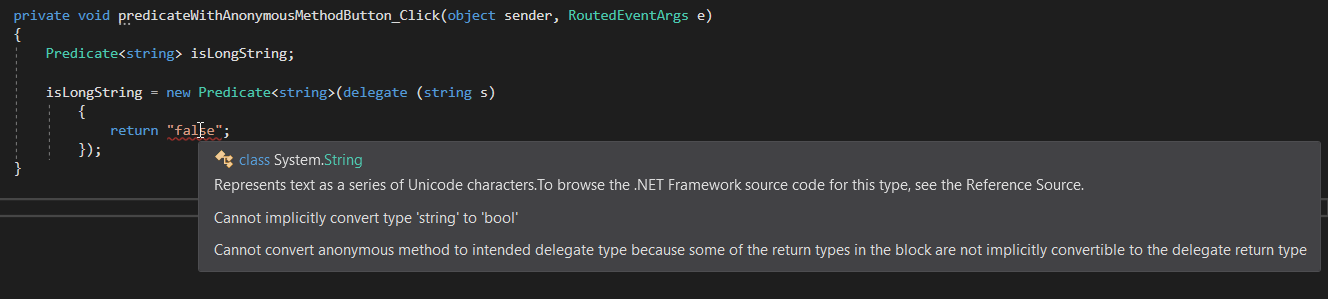
Change the return to return a string. Note the error and change it back.
Snip: Predicate Error
Predicates can ONLY return a boolean value.
Define a local variable of type boolean named isMatch and assign it to the call to isLongString and pass in "Hello" as the argument.
Assign isMatch to an additional call to isLongString, passing in "Goodbye." as the argument.
Check Your Work:
Set a breakpoint on the line of code that instantiates the isLongString delegate.
Start the application and click 'Predicate with anonymous method'.
Step through the event handler. The first isMatch should be false and the second should be true.
BDefine a predicate using a lambda.
1In the predicateWithLambdaButton_Click:
Paste the code below:
Predicate<string> isLongString = s => s.Length > 5;
This is the same as the previous step, just condensed.
Copy and paste the calls to isLongString from the previous method to this one.
Check Your Work:
Set a breakpoint on the line of code that defines isLongString.
Start the application and click 'Predicate with lambda'.
Step through the event handler to see what the debugger does. The result of isMatch should be the same as the previous step.
CFind predicate 1 (All root steps pertain to findPredicate1Button_Click after the list definition).
Predicates can be used as arguments for other methods. In the case we're going to look at, a Predicate can be used as an argument for the Find method that List<string> has that loops through the list and finds the first match based on the Predicate's return. There are several ways to accomplish this.
1Define a Predicate delegate with an argument of type string named isLongString and assign it to the method IsLongerThan5.
2Pass the Predicate into the strings Find method and assign the return to a local variable named longString.
string longString = strings.Find(isLongString);
3Check Your Work:
Set a breakpoint on the line of code that defines isLongString.
Start the application and click 'Find predicate 1'.
Press F10 to assign the predicate.
Press F11. The debugger should step into the IsLongerThan5 method. Note that the s parameter is "car", the first string in the list.
F11 through the method. The Find method loops through a list so the IsLongerThan5 method will be called again, this time with the parameter "van".
Continue to F11 until the debugger returns to the event handler. The value returned should be "jukebox" because the Predicate evaluated true, forcing a break from the Find method.
4Assign longString to the Find method, but pass in the IsLongerThan5 method as an argument.
longString = strings.Find(this.IsLongerThan5);
You can pass in methods as arguments to other methods. This in particular works because IsLongerThan5 fits the structure that the Find method wants (takes a string, returns a bool).
5Assign longString to the Find method, passing in a delegate as the argument.
This looks a little different from previous examples because it lacks the new syantax. The new syantax is optional when defining/intantiating delegates.
6Assign longString to the Find method, passing in a lambda expression as the argument.
7Assign longString to the Find method, passing in a simplified lambda expression as the argument.
longString = strings.Find(s => (s.Length > 5));
Return statements and curly braces are implied.
8Assign longString to the Find method, passing in an even more simplified lambda expression as the argument.
longString = strings.Find(s => s.Length > 5);
The parenthesis are not necessary.
9Assign longString to the Find method, passing in a lambda expression that finds a word greater than 2.
10Check Your Work:
Set a breakpoint on the line of code that calls the Find method and passed in the IsLongerThan5 method.
Start the application and click 'Find predicate 1'.
Press F11. The debugger should step into the IsLongerThan5 method. Continue pressing F11. The return should be "jukebox".
F11 through the next Find call. The debugger should step through the local anonymous method and find "jukebox".
F11 through the next Find call. The debugger should step through the lambda method body and find "jukebox".
F11 through the next Find call. The debugger acts differently here because of the lack of a return statement. It doesn't look like it's hitting the code in the lambda method body but it is.
F11 through the next Find call. The debugger will act the same as the last call.
F11 through the last Find call. This time it should find the string "car".
DFind predicate 2 (All root steps pertain to findPredicate2Button_Click after the list definition).
We can do much more with Predicates when we combine them with different conditions and methods.
1Define a Person type variable named student and set it to the Find method with a predicate for matching a name.
Person student = this.students.Find(p => p.LastName == "Gritz");
This code is the very similar of the code below, which you've seen before. The Find method is like the foreach loop and the conditional is what is being passed in as the argument.
Again, this is a shotened version of an accumulator loop that you have seen before. A student object is passed as an argument and their Salary property is added to a total.
4Use a different extension method to get the totalSalary by assigning the totalSalary variable to the Sum extension method,…
Use a different extension method to get the totalSalary by assigning the totalSalary variable to the Sum extension method, passing in a lambda expression.
totalSalary = this.students.Sum(p => p.Salary);
You will need to add a using for System.LINQ
5Get a list of all the students that are buddies that sit in the back row because their last names start with Z by definind a…
Get a list of all the students that are buddies that sit in the back row because their last names start with Z by definind a List of People and assigning that list to the return of the FindAll extension method, passing in a lambda expression that uses the StartsWith extension method.
Set a breakpoint on the line of code that finds Gritz.
Start the application and click 'Find predicate 2'
Press F11. The debugger should "step through" the Find method twice and return Gritz.
F11 through the ForEach statement. It should go through 6 times and the totalSalary should be 108000.
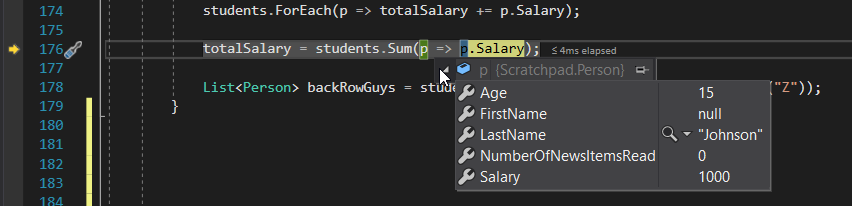
F11 through the Sum statement. The first student should be Johnson. The totalSalary variable should be 108000 again.
Snip: Lambda Parameter
F10 over the FindAll call. The backRowGuys list should have Zink and Zastrow in it.
Func Nuances
Acceptance Criteria
Acceptance criteria
Step through the event handler. The first area should be 192 and the second should be 40.
Step through the event handler. The area variable should be 42.
The completed implementation satisfies this requirement: Define a local variable named area and assign it to the call to calculateRectArea passing in 12 and 16.
Instructions
6.Func Nuances
This step is going to focus on some minor syntax rules in regard to delegates, specifically Func type delegates.
AGet the area of a rectangle. (Multiple Parameters)
So far we've only gotten areas of squares and circles, which are easy because they only take one number to figure out. A rectangle has two different sized sides so we need to different parameters.
1Paste the code below into the NuanceButton1_Click:
Func<int, int, double> calculateRectArea = x, y => x * y;
This will cause errors.
2The errors from the previous step are because the compiler can't recognize the parameters. Put parenthesis around the x, y…
The errors from the previous step are because the compiler can't recognize the parameters. Put parenthesis around the x, y to fix this error.
3Define a local variable named area and assign it to the call to calculateRectArea passing in 12 and 16.
4Assign area to an additional call to calculateRectArea passing in 8 and 5.
5Check Your Work:
Set a breakpoint at the beginning of the NuanceButton1_Click.
Start the application and click 'Nuance 1'
Step through the event handler. The first area should be 192 and the second should be 40.
BReturn a number. (No Parameters)
Funcs are the delegate we use to return something but what if there aren't any parameters needed?
1Paste the code below into the NuanceButton2_Click:
Func<int> get42 = () => 42;
double area = get42();
In order for a Func to work properly without a parameter, empty curly braces need to be defined.
2Check Your Work:
Set a breakpoint at the beginning of the NuanceButton2_Click.
Start the application and click 'Nuance 2'
Step through the event handler. The area variable should be 42.
Submit a zipped Visual Studio solution after completing the following:
7.Submit a zipped Visual Studio solution after completing the following:
AEnsure that the application has no compiler errors or warnings.
BMake the code StyleCop compliant.
CRemove all bin and obj folders from the entire solution.
Completion review
8.Review the feature acceptance criteria
AConfirm the required results
Return to each story and verify its acceptance criteria. Preserve the submission format and destination stated in the activity; a reading, setup guide, lab, video demonstration, and oral final may require different evidence.