6.3A Zoo Assignment

6.3A Zoo Assignment
Make animals hungry using a timer
Acceptance Criteria
Acceptance criteria
  • The hunger timer advances the animal through the required hunger states and changes its behavior.
1.Make animals hungry using a timer
Problem
Solution
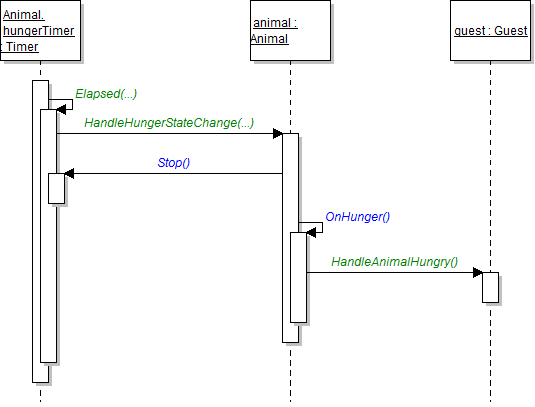
Sequence Diagram: Hunger Delegate. Reference figure for make animals hungry using a timer.
Sequence Diagram: Hunger Delegate
A Make animals hungry on a timer.
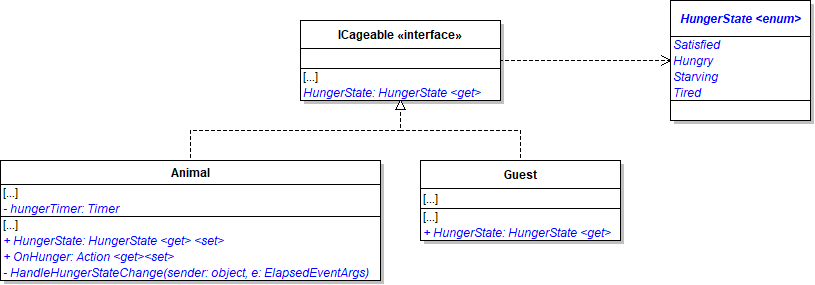
1 Make changes as specified in the class diagram below. Create the HungerState enum in the CagedItems project.
Class Diagram: Hunger Timer. Reference figure for make animals hungry using a timer.
Class Diagram: Hunger Timer
2 In the CreateTimers methods, instantiate and start the hungerTimer, set the interval to a random time between 10 and 20 seconds, plug the HandleHungerStateChange in to the timer's Elapsed event and Start the timer.
new Timer(random.Next(10, 21) * 1000);
3 In the HandleHungerStateChange method, change the animal's hunger state to the next hunger state each time the timer hits it.

The Tired state should not change to anything else.

B Effect how hungry animals move.
1 In the Animal constructor, assign the HungerState to Satisfied as a starting point.
2 Within the MoveHelper's MoveVertically and MoveHorizontally methods, implement the following movement changes based on the animal's hunger state.
Subtasks
  • A. Satisfied animals move normally.
  • B. Hungry animals move at 1/4 the normal rate.
  • C. Starving and tired animals do not move.
C Affect how tired animals are drawn.
1 In the CageWindow.xaml.cs DrawItem method, create a transform group; create the transform group before the if-statement where the item's direction is determined.
TransformGroup transformGroup = new TransformGroup();
How to Apply Multiple Transforms on an Object
2 Skew and scale the tired animal (representing it laying down).
Subtasks
  • A. Create an if-statement checking if the item's HungerState is tired.
  • B. In the if statement, use a SkewTransform to skew the item (animal) at a 30-degree angle.
  • B.1. Create a new SkewTransform and set its AngleX to 30 degrees in the direction the cageable is facing.
SkewTransform tiredSkew = new SkewTransform();
tiredSkew.AngleX = item.XDirection == HorizontalDirection.Left ? 30.0 : -30.0;
Subtasks
  • B.2. Add the SkewTransform to the transform group.
transformGroup.Children.Add(tiredSkew);
Subtasks
  • C. In the if statement, use a ScaleTransform to make the animal appear smaller by 75% of its width and 50% of its height.
transformGroup.Children.Add(new ScaleTransform(0.75, 0.5));
3 Apply the transform to the view box.
Subtasks
  • A. In the if statement that checks the position of the item, remove the line of code that assigns the viewBox's RenderTransform property and instead Add the flipTransform to the transformGroup's Children.
  • B. After the if statements, apply the transform by assigning the viewBox's RenderTransform property to the transformGroup object.
viewBox.RenderTransform = transformGroup;
D Check your work
1 Run the WPF application. Create an animal.
2 Show the animal's cage.

If the animal is satisfied, it will move normally; if the animal is hungry, it will move as 1/4 the normal speed; if the animal is starving, it will not move; if the animal is tired, it will tip over. The movement will then stop.
Have the guest feed their adopted animal automatically.
Acceptance Criteria
Acceptance criteria
  • Guests automatically feed their adopted animals in response to hunger notifications.
2.Have the guest feed their adopted animal automatically.
Problem
Solution
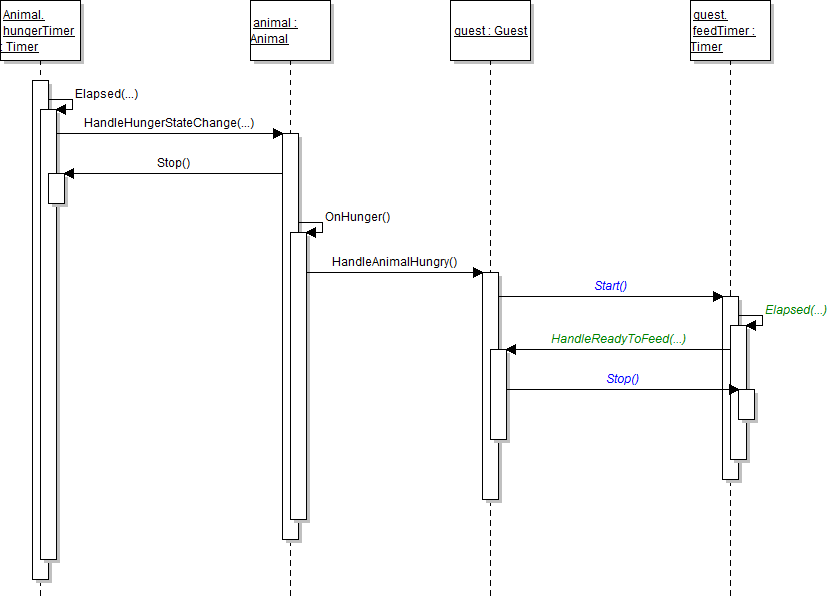
Sequence Diagram: Hunger. Reference figure for have the guest feed their adopted animal automatically.
Sequence Diagram: Hunger
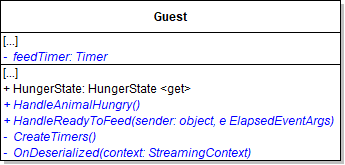
A Make changes as specified in the class diagram below.
Class Diagram: Hunger State. Reference figure for have the guest feed their adopted animal automatically.
Class Diagram: Hunger State
B Call the OnHunger action in the HandleHungerStateChange method when the HungerState is changed to tired.
C The guest's feedTimer will be used to delay the automatic feeding by five seconds.
1 In the CreateTimers method: instantiate the feedTimer to be 5 seconds long and plug in the HandleReadyToFeed method into the Elapsed property.
2 Call CreateTimers in OnDeserialized and in the guest constructor.
3 Add the [OnDeserialized] attribute to the OnDeSerialized method.
D Right now we can't "revive" the animal and have the hungerTimer restart so let's make that happen by modifying the Animal's Eat method
1 After the call to Eat, Stop the hungerTimer.
2 Assign the animal's HungerState to Satisfied.
3 Start the hungerTimer.
E Have the guest "subscribe" to their adopted animal's hunger change. In the AdoptedAnimal property
1 If the adopted animal exists, assign its OnHunger delegate to null.
2 Assign the adoptedAnimal to the value passed in.
3 If the adoptedAnimal exists, plug in the HandleAnimalHungry method to the OnHunger delegate.
F In the HandleAnimalHungry method, start the feedTimer.
G In the HandleReadyToFeed method
1 Have the guest feed their adoptedAnimal and pass in a new VendingMachine object.
2 Stop the feedTimer.
H Handle the threading issues.
6.3.1 How to Use the Dispatcher
1 In the MainWindow, surround the code that updates the guestListBox in a Dispatcher
this.Dispatcher.Invoke(() =>
{
    this.guestListBox.Items.RemoveAt(index);

    this.guestListBox.Items.Insert(index, guest);

    this.guestListBox.SelectedItem = this.guestListBox.Items[index];
});
2 Do the same thing for UpdateAnimalDisplay.

Below is the basic structure of a Dispatcher Invoke. The code that needs to be executed goes in the curly braces.

this.Dispatcher.Invoke(() => { });
I Check your work
1 Run the application and create an animal and a guest.
2 Show the animal cage and wait until the animal is tired and lays down.
3 Select your guest and your animal and click FeedAnimal. The animal should go back to normal and begin moving again.
4 Have your guest adopt the animal.
5 Wait until the animal is tired and lays down again.

This time, wait 5 seconds and the animal should automatically go back to normal and start moving again.
Provide a vending machine to guests for feeding animals.
Acceptance Criteria
Acceptance criteria
  • A Func delegate gives the feeding guest access to the vending machine.
3.Provide a vending machine to guests for feeding animals.
Problem
Solution
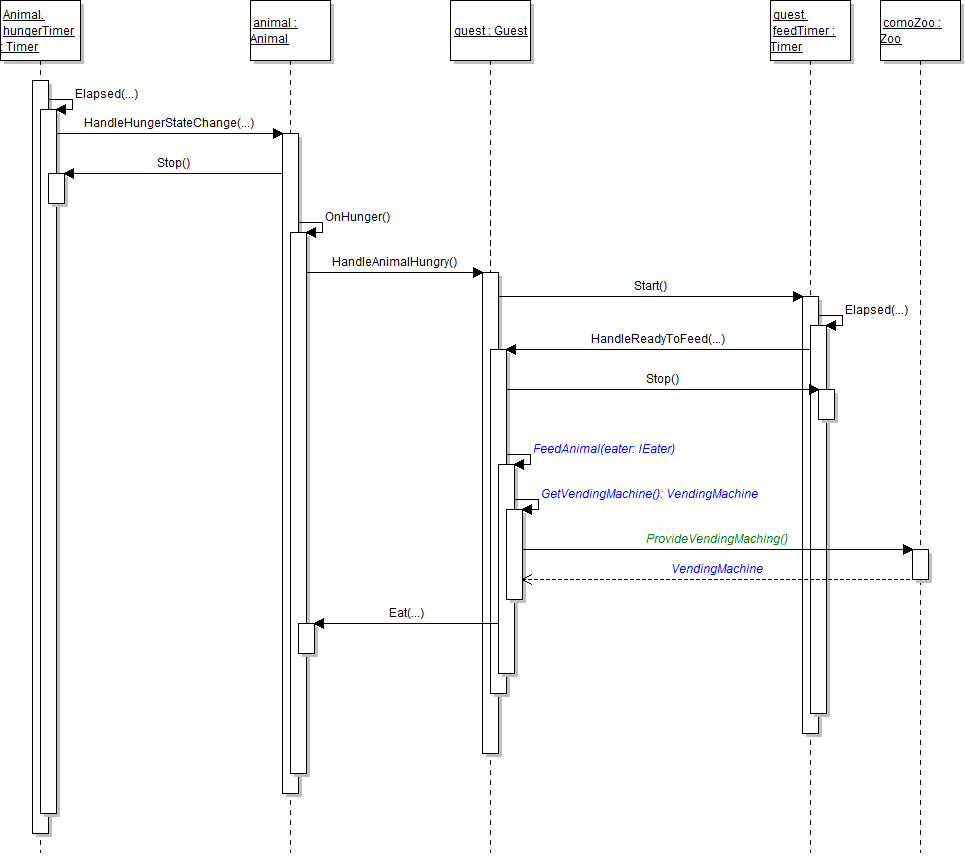
Sequence Diagram: VendingMachine. Reference figure for provide a vending machine to guests for feeding animals.
Sequence Diagram: VendingMachine
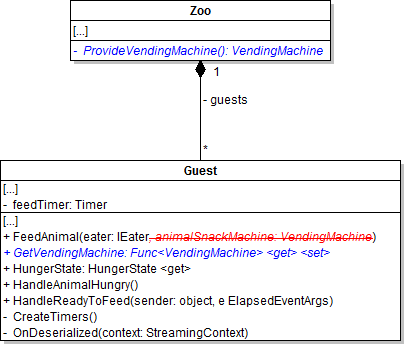
A Make changes as specified in the class diagram below.
Class Diagram: Hunger State. Reference figure for provide a vending machine to guests for feeding animals.
Class Diagram: Hunger State
6.3.2 How to Use Funcs
1 The guest's GetVendingMachine is an auto-property.
2 The zoo's ProvideVendingMachine method returns the zoo's animalSnackMachine.
B Attach the ProvideVendingMachine method to the GetVendingMachine func in the AddGuest method.
C Attach the ProvideVendingMachine method to the GetVendingMachine func in the Guest foreach loop in the OnDeserialized method.
D In the FeedAnimal method in the Guest class, call the guest's GetVendingMachine func and store the object in a variable before finding the price of the food.
E In the feedAnimal event handler, remove the zoo's AnimalSnackMachine property.
F In the Zoo class, remove the AnimalSnackMachine property.
G Check your work
1 Change the animal's hungerTimer to fire every 1-3 seconds.
2 Run the WPF application.
3 Open the cage of the adopted animal.
4 Ensure that every time the animal regains its energy that the guest loses money from going to the vending machine.
Demonstrate your work
4.Record a video showing
A Your WPF Application
1 Step 2I - Check Your Work
Prepare and submit your work
5.Submission Steps
A Ensure that your application has no compiler errors or warnings
B Ensure that your code is StyleCop compliant
C Remove all bin and obj folders from your solution
D Zip your solution
E Submit your zipped solution to the Feedback System
F Submit your Feedback System results link to Canvas
G Submit your video recording to your f-channel
Source credit

© 2026 Northcentral Technical College