This assignments covers Delegates (Funcs, Actions and Predicates) and the Observer Pattern.
Work through the stories in order. Use the acceptance criteria to check each feature, and complete the nested tasks using the specified names, values, and scenarios.
While this looks like a method it is not. It is a TYPE of delegate. Delegates do not define a method body. Delegates only define TYPES (return and parameters). In this case a return of type double and a parameter of type int.
4In the delegateButton_Click:
Define a delegate of type CalculateAreaDelegate named calculateArea.
Assign the calculateArea variable to the method CalculateArea.
There are no parenthesis after CalculateArea because we are not calling it; we are saying make the calculateArea variable a reference to the CalculateArea method.
Change the CalculateAreaDelegate to have an int return instead of a double return.
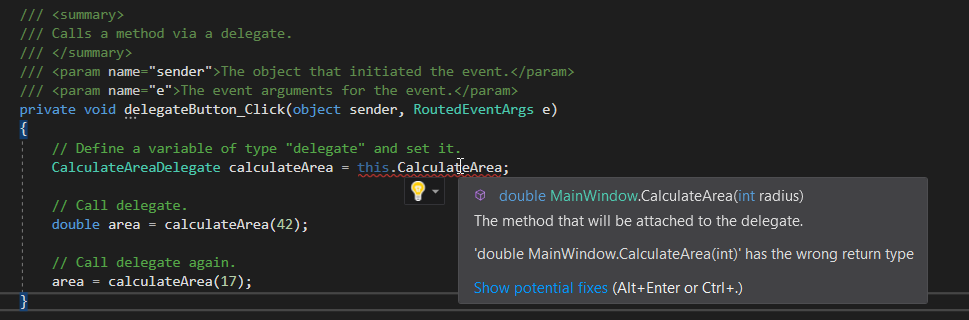
Return to the MainWindow. Note that now the method cannot be assigned to the delegate because the return type no longer matches CalculateArea.
Snip: Delegate Type Error
Change the return of CalculateAreaDelegate back to double.
Define a local variable of type double named area and assign it to the call to calculateArea, passing in 42.
double area = calculateArea(42);
Make another call to calculateArea, passing in 17 and assigning it to the area variable.
CCheck Your Work:
1Set a breakpoint on the line that assigns calculateArea.
2Start the application and click 'Delegate with method'.
3Hover over the calculateArea delegate. Note that it is currently null.
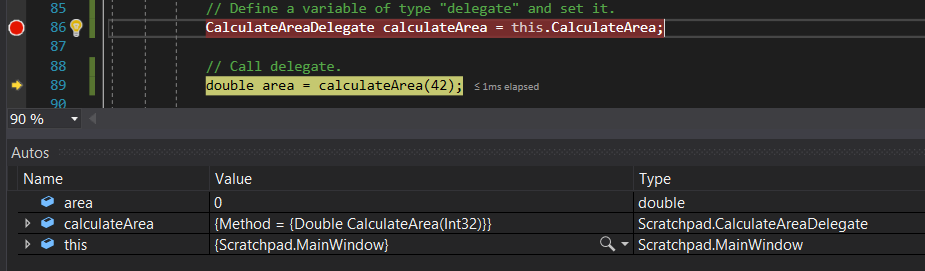
4Press F10. The calculateArea variable should now have the Value of a method and the Type of CalculateAreaDelegate.
Snip: Autos Delegate
5Press F11. The debugger should step into the CalculateArea method assigned to the calculateArea variable.
6Step through the method and back to the MainWindow. The area variable should be 5538.96
7F10 over the second call. The area variable should now be 907.46
Intro to Funcs
Acceptance Criteria
Acceptance criteria
Start the application and click the 'Func with method' button. The calculateArea Func should be null.
Press F10. The calculateArea variable should now have the Value of Method and be of Type Func<int, double>
Press F11. The debugger should step into the CalculateArea method.
Step through the remaining method. The area variable should be 5538.96 and then 907.46.
Instructions
3.Intro to Funcs
Funcs are referred to as "syntactic sugar" at times because they do the work of a defined delegate such as the previous example, but on the fly.
A Func type declares an input and an output. In this case the input is an int and the output it a double. Multiple inputs can be declared such as <int, string, double> in which int and string would be parameters and the double would be the return. The last type declared will always be return. The CalculateArea method can then be assigned to the Func because it takes an int and returns a double.
2Call the calculateArea delegate, passing in 42 and assigning the result to a local area variable.
3Call the calculateArea delegate again, passing in 17 and assigning the result to the local area variable.
BChange the parameter type of the CalculateArea method to double instead of int.
Snip: Func Error
Because the parameter does not match the <int, double> type as defined by the Func it is not compatible.
CChange the parameter type of the CalculateArea method back to int.
DCheck Your Work:
1Set a breakpoint on the line of code that assigns the calculateArea variable.
2Start the application and click the 'Func with method' button. The calculateArea Func should be null.
3Press F10. The calculateArea variable should now have the Value of Method and be of Type Func<int, double>
4Press F11. The debugger should step into the CalculateArea method.
5Step through the remaining method. The area variable should be 5538.96 and then 907.46.
Intro to Actions
Acceptance Criteria
Acceptance criteria
Start the application and click 'Action with method'. The myAction variable should be null.
Press F10. The myAction variable should have a Value of Method and a Type of Action<string>
Press F11. The debugger should step into the WriteToConsole method.
F11 through the remaining method. Use the Output window to ensure the proper strings are output.
Instructions
4.Intro to Actions
Actions are the same as Funcs, but they do not have a return type.
ACall a method directly.
1In the directMethodWithoutReturnButton_Click:
Call WriteToConsole and pass in "Hello, world!" as the argument.
Call WriteToConsole and pass in "Goodbye." as the argument.
BCall a method using an Action type delegate.
1In the actionWithMethodButton_Click:
Paste the code below.
Action<string> myAction = this.WriteToConsole;
The only thing declared in the < > for an Action is the parameter type(s).
Call myAction and pass in "Hello, world!"
Call myAction and pass in "Goodbye."
CCheck Your Work:
1Set a breakpoint on the line of code that assigns the myAction variable.
2Start the application and click 'Action with method'. The myAction variable should be null.
3Press F10. The myAction variable should have a Value of Method and a Type of Action<string>
4Press F11. The debugger should step into the WriteToConsole method.
5F11 through the remaining method. Use the Output window to ensure the proper strings are output.
Intro to Predicates
Acceptance Criteria
Acceptance criteria
Start the application and click 'Predicate with method'. The isLongString variable should be null.
Press F10. The isLongString variable should have a Value of Method and be of Type Predicate<string>.
Press F11. The debugger should step into the IsLongThan5 method.
Step through the remaining method. The variable isMatch should be false and then true.
Instructions
5.Intro to Predicates
Predicates are Funcs that return a boolean value.
ACall method directly.
1In the directMethodWithBoolReturnButton_Click event handler:
Define a local variable named isMatch of type bool and assign it to the call to IsLongerThan5 and pass in "Hello" as the argument.
Assign isMatch to the call to IsLongerThan5 and pass in "Goodbye." as the argument.
2Start the application and step through the code to ensure it works properly.
BCall method using a Predicate.
1In the predicateWithMethodButton_Click:
Define a Predicate with a string parameter named isMatch and assign it to the IsLongerThan5 method.
Since Predicates always return a bool type there is no reason to declare it in the < >
Call isLongString, passing in "Hello" and assigning the result to a local variable named isMatch of type bool.
Call isLongString again, passing in "Goodbye." and assigning it to the isMatch variable.
CCheck Your Work:
1Set a breakpoint on the line of code that assings the isLongString variable.
2Start the application and click 'Predicate with method'. The isLongString variable should be null.
3Press F10. The isLongString variable should have a Value of Method and be of Type Predicate<string>.
4Press F11. The debugger should step into the IsLongThan5 method.
5Step through the remaining method. The variable isMatch should be false and then true.
Paperboy Example
Acceptance Criteria
Acceptance criteria
F10 over the calls to RegisterObserver. Bob and Frank should be added to the observers list.
F11 through the loop. Both Bob and Frank should read the new headline.
The completed implementation satisfies this requirement: Call the washingtonPost object's UpdateNews method and pass in the argument "Political Scandal...".
Instructions
6.Paperboy Example
In the case of a paperboy, they would need to deliver a paper to every house regardless of if they wanted it or not. This is a "push" system. Things changed, however, when people would subscribe to the newspaper and then only subscribers would get papers. This is a "pull" system. This pull system (called the Observer Pattern) relieves the strain on the paperboy and gives control to the person.
ACall methods directly.
1In the paperDirectMethodButton_Click event handler:
Call the washingtonPost object's UpdateNews method and pass in the argument "Political Scandal...".
Call the bob object's ReadNews method and pass in this.washingtonPost.News
Do the same for the frank object.
Call UpdateNews and pass in a new headline.
Call ReadNews again for Bob and Frank.
There is a major issue here. Bob and Frank have no idea when the news updates so they would have to constantly be reading the news, waiting for it to update. This translates to a ton of wasted method calls on the Bob and Frank objects.
BUse the Observer Pattern.
1Review the interfaces.
The ISubject interface represents the newspaper in this case and needs to know how to Register, Unregister, and Notify.
The IObserver represents the customer and they need to know when the paper (the ISubject) updates.
2Implement interfaces.
Have the Person class implement the IObserver interface,
Have the Publisher class implement the ISubject interface.
3In the Update method in the Person class:
Assign a local variable of type Publisher named publisher to the subject as a Publisher.
Call ReadNews and pass in the publisher's News property.
4In the Publisher class, define and instantiate a private field of type List<IObserver> named observers.
5In the RegisterObserver method, add the passed in observer to the observers list.
6In the UnregisterObserver method, remove the passed in observer from the observers list.
7In the NotifyObservers method, loop through the observers list and call Update on each IObserver, passing in the ISubject (this).
8In the UpdateNews method, call NotifyObservers after assigning the News property.
9In the paperObserverPatternButton_Click event handler:
Call the washingtonPost object's RegisterObserver method and pass in this.bob.
Call RegisterObserver again and pass in this.frank.
Call the washingtonPost object's UpdateNews method and pass in a headline.
10Check Your Work:
Set a breakpoint on the line of code that calls RegisterObserver.
Start the application and click the 'Paper observer pattern' button.
F10 over the calls to RegisterObserver. Bob and Frank should be added to the observers list.
F11 into the UpdateNews method.
F11 into the NotifyObservers method.
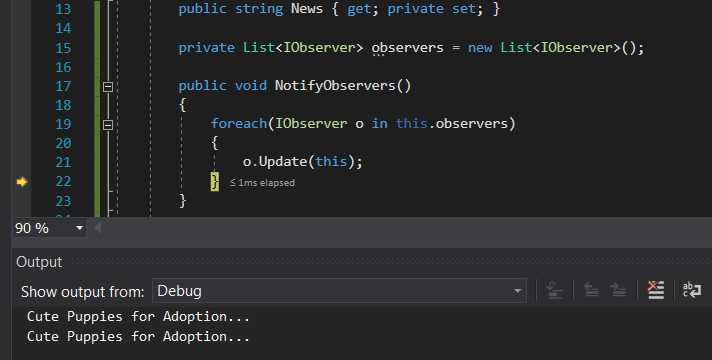
F11 through the loop. Both Bob and Frank should read the new headline.
Snip: Observer Output
Now instead of Bob and Frank continually refreshing their browser to check if the news has changed, whenever the news changes they will be altered and will read it then.
Multicasting
Acceptance Criteria
Acceptance criteria
Press F11. The debugger should step into the WriteToConsole method.
F11 through that method. The debugger should then step into the WriteToConsole2 method.
Step through the rest of the event handler. The output should be the same as below.
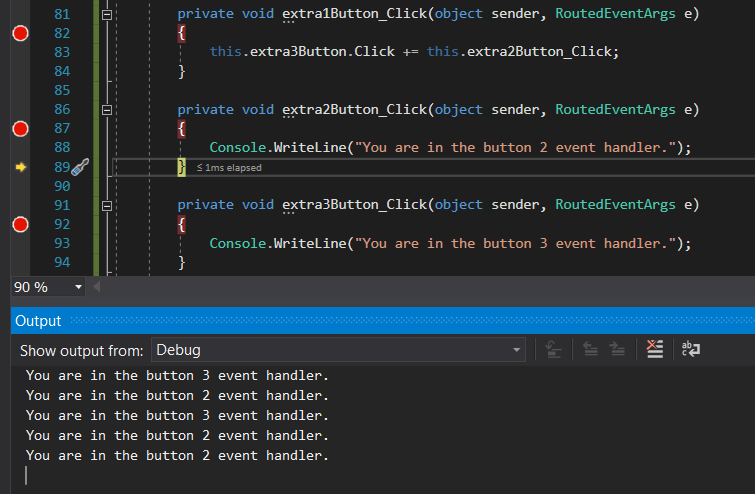
F11 through the event handler. The debugger should step into the extra2Button_Click event handler.
F11 through the event handler. This time the debugger should go through the extra2Button event handler twice because it was plugged in a second time.
Instructions
7.Multicasting
AMulticast a delegate.
1In the actionWithMethodButton_Click event handler, under the lines of code that assigns myAction paste the code below.
myAction += WriteToConsole2;
What this does is plug in an additional method to the delegate so that both methods execute when the delegate is invoked/called.
2Check Your Work:
Set a breakpoint on the line of code that calls myAction.
Start the application and click 'Action with method'.
Press F11. The debugger should step into the WriteToConsole method.
F11 through that method. The debugger should then step into the WriteToConsole2 method.
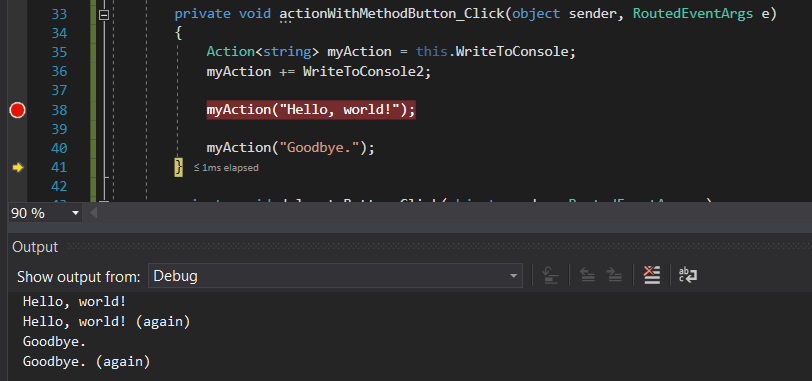
Step through the rest of the event handler. The output should be the same as below.
Snip: Multicast Delegate
BMulticast an event.
Event handlers are methods that are plugged into button delegates. A Click event, for instance, is a property on a button that takes an object type and a RoutedEventArgs type. What that means is that we can plug additional methods into that delegate type.
1Inside the extra1Button_Click, paste the code below:
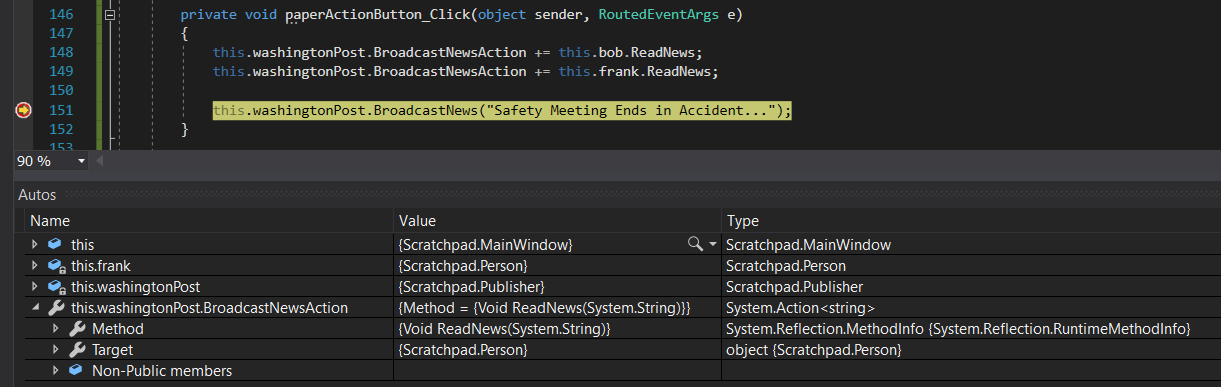
1Set a breakpoint on the line of code that calls BroadcastNews.
2Start the application and click 'Paper action'. The BroadcastNewsAction should have the Method ReadNews and have the Target of Person.
Snip: Delegate Properties
3Press F11 and step through the BroadcastNews method.
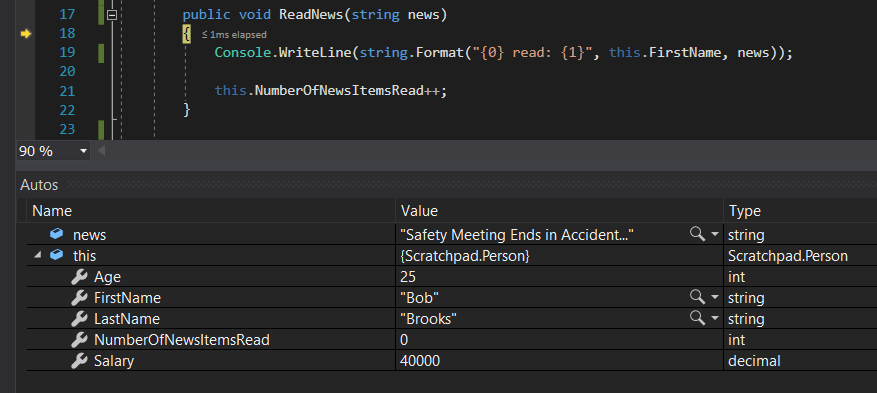
4Press F11 on the BroadcastNewsAction delegate. The debugger should step into Bob's ReadNews method.
Snip: ReadNews
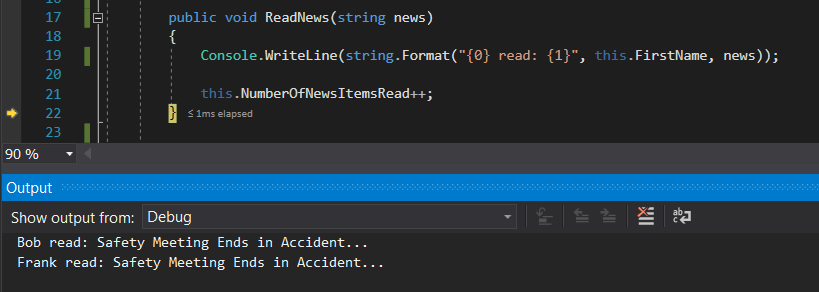
5F11 through ReadNews and ReadNews should be called again, but this time on Frank.
Snip: Output
Submit a zipped Visual Studio solution after completing the following:
9.Submit a zipped Visual Studio solution after completing the following:
AEnsure that the application has no compiler errors or warnings.
BMake the code StyleCop compliant.
CRemove all bin and obj folders from the entire solution.
Completion review
10.Review the feature acceptance criteria
AConfirm the required results
Return to each story and verify its acceptance criteria. Preserve the submission format and destination stated in the activity; a reading, setup guide, lab, video demonstration, and oral final may require different evidence.