6.1 Launchpad Assignment

Overview

6.1 Launchpad Assignment

Topics covered in this assignment include: XML serialization, Object initializers, Collection initializers, Inheritance (review)

Work through the stories in order. Use the acceptance criteria to check each feature, and complete the nested tasks using the specified names, values, and scenarios.

Create and set up application
Acceptance Criteria
Acceptance criteria
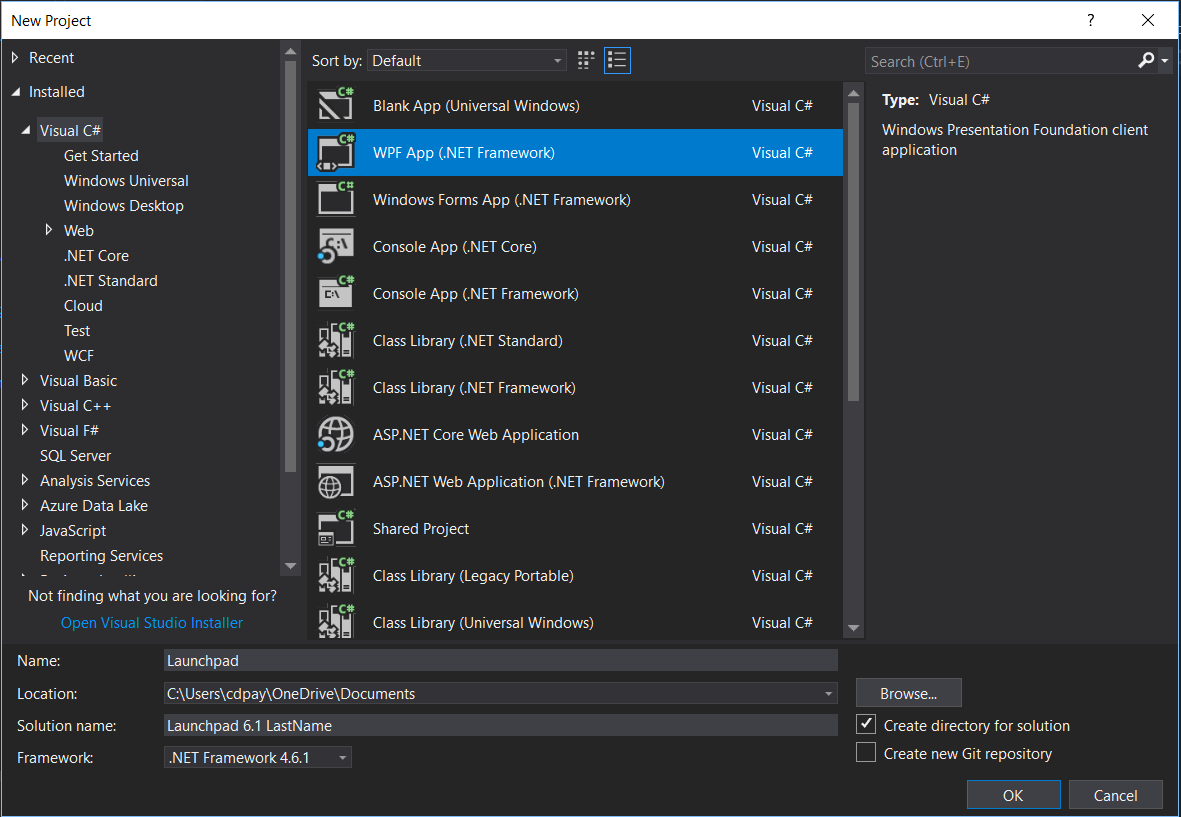
  • The completed implementation satisfies this requirement: Create a new WPF application called Launchpad with the Solution name 6.1 Launchpad and then your last name.
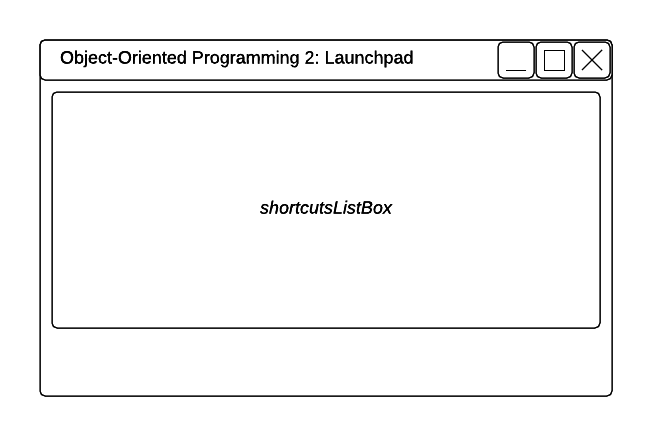
  • The completed implementation satisfies this requirement: Add controls to the MainWindow as shown in the wireframe below.
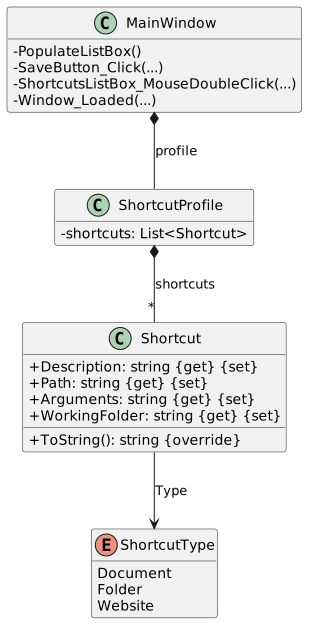
  • MainWindow exposes the required contract: PopulateListBox(); SaveButton_Click(...); ShortcutsListBox_MouseDoubleClick(...); Window_Loaded(...).
  • ShortcutProfile exposes the required contract: shortcuts: List<Shortcut>.
Instructions
1.Create and set up application
Problem

You want to build a desktop application that stores shortcut information for folders, documents, applications, and websites and launches said shortcut when double-clicked.

Solution

In this step, you will create the initial structure the application.

A Create a new WPF application called Launchpad with the Solution name 6.1 Launchpad and then your last name.
Snip - New Project for 6.1 Launchpad Assignment. Use the adjacent task instructions to identify the required controls, output, or debugger values.
Snip - New Project
B Add controls to the MainWindow as shown in the wireframe below.
Wireframe for 6.1 Launchpad Assignment. Use the adjacent task instructions to identify the required controls, output, or debugger values.
Wireframe
C Create classes.
1 Create classes, methods, event handlers, and properties as specified in the diagram below.
Class Diagram: Shortcuts; Members and relationships are shown in the editable reference; unrelated members may be omitted.
Class Diagram: Shortcuts
  • New
  • Changed
  • Removed
2 The Shortcuts property in the ShortcutProfile class should return a List of shortcuts.
3 The properties in the Shortcut class are all auto-properties.
4 The shortcut's ToString method should return its description.
D Check Your Work: Build the solution and ensure that the code compiles without errors or warnings.
Create shortcuts using object initializers
Acceptance Criteria
Acceptance criteria
  • The completed implementation satisfies this requirement: Use object initializers to add shortcuts to the list where it is instantiated, as shown in the code below. Add at least three shortcuts of different types. Each shortcut should point to a valid path on your computer and/or website.
  • The completed implementation satisfies this requirement: Call the PopulateListBox method from the window_Loaded event handler.
Instructions
2.Create shortcuts using object initializers
Problem

You want to generate a small list of default shortcuts and show them in the list box. In this task,

Solution

You will use object initializers to populate a list of shortcuts. You will also use that list to populate a list box in the window.

A Instantiate the shortcut profile's shortcuts list to a new list at the field definition.
B Use object initializers to add shortcuts to the list where it is instantiated, as shown in the code below. Add at least…

Use object initializers to add shortcuts to the list where it is instantiated, as shown in the code below. Add at least three shortcuts of different types. Each shortcut should point to a valid path on your computer and/or website.

Object and collection initializers in C#

Object and collection initializers in C#
private List<Shortcut> shortcuts = new List<Shortcut>()
{
new Shortcut { Description = "Applications", Path = @"C:\Applications", Type = ShortcutType.Folder },
new Shortcut { Description = "Canvas", Path = @"https://northcentral.instructure.com/", Type = ShortcutType.Website },
new Shortcut { Description = "Example Doc", Path = @"C:\Users\cdpay\OneDrive\Desktop\example_file.doc", Type = ShortcutType.Document }
};

These are example shortcuts. Be sure to create shortcuts to applications and folders which are present on your computer.

C Show shortcuts in the MainWindow's list box.
1 In the MainWindow's constructor, instantiate the shortcutProfile to a new ShortcutProfile.
2 In the PopulateListBox method, populate the list box with all of the shortcuts in the shortcut profile.

Use the ItemsSource property.

3 Call the PopulateListBox method from the window_Loaded event handler.
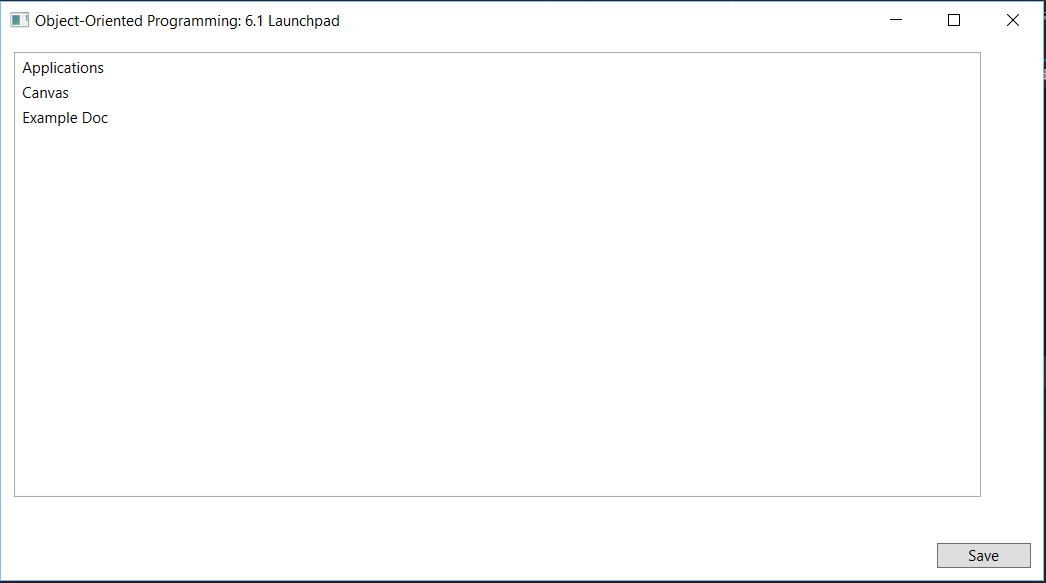
D Check Your Work: Run the application. All of the shortcuts should appear in the list box.
Snip: ListBox Shortcuts for 6.1 Launchpad Assignment. Use the adjacent task instructions to identify the required controls, output, or debugger values.
Snip: ListBox Shortcuts
Launch shortcuts by double-clicking
Acceptance Criteria
Acceptance criteria
  • Double click a website shortcut. The specified website should open in a browser tab.
  • Double click a folder shortcut. A File Explorer window should open to the specified folder.
  • Double click a document shortcut. The specified document should open in the appropriate application.
Instructions
3.Launch shortcuts by double-clicking
Problem

You have your shortcuts initialized and showing up in the list box, but they don't launch yet!

Solution

You will write code to launch the selected shortcut when it is double-clicked.

A In the mouse double click event of the list box, get the selected item and cast it as a shortcut and store it in a local…

In the mouse double click event of the list box, get the selected item and cast it as a shortcut and store it in a local variable named shortcut.

B Check if the shortcut exists. If it does:
1 Create a new instance of the Process class (in the System.Diagnostics namespace) named process.

Process class (MSDN)

Process class (MSDN)

Process class (DotNetPerls)

Process class (DotNetPerls)
2 Set the process' StartInfo's FileName to the shortcut's Path.
3 Set the process' StartInfo's Arguments to the shortcut's Arguments.
4 Set the process' StartInfo's UseShellExecute to true.
5 Set the process' StartInfo's WorkingDirectory to the shortcut's WorkingFolder.
6 In a try block, call the process' Start method. Put the following code in the catch block:
MessageBox.Show("Could not launch the process.", "Error", MessageBoxButton.OK, MessageBoxImage.Error);
C Check Your Work:
1 Run the application.
2 Double click a website shortcut. The specified website should open in a browser tab.
3 Double click a folder shortcut. A File Explorer window should open to the specified folder.
4 Double click a document shortcut. The specified document should open in the appropriate application.
Serialize shortcuts to an XML document
Acceptance Criteria
Acceptance criteria
  • Go to the bin/Debug folder of the application. The Launchpad.xml file should have been created.
  • Open the XML file. Notice the structure of the document and how each shortcut was stored.
  • The completed implementation satisfies this requirement: Add a using that defines a Stream object named stream and assigns it to the results of calling File.Create and passing in @"Launchpad.xml"
Instructions
4.Serialize shortcuts to an XML document
Problem

Currently we are of storing all of our shortcuts in the object initializer, but we really want to be able to save and load custom shortcut files.

Solution

You will use serialization to store all the shortcuts to an XML file so it can be saved and loaded.

A In the save button's click event, use an XmlSerializer to serialize the shortcut profile to a file called Launchpad.xml.

Using an XmlSerializer is very similar - almost identical - to using a BinaryFormatter for serialization. Try using the serialization code from the zoo and swapping out the BinaryFormatter for an XmlSerializer.

1 Instantiate a new XmlSerializer named serializer and pass in a typeof(ShortcutProfile).

Using: System.Xml.Serialization;

2 Add a using that defines a Stream object named stream and assigns it to the results of calling File.Create and passing in…

Add a using that defines a Stream object named stream and assigns it to the results of calling File.Create and passing in @"Launchpad.xml"

Using:System.IO;

3 In the using, call the serializer object's Serialize method and pass in the stream and shortcutProfile.
B Check Your Work:
1 Run the application and click the save button.
2 Go to the bin/Debug folder of the application. The Launchpad.xml file should have been created.
3 Open the XML file. Notice the structure of the document and how each shortcut was stored.
<?xml version=”1.0” encoding=”ISO-8859-1”?>
<ShortcutProfile xmlns:xsd=”http://www.w3.org/2001/XMLSchema” xmlns:sxi=”http://www.w3.org/2001/XMLSchema-Instance”>
<Shortcuts>
<Shortcut>
<Description>Applications</Description>
<Path>C:\Applications</Path>
<Type>Folder</Type>
</Shortcut>
<Shortcut>
<Description>Canvas</Description>
<Path>https://northcentral.instructure.com/</Path>
<Type>Website</Type>
</Shortcut>
<Shortcut>
<Description>Example Doc</Description>
<Path>C:\Users\superman\OneDrive\Desktop\example_file.doc</Path>
<Type>Document</Type>
</Shortcut>
</Shortcuts>
</ShortcutProfile>
Implement inheritance for different shortcut types
Acceptance Criteria
Acceptance criteria
  • Examine the Launchpad.xml file. Notice the new xsi:type attributes on each shortcut element. These are added automatically when serializing descendant objects.
  • The completed implementation satisfies this requirement: Add a fourth shortcut that is of type ApplicationShortcut and have the Path point to an application on your machine.
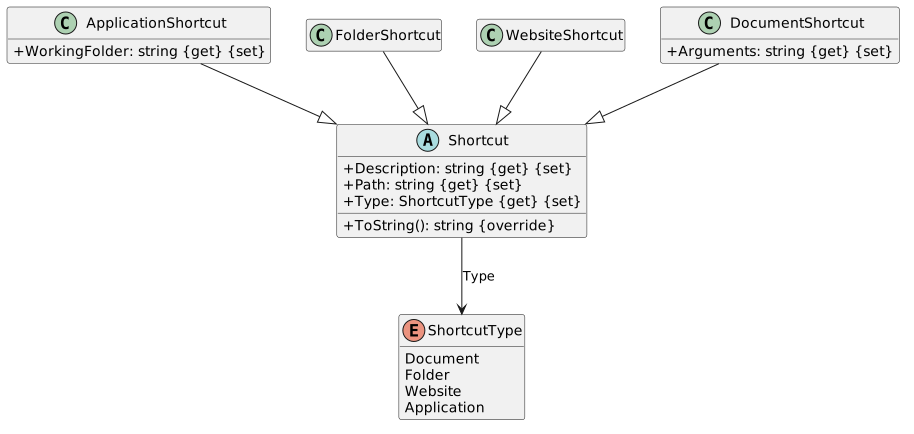
  • Shortcut exposes the required contract: Description: string get set; Path: string get set; Type: ShortcutType get set; ToString(): string override.
  • ShortcutType exposes the required contract: Document; Folder; Website; Application.
Instructions
5.Implement inheritance for different shortcut types
Problem

You want your shortcut structure to be more robust so that you can specify types of shortcuts instead of using one abstract base class.

Solution

You will implement an inheritance structure for shortcut types and serialize the new structure to an XML file.

A Make changes to the class structure as specified in the diagram below.
Class Diagram: Shortcut Inheritance; Members and relationships are shown in the editable reference; unrelated members may be omitted.
Class Diagram: Shortcut Inheritance
  • New
  • Changed
  • Removed
B In the object initializer in the ShortcutProfile class, use the shortcut subclasses instead of the base Shortcut class to…

In the object initializer in the ShortcutProfile class, use the shortcut subclasses instead of the base Shortcut class to create shortcut objects.

C In the list box's double click event, only set the process's Arguments if the shortcut is a DocumentShortcut. Only set the…

In the list box's double click event, only set the process's Arguments if the shortcut is a DocumentShortcut. Only set the process's UseShellExecute and WorkingDirectory if the shortcut is an ApplicationShortcut. Use casting and type-checking to accomplish this task.

Nest the DocumentShortcut code inside the ApplicationShortcut code.

if (shortcut is DocumentShortcut)
{
process.StartInfo.Arguments = (shortcut as DocumentShortcut).Arguments;
}
D Add a fourth shortcut that is of type ApplicationShortcut and have the Path point to an application on your machine.
Example: { Description = "Notepad", , Path=@"C:\windows\system32\notepad.exe", , Type=ShortcutType.Application
E Add four XmlInclude attributes to the ShortcutProfile class, one for each of the four shortcut subclasses, as shown in the code below:
[XmlInclude(typeof(ApplicationShortcut))]
F Check Your Work:
1 Run the application and click the save button.
2 Examine the Launchpad.xml file. Notice the new xsi:type attributes on each shortcut element. These are added automatically…

Examine the Launchpad.xml file. Notice the new xsi:type attributes on each shortcut element. These are added automatically when serializing descendant objects.

Load shortcuts from XML file
Acceptance Criteria
Acceptance criteria
  • Run the application. The shortcuts should be loaded into the list box (from the XML file, not the object initializer).
  • Launch each of the shortcuts to ensure they still work correctly.
  • The completed implementation satisfies this requirement: Remove the save button and its click event from the MainWindow.
Instructions
6.Load shortcuts from XML file
Problem

The shortcuts are still being populated from the object initializer.

Solution

You will load shortcuts from the XML file created in previous steps.

A In the window_Loaded event, use an XML serializer to deserialize the Launchpad.xml file to the shortcutProfile field. Do…

In the window_Loaded event, use an XML serializer to deserialize the Launchpad.xml file to the shortcutProfile field. Do this before populating the list box.

Using an XmlSerializer is very similar - almost identical - to using a BinaryFormatter for serialization. Try using the deserialization code from the zoo and swapping out the BinaryFormatter for an XmlSerializer.

B Delete the object initializer in the ShortcutProfile class. Leave the instantiation of the list.
C Remove the save button and its click event from the MainWindow.
D Check Your Work:
1 Run the application. The shortcuts should be loaded into the list box (from the XML file, not the object initializer).
2 Launch each of the shortcuts to ensure they still work correctly.
Submit a zipped Visual Studio solution after completing the following:
7.Submit a zipped Visual Studio solution after completing the following:
A Copy the Launchpad.xml file to the root folder of the solution.
B Ensure that the application has no compiler errors or warnings.
C Make the code StyleCop compliant.
D Remove all bin and obj folders from the entire solution.
Completion review
8.Review the feature acceptance criteria
A Confirm the required results

Return to each story and verify its acceptance criteria. Preserve the submission format and destination stated in the activity; a reading, setup guide, lab, video demonstration, and oral final may require different evidence.

Create and set up application Create shortcuts using object initializers Launch shortcuts by double-clicking Serialize shortcuts to an XML document Implement inheritance for different shortcut types Load shortcuts from XML file