6.1B Zoo Assignment

6.1B Zoo Assignment
Save zoo to a file from WPF
Acceptance Criteria
Acceptance criteria
  • WPF users can save the zoo to a file.
1.Save zoo to a file from WPF
Problem
Solution
A Add a button called saveButton to the MainWindow. Add a click event.
B Add methods to handle saving.
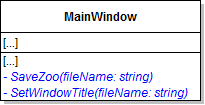
1 Add methods to the MainWindow as specified in the diagram below.
Class Diagram: MainWindow Saving. Reference figure for save zoo to a file from wpf.
Class Diagram: MainWindow Saving
2 The SetWindowTitle method contains the following code
// Set the title of the window using the current file name
this.Title = $"Object-Oriented Programming 2: Zoo [{Path.GetFileName(fileName)}]";
3 The SaveZoo method calls the SaveToFile method on the comoZoo field and then calls the SetWindowTitle method.
C Fill out the click event of the save button.
1 First, define a SaveFileDialog variable and then instantiate it to a new SaveFileDialog (in the Microsoft.Win32 namespace).

Then set the dialog's Filter to the following string:

"Zoo save-game files (*.zoo)|*.zoo"
2 Then show the dialog and if it is true, call the SaveZoo method, passing in the dialog's FileName.
if (dialog.ShowDialog() == true)
D Check your work
1 Run the WPF application.
2 Click the save button. Choose a place to save the file and enter test.zoo as the file name.
3 Ensure the title of the MainWindow title changes to: Object-Oriented Programming 2: [test.zoo]
4 Go to the place where the file was saved and ensure that the test.zoo file exists.
Load a zoo from a file in WPF
Acceptance Criteria
Acceptance criteria
  • WPF users can select and load a saved zoo file.
2.Load a zoo from a file in WPF
Problem
Solution
A Add a button called loadButton to the MainWindow. Add a click event.
B Add methods to handle loading.
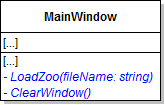
1 Add methods to the MainWindow as specified in the diagram below.
Class Diagram: Load Methods. Reference figure for load a zoo from a file in wpf.
Class Diagram: Load Methods
2 In the ClearWindow method, assign the ItemsSource for both the animal and guest list boxes to null.
3 Fill out the LoadZoo method.
Subtasks
  • A. In a try block, assign the comoZoo field to the result of calling the Zoo's LoadFromFile method. Also, call the SetWindowTitle method, populate both list boxes, and call ConfigureBirthingRoomControls.
  • B. In a catch block, show a message to the user stating that the file could not be loaded.
C Fill out the click event of the load button
1 First, define an OpenFileDialog variable and instantiate it to a new OpenFileDialog (in the Microsoft.Win32 namespace).

Set its Filter to the same string as the SaveFileDialog.

2 Show the dialog.

If the result of showing the dialog is equal to true, clear the window and call the LoadZoo method, passing in the dialog's FileName.

D Check your work
1 Run the WPF application.
2 Add a new custom animal with the name Jimmy, add a new guest, and decrease the temperature to 60 degrees.
3 Save the application to a file and destination of your choosing.
4 Restart the application.

Ensure Jimmy is no longer in the Zoo, that there aren't any guests and that the temperature is back to 77 degrees.

5 Click the load button and choose your saved zoo file.

The zoo should load successfully and Jimmy should be in the Zoo, the guest should be in the zoo and the temperature should be 60 degrees.

Create a way for users to restart the zoo in WPF
Acceptance Criteria
Acceptance criteria
  • WPF users can restart the zoo after the required confirmation.
3.Create a way for users to restart the zoo in WPF
Problem
Solution
A Add a button called restartButton to the MainWindow. Add a click event.
B In the click event, show a confirmation box to the user asking if they really want to start over, as shown in the code below
WPF MessageBox options
if (MessageBox.Show("Are you sure you want to start over?", "Confirmation", MessageBoxButton.YesNo) == MessageBoxResult.Yes)
{
    // code here
}
C If the user confirms they want to start over
1 Clear the window.
2 Reset the comoZoo field by calling the Zoo's NewZoo method.
3 Reset the title of the zoo to read "Object-Oriented Programming 2: Zoo"
4 Populate the animal and guest list boxes.
5 Call ConfigureBirthingRoomControls.
D Check your work
1 Run the WPF application. Create a guest or an animal and change the temperature.
2 Click the Restart button and confirm that you want to restart.

The list boxes should go back to the original animals, the guest should disappear and the temperature should revert.
Auto save the zoo when the window closes
Acceptance Criteria
Acceptance criteria
  • Closing the window saves the zoo automatically and the next launch attempts to restore it.
4.Auto save the zoo when the window closes
Problem
Solution
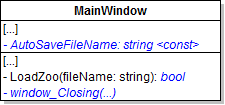
A Make changes to the MainWindow as specified in the diagram below.
Class Diagram: AutoSave. Reference figure for auto save the zoo when the window closes.
Class Diagram: AutoSave
6.1.5 How to Use Constants
B Set the AutoSaveFileName to "Autosave.zoo".
C In the LoadZoo method, initialize a result variable to true before the try...catch block.

Set it to false in the catch block. Then return it.

D In the window_Closing event, call the SaveZoo method, passing in the AutoSaveFileName.
E In the window_Loaded event, first call the LoadZoo method, passing in the autosave file name.

If the result of that method is false, call the Zoo's NewZoo method. The code setting the temperature height and label, populating the combo box, and populating the list boxes should stay.

F Check your work
1 Run the WPF application.

A message box should appear stating that a file could not be loaded. This is because there is not an autosave yet.

2 Create a guest, and then close the window without saving.
3 Navigate to the bin/Debug folder of the ZooScenario project. An Autosave.zoo file should exist.
4 Restart the application.

The Autosave.zoo file should be loaded automatically, and the guest should be in the list box.

Demonstrate your work
5.Record a video showing
A The deletion of the Autosave.zoo file
B Your WPF Application
1 Upon startup, a message box should appear stating that a file could not be loaded.
2 Add an eagle named "Haliaeetus Leucocephalus" to the zoo.
3 Save the current zoo and note the temperature.
4 Restart the zoo. "Haliaeetus Leucocephalus" should disappear.
5 Change the temperature to a different temperature, then close the application.
6 Start the application again, the temperature should still be the same as what you changed it to.
7 Load the zoo you saved in step 3.
Subtasks
  • A. The temperature should have reverted to what it was in step 3.
  • B. "Haliaeetus Leucocephalus" should be in the animal list.
Prepare and submit your work
6.Submission Steps
A Ensure that your application has no compiler errors or warnings
B Ensure that your code is StyleCop compliant
C Remove all bin and obj folders from your solution
D Zip your solution
E Submit your zipped solution to the Feedback System
F Submit your Feedback System results link to Canvas
G Submit your video recording to your f-channel
Source credit

© 2026 Northcentral Technical College