6.1A Zoo Assignment

6.1A Zoo Assignment
Getting started
1.If you wish to use reset code, it can be made available upon request from the instructor or the IA via Slack.

If you wish to continue with your current code (from the end of 5.5B), you are free to do so.
Prep the animal's move timer for serialization.
Acceptance Criteria
Acceptance criteria
  • Movement timers are excluded from serialization and recreated after deserialization.
2.Prep the animal's move timer for serialization.
Problem
Solution
6.1.1 How to Use Serialization
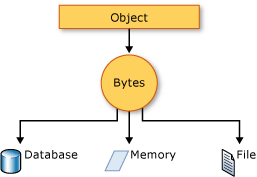
Image: Serialization. Reference figure for prep the animal's move timer for serialization.
Image: Serialization
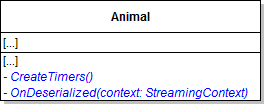
A Make changes to the Animal class as specified in the diagram below.
Class Diagram: Timer Fix. Reference figure for prep the animal's move timer for serialization.
Class Diagram: Timer Fix
B Move the three lines setting up the timer in the constructor to the CreateTimers method.

Call the CreateTimers method in the constructor.

C Add the NonSerialized attribute to the animal's moveTimer, as shown in the code below
6.1.2 How to Attach Attributes
[NonSerialized]
private Timer moveTimer;
D Add the OnDeserialized attribute to the OnDeserialized method. In the method, call the CreateTimers method.
E Check your work: Build the solution and ensure that the code compiles without errors or warnings.
F Move the Eat, Move and Reproduce Interfaces into the Interfaces folder of the Animals project.
Save zoo to a file from console
Acceptance Criteria
Acceptance criteria
  • The console saves the serializable zoo state to a file.
3.Save zoo to a file from console
Problem
Solution
6.1.3 How to Save Files
A Add the [Serializable] attribute to every class (there will be 48), EXCEPT interfaces, enumerations, exceptions, static classes, windows, and console classes.
[Serializable]
public abstract class Animal
B Check Your Work: Press CNTL+F to bring up the Find window.

Search for Serializable and select 'Find All' from the drop-down. There should be 48 instances of the Serializable attribute.

C Add methods to handle saving.
1 Add methods to the ConsoleHelper and the zoo as specified in the diagram below.
Class Diagram: Save Methods. Reference figure for save zoo to a file from console.
Class Diagram: Save Methods
2 In the ConsoleHelper's SaveFile method, use a try...catch block to surround a call the zoo's SaveToFile method, passing in the fileName parameter.

If the save was successful, write a message to that effect to the console. If the save generated an exception, write a message to the console stating the save was unsuccessful. The message should look like the following:

Console.WriteLine("Your zoo has been successfully saved.");
3 The zoo's SaveToFile method contains the following code
// Create a binary formatter
BinaryFormatter formatter = new BinaryFormatter();

// Create a file using the passed-in file name
// Use a using statement to automatically clean up object references
// and close the file handle when the serialization process is complete
using (Stream stream = File.Create(fileName))
{
    // Serialize (save) the current instance of the zoo
    formatter.Serialize(stream, this);
}
D Allow the console to process a save command
1 Add a command to the console application called "save".
2 Create a try catch block
3 Inside the try block, call the ConsoleHelper's SaveFile method, passing in the zoo and commandWords[1] as arguments.
4 Inside the catch block, write a message to the console stating that the user must enter the name for the save file
E In the ConsoleHelper's ShowHelp method, add a Console.WriteLine with a statement about what SAVE does.
F In the ConsoleHelper's ShowHelpDetail method, add a case for 'save' and call WriteHelpDetail with arguments for the command, a description of what the command does, the argument for the command and the description of the argument.
G Check your work
1 Run the console application.
2 Run the save command without a parameter. Ensure you get an error about needing a name for the file.
3 Run the save command, passing test.zoo as the parameter.

The zoo should be saved successfully and a message stating that should be written to the console.
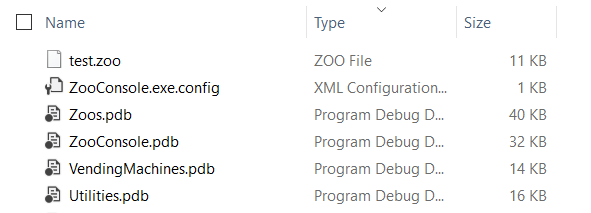
4 Go to the bin/Debug folder of the ZooConsole project. The test.zoo file should exist.
Snip: Test.Zoo File. Reference figure for save zoo to a file from console.
Snip: Test.Zoo File
Load a zoo from a file in console
Acceptance Criteria
Acceptance criteria
  • The console loads a saved zoo from a file.
4.Load a zoo from a file in console
Problem
Solution
6.1.4 How to Load Files
A Add methods to handle loading.
1 Add methods to the ConsoleHelper and the Zoo as specified in the diagram below.
Class Diagram: Load Methods. Reference figure for load a zoo from a file in console.
Class Diagram: Load Methods
2 The LoadFromFile method contains the following code
Zoo result = null;

// Create a binary formatter
BinaryFormatter formatter = new BinaryFormatter();

// Open and read a file using the passed-in file name
// Use a using statement to automatically clean up object references
// and close the file handle when the deserialization process is complete
using (Stream stream = File.OpenRead(fileName))
{
    // Deserialize (load) the file as a zoo
    result = formatter.Deserialize(stream) as Zoo;
}

return result;
3 In the ConsoleHelper's LoadFile method
Subtasks
  • A. Define a local variable of type Zoo.
  • B. Add a try statement and within it assign the local variable to the call to the Zoo's LoadFromFile method and pass in the fileName parameter.
  • C. In the try statement, write a message to the console stating that the load was successful.
  • D. Write a catch statement that writes a message to the console stating that the load was unsuccessful.
  • E. Return the Zoo type variable.
B Add a command to the console application called "load".

In it, call the ConsoleHelper's LoadFile method, passing commandWords[1] and assign it to the zoo field.

C Surround the call to LoadFile in a try/catch that catches exceptions for a missing parameter just like the 'save' case.
D In the ConsoleHelper's ShowHelp method, add a Console.WriteLine with a statement about what LOAD does.
E In the ConsoleHelper's ShowHelpDetail method, add a case for 'load' and call WriteHelpDetail with arguments for the command, a description of what the command does, the argument for the command and the description of the argument.
F Check your work
1 Run the console application.
2 Run the 'add animal' command and add a custom animal with the name Jimmy.
3 Run the 'save test.zoo' command.
4 Run the 'restart' command.
5 Run the command 'show animal jimmy'. Ensure you get a message about Jimmy not being found.
6 Run the load command without any parameters. Ensure you get a message about a missing file name.
7 Run the load command with an incorrect file name. Ensure you get a message about the load failing.
8 Run the load command, passing test.zoo as the fileName parameter. The zoo should be loaded successfully.
9 Run the command 'show animal jimmy'. Ensure you get a message stating that Jimmy has been found.
Demonstrate your work
5.Record a video showing
A Your Console Application
1 Step 4F - Check your work
Prepare and submit your work
6.Submission Steps
A Ensure that your application has no compiler errors or warnings
B Ensure that your code is StyleCop compliant
C Remove all bin and obj folders from your solution
D Zip your solution
E Submit your zipped solution to the Feedback System
F Submit your Feedback System results link to Canvas
G Submit your video recording to your f-channel
Source credit

© 2026 Northcentral Technical College