5.4B Zoo Assignment

5.4B Zoo Assignment
Use a dictionary to associate a cage with an animal type
Acceptance Criteria
Acceptance criteria
  • A dictionary maps animal types to cages.

1.Use a dictionary to associate a cage with an animal type
Problem
Solution
5.4.4 How to Use Dictionaries 5.4.5 Why we Use Dictionaries
A Make changes to the Zoo and Cage classes as specified in the diagram below.
Class Diagram: Cage Dictionary. Reference figure for use a dictionary to associate a cage with an animal type.
Class Diagram: Cage Dictionary
B In the cage's ToString method, instead of using the AnimalType, get the name of the type of the first item in the list of caged items.
C In the foreach loop in the Zoo constructor that adds cages to the Zoo, enter the following for the Add method
1 Make the first argument a call to ConvertAnimalTypeToType (this is the dictionary entry's key)
2 Instantiate a new cage for the second argument (this is the dictionary entry's value)
D In the zoo's FindCage method, instead of looping through the cages list, use the dictionary's TryGetValue method.

Pass the animalType in, and get a Cage result out.

Cage result = null;

this.cages.TryGetValue(animalType, out result);

return result;
E In the zoo's AddAnimal and RemoveAnimal methods, use bracket notation on the cage dictionary to get the correct cage based on the animal's type.

Then either add or remove the animal from the cage in addition to the zoo.
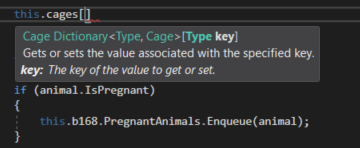
Snip - Bracket Notation. Reference figure for use a dictionary to associate a cage with an animal type.
Snip - Bracket Notation
F Replace the code in the Zoo constructor that populates the animals list with the code below.

This ensures that the animals are also getting added to their cages.

this.AddAnimal(new Chimpanzee("Bobo", 10, 128.2, Gender.Male));
this.AddAnimal(new Chimpanzee("Bubbles", 3, 103.8, Gender.Female));
this.AddAnimal(new Dingo("Spot", 5, 41.3, Gender.Male));
this.AddAnimal(new Dingo("Maggie", 6, 37.2, Gender.Female));
this.AddAnimal(new Dingo("Toby", 0, 15.0, Gender.Male));
this.AddAnimal(new Eagle("Ari", 12, 10.1, Gender.Female));
this.AddAnimal(new Hummingbird("Buzz", 2, 0.02, Gender.Male));
this.AddAnimal(new Hummingbird("Bitsy", 1, 0.03, Gender.Female));
this.AddAnimal(new Kangaroo("Kanga", 8, 72.0, Gender.Female));
this.AddAnimal(new Kangaroo("Roo", 0, 23.9, Gender.Male));
this.AddAnimal(new Kangaroo("Jake", 9, 153.5, Gender.Male));
this.AddAnimal(new Ostrich("Stretch", 26, 231.7, Gender.Male));
this.AddAnimal(new Ostrich("Speedy", 30, 213.0, Gender.Female));
this.AddAnimal(new Platypus("Patti", 13, 4.4, Gender.Female));
this.AddAnimal(new Platypus("Bill", 11, 4.9, Gender.Male));
this.AddAnimal(new Platypus("Ted", 0, 1.1, Gender.Male));
this.AddAnimal(new Shark("Bruce", 19, 810.6, Gender.Female));
this.AddAnimal(new Shark("Anchor", 17, 458.0, Gender.Male));
this.AddAnimal(new Shark("Chum", 14, 377.3, Gender.Male));
this.AddAnimal(new Squirrel("Chip", 4, 1.0, Gender.Male));
this.AddAnimal(new Squirrel("Dale", 4, 0.9, Gender.Male));
G Check Your Work
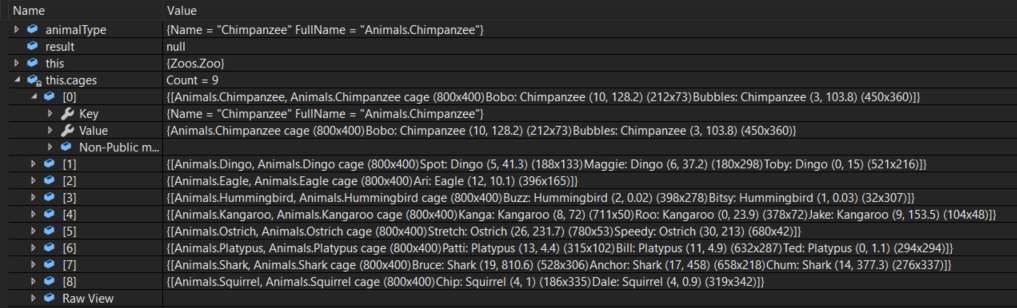
1 Add a breakpoint in the FindCage method on the line that calls TryGetValue.
2 Run the WPF application.
3 Select a Chimpanzee and click 'Show cage'
4 The Key being searched for should be of type Chimpanzee and the Value should be the Chimpanzee cage.
Snip - Cages Key/Value. Reference figure for use a dictionary to associate a cage with an animal type.
Snip - Cages Key/Value
5 Press F10. The result variable should now be the Cage object.
6 Click Continue. The Chimpanzee cage should show with 2 chimps in it.
7 While the cage window is still open, in the MainWindow add a new Chimpanzee. Ensure it is shown in the cage window.
8 While the cage window is still open, in the MainWindow remove a Chimpanzee.

Ensure it is removed in the cage window.

Use a dictionary to refactor the console help command for commands with multiple parameters
Acceptance Criteria
Acceptance criteria
  • Help details use dictionaries to describe commands with multiple parameters.
2.Use a dictionary to refactor the console help command for commands with multiple parameters
Problem
Solution
A Create the ListUtil class in the Utilities project as specified in the diagram below.

Add the code below to the Flatten method.

Class Diagram: ListUtil. Reference figure for use a dictionary to refactor the console help command for commands with multiple parameters.
Class Diagram: ListUtil
string result = null;

foreach (object s in list)
{
    result += result == null ? s : separator + s;
}

return result;
B Add methods to the ConsoleHelper and ConsoleUtil classes as specified in the diagram below.

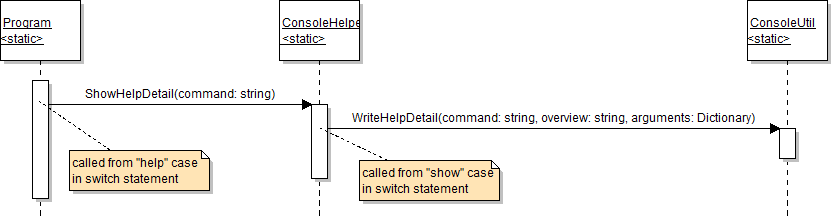
The sequence diagram below will be how we will be using these methods.

Class Diagram: Console Util. Reference figure for use a dictionary to refactor the console help command for commands with multiple parameters.
Class Diagram: Console Util
Sequence - ShowHelpDetail. Reference figure for use a dictionary to refactor the console help command for commands with multiple parameters.
Sequence - ShowHelpDetail
C Modify the "help" command in the Program.cs
1 Remove the existing code.
2 If the commandWords length is 2, call the ConsoleHelper's ShowHelpDetail method.
3 Pass in the second item in the commandWords array as an argument (e.g. "show" or "add")
4 If the commandWords length is not 2, write a message to the console saying that there were too many parameters entered.
D Write the ShowHelpDetail method.
1 First define a Dictionary<string, string> variable called arguments.
2 Then switch on the command parameter. Add a case for each of the following commands
  • show
  • remove
3 In each case statement, instantiate the arguments variable to a new Dictionary<string, string>.

Add a key-value pair to the dictionary for each of the command parameters (objectType and objectName) - the key is the parameter name and the value is the parameter description. Then call the WriteHelpDetail method. Pass in the command parameter, a short description of the command (show or remove), and the arguments variable.
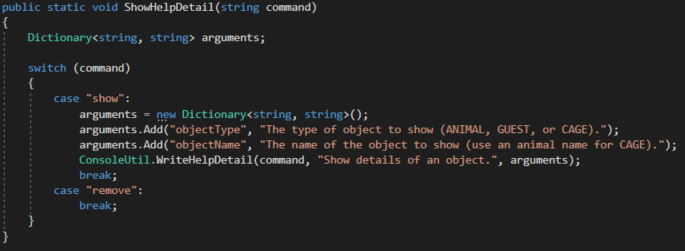
Snip - ShowHelpDetail. Reference figure for use a dictionary to refactor the console help command for commands with multiple parameters.
Snip - ShowHelpDetail
E Write the WriteHelpDetail method.
1 Initialize a local variable named upperCommand and store the command parameter as all upper-case using the ToUpper method in it.
2 Write out the upperCommand and overview to the console on separate lines.

The result should look like the example below:

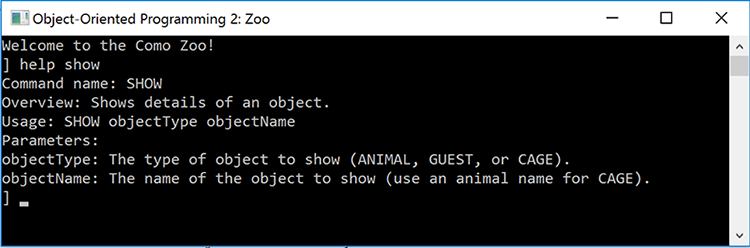
Command name: SHOW
Overview: Show details of an object.
3 Write out the usage of the command, which includes the command name and the names of the command's parameters.

Use the Flatten method on the ListUtil class to write out the keys of the arguments dictionary. Pass in a space as the separator. The resulting line written to the console should look like the example below:

Usage: SHOW objectType objectName
4 Write a line with the text "Parameters:".

Then, loop through the arguments' KeyValuePairs and write out each key (which is the parameter name) and value (which is the explanation of the parameter).

foreach (KeyValuePair<string, string> kvp in arguments)
{
    // code here
}
F Check Your Work
1 Run the console application.
2 Run the "help show" command. The output should look like the image below.
Snip: 'help show' Command Example. Reference figure for use a dictionary to refactor the console help command for commands with multiple parameters.
Snip: 'help show' Command Example
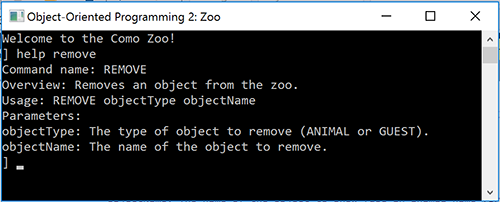
3 Run the "help remove" command. The output should look like the image below.
Snip: 'help remove' Command Example. Reference figure for use a dictionary to refactor the console help command for commands with multiple parameters.
Snip: 'help remove' Command Example
Refactor help command for commands with one parameter
Acceptance Criteria
Acceptance criteria
  • An overloaded help-detail method supports commands with one parameter.
3.Refactor help command for commands with one parameter
Problem
Solution
5.4.6 How to Overload a Method
A Add an overloaded version of the WriteHelpDetail method as specified in the diagram below.
Class Diagram: Overloaded Method. Reference figure for refactor help command for commands with one parameter.
Class Diagram: Overloaded Method
B In the new WriteHelpDetail method, instantiate a new Dictionary<string, string> add a key-value pair where the argument parameter is the key and the argumentUsage parameter is the value.

Then call the original version of the WriteHelpDetail method. Pass the command parameter, the overview parameter and the local dictionary.

C In the ShowHelpDetail method, add cases to the switch statement for the "temp" and "add" commands.

In each case statement, call the four-parameter WriteHelpDetail method. Pass in the command name, a short description of the command, the name of the parameter, and a description of the parameter.

D Check Your Work
1 Run the console application.
2 Run the "help add" command.

The details of the add command, including an overview and parameter information, should be written to the console. The output should look like the image below.
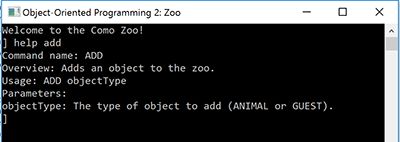
Snip: 'help add' Command Output. Reference figure for refactor help command for commands with one parameter.
Snip: 'help add' Command Output
3 Run the "help temp" command.

The details of the temp command, including an overview and parameter information, should be written to the console. The output should look like the image below.
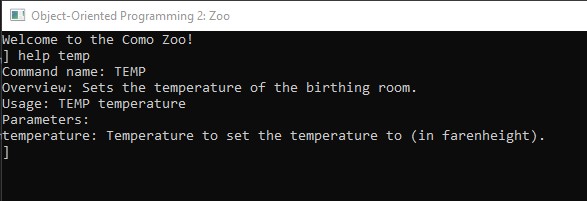

Snip: 'help temp' Command Output. Reference figure for refactor help command for commands with one parameter.
Snip: 'help temp' Command Output
Refactor help command for commands with no parameters
Acceptance Criteria
Acceptance criteria
  • An additional help-detail overload supports commands with no parameters.
4.Refactor help command for commands with no parameters
Problem
Solution
A Add an overloaded version of the WriteHelpDetail method and a regular ShowHelp method as specified in the diagram below.
Class Diagram: ShowHelp and WriteHelpDetail. Reference figure for refactor help command for commands with no parameters.
Class Diagram: ShowHelp and WriteHelpDetail
B In the new WriteHelpDetail method, call the three-parameter WriteHelpDetail method.

Pass in the command parameter, the overview parameter, and null. Passing in null for the arguments parameter signifies that the command has no arguments.

C Now that you're passing null into the three-parameter version of the WriteHelpDetail method, check that the arguments parameter is not null before using it.
D In the ShowHelpDetail method, add cases to the switch statement for the "restart" and "exit" commands.

In each case statement, call the two-parameter WriteHelpDetail method. Pass in the command name and a short description of the command.

E In the "help" case in the Main method of the Program class, add a condition checking if the length of the commandWords array is 1.

If so, call the ShowHelp method.

F Write the ShowHelp method.
1 Write a title for the help index to the console.
2 Call the WriteHelpDetail method, which will write the information for the help command.

Pass in the command name ("help"), a description of the command, the name of the (optional) parameter ("[command]"), and a description of the optional parameter.

3 Then write out a line for each of the existing commands in the list below.

Use the descriptions from the previous help command.

  • restart
  • exit
  • temp
  • show
  • add
  • remove
G Check Your Work
1 Run the console application.
2 Run the "help" command.

Details of the help command and a list of all available commands should be written to the console. The output should look like the image below.
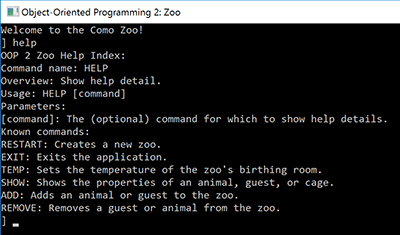
Snip - 'help' Command Output. Reference figure for refactor help command for commands with no parameters.
Snip - 'help' Command Output
3 Run the "help restart" command.

Only the details of the restart command should be shown and there should be no information listed about parameters. The output should look like the image below.
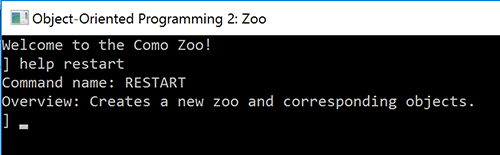
Snip: Help restart. Reference figure for refactor help command for commands with no parameters.
Snip: Help restart
4 Run the "help exit" command.

Only the details of the exit command should be shown and there should be no information listed about parameters. The output should look like the image below.
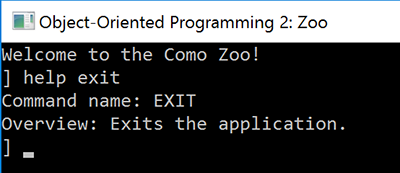
Snip: Help exit. Reference figure for refactor help command for commands with no parameters.
Snip: Help exit
Prepare and submit your work
5.Submit a zipped Visual Studio solution after completing the following
A Ensure that the application has no compiler errors or warnings.
B Make the code StyleCop compliant.
C Remove all bin and obj folders from the entire solution.
Demonstrate your work
6.Record a video showing
A Your WPF Application
1 Show the cage of any animal in the zoo
2 Remove that animal and ensure it disappears from the cage as well
3 Add an animal of the same type you just removed. Make sure it appears in the cage
B Your Console Application
1 Step 2F - Check Your Work
2 Step 3D - Check Your Work
3 Step 4G - Check Your Work
Prepare and submit your work
7.Submission Steps
A Ensure that your application has no compiler errors or warnings
B Ensure that your code is StyleCop compliant
C Remove all bin and obj folders from your solution
D Zip your solution
E Submit your zipped solution to the Feedback System
F Submit your Feedback System results link to Canvas
G Submit your video recording to your f-channel
Source credit

© 2026 Northcentral Technical College