5.2B Zoo Assignment

5.2B Zoo Assignment
Refactor the repeated horizontal, vertical movement code
Acceptance Criteria
Acceptance criteria
  • Shared horizontal and vertical movement logic replaces repeated code.
1.Refactor the repeated horizontal, vertical movement code
Problem
Solution
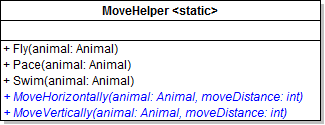
A Add methods to the MoveHelper class as specified in the diagram below.
Class Diagram: Refactoring MoveHelper. Reference figure for refactor the repeated horizontal, vertical movement code.
Class Diagram: Refactoring MoveHelper
B Refactor the code that moves an animal horizontally.
1 Move the code in the Pace method (which only moves horizontally) to the MoveHorizontally method.

Use the moveDistance parameter wherever the animal's MoveDistance is used.

2 Call the MoveHorizontally method from the Pace method, passing in the animal and the animal's MoveDistance.

The method call should be the only code in the Pace method.

3 Call the MoveHorizontally method from the Fly method in place of the code that moves the animal horizontally.

Pass in the animal and the animal's MoveDistance. Leave the code that moves the animal vertically.

4 Call the MoveHorizontally method from the Swim method in place of the code that moves the animal horizontally.

Pass in the animal and the animal's MoveDistance. Leave the code that moves the animal vertically.

C Refactor the code that moves an animal vertically.
1 Move the code in the Swim method that moves the animal vertically to the MoveVertically method.

Use the moveDistance parameter wherever the animal's MoveDistance is used.

2 Remove the calculations that are done on the moveDistance (the dividing by 2).

Instead, it should simply use whatever move distance is passed in to it.

3 Call the MoveVertically method from the Swim method.

Pass in the animal and the animal's MoveDistance divided by two.

D Check Your Work
1 Run the WPF application.
2 Open each animal's cage window. Their movement should be the same as before the refactoring of the movement code.
Use the strategy pattern to make move behaviors interchangeable
Acceptance Criteria
Acceptance criteria
  • Move behavior objects supply interchangeable movement strategies.
2.Use the strategy pattern to make move behaviors interchangeable
Problem
Solution
5.2.5 How to Apply the Strategy Pattern 5.2.6 Why we Use the Strategy Pattern
A Create the move behaviors for the strategy pattern.
1 Create classes and interfaces as specified in the diagram.

All new classes and interfaces should be created in the Animals project.
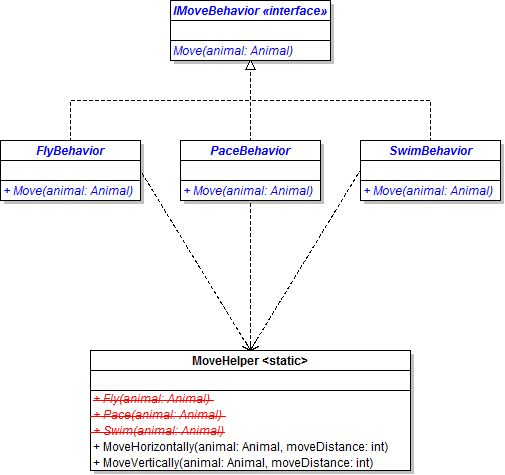
Class Diagram: Move Behaviors. Reference figure for use the strategy pattern to make move behaviors interchangeable.
Class Diagram: Move Behaviors
2 Put the classes in the MoveBehaviors folder.
3 Move the code from the MoveHelper's Pace method to the PaceBehavior's Move method and remove the Pace method.
4 Move the code from the MoveHelper's Fly method to the FlyBehavior's Move method and remove the Fly method.
5 Move the code from the MoveHelper's Swim method to the SwimBehavior's Move method.
6 Move the IMoveBehavior, MoveHelper and Move classes to a new folder in the Animals project named MoveBehaviors.
B Give animals a move behavior.
1 Make changes to the Animal class as specified in the diagram below.
Class Diagram: Animal Move Method. Reference figure for use the strategy pattern to make move behaviors interchangeable.
Class Diagram: Animal Move Method
2 Make the MoveBehavior property an auto-property.
3 In the animal's Move method, call the Move method of the animal's MoveBehavior. Pass in the current animal.
4 Remove all overridden Move methods from the animal subclasses.
C Create a NoMoveBehavior for animals to stand still.
1 Create a NoMoveBehavior class in the MoveBehaviors folder that implements the IMoveBehavior.

The class should only have the Move method.

2 In the move method of the NoMoveBehavior write a comment to indicate that the animal is standing still.
D Assign move behaviors.
1 In the constructor of the Mammal class, set the MoveBehavior to a new PaceBehavior.
this.MoveBehavior = new PaceBehavior();
2 Set the following move behaviors in the appropriate constructor, following the example of the Mammal class
  • Fish: SwimBehavior
  • Bird: FlyBehavior
  • Platypus: SwimBehavior
  • Ostrich: PaceBehavior
  • Squirrel: NoMoveBehavior
  • Hummingbird: NoMoveBehavior
E Pregnant animals shouldn't be able to move.

In the MakePregnant method in the Animal class, set the MoveBehavior to a new NoMoveBehavior.
F Check Your Work
1 Run the WPF application.
2 Open each animal's cage window. The animals should move in the following ways
  • Chimpanzee: pace
  • Dingo: pace
  • Eagle: fly
  • Hummingbird: no move
  • Kangaroo: pace
  • Ostrich: pace
  • Platypus: swim
  • Shark: swim
  • Squirrel: no move
3 Make one of the animals that usually move pregnant and show their cage. Ensure they are no longer moving.
Use a factory to change an animal's move behavior
Acceptance Criteria
Acceptance criteria
  • A factory selects the animal's movement behavior.
3.Use a factory to change an animal's move behavior
Problem
Solution
A Create a factory for creating move behaviors.
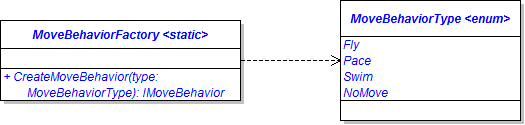
1 Add an enumeration and a class in the Animals project as specified in the diagram below.
Class Diagram: Move Factory. Reference figure for use a factory to change an animal's move behavior.
Class Diagram: Move Factory
2 Put the files in their respective Enumerations and Factories folders.
3 In the CreateMoveBehavior method, use a switch statement to determine what type of behavior to return (e.g. if the passed-in type is Fly, then return a FlyBehavior).
B Set the move behaviors in the animal classes' constructors using the move behavior factory.
C Add controls to change the move behavior at runtime.
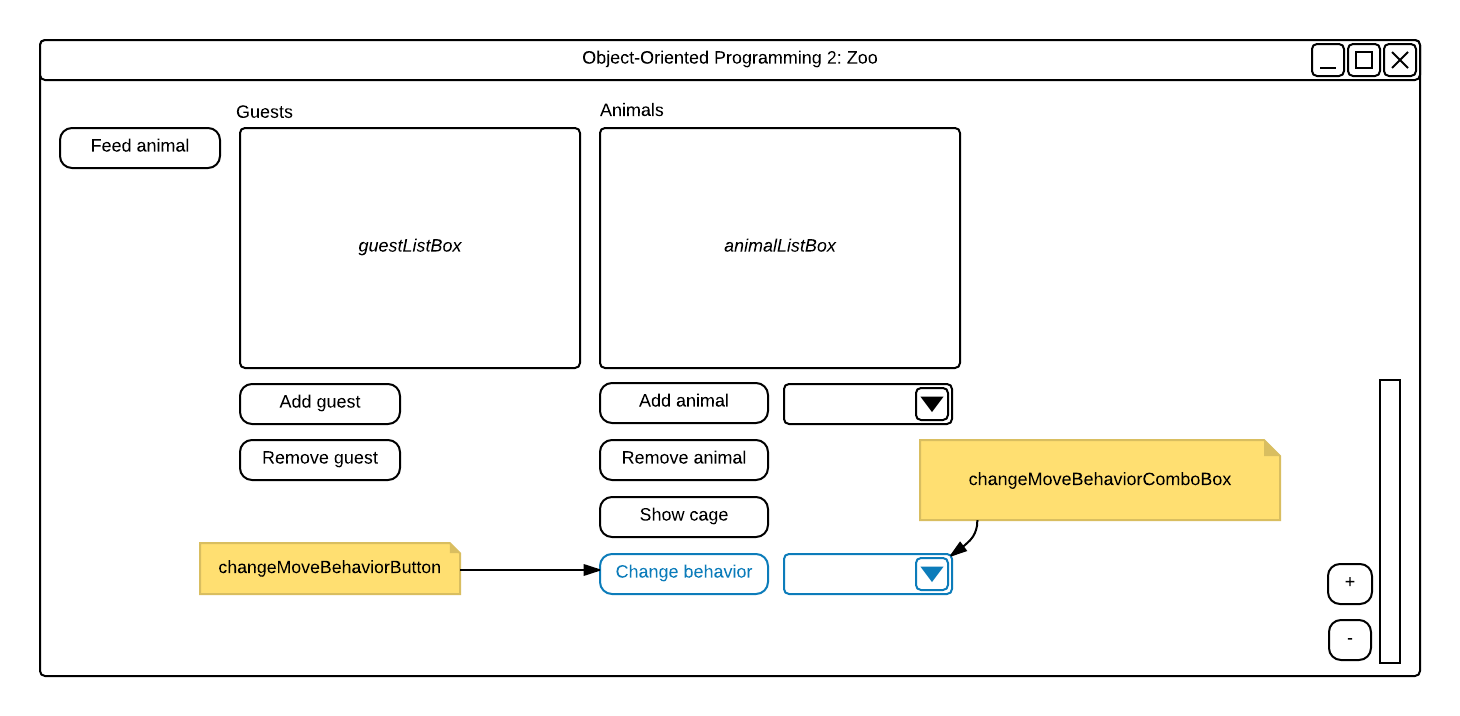
1 Add a button and a combo box to the MainWindow as specified in the wireframe below.
Add a button to MainWindow.xaml named changeMoveBehaviorButton. It should be left-justified with and below the Show cage button. Add combo box to MainWindow.xaml named changeMoveBehaviorComboBox. It should be top-justified with and to the right of the Change behavior button.. Reference figure for use a factory to change an animal's move behavior.
Add a button to MainWindow.xaml named changeMoveBehaviorButton. It should be left-justified with and below the Show cage button. Add combo box to MainWindow.xaml named changeMoveBehaviorComboBox. It should be top-justified with and to the right of the Change behavior button.
2 In the MainWindow's window_Loaded event, populate the move behavior combo box with the values of the MoveBehaviorType enum.
3 Add a click event handler to the change move behavior button.
4 In the event handler, first get the selected animal from the list box.
5 Get the selected move behavior from the combo box and store it in an object type variable.
6 If the animal and the behavior type are not null, assign the animal's MoveBehavior to the result of calling the MoveBehaviorFactory's CreateMoveBehavior method and pass in the behavior cast as a MoveBehaviorType.
7 In the else statement, show a message to the user asking them to select both an animal from the list box and a movement type.
D Check Your Work
1 Run the WPF application.
2 Click the Change behavior button. Ensure you get a message about selecting animals/behaviors.
3 Select the platypus and show the cage. The platypus should be swimming.
4 With the cage window still open, select the platypus in the list box and select Fly from the move behavior combo box.

Click the Change behavior button. The platypus in the cage should start to fly.
5 Change the dingo's behavior to Fly. The dingo in the cage should start to fly.
6 Change the platypus's behavior to NoMove. The platypus in the cage should stop moving.
7 Open the Chimpanzee cage. Make one of them Swim and one of them Fly.
Use the strategy pattern for eat behaviors
Acceptance Criteria
Acceptance criteria
  • Eat behavior objects supply interchangeable eating strategies.
4.Use the strategy pattern for eat behaviors
Problem
Solution
A Define the classes below to use in the strategy pattern for eat behaviors, create a new folder in the Animals project named EatBehaviors and add them to it.
  • ConsumeBehavior
  • BuryAndEatBoneBehavior
  • ShowAffectionBehavior
B Add the WeightGainPercentage property to the IEater interface in the Foods project with just a getter and add a setter to the Weight property.
C In the Animal classes, make the WeightGainPercentage property public if it isn't already.
D Implement the WeightGainPercentage property in the Guest and Employee class and have them return 0.
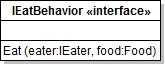
E Use the class diagram below to create an interface called IEatBehavior in the Animals project and add it to the EatBehaviors folder.
Class Diagram: IEatBehavior. Reference figure for use the strategy pattern for eat behaviors.
Class Diagram: IEatBehavior
F Move the weight gaining code into the Eat method of each of the behaviors.
1 Create a folder named EatBehaviors and put the eating behavior classes and the IEatBehavior interface in it.
2 Modify the BuryAndEatBoneBehavior to look like the class diagram below.

In the BuryAndEatBone behavior's eat method, the eater will bury the bone, dig up the bone, then eat the food. Finally, after the eater finishes its food, it will bark in satisfaction.
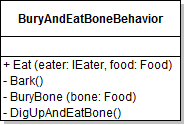
Class Diagram: BuryAndEatBoneBehavior. Reference figure for use the strategy pattern for eat behaviors.
Class Diagram: BuryAndEatBoneBehavior
3 Modify the ShowAffectionBehavior to look like the class diagram below.

In the ShowAffectionBehavior's Eat method, the eater should eat the food then show affection after it has finished eating.
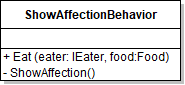
Class Diagram: ShowAffectionBehavior. Reference figure for use the strategy pattern for eat behaviors.
Class Diagram: ShowAffectionBehavior
4 Modify the ConsumeBehavior to look like the class diagram below.

The Eat method should just contain the weight gaining code.
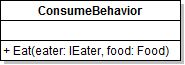
Class Diagram: Consume Behavior. Reference figure for use the strategy pattern for eat behaviors.
Class Diagram: Consume Behavior
G In the Animal class, add an auto-property of type IEatBehavior named EatBehavior.
H Animals have the following eat behaviors by assigning their EatBehavior in their constructors
  • Mammals consume
  • Birds consume
  • Fish consume
  • Dingoes bury and eat bones
  • Platypuses show affection
I In the Animal class's Eat method, call the EatBehavior's Eat method and pass in the animal reference and the food object.
J Remove the Eat methods and the methods called in them from the Dingo and Platypus classes.
K Check Your Work
1 Set a breakpoint on the BuryBone and ShowAffection methods.
2 Run the application.
3 Admit Ethel to the Zoo.
4 Have Ethel feed each animal to make sure their weight increases.
5 Make sure both of the breakpoints are hit.
Use the strategy pattern for reproduce behaviors
Acceptance Criteria
Acceptance criteria
  • Reproduce behavior objects supply interchangeable reproduction strategies.
5.Use the strategy pattern for reproduce behaviors
Problem
Solution
A Implement the strategy pattern for the following reproduce behaviors
  • GiveBirthBehavior
  • LayEggBehavior
1 Create a folder named ReproduceBehaviors in the Animals project with an IReproduceBehavior interface and the behaviors.
2 The IReproduceBehavior interface should have a Reproduce method stub that returns an IReproducer and takes two parameters of type Animal named mother and baby.
3 Make the BabyWeightPercentage property in the Animal class public.
4 Move the Hatching Sequence from the Bird class to the LayEggBehavior class.
Subtasks
  • A. Remove the Reproduce, HatchEgg and LayEgg methods from the Bird class.
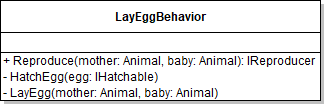
  • B. Add the methods below to the LayEggBehavior class.
5.2 Zoo 11 Class LayEggBehavior.png. Reference figure for use the strategy pattern for reproduce behaviors.
5.2 Zoo 11 Class LayEggBehavior.png
Subtasks
  • C. In the Reproduce method, if the baby is an IHatchable type, call LayEgg and HatchEgg.
  • D. In the HatchEgg method, call the Hatch method.
  • E. In the LayEgg method, subtract 125% of the baby's weight from the mother.
  • F. Remove the Hatch Sequence from the Platypus class.
5 Move the Birthing Sequence from the Mammal class to the GiveBirthBehavior class.
Subtasks
  • A. Give the Reproduce method a mother and baby parameter.
  • B. Remove the override from the Reproduce method and the call to base.Reproduce.
  • C. Remove the check to determine if the animal is a Platypus type.
Subtasks
  • D. Reduce the mother's weight by the baby's weight.
  • E. Add an Animal parameter to the FeedNewborn method named mother.
  • F. Pass in the mother to the FeedNewborn method and update the references.
B In the Animal class, define an auto-property named ReproduceBehavior of type IReproduceBehavior.
C Animals have the following reproduce behaviors
  • Mammals give birth
  • Birds lay eggs
  • Fish lay eggs
  • Platypuses lay eggs
D Modify the Animal class's Reproduce method.
1 Remove the code that reduces the Weight of the mother.
2 After the call to CreateInstance, call the mother's Reproduce method on their ReproduceBehavior and pass in the mother and the baby.
3 In the CreateInstance call, pass in a gender as the last parameter.

Use a ternary operator and the animal's random to set the gender randomly to either male or female.

4 Remove the virtual keyword from the method header.
E Add a button to the MainWindow that births a selected animal. The event handler should
  • Get the selected animal from the list box.
  • Check if the animal exists. If it doesn't write a message to the user.
  • Check if the animal is pregnant. If it isn't write a message to the user.
  • If the animal is pregnant, call Reproduce and add the baby to the zoo.
  • Populate the list box
F Check Your Work
1 Set a breakpoint on the FeedNewborn method and the LayEgg method.
2 Start the application.
3 Click on the Birth animal button. Ensure you get a message.
4 Click on a non-pregnant animal and click the Birth animal button. Ensure you get a message.
5 Select the Platypus and click the Birth animal button.
6 Ensure the breakpoint on LayEgg is hit. Click Continue.
7 Ensure a new Platypus is added to the list and that the P on the Platypus goes away.
8 Click on the pregnant Dingo and click Birth animal.
9 Ensure the breakpoint on FeedNewborn is hit. Click Continue.
10 Ensure a new Dingo is added to the list and that the P on the Dingo goes away.
Demonstrate your work
6.Record a video showing
A Your WPF Application
1 Step 3D - Check Your Work
2 Step 5F - Check Your Work
Prepare and submit your work
7.Submission Steps
A Ensure that your application has no compiler errors or warnings
B Ensure that your code is StyleCop compliant
C Remove all bin and obj folders from your solution
D Zip your solution
E Submit your zipped solution to the Feedback System
F Submit your Feedback System results link to Canvas
G Submit your video recording to your f-channel
Source credit

© 2026 Northcentral Technical College