5.1B Zoo Assignment

5.1B Zoo Assignment
Put all animals of the same type in the same cage window
Acceptance Criteria
Acceptance criteria
  • Animals of the same type appear together in the cage window.
1.Put all animals of the same type in the same cage window
Problem
Solution
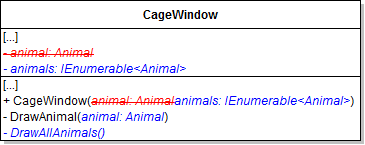
A Modify cage window to take multiple animals.
1 Make changes to CageWindow.xaml.cs as specified in the diagram below.
Class Diagram: CageWindow. Reference figure for put all animals of the same type in the same cage window.
Class Diagram: CageWindow
2 Change the body of the DrawAnimal method to refer to the animal parameter instead of the now-nonexistent animal field.
3 In the DrawAllAnimals method write code to clear the grid's children, loop through all the animals and call the DrawAnimal method for each one.
4 In the RedrawHandler and window_Loaded event, call the DrawAllAnimals method.
B Add the GetAnimals method to the Zoo class as shown in the diagram below.

In it, make a variable of type List<Animal>. Loop through all the animals; if the current animal's type matches the passed-in type, add it to the list. Then return the list.
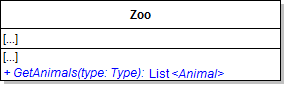
5.1 Zoo 1B Class ZooGetAnimals.png. Reference figure for put all animals of the same type in the same cage window.
5.1 Zoo 1B Class ZooGetAnimals.png
C In the click event of the showCageButton in the MainWindow, get a collection of animals by calling the zoo's GetAnimals method, passing in the type of the selected animal.

Pass that collection into the CageWindow instead of the single animal.
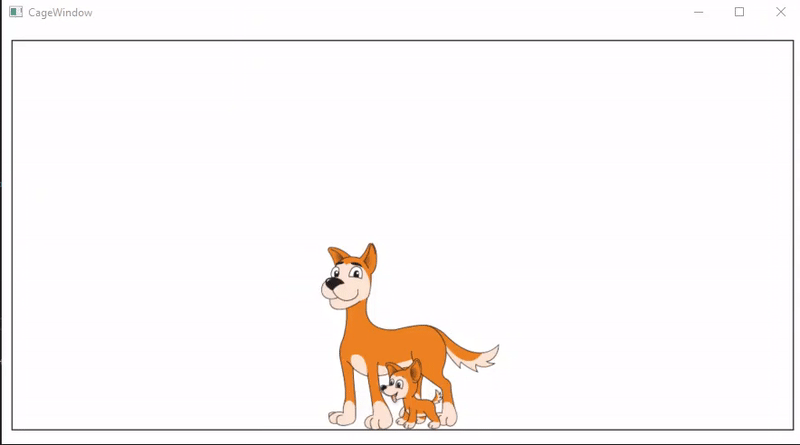
D In the window_Loaded event handler in the MainWindow, add another Dingo to the Zoo with an age of 0.
E In the DrawAnimal method, remove the line of code that clears the Children from the cageWindow.
F Check Your Work
1 Run the WPF application.
2 Select a Dingo and show the cage window. All dingoes in the zoo should be shown in the cage window.
Gif: Multiple Animals. Reference figure for put all animals of the same type in the same cage window.
Gif: Multiple Animals
Randomize animals' movement
Acceptance Criteria
Acceptance criteria
  • Animal movement uses the required randomized values.
2.Randomize animals' movement
Problem
Solution
5.1.11 How to Use the Random Type
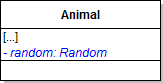
A Add a random field to the Animal class as specified in the diagram below.
random.png. Reference figure for randomize animals' movement.
random.png
B Instantiate the field at its definition to a new Random, passing in DateTime.Now.Millisecond, as shown in the code below
private Random random = new Random(DateTime.Now.Millisecond);
C Test the application
1 Change the baby Dingo's age from 0 to 1
2 Run the application and show the Dingo cage.

It appears that there is only one Dingo in the cage when in reality there are two. This is because the Canvas objects are the same size, start in the same place and move the same distance.

3 Change the baby Dingo's age back to 0.
D Use the random object to set animal position, direction, and move distance in the constructor.
1 Use the random's Next method to set the move distance to the next number between 5 and 15, inclusive.
this.MoveDistance = random.Next(5, 16);
2 Use the random's Next method to set the XPosition to the next number between 1 and the XPositionMax, inclusive.
3 Use the random's Next method to set the YPosition to the next number between 1 and the YPositionMax, inclusive.
4 Use a ternary operator to complete the following operation: Use the random to get a number between 0 and 1.

If the number is 0, set the XDirection to Left. Otherwise, set it to Right.

5 Use a ternary operator to complete the following operation: Use the random to get a number between 0 and 1.

If the number is 0, set the YDirection to Up. Otherwise, set it to Down.

E Check Your Work
1 Set a breakpoint at the end of the Animal constructor.
2 Run the WPF application.
3 When the breakpoint is hit, observe the values of the Dingo instance.

The values of the YPosition, XPosition, MoveDistance should be "random".

4 Restart the application.

When the breakpoint is hit, the same instance of the Dingo should have different values than before.

5 Click Continue. The next Dingo should have different values than the first one.
6 Click Continue, select a Dingo and click Show cage.

The Dingos starting positions, direction, and move speed should now be seemingly random.
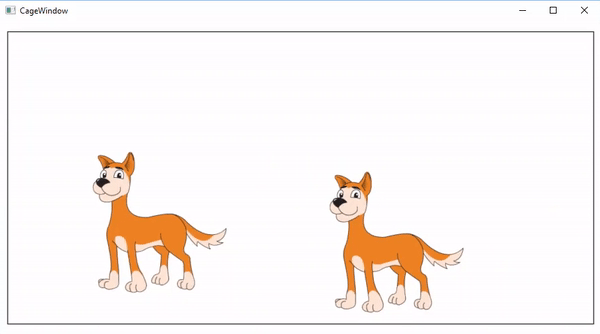
Gif: Random Movement. Reference figure for randomize animals' movement.
Gif: Random Movement
Create cages to hold specific animal types
Acceptance Criteria
Acceptance criteria
  • Cage objects hold the appropriate animal types.
3.Create cages to hold specific animal types
Problem
Solution
A Define a cage.
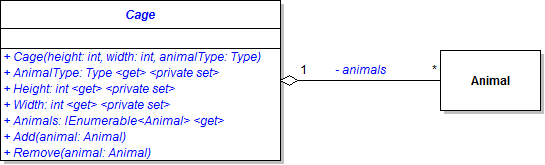
1 Create the Cage class in the Zoos project as specified in the diagram below.
Class Diagram: Cage Class. Reference figure for create cages to hold specific animal types.
Class Diagram: Cage Class
2 The animals field is a list. Initialize it to a new list in the constructor.
3 The Animals property simply returns the private list.
4 The AnimalType, Height, and Width properties are all auto-properties.
5 Assign Height and Width to the passed in height and width in the constructor.
6 Assign the AnimalType property to the animalType parameter in the constructor.
7 The Add and Remove methods call the appropriate method on the private list. Pass the animal parameter through.
B Add cages to the zoo.
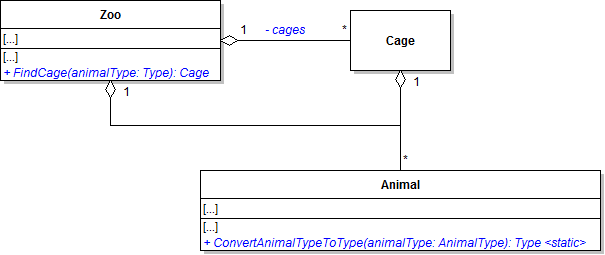
1 Make changes to the Zoo and Animal classes as specified in the diagram below.
Class Diagram: Zoo and Animal Classes. Reference figure for create cages to hold specific animal types.
Class Diagram: Zoo and Animal Classes
2 In the ConvertAnimalTypeToType method, use a switch statement to return the Type that matches the passed-in AnimalType
Type result = null;

switch (animalType)
{
    case AnimalType.Chimpanzee:
        result = typeof(Chimpanzee);
        break;

    case AnimalType.Dingo:
        result = typeof(Dingo);
        break;

    case AnimalType.Eagle:
        result = typeof(Eagle);
        break;

    case AnimalType.Hummingbird:
        result = typeof(Hummingbird);
        break;

    case AnimalType.Kangaroo:
        result = typeof(Kangaroo);
        break;

    case AnimalType.Ostrich:
        result = typeof(Ostrich);
        break;

    case AnimalType.Platypus:
        result = typeof(Platypus);
        break;

    case AnimalType.Shark:
        result = typeof(Shark);
        break;

    case AnimalType.Squirrel:
        result = typeof(Squirrel);
        break;
}

return result;
3 In the Zoo's constructor, initialize the cages list.

Then loop through the values in the AnimalType enum. For each value, add a new cage to the list. Pass in a height of 400 and a width of 800 for all cages. Use the ConvertAnimalTypeToType method to pass in a Type to the Cage constructor.

4 In the FindCage method, use a control-break loop to find the cage whose AnimalType property matches the passed-in Type.
5 In the zoo's AddAnimal and RemoveAnimal methods, find the animal's cage and Add or Remove the animal from the cage in addition to adding or removing it from the zoo.
C Use cages in cage windows.
1 Make changes to the CageWindow class as specified in the diagram below.
Class Diagram: Add Cages. Reference figure for create cages to hold specific animal types.
Class Diagram: Add Cages
2 Instead of looping through the window's animals collection when drawing all animals, loop through the cage's animals collection.
D In the showCageButton click event, instead of getting a collection of animals to pass to the CageWindow, use the FindCage method to find the appropriate cage and pass that to the CageWindow.
E Check Your Work
1 In the window_Loaded event handler in the MainWindow, create two Chimpanzees.
2 Run the WPF application.
3 Select a Dingo and show their cage window.

The dingoes should appear and be moving as they did before adding the cage. Close the cage window.
4 Select a Chimpanzee and show their cage. The animals should appear and be moving properly.
Implement an interface to make cages extensible
Acceptance Criteria
Acceptance criteria
  • The cage interface supports the required cageable objects.
4.Implement an interface to make cages extensible
Problem
Solution
A Move utilities out to a new project.
1 Create a new class library called Utilities.
2 Move the HorizontalDirection and VerticalDirection enumerations to the new project.
3 Change the namespace of the enums to be Utilities.
4 Build your solution to see where you need to add references/usings to the new Utilities project.
B Define and implement an interface for caged things.
5.1.12 Why we Implement the Interface Segregation Principle
1 Create a new class library called CagedItems.
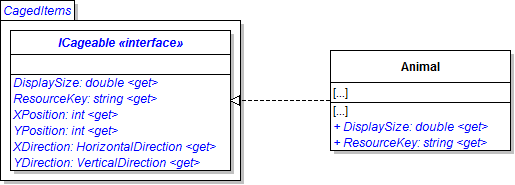
2 In the CagedItems project, create the ICageable interface and have the Animal class implement it as specified in the diagram below.
Class Diagram: ICageable. Reference figure for implement an interface to make cages extensible.
Class Diagram: ICageable
3 In the DisplaySize getter in the Animal class, use a ternary operator to return 0.5 if the animal's age is 0; otherwise, return 1.0.

Add a virtual modifer to the property.

Subtasks
  • A. Overwrite the display size in the following classes in order to make the animals appear larger or smaller depending on their actual size.
  • Shark -- Baby size: 1. Adult size: 1.5.
  • Platypus -- Baby size: 0.5. Adult size: 1.1.
  • Hummingbird -- Baby size: 0.4. Adult size: 0.6.
  • Ostrich -- Baby size: 0.4. Adult size: 0.8.
4 In the ResourceKey property in the Animal class, return the Name of the animal's Type plus "Baby" if the animal's age is 0 or "Adult" if the animal is older than 0.

This is the same as in the DrawAnimal method in the CageWIndow class.

5 In the DrawAnimal method, remove the line of code that assigns the resourceKey and use the ResourceKey property instead.
C Use the ICageable interface in cages and cage windows.
1 Make changes to the Cage class and CageWindow.xaml.cs as specified in the diagram below.
Class Diagram: Use ICageable. Reference figure for implement an interface to make cages extensible.
Class Diagram: Use ICageable
2 Delete and replace the code in the GetViewBox method with the following
 // Finished viewBox.
Viewbox finishedViewBox = new Viewbox();

// Gets image ratio.
double imageRatio = canvas.Width / canvas.Height;

// Sets width to a percent of the window size based on it's scale.
double itemWidth = this.cageGrid.ActualWidth * 0.2 * displayScale;

// Sets the height to the ratio of the width.
double itemHeight = itemWidth / imageRatio;

// Sets the width of the viewBox to the size of the canvas.
finishedViewBox.Width = itemWidth;
finishedViewBox.Height = itemHeight;

// Sets the animals location on the screen.
double xPercent = (this.cageGrid.ActualWidth - itemWidth) / maxXPosition;
double yPercent = (this.cageGrid.ActualHeight - itemHeight) / maxYPosition;

int posX = Convert.ToInt32(xPosition * xPercent);
int posY = Convert.ToInt32(yPosition * yPercent);

finishedViewBox.Margin = new Thickness(posX, posY, 0, 0);

// Adds the canvas to the view box.
finishedViewBox.Child = canvas;

// Returns the finished viewBox.
return finishedViewBox;
3 Move the code setting the canvas from the DrawItem method to the top of the GetViewBox method.

Place it before the call to create the new ViewBox().
4 Pass in the item's display scale and resource key into the call for the GetViewBox method within the DrawItem method.
D Check Your Work
1 Run the WPF application.
2 Show the cage window of any animal. Ensure that the animals move as they are supposed to.
Allow guests to adopt and un-adopt animals
Acceptance Criteria
Acceptance criteria
  • Guests can adopt and un-adopt animals and appear in the appropriate cage.
5.Allow guests to adopt and un-adopt animals
Problem
Solution
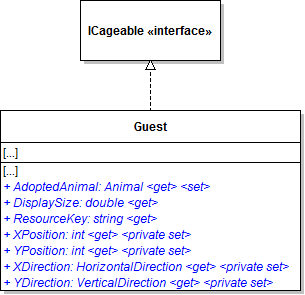
A Have guests be cageable.
1 Make changes to the Guest class as specified in the diagram below.
Class Diagram: ICageable Guests. Reference figure for allow guests to adopt and un-adopt animals.
Class Diagram: ICageable Guests
2 In the constructor, initialize the XPosition to a random number between 0 and 200 and YPosition to 400.
3 Return 0.6 for the DisplaySize.
4 Return "Guest" for the ResourceKey.
5 In the Guest ToString method, if the AdoptedAnimal is not null, attach the Name of the AdoptedAnimal to the string result.
B Allow guests to adopt an animal.
1 Add a button called adoptAnimalButton to the MainWindow. Give it a click event.
2 Fill out the click event handler.
Subtasks
  • A. Get the selected guest and animal from their respective list boxes.
  • B. Check if the guest and animal are not null. If they are, show a message in a message box asking the user to select a guest and animal.
  • C. Set the animal to the guest's AdoptedAnimal.
  • D. Find the animal's cage and add the guest to it.
  • E. Then repopulate the guest list box.
C Allow guests to un-adopt an animal.
1 Add a button called unadoptAnimalButton to the MainWindow. Give it a click event.
2 Make sure users pick both a guest and an animal
Subtasks
  • A. Get the selected guest and selected animal from the list box. Then check if they exist.
  • B. If either one does not exist (meaning the user did not select one guest and/or one animal), show a message telling the user to select both a guest and animal.
3 If a guest and animal was selected, we can now try to unadopt the animal
Subtasks
  • A. But first check if the animal that was picked is the guest's AdoptedAnimal
  • B. If it is
  • B.1. Find the cage of the animal
  • B.2. Remove the guest from the cage
  • B.3. Clear the guest's AdoptedAnimal
  • B.4. Repopulate the guest list box
  • B.5. Show a message about the successful unadoption of the animal using the guest's name and the animal's name.
  • C. But if the user selected an animal that wasn't the guest's AdoptedAnimal
  • C.1. Show a message that the selected animal is not the guest's adopted animal using both animals' names.
D In the CageWindow.xaml.cs, rename the DrawAllAnimals method to DrawAllItems and change the Animal type in the foreach loop to ICageable.
E Check Your Work
1 Run the WPF application.
2 Click Admit Guest to add Ethel to the Zoo.

Have Ethel adopt an animal. Ethel's representation in the list box should change to reflect the name of her adopted animal.
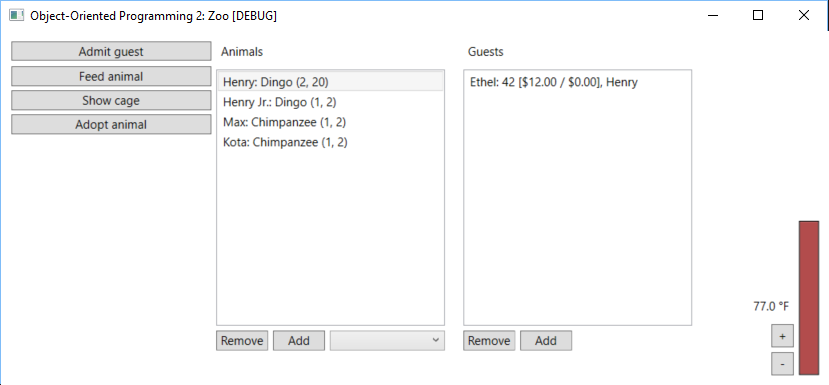
Snip: Guest AdoptedAnimal. Reference figure for allow guests to adopt and un-adopt animals.
Snip: Guest AdoptedAnimal
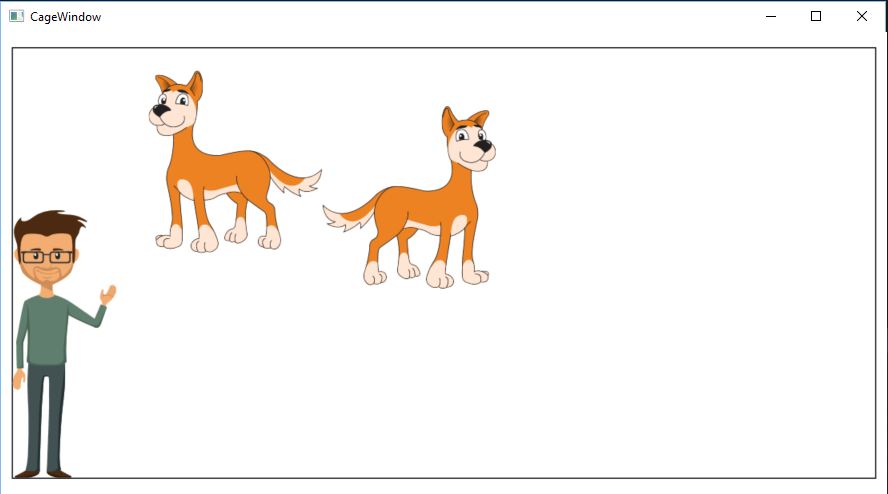
3 Open the animal's cage window. The guest should appear in the cage window.
Snip: Guest in Cage. Reference figure for allow guests to adopt and un-adopt animals.
Snip: Guest in Cage
4 Keep the CageWindow open.

Select Ethel and a different animal and click Un-Adopt animal. Ensure you get an error about the animal not being theirs.

5 Select Ethel and the animal they've adopted and click Un-Adopt animal.

Ensure the guest is removed from the CageWindow and that the animal name is removed from their string.

Remove guests from cage when they leave the zoo
Acceptance Criteria
Acceptance criteria
  • Guests disappear from the cage when they leave the zoo.
6.Remove guests from cage when they leave the zoo
Problem
Solution
A Test the application
1 Run the WPF application.
2 Click Admit guest and have them adopt an animal.
3 Open the animal's cage window.
4 Select the guest in the MainWindow and click Remove. Notice that the guest image stays in the window.
B Within the RemoveGuest method code, include a check whether or not the guest has adopted an animal.
C If the guest has adopted an animal, find the animal's cage and remove the guest from the cage.
D Check Your Work
1 Run the WPF application.
2 Create a guest and an animal. Have the guest adopt the animal.
3 Open the animal's cage window.
4 The guest should appear in the cage window. Close the window.
5 Select the guest in the guest window and click the remove button.
6 Open the animal's cage window.
7 Ensure that the guest no longer appears in the cage window.
Check if animals are adopted when removing them from the zoo
Acceptance Criteria
Acceptance criteria
  • Removing an animal also handles its adoption relationship.
7.Check if animals are adopted when removing them from the zoo
Problem
Solution
A Within the zoo's RemoveAnimal method, loop through the zoo's list of guests.
B If any guests in the list have an adopted animal which matches the animal to be removed, set the AdoptedAnimal property to null and remove the guest from the cage.
C In the removeAnimalButton_Click event, after the animal is removed, update the guest list box.
D Check Your Work
1 Set a breakpoint at the end of the Remove method in the Cage class.
2 Run the WPF application.
3 Attempt to adopt an animal with neither an animal nor guest selected.

Ensure the program does not crash, but an error message is displayed.

4 Admit Ethel and have her adopt an animal.
5 Select the animal and click the remove button.
6 In the autos window, ensure that the guest's AdotpedAnimal is null.
7 Remove the breakpoint and click continue.

Ensure that the guest and animal selected are removed from the cage window.

Demonstrate your work
8.Record a video showing
A Your WPF Application
1 Show that baby and adult animals have different portraits
Subtasks
  • A. Ensure that you you have 1 baby and 1 adult Dingo. Do the same for Chimpanzees.
  • B. Select a Dingo and show its cage.
  • C. There should be 1 baby dingo portrait and 1 adult dingo portrait moving around.
  • D. Repeat 1A and 1B for Chimpanzees.
2 Show that adopted animal names appear with their Guest's information
Subtasks
  • A. Admit a Guest
  • B. Have them adopt an Animal
  • C. Make sure the Animal's name gets added to the Guest's information
3 Show that Guests appear in their animal's cage
Subtasks
  • A. Show the cage of the adopted animal
  • B. Make sure the Guest portrait is in the cage as well
4 Show error message handling
Subtasks
  • A. Select the Guest and an Animal that isn't their Adopted Animal
  • B. Unadopt the selected Animal. A message box with an error message should appear
5 Show that unadopting an animal removes the guest from the cage
Subtasks
  • A. Now unadopt the actual Adopted Animal
  • B. The guest should be removed from the cage
6 Show that removing an Animal removes their Guest from the cage
Subtasks
  • A. Readopt the Animal. The Guest should reappear in the cage.
  • B. Remove the Animal from the zoo. The guest should disappear from the cage.
7 Show that removing the Guest removes the Guest from the cage
Subtasks
  • A. Adopt a different animal and show its cage.
  • B. Remove the Guest from the zoo. The guest should disappear from the cage.
Prepare and submit your work
9.Submission Steps
A Ensure that your application has no compiler errors or warnings
B Ensure that your code is StyleCop compliant
C Remove all bin and obj folders from your solution
D Zip your solution
E Submit your zipped solution to the Feedback System
F Submit your Feedback System results link to Canvas
G Submit your video recording to your f-channel
Source credit

© 2026 Northcentral Technical College