Acceptance criteria
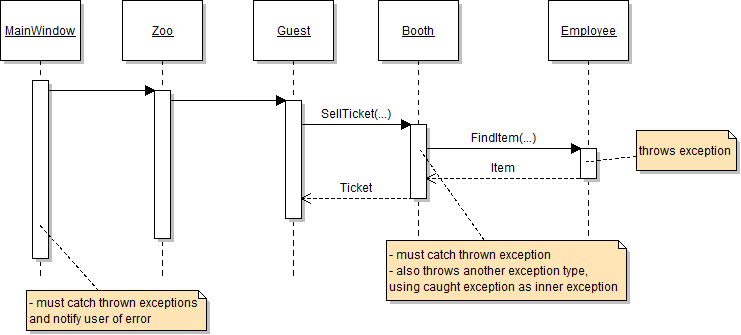
- Exception handling preserves the original failure as an inner exception and reports the outer error to the user.
If so, throw a new exception with the following message:
$"An item of type {type.Name} does not exist."In the catch block, throw a NullReferenceException, passing in a message and an inner exception, as shown in the code below:
catch (Exception ex)
{
    throw new NullReferenceException("Ticket not found.", ex);
}
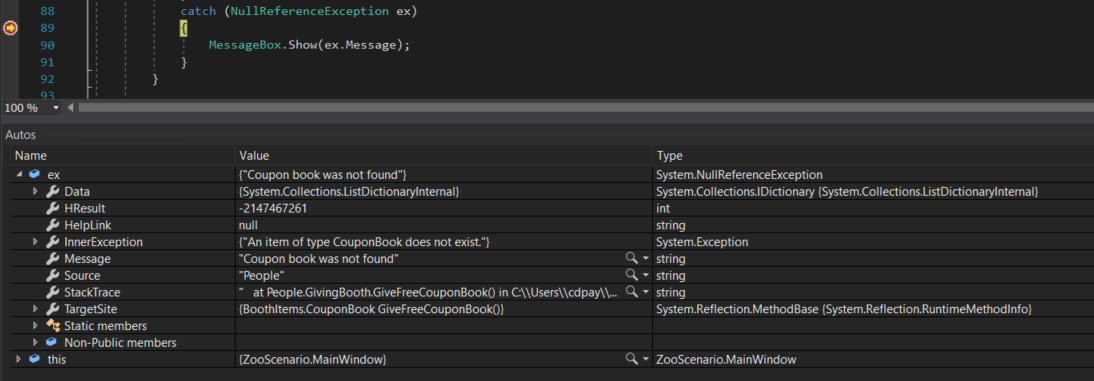
This is where the exceptions thrown in the FindItem methods will be caught.
Notice that it has an InnerException, which contains the values of the Exception type thrown in the FindItem method.
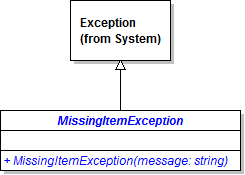
Pass the message parameter into the call to base. Leave the constructor empty.
MessageBox.Show(ex.Message + "\n" + ex.InnerException.GetType().ToString() + ": " + ex.InnerException.Message);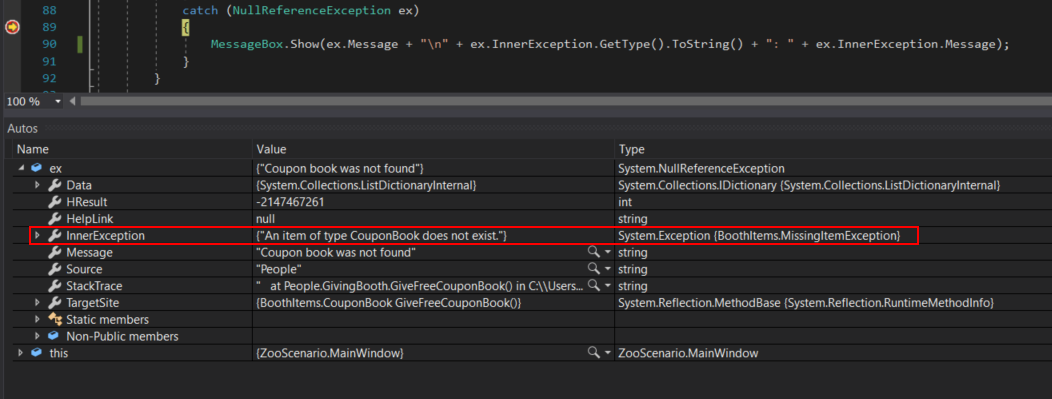
Ensure that a MessageBox pops up with the custom exception type and a more robust message about what is going wrong.
Add a Dingo animal to the zoo in the window_Loaded event handler in the MainWindow, so you don't have to create a new object every time the application loads
The animal window should appear, and its controls should be initialized to the animal's values.
Then double click in the background of the list box. Nothing should happen.
Make all of the new animal properties auto-properties (without fields behind them). Put the two enumerations in the Animals project.
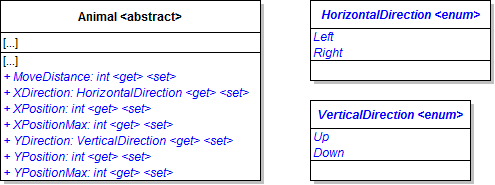
Example: public int MoveDistance { get; set; }if (this.XDirection == HorizontalDirection.Right)
{
if (this.XPosition + this.MoveDistance > this.XPositionMax)
{
this.XPosition = this.XPositionMax;
this.XDirection = HorizontalDirection.Left;
}
else
{
this.XPosition += this.MoveDistance;
}
}
else
{
if (this.XPosition - this.MoveDistance < 0)
{
this.XPosition = 0;
this.XDirection = HorizontalDirection.Right;
}
else
{
this.XPosition -= this.MoveDistance;
}
}If the animal is not null and is a mammal, call the animal's Move method.
Copy and paste the code in the file into the App.xaml file. All of the code should go inside the Application.Resources tags.
Animal XAML code Overview of XAML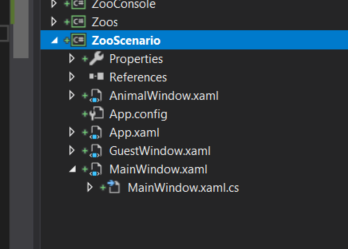
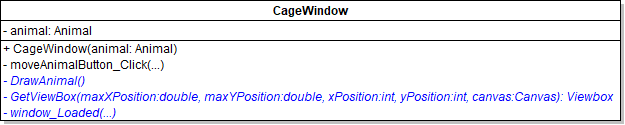
Add an animal field and parameter as specified in the diagram below.
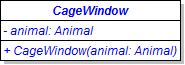
It has the following properties with corresponding values:
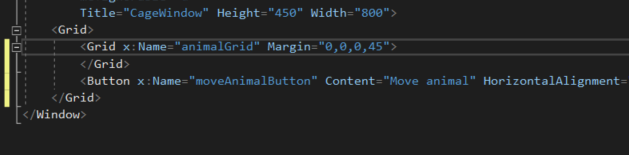
The button should be inside the outer grid and below the inner grid.
If the animal is not null, create a CageWindow and show it using .Show(). Otherwise, tell the user that they must select an animal to show.
The breakpoint in the mammal's Move method should get hit. The method should have the same functionality as before.
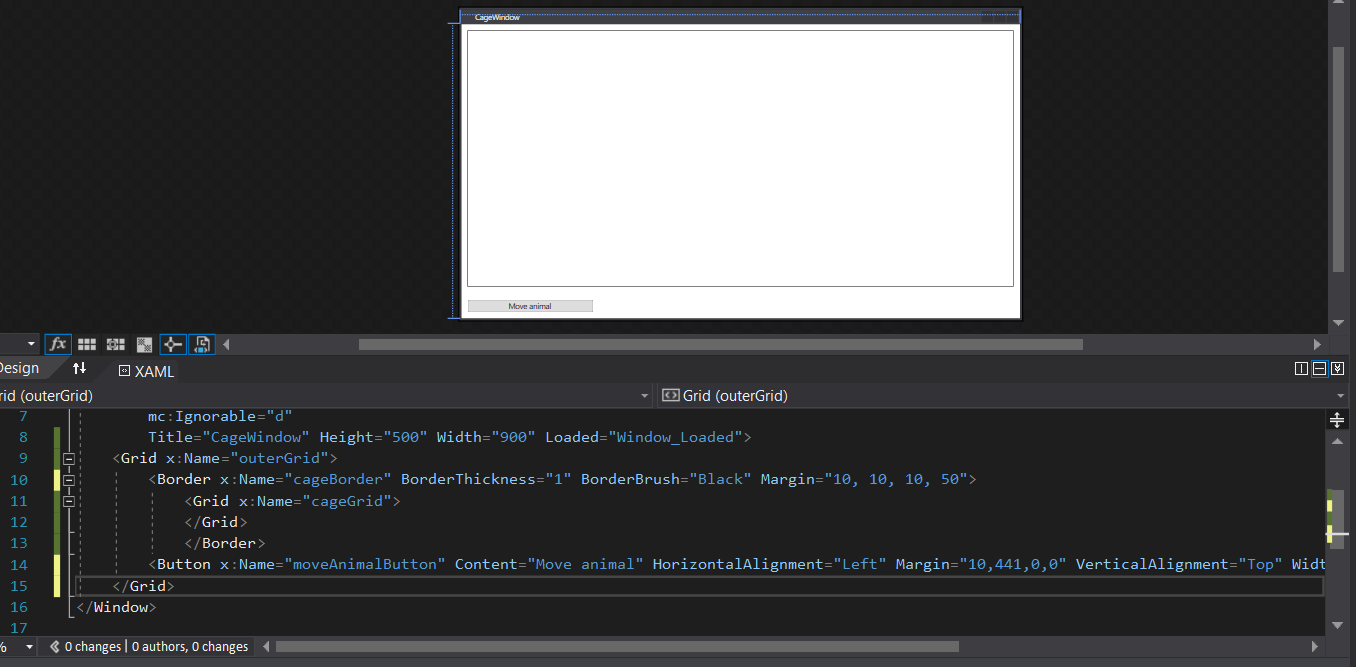
<Grid x:Name="outerGrid">
    <Viewbox Stretch="Uniform">
        <Border x:Name="cageBorder" BorderBrush="Black" BorderThickness="1" Height="400" Width="800" Margin="10,10,10,50">
            <Grid x:Name="cageGrid"/>
        </Border>
    </Viewbox>
</Grid>
Your xaml code should look similar to the image below.
// Instantiate viewBox.
Viewbox finishedViewBox = new Viewbox();

// Sets the animals size.
double itemWidth = canvas.Width;
double itemHeight = canvas.Height;

// Sets the screen scale.
double xScale = 0.7;
double yScale = 0.7;

xScale *= this.cageGrid.ActualWidth / maxXPosition;
yScale *= this.cageGrid.ActualHeight / maxYPosition;

// Changes the size of the animal based on the scale of the screen.
itemWidth *= xScale;
itemHeight *= yScale;

// Sets the width of the viewBox to the size of the canvas.
finishedViewBox.Width = itemWidth;
finishedViewBox.Height = itemHeight;

// Sets the animals location on the screen.
double xPercent, yPercent;

// Scales based on position - on maxX and maxY
xPercent = (this.cageGrid.ActualWidth - itemWidth) / maxXPosition;
yPercent = (this.cageGrid.ActualHeight - itemHeight) / maxYPosition;

int posX, posY;

posX = Convert.ToInt32(xPosition * xPercent);

posY = Convert.ToInt32(yPosition * yPercent);

finishedViewBox.Margin = new Thickness(posX, posY, 0, 0);

// Adds the canvas to the view box.
finishedViewBox.Child = canvas;

// Returns the finished viewBox.
return finishedViewBox;this.cageGrid.Children.Clear();Application.Current.Resources[resourceKey] as Canvas;viewBox.HorizontalAlignment = HorizontalAlignment.Left;
viewBox.VerticalAlignment = VerticalAlignment.Top;// If the animal is moving to the left
if (animal.XDirection == HorizontalDirection.Left)
{
// Set the origin point of the transformation to the middle of the viewBox.
viewBox.RenderTransformOrigin = new Point(0.5, 0.5);
// Initialize a ScaleTransform instance.
ScaleTransform flipTransform = new ScaleTransform();
// Flip the viewBox horizontally so the animal faces to the left
flipTransform.ScaleX = -1;
// Apply the ScaleTransform to the viewBox
viewBox.RenderTransform = flipTransform;
}this.cageGrid.Children.Add(viewBox);Add a click event handler for it. In the event handler, call the DrawAnimal method.
Use the System.Timers namespace when adding the timer.
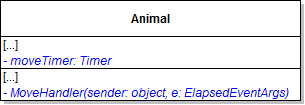
Pass in 1000 milliseconds for the interval, as shown in the code below:
this.moveTimer = new Timer(1000);this.moveTimer.Elapsed += this.MoveHandler;The animal should move across the window. Wait a few seconds and click the button again. The animal should move farther across the window.
The debugger will continually kick you back to the breakpoint, making it virtually impossible to debug.
A blue circle will appear next to the yellow arrow as seen in the image below.
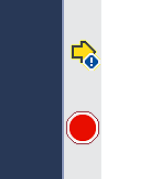
Surround the line stopping the timer with a conditional compiler directive to run only in debug mode. Do the same for the starting of the timer.
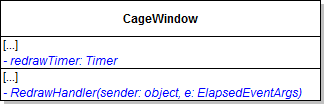
This prevents threading issues between the timer and the drawing.
5.1.9 How to Avoid Threading Issuesthis.Dispatcher.Invoke(new Action(delegate()
{
this.DrawAnimal();
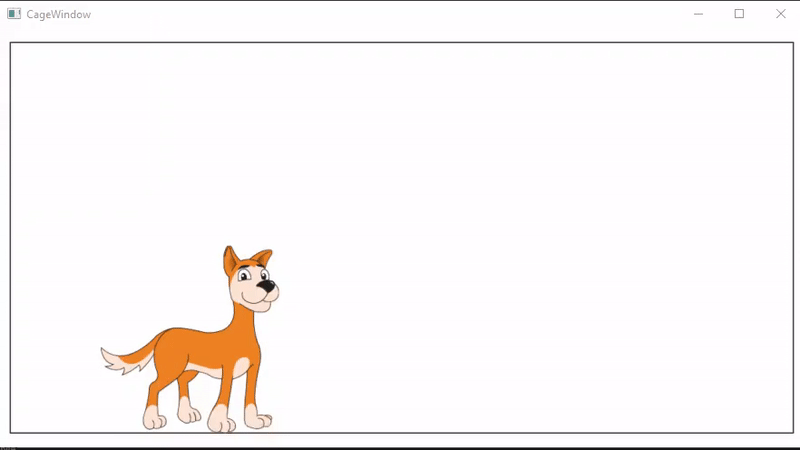
}));The gif below has a MoveDistance of 20, moveTimer of 100 milliseconds and a redrawTimer of 10 milliseconds.
© 2026 Northcentral Technical College