Acceptance criteria
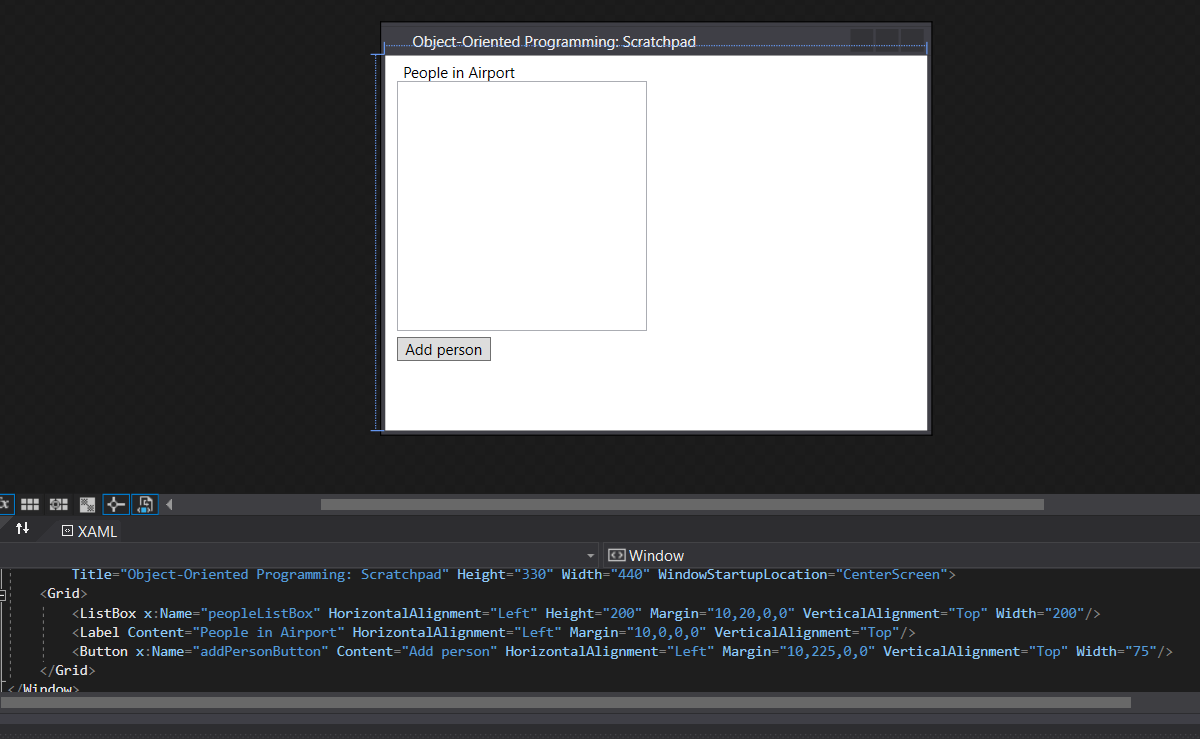
- The window contains the named list and buttons shown in the reference.
- The ListBox uses height 200, width 200, and margin 10, 20, 0, 0.
4.5 Scratchpad Learning Activity
In this lab you will be focusing on the WPF user interface and associating objects with window controls. Additionally, you will focus on event handlers and validation.
Work through the stories in order. Use the acceptance criteria to check each feature, and complete the nested tasks using the specified names, values, and scenarios.
4.5 Scratchpad Lab Walkthrough, Part 1 [12.29]
4.5 Scratchpad Lab Walkthrough, Part 1 [12.29]4.5 Scratchpad Lab Walkthrough, Part 2 [18.29]
4.5 Scratchpad Lab Walkthrough, Part 2 [18.29]4.5 Scratchpad Lab Walkthrough, Part 3 [15.46]
4.5 Scratchpad Lab Walkthrough, Part 3 [15.46]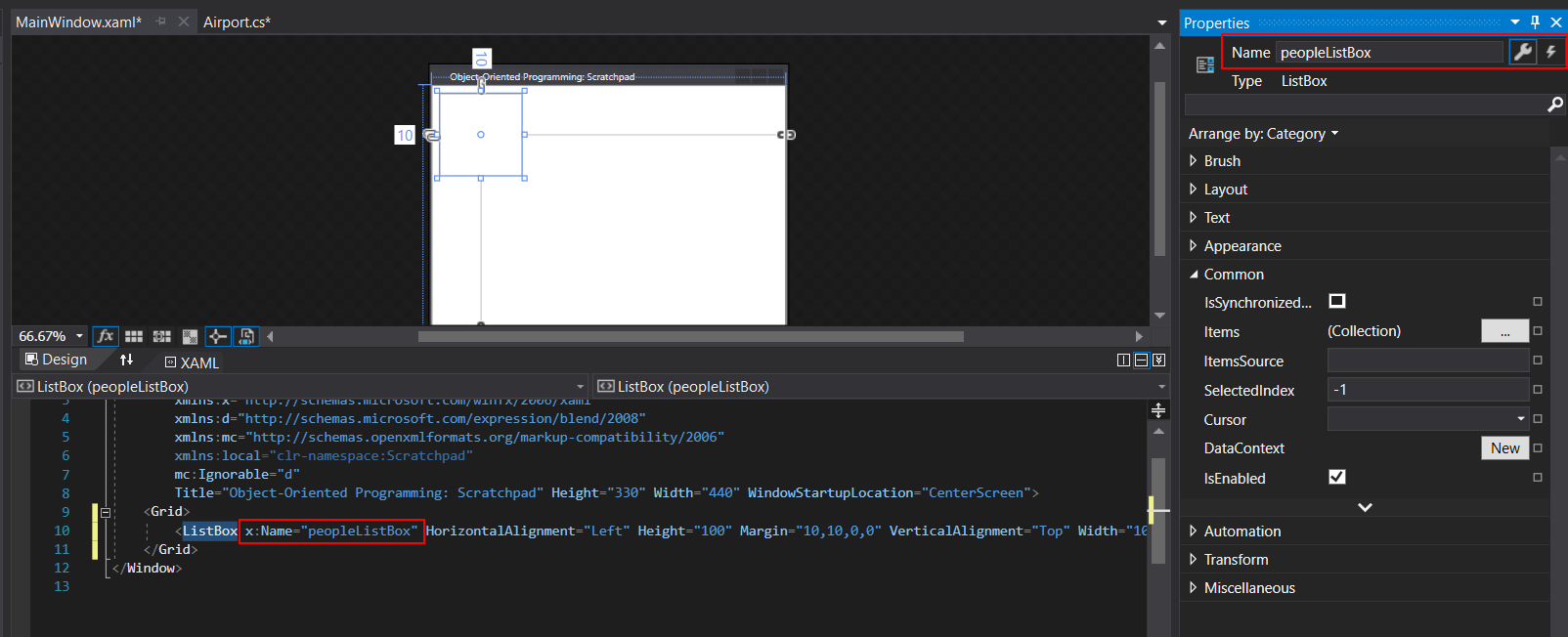
The Properties window can be found by going to View > Properties.
IEnumerable<Person> named People and return the people list.You will need to add a reference to the People project and add a using.
IEnumerable<Person> named People and return the people list.An IEnumerable is a "copy" of a list; it allows the list to be read but keeps it from being manipulated.
Instantiate a new Person object named person.
Assign the person object's Age and FirstName properties using the parameters.
Add the person to the people list.
this.peopleListBox.ItemsSource = this.dfw.People;Using ItemsSource with an IEnumerable binds the IEnumerable to this property so even if this code were to be put above the adding the people it would produce the same result.
return string.Format("{0} ({1})", this.FirstName, this.Age);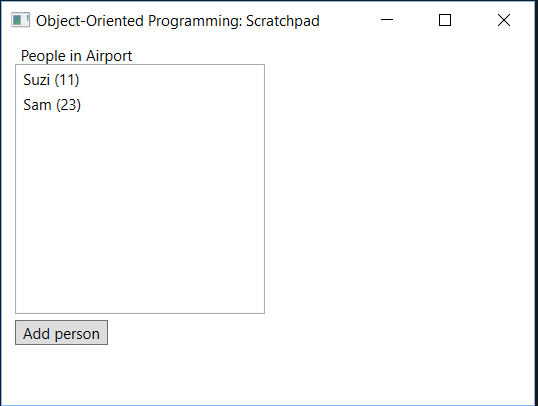
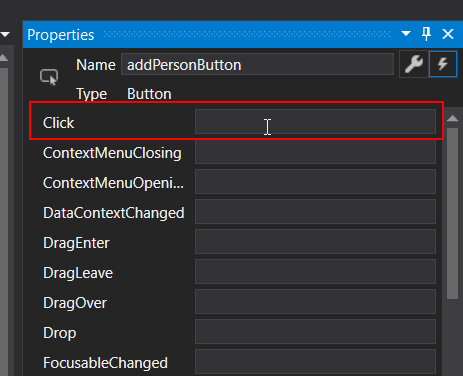
In VS 2017 click events that had camel-cased names would remain camel-cased. In 2019 the event handler is automatically capitalized.
Assigning the ItemsSource to null and then to the People IEnumerable again resets the binding to the updated list.
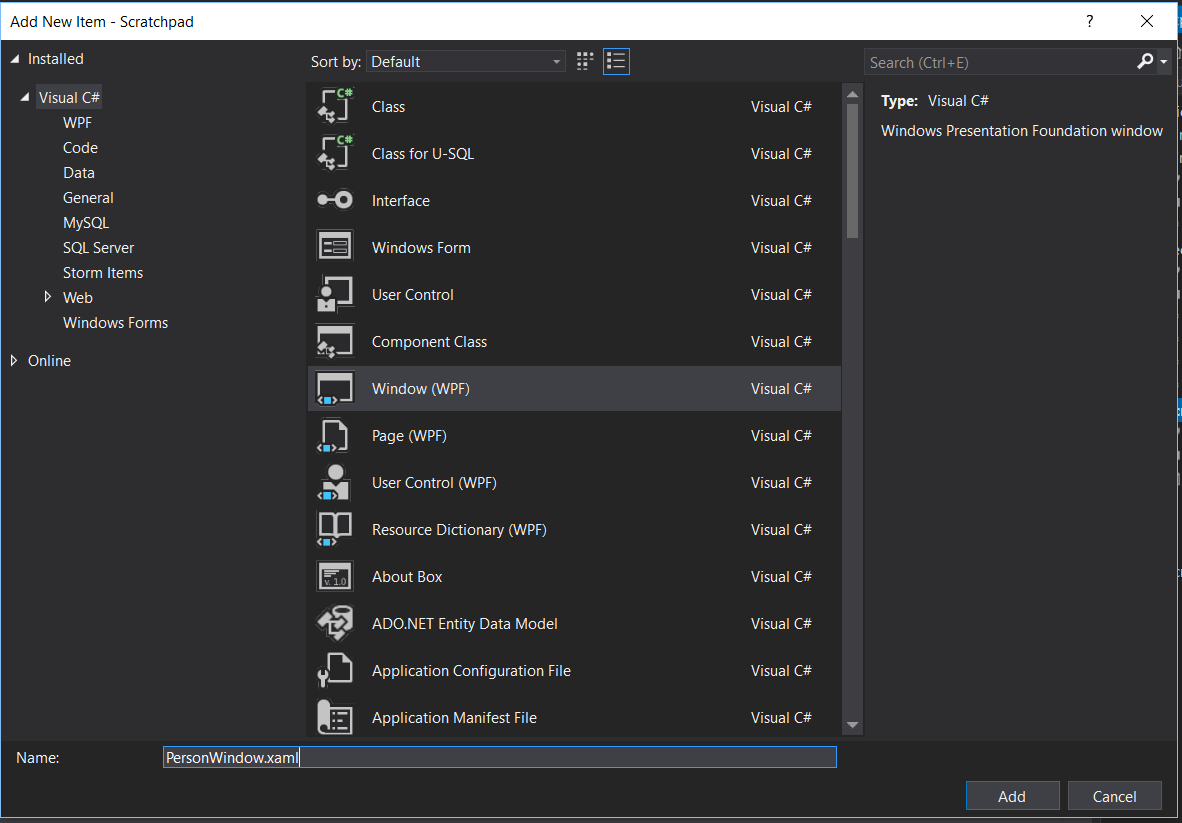
There is another method named Show() that also shows the window, but does not gain control of the application, allowing the user to have multiple windows open at a time. We don't want that functionality so we will use ShowDialog to ensure the user interacts with only one window at a time.
Run the application and click 'Add person'. The PersonWindow should pop up and you shouldn't be able to interact with the MainWindow until you close the PersonWindow.
You will need to add a using statement.
You will need to add a using statement.
In the PersonWindow.xaml.cs, define a Person field and in the constructor (before InitializeComponent), assign it to the person parameter.
In the PersonWindow constructor after the call to InitializeComponent, assign the person object's FirstName property to "Fred" and the Age property to 38.
In the Airport class, write a method named AddPerson that has a parameter of type Person named person and in the method body add that person to the people list.
This is called an overloaded method. You can have many methods of the same name with different parameters and functionality and decide which one to call.
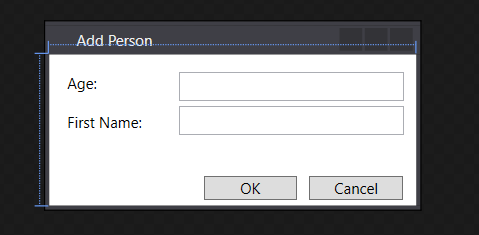
Note that the person object is Fred, but that we don't have an explicit return. This is because we are passing the reference around and giving "permission" to the PersonWindow to modify the object.
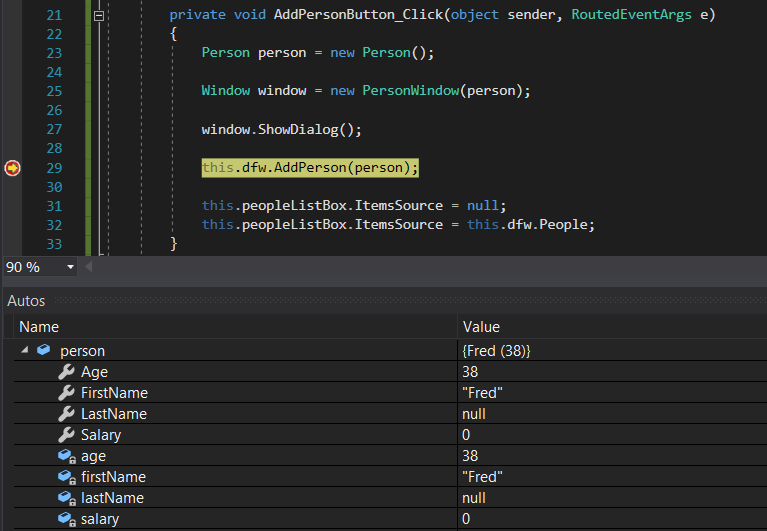
x:Name = "ageLabel" Content="Age:" HorizontalAlignment="Left" Margin="10, 10, 0, 0" VerticalAlignment="Top"
x:Name = "firstNameLabel" Content="First Name:" HorizontalAlignment="Left" Margin="10, 41, 0, 0" VerticalAlignment="Top"
x:Name = "ageTextBox" HorizontalAlignment="Right" Height="23" Margin="0, 14, 10, 0" VerticalAlignment="Top" Width="180"
x:Name = "firstNameTextBox" HorizontalAlignment="Right" Height="23" Margin="0, 41, 10, 0" VerticalAlignment="Top" Width="180"
x:Name="okButton" Content="OK" HorizontalAlignment="Right" Margin="0, 0, 95, 5" VerticalAlignment="Bottom" Width="75"
x:Name="cancelButton" Content="Cancel" HorizontalAlignment="Right" Margin="0, 0, 10, 5" VerticalAlignment="Bottom" Width="75"
this.ageTextBox.Text = this.person.Age.ToString();This code assigns the Text attribute of the ageTextBox to whatever the person object's Age property is as a string.
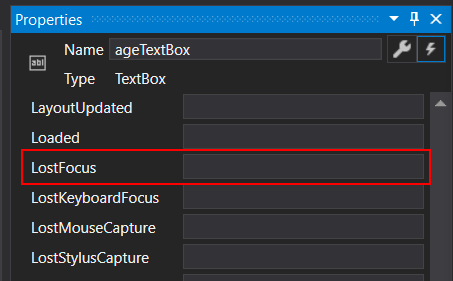
This event fires when a user clicks in to the text box and then either tabs out or clicks out of it.
this.person.Age = int.Parse(this.ageTextBox.Text);This line of code assigns the person field's Age property to the Text entered in to the TextBox as an int.
DialogResult is a boolean determines what happened with the window. If the window was closed or canceled, DailongResult will be false. In our case we made it so that DialogResult is true if Enter is pressed or OK is clicked.
In the MainWindow put the ShowDialog call in an if statement that checks if the return is true and the adding of the person and ListBox update in the body.
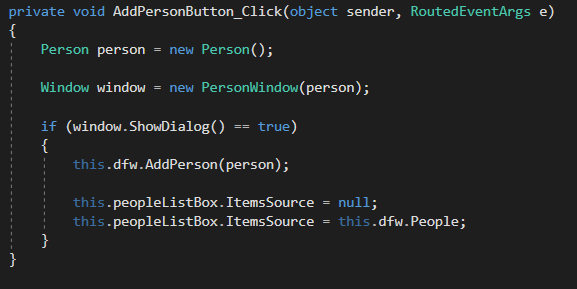
This logic statement tests if the opening and closing of the window was successful. If it was (the user pressed Enter or clicked OK) the condition will pass.
The return from ShowDialong is a nullable type meaning that there's potential for it to be null, which means we need to explicitly check if it's true.
Return to each story and verify its acceptance criteria. Preserve the submission format and destination stated in the activity; a reading, setup guide, lab, video demonstration, and oral final may require different evidence.
Create a user interface for the Scratchpad window. Add functionality for a People list. Show the people in the ListBox Add a person to the list using a button click. Add an additional window to the project. Add a new person using the new window. Use the PersonWindow to manipulate the Person object. Add functionality to the OK and Cancel buttons.