4.3B Zoo Assignment

4.3B Zoo Assignment
Add a console command to show a specific animal.
Acceptance Criteria
Acceptance criteria
  • The console show command finds an animal by name and displays its information.
1.Add a console command to show a specific animal.
Problem
Solution
A Add the show command.
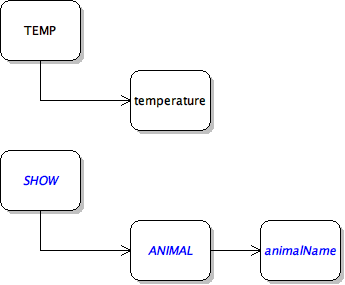
1 In the Main method of Program.cs, add a new case to the existing switch statement to process the show command.
Command Diagram: Show Command. Reference figure for add a console command to show a specific animal.
Command Diagram: Show Command
2 Inside the "show" case, add a new switch statement that switches on the second item in the commandWords array.
3 Surround the switch statement with a try...catch statement that catches an IndexOutOfRangeException and display an appropriate message to the user about needing additional parameters.
4 Add a case to the inner switch statement for "animal".
5 In the "animal" case, call the FindAnimal method, passing in the third item in the commandWords array.
6 If the animal was found, write it to the console, as shown in the message below using string interpolation.

Otherwise, write a message to the console telling the user that the animal could not be found.

The following animal was found: [AnimalName].

B Check Your Work
1 Run the console application.
2 Type 'show animal Dolly'.
C Capitalize the first letter of names.
1 Put the following line of code above the call to FindAnimal.

It capitalizes the first letter in the string and adds the rest of the string to the capitalized letter.

string animalName = char.ToUpper(commandWords[2][0]) + commandWords[2].Substring(1);
2 Pass the animalName variable into the FindAnimal method call.
D Wrap the code inside the animal case with a try/catch that catches an IndexOutOfRangeException and print out a message telling the user they need to enter a third parameter of the name of an animal.
E Add references to the SHOW ANIMAL command in the HELP menu for the user. It should look like this
SHOW ANIMAL [animal name]: Displays information for specified animal.
F Check Your Work
1 Run the console application.
2 Type help.
3 Type only 'show'. A message should appear instructing the user to enter additional parameters,
4 Type only 'show animal'. A message should appear instructing the user to enter additional parameters.
5 Type 'show animal Dolly'.
Add functionality to show guests to the console
Acceptance Criteria
Acceptance criteria
  • The console show command also finds and displays guests by name.
2.Add functionality to show guests to the console
Problem
Solution
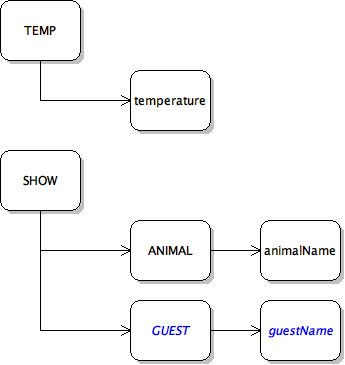
A In the switch statement inside the "show" case, add a case for "guest".
Command Diagram: Show Guest. Reference figure for add functionality to show guests to the console.
Command Diagram: Show Guest
B Capitalize the first letter of the guest name parameter (use the same code as in the "animal" case).
C Call the FindGuest method, passing in the capitalized guest name.
D If the guest is not null, write the guest object to the console.

Otherwise, write a message to the console telling the user that the guest could not be found.

E Check Your Work
1 Run the console application.
2 Type the following into the command line
show guest Greg
3 Greg should be found, but he will be written to the console as People.Guest.
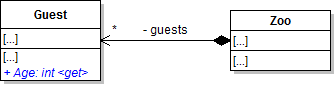
F Add an Age getter property to the Guest class.
Class Diagram: Class Diagram - Guest age. Reference figure for add functionality to show guests to the console.
Class Diagram: Class Diagram - Guest age
G Wrap the code inside the guest case with a try/catch that catches an IndexOutOfRangeException and print out a message telling the user they need to enter a third parameter of the name of a guest.
H Override the ToString method in the Guest class. Use the string.Format method to make the output look like this
3.3.6 How to Use ToString
Greg: 11 [$12.00]
I Add references to the SHOW GUEST command in the HELP menu for the user. It should look like this
SHOW GUEST [guest name]: Displays information for specified guest.
J Check Your Work
1 Run the console application.
2 Type help into the command line.
3 Ensure the help menu should include SHOW GUEST command help.
4 Type the following into the command line
show guest Greg
5 Greg should be written to the console.
6 Type 'show guest'. A message should appear instructing the user to enter an additional parameter.
Refactor capitalization code out to a method
Acceptance Criteria
Acceptance criteria
  • The capitalization operation is shared through a reusable method.
3.Refactor capitalization code out to a method
Problem
Solution
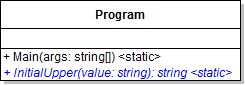
A Create a static method in Program.cs called InitialUpper. It takes a string as a parameter and returns a string.
Class Diagram: InitialUpper Method. Reference figure for refactor capitalization code out to a method.
Class Diagram: InitialUpper Method
B Put the code capitalizing the first letter of a string into the method.

Change commandWords[2] to the name of the string parameter.

C Add checks to see if the passed-in string is not null and if its length is greater than zero.
D Replace the capitalization code in the "show" command with calls to the InitialUpper method.

Pass in commandWords[2].

E Check Your Work
1 Run the console application.
2 Type the following into the command line
show animal Dolly
3 Ensure that the command functions as it did before.
4 Type the following into the command line
show guest Greg
5 Ensure that the command functions as it did before.
Create inheritance hierarchy for sold items
Acceptance Criteria
Acceptance criteria
  • Sold items inherit the shared price-related members separately from free items.
4.Create inheritance hierarchy for sold items
Problem
Solution
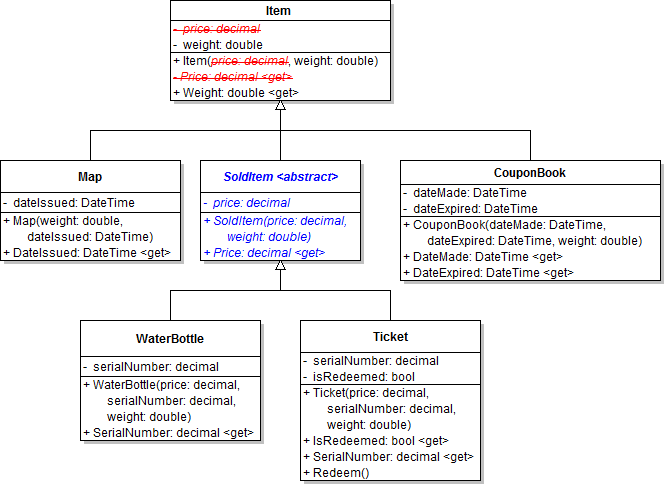
A Add a class called SoldItem to the BoothItems project and update the inheritance hierarchy of booth items as specified in the diagram below.
Class Diagram: SoldItem Inheritance. Reference figure for create inheritance hierarchy for sold items.
Class Diagram: SoldItem Inheritance
B Check Your Work: Build the solution and ensure that the code compiles without errors or warnings.
Have wallets and vending machines contain a money collector instead of inheriting from it.
Acceptance Criteria
Acceptance criteria
  • Wallet and VendingMachine contain money collectors rather than inheriting from MoneyCollector.
5.Have wallets and vending machines contain a money collector instead of inheriting from it.
Problem
Solution
4.3.14 Why Use Composition over Inheritance
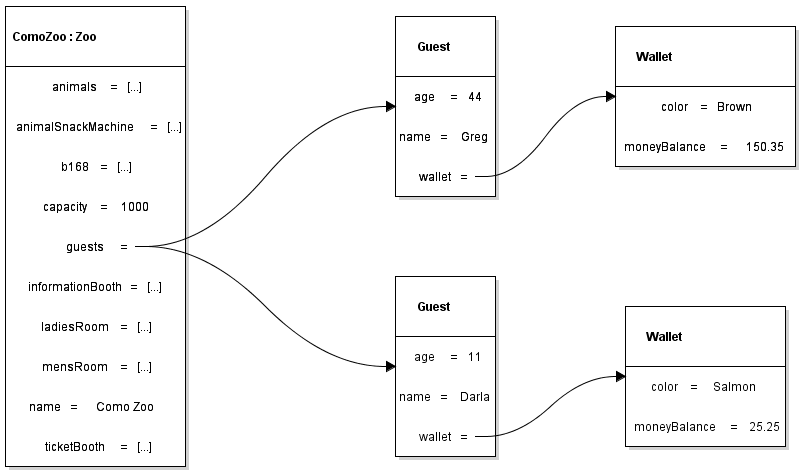
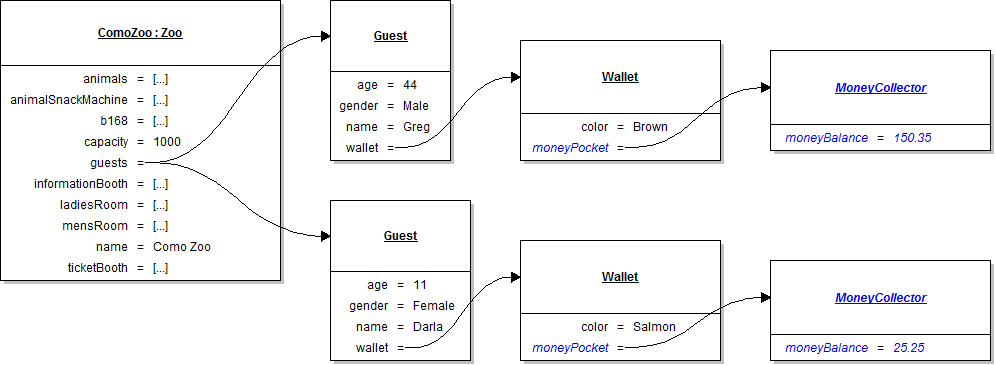
A Review the object diagram. It shows the current state of guests and their wallets.
4.3B Zoo 5A Object Wallet UPDATED.png. Reference figure for have wallets and vending machines contain a money collector instead of inheriting from it.
4.3B Zoo 5A Object Wallet UPDATED.png
B Compose a money collector within the wallet.
1 Add methods, fields and properties and make other changes as specified in the diagram below.
Class Diagram: Wallet Composition. Reference figure for have wallets and vending machines contain a money collector instead of inheriting from it.
Class Diagram: Wallet Composition
2 Remove the inheritance from wallet.
3 Remove the abstract from the MoneyCollector class so it can be instantiated.
4 Instantiate the moneyPocket field to a new MoneyCollector in the wallet constructor per the object diagram below.
Object Diagram: MoneyPocket. Reference figure for have wallets and vending machines contain a money collector instead of inheriting from it.
Object Diagram: MoneyPocket
5 The MoneyBalance property's getter should refer to the money pocket's MoneyBalance property, as shown in the code below
public decimal MoneyBalance
{
    get
    {
        return this.moneyPocket.MoneyBalance;
    }
}
6 The wallet's AddMoney method should call the moneyPocket's AddMoney method, passing the parameter through.
7 The wallet's RemoveMoney method should call the moneyPocket's RemoveMoney method, passing the parameter through.

Return the result of calling the method.

C Compose a money collector within the VendingMachine
1 Add methods and properties and make other changes as specified in the diagram below.
Class Diagram: VendingMachine Composition. Reference figure for have wallets and vending machines contain a money collector instead of inheriting from it.
Class Diagram: VendingMachine Composition
2 Remove the inheritance from vending machine.
3 Instantiate the moneyBox field to a new MoneyCollector in the vending machine constructor.
4 The MoneyBalance property and the AddMoney and RemoveMoney methods should call the appropriate property or method on the moneyBox.
D Check Your Work
1 In the Wallet class, set a breakpoint on the line that calls RemoveMoney
2 In the VendingMachine class' AddMoney method, set a breakpoint on the line that calls AddMoney.
3 Start the WPF application.
4 Press F11 and ensure the debugger goes into the MoneyCollector class.
5 Press Continue.
6 Press F11 and ensure the debugger goes into the MoneyCollector class.
Use inheritance and composition to separate a giving booth from a money collecting booth
Acceptance Criteria
Acceptance criteria
  • The giving booth and money-collecting booth share booth behavior while only the latter contains a money collector.
6.Use inheritance and composition to separate a giving booth from a money collecting booth
Problem
Solution
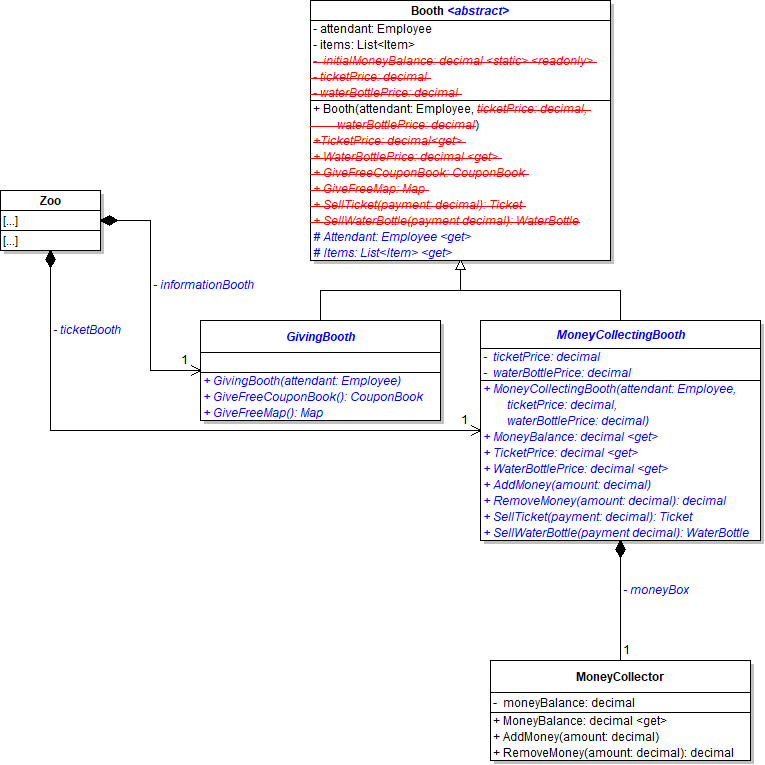
A Implement an inheritance hierarchy for booths.
1 Add the GivingBooth and MoneyCollectingBooth classes to the People project and make other changes as specified in the diagram below.
Class DIagram: Two Booths. Reference figure for use inheritance and composition to separate a giving booth from a money collecting booth.
Class DIagram: Two Booths
2 Move the the ticketPrice fields, the TicketPrice and WaterBottlePrice properties, and SellTicket and SellWaterBottle methods to the MoneyCollectingBooth.
3 Move the GiveFreeMap and GiveFreeCouponBook methods to the GivingBooth.
4 The MoneyCollectingBooth's MoneyBalance property, AddMoney method, and RemoveMoney method should all call the appropriate property or method on the money box.
5 Move the creation of tickets and water bottles to the MoneyCollectingBooth constructor.

Move the creation of maps and coupon books to the GivingBooth constructor. The list of items should still be instantiated in the Booth constructor.

6 In the MoneyCollectingBooth's constructor, instantiate its moneyBox field.
7 Change the zoo's ticketBooth to be a MoneyCollectingBooth.

Add a field called informationBooth of type GivingBooth. Instantiate it in the constructor.
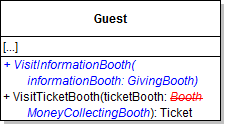
8 Create a folder named Booths in the People project and put the Booth, GivingBooth and MoneyCollectingBooth classes in it.
B Allow guests to visit both booths.
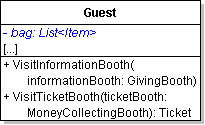
1 Make changes to the Guest class as specified in the diagram below.
Class Digram: Guest Class. Reference figure for use inheritance and composition to separate a giving booth from a money collecting booth.
Class Digram: Guest Class
2 Move the calls to GiveFreeMap and GiveFreeCouponBook from VisitTicketBooth to VisitInformationBooth.
3 Call the VisitInformationBooth method from the zoo's SellTicket method.
C Allow the guest to hold onto the items from the booths.
1 In the Guest class, create a new list of Items and instantiate the list in the constructor.
Class Diagram: Guest's Bag. Reference figure for use inheritance and composition to separate a giving booth from a money collecting booth.
Class Diagram: Guest's Bag
2 In the VisitTicketBooth method add the water bottle to the bag.
3 In the VisitInformatonBooth method add the coupon book and map to the bag.
D Check Your Work
1 Set a breakpoint in the zoo's SellTicket method on the call to VisitTicketBooth. Run the WPF application.
2 Step through the property and method calls. Check for the following things
Subtasks
  • A. stepping into the SellTicket and SellWaterBottle methods should go to the MoneyCollectingBooth class
  • B. stepping into the GiveFreeMap and GiveFreeCouponBook methods should go to the GivingBooth class
  • C. stepping into the Attendant and Items properties should go to the Booth class
  • D. stepping into the MoneyCollectingBooth's AddMoney and RemoveMoney methods should also step into the methods of the same name on the MoneyCollector class
3 Click the Admit guest button. The guest should still successfully be added to the zoo.
4 The guest's bag should have three items, the water bottle, the coupon book, and the map.
Show animals and guests in a list boxes and populate them automatically
Acceptance Criteria
Acceptance criteria
  • The WPF list boxes automatically display the zoo's animals and guests.
7.Show animals and guests in a list boxes and populate them automatically
Problem
Solution
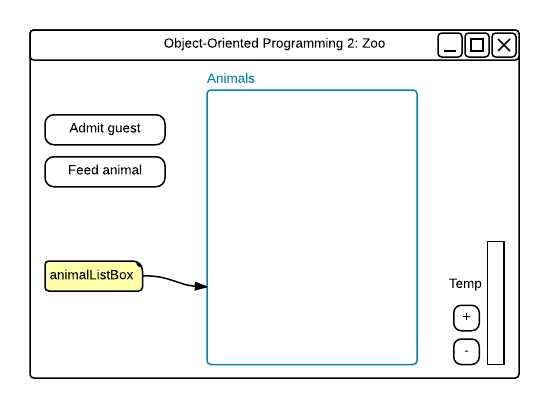
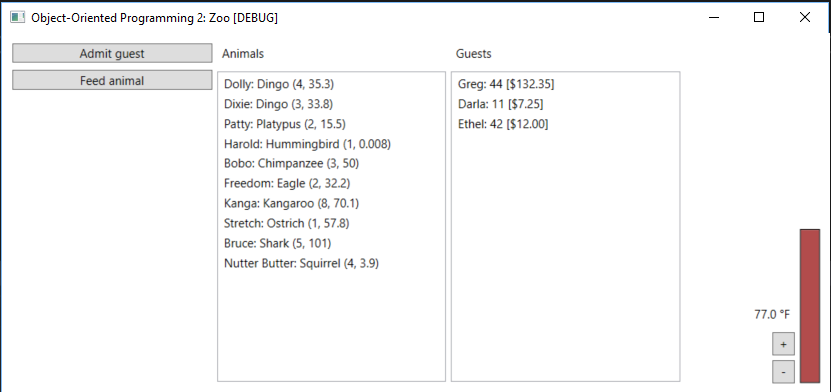
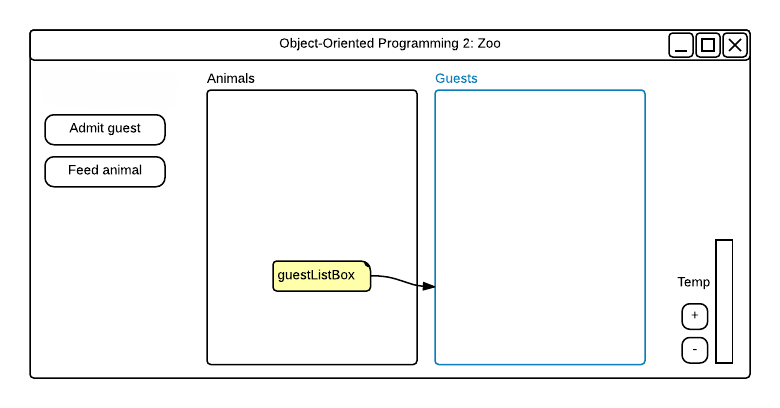
A Add a list box to the MainWindow.xaml called animalListBox, as shown in the wireframe below.
4.3.15 How to Add and Use List Boxes
Wireframe: Animal List Box. Reference figure for show animals and guests in a list boxes and populate them automatically.
Wireframe: Animal List Box
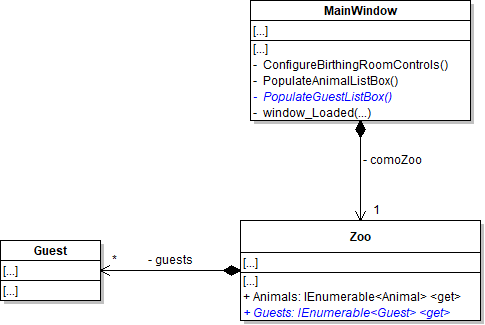
B Add a read-only property to the Zoo class called Animals.

It returns the animals list as an IEnumerable<Animal>.
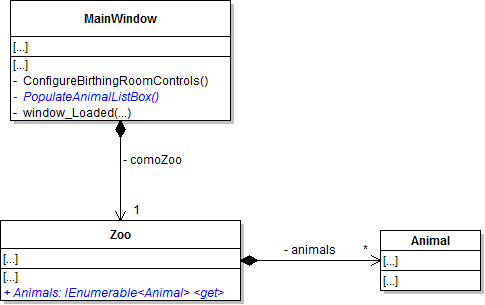
4.3.16 How to Use the IEnumerable Type
Class Diagram: Animals IEnumerable. Reference figure for show animals and guests in a list boxes and populate them automatically.
Class Diagram: Animals IEnumerable
C Add a method to populate the animal list box.
1 Add a private method called PopulateAnimalListBox to MainWindow.xaml.cs. It takes no parameters.
2 In the method, first set the ItemsSource of the animals list box to null.

Then set the ItemsSource to the zoo's Animals property.
D Call the PopulateAnimalListBox method inside the window_Loaded event.
E Call the PopulateAnimalListBox method inside the feedAnimalButton_Click event after feeding an animal.
F Follow the same process as in the previous steps to add a list box for guests and automatically populate it when the window loads.
Wireframe: Gust List Box. Reference figure for show animals and guests in a list boxes and populate them automatically.
Wireframe: Gust List Box
Class Diagram: Guests IEnumerable. Reference figure for show animals and guests in a list boxes and populate them automatically.
Class Diagram: Guests IEnumerable
G Call the PopulateGuestListBox method inside the admitGuestButton_Click after adding the guest to the zoo.
H Call the PopulateGuestListBox method inside the feedAnimalButton_Click after feeding an animal.
I Check Your Work
1 Run the WPF application
2 Ensure that all of the animals and guests in the zoo appear in the list boxes.
3 Click the Admit Guest button.
4 Ensure a Guest is added to the guest list box.
WPF: Guest Added. Reference figure for show animals and guests in a list boxes and populate them automatically.
WPF: Guest Added
5 Click the Feed Animal button.

Ensure that the ostrich's weight and the Greg's money balance are automatically updated.

Demonstrate your work
8.Record a video of your application showing
A Your Console Application
1 Show - the command should prompt for more parameters
2 Show animal - the command should prompt for more parameters
3 Show animal dolly - the command should show Dolly's name, age, and weight
4 Show guest - the command should prompt for more parameters
5 Show guest greg - the command should show Greg's name, age, and money balance
6 Help - the command should include how to use 'Show Animal' and 'Show Guest"
B Your WPF Application
1 Do 7I - Check Your Work steps
Prepare and submit your work
9.Submission Steps
A Ensure that your application has no compiler errors or warnings
B Ensure that your code is StyleCop compliant
C Remove all bin and obj folders from your solution
D Zip your solution
E Submit your zipped solution to the Feedback System
F Submit your Feedback System results link to Canvas
G Submit your video recording to your f-channel
Source credit

© 2026 Northcentral Technical College