4.1 Scratchpad Learning Activity

Overview

4.1 Scratchpad Learning Activity

For this Scratchpad you will be breaking up one project in a solution into different projects. Specifically, we will be moving classes into what are called class libraries or dynamic link libraries (DLLs). Doing this both encapsulates the classes and makes them modular so they can be used by other projects/applications. To connect the multiple projects together we will be using references and modifying namespaces.

Work through the stories in order. Use the acceptance criteria to check each feature, and complete the nested tasks using the specified names, values, and scenarios.

Getting started
1.Getting started
A If you would like to follow along with an instructor-led walkthrough you can do so here:

Scratchpad 4.1 Walkthrough

Scratchpad 4.1 Walkthrough
B Download this starting zip file.

Scratchpad 4.1 LastName.zip

Scratchpad 4.1 LastName.zip
C Extract the contents of the zip file to a location of your choice.
D Rename the "Scratchpad 4.1 LastName" folder, replacing LastName with your last name.
E Within the folder renamed in the previous step, rename the file "Scratchpad 4.1 LastName.sln" file, replacing LastName with…

Within the folder renamed in the previous step, rename the file "Scratchpad 4.1 LastName.sln" file, replacing LastName with your last name.

F Open the contained solution file and examine the code to establish a comfort level with it in preparation for making further…

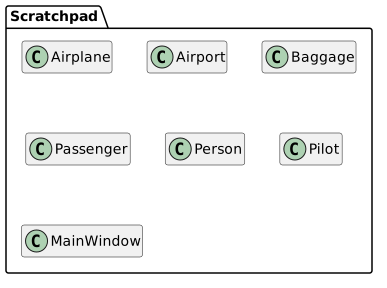
Open the contained solution file and examine the code to establish a comfort level with it in preparation for making further changes. The structure of the code can be seen in the package diagram below.

4.1 Scratchpad Starting Package Diagram; Members and relationships are shown in the editable reference; unrelated members may be omitted.
4.1 Scratchpad Starting Package Diagram
  • New
  • Changed
  • Removed
Encapsulation review
Acceptance Criteria
Acceptance criteria
  • Required result: In the Person class, change the Salary field from public to private and change it to lower case salary.
  • Required result: Right-click the salary field and click 'Quick Actions and Refactorings...' and select 'Encapsulate field (and use property)'
Instructions
2.Encapsulation review
A In the Person class, change the Salary field from public to private and change it to lower case salary.
B Right-click the salary field and click 'Quick Actions and Refactorings...' and select 'Encapsulate field (and use property)'
Create a class library (DLLs)
Acceptance Criteria
Acceptance criteria
  • Required result: Right click on the Solution and click Add --> New Project...
  • Required result: Select the Class Library option for .NET Framework.
  • Required result: Enter in People as the name of the project and click OK.
Instructions
3.Create a class library (DLLs)

Class libraries or dynamic-link libraries (DLLs) are a way of encapsulating classes within a solution. While these libraries are additional projects, projects are not all necessarily class libraries. For instance, the Scratchpad project is a Windows Presentation Foundation (WPF) type project. Solutions are simply containers for projects so many projects can be in one solution.

A Create a People project
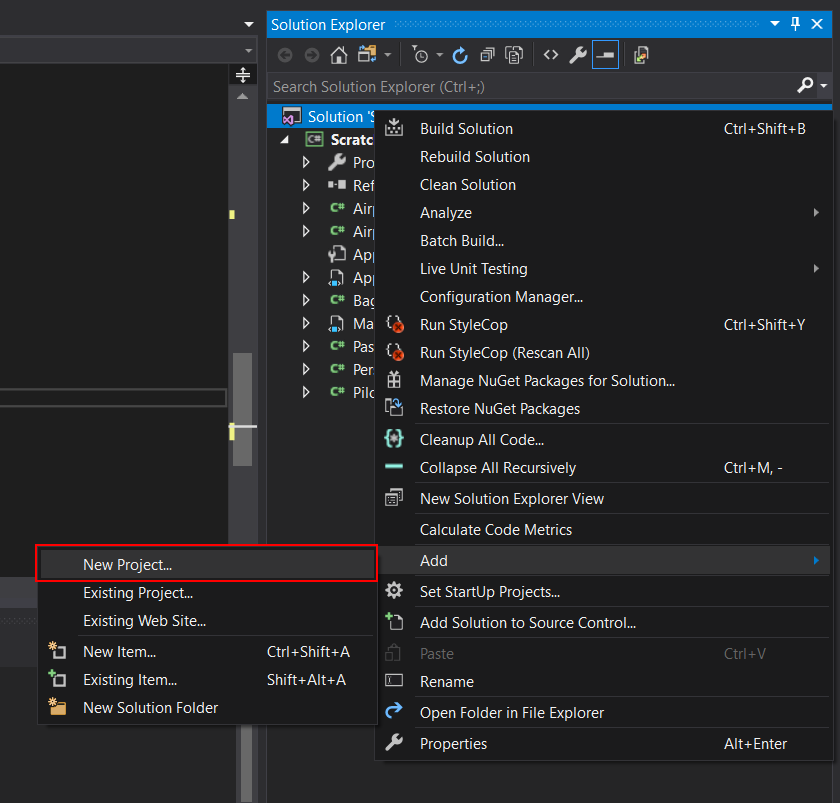
1 Right click on the Solution and click Add --> New Project...
Snip: New Project for 4.1 Scratchpad Learning Activity. Use the adjacent task instructions to identify the required controls, output, or debugger values.
Snip: New Project
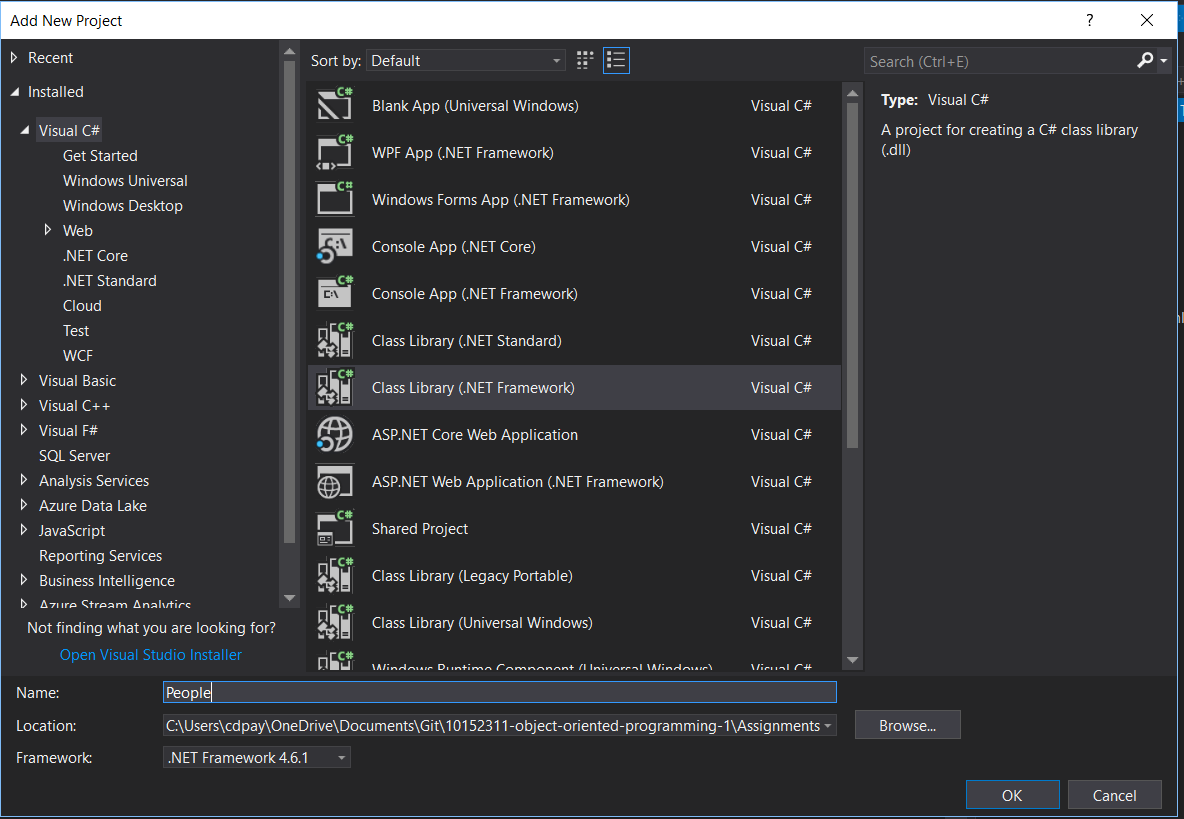
2 Select the Class Library option for .NET Framework.
Snip: New Project Dialog for 4.1 Scratchpad Learning Activity. Use the adjacent task instructions to identify the required controls, output, or debugger values.
Snip: New Project Dialog
3 Enter in People as the name of the project and click OK.
4 Delete the auto-generated class in the Solution Explorer.
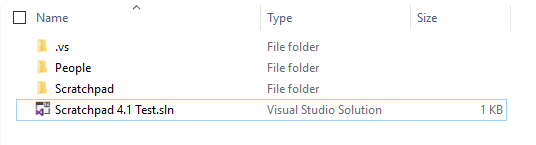
5 Check your file tree at the root of the solution file. You should now have an additional folder called People along with Scratchpad.
Snip: File Tree for 4.1 Scratchpad Learning Activity. Use the adjacent task instructions to identify the required controls, output, or debugger values.
Snip: File Tree
B Move classes to the People project and build.

For each project we create we want to move similar functioning/related classes to "package" them up together. This both encapsulates these classes to the project and allows us to use that project in other applications.

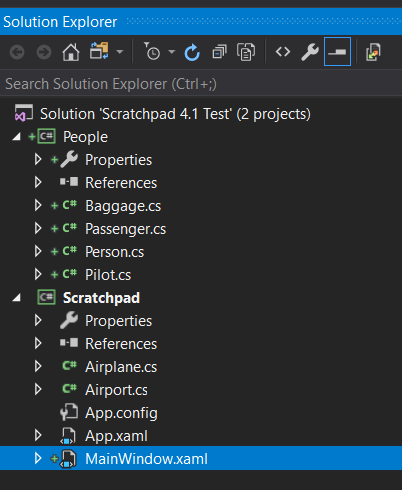
1 Hold down CTRL and select the Baggage, Passenger, Person and Pilot classes
2 Cut the classes using CTRL+X and paste them into the People project.
Snip: Solution Explorer for 4.1 Scratchpad Learning Activity. Use the adjacent task instructions to identify the required controls, output, or debugger values.
Snip: Solution Explorer
3 Open your File Explorer and navigate to the People folder at the solution root. Note that the People folder now has the…

Open your File Explorer and navigate to the People folder at the solution root. Note that the People folder now has the classes we moved.

4 In the People folder, navigate to the bin > Debug folder. The folder should be empty. Keep this folder open.
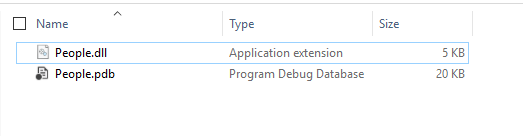
5 In Visual Studio, right click the People project and click Build. A People.dll file should now appear in the People Debug folder.
4.1 Scratchpad 3B Snip PeopleDLL for 4.1 Scratchpad Learning Activity. Use the adjacent task instructions to identify the required controls, output, or debugger values.
4.1 Scratchpad 3B Snip PeopleDLL
Fix the missing references.
Acceptance Criteria
Acceptance criteria
  • Required result: Right click the Scratchpad project and click Build. You will get error messages like the ones below because the Passenger class can no longer be found.
  • Required result: Right-click on References in the Scratchpad project and click Add Reference...
  • Required result: In the Reference Manager dialog, select the People project and click OK.
Instructions
4.Fix the missing references.

Now that classes have been moved to a different project, the Scratchpad project that used those classes no longer knows where they are. A reference needs to be made from the Scratchpad project to the People project so it can use the classes it is missing.

A Right click the Scratchpad project and click Build. You will get error messages like the ones below because the Passenger…

Right click the Scratchpad project and click Build. You will get error messages like the ones below because the Passenger class can no longer be found.

Snip: Build Error for 4.1 Scratchpad Learning Activity. Use the adjacent task instructions to identify the required controls, output, or debugger values.
Snip: Build Error
B Add reference to the People project.
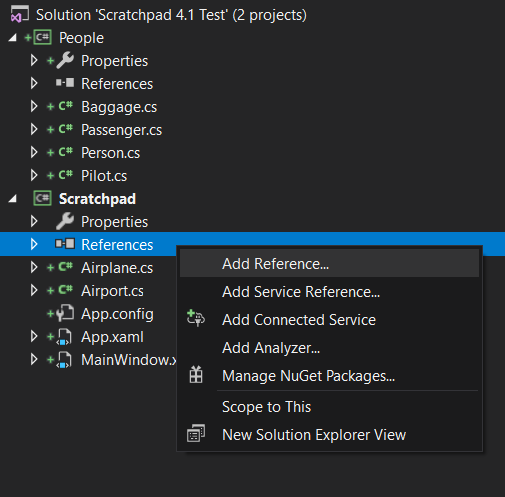
1 Right-click on References in the Scratchpad project and click Add Reference...
Snip: Add Reference... for 4.1 Scratchpad Learning Activity. Use the adjacent task instructions to identify the required controls, output, or debugger values.
Snip: Add Reference...
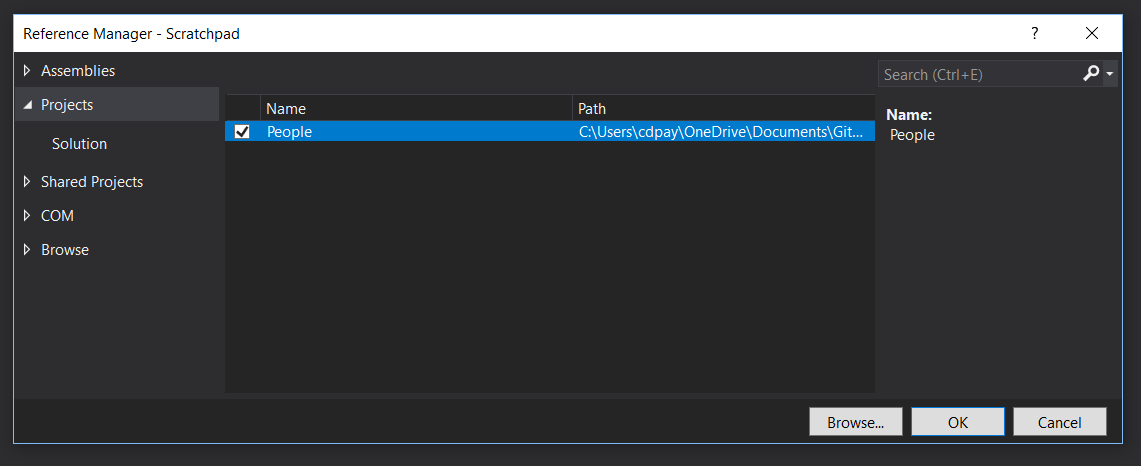
2 In the Reference Manager dialog, select the People project and click OK.
Snip: Reference Manager for 4.1 Scratchpad Learning Activity. Use the adjacent task instructions to identify the required controls, output, or debugger values.
Snip: Reference Manager
C Build the Scratchpad project.
1 Open your File Explorer and navigate to the Scratchpad's bin > Debug folder.
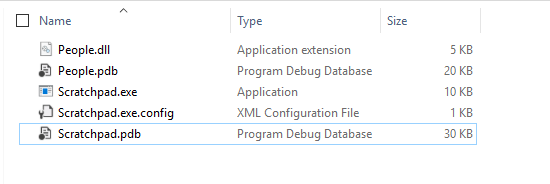
2 In Visual Studio, right-click the Scratchpad project and click Build. The .exe should be built successfully in addition to a…

In Visual Studio, right-click the Scratchpad project and click Build. The .exe should be built successfully in addition to a People.dll copy being added to the folder.

Snip: Scratchpad Project for 4.1 Scratchpad Learning Activity. Use the adjacent task instructions to identify the required controls, output, or debugger values.
Snip: Scratchpad Project
Create additional projects.
Acceptance Criteria
Acceptance criteria
  • The completed implementation satisfies this requirement: Add a new project named Airplanes.
  • Required result: Add a new project named Airplanes.
  • Required result: Move the Airplane class to the Airplanes project.
Instructions
5.Create additional projects.
A Create an Airplanes project:
1 Add a new project named Airplanes.
2 Remove Class1
3 Move the Airplane class to the Airplanes project.
4 Build the Scratchpad project to see the build error.
5 In the Scratchpad project, add a reference to the Airplanes project.
6 In the Airplanes project, add a reference to the People project.
B Create an Airports project:
1 Do the same with Airports as you did with Airplanes, moving Airport to Airports.
2 In the Airports project, add a reference to Airplanes.
3 In the Scratchpad project, add a reference to Airports.
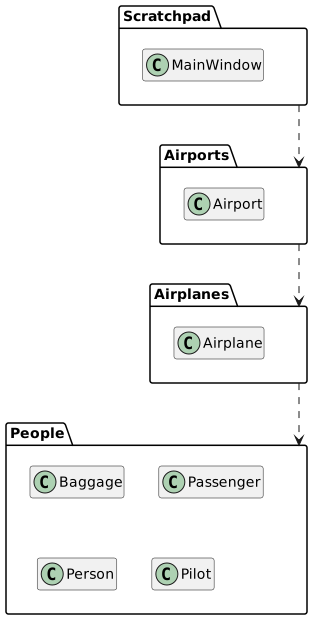
C The structure of the projects and their references is reflected in the image below.
Package Diagram: End; Members and relationships are shown in the editable reference; unrelated members may be omitted.
Package Diagram: End
  • New
  • Changed
  • Removed
D Build your solution and ensure it builds without errors.
Modify namespaces and add Using statements
Acceptance Criteria
Acceptance criteria
  • The completed implementation satisfies this requirement: Add the appropriate using statement to the class.
  • The completed implementation satisfies this requirement: Change the namespace of the Baggage, Passenger, Person and Pilot classes from Scratchpad to People.
  • The completed implementation satisfies this requirement: Remove the using Scratchpad; line in the Airplane class.
Instructions
6.Modify namespaces and add Using statements

Currently all classes are under one namespace: Scratchpad. This is an issue, however, when we begin to have too many classes. To organize the classes into conceptual containers, then, we need to change the namespace to control what "umbrella" the class falls under.

A In the Airplane class in the Airplanes project, change the Scratchpad namespace to Airplanes.

Doing this will produce errors because now there are classes outside of the Airplanes namespace that the class is trying to use but can't find.

B Above the namespace, add the line:
using Scratchpad;

This tells the class that it should find the class we want within the Scratchpad namespace/umbrella.

C Fix errors in the Airport class.
1 Navigate to the Airport class.

There are errors here now because we have moved the Airplane class into a different namespace.

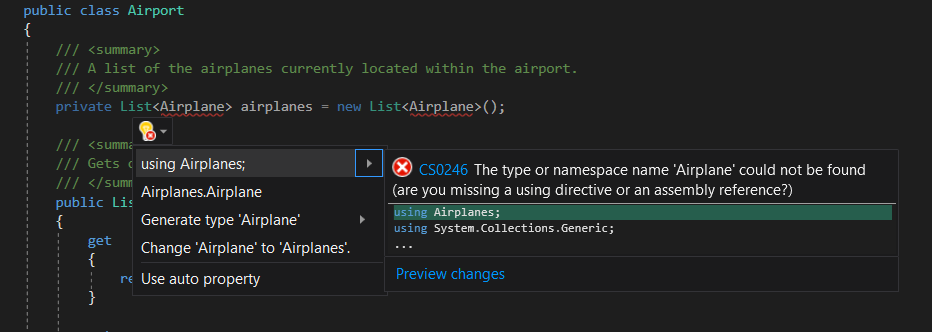
2 Hover over one of the errors and select the dropdown from the lightbulb.
Snip: Quick Action Namespace for 4.1 Scratchpad Learning Activity. Use the adjacent task instructions to identify the required controls, output, or debugger values.
Snip: Quick Action Namespace
3 Select 'using Airplanes;' to add the using statement automatically.
D Change the Airport namespace.
1 In the Airport class, change the namespace from Scratchpad to Airports.
2 Build the solution and view the errors.
Snip: Namespace Errors for 4.1 Scratchpad Learning Activity. Use the adjacent task instructions to identify the required controls, output, or debugger values.
Snip: Namespace Errors
3 Double click one of the erros to navigate to the issue.
4 Add the appropriate using statement to the class.
5 Rebuild the solution and ensure all errors are fixed.
E Modify the People project namespaces.
1 Change the namespace of the Baggage, Passenger, Person and Pilot classes from Scratchpad to People.
2 Build your solution and view the errors.
3 Navigate to the Airplane class. Note that there is now a build error under the using Scratchpad; line at the top. This is…

Navigate to the Airplane class. Note that there is now a build error under the using Scratchpad; line at the top. This is because there is no longer a namespace anywhere within the references classes with that name.

4 Remove the using Scratchpad; line in the Airplane class.
5 Fix the remaining build errors by building, fixing and rebuilding until they are gone.

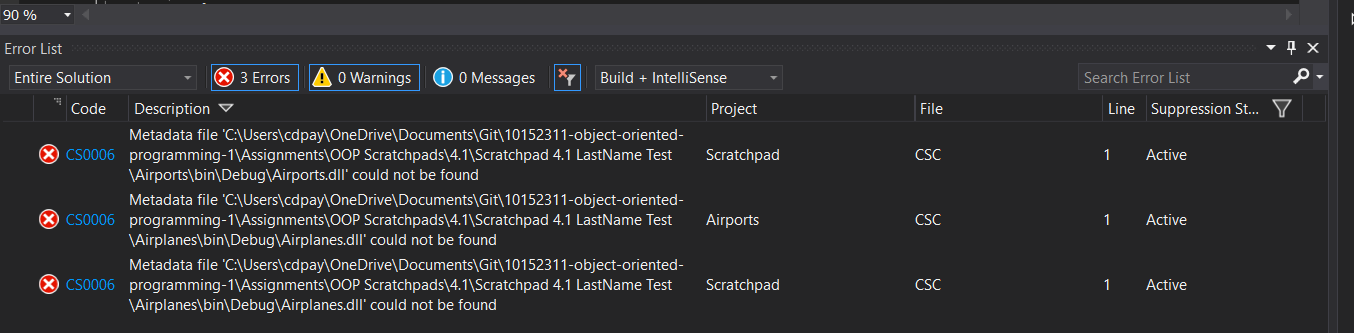
If you get to the point where all you see are metadata (CSC) errors, build/rebuild your solution. These errors exist when references to other projects can't be made because of build errors and are not directly fixable.

Snip: Metadata Errors for 4.1 Scratchpad Learning Activity. Use the adjacent task instructions to identify the required controls, output, or debugger values.
Snip: Metadata Errors
Submit a zipped Visual Studio solution after completing the following:
7.Submit a zipped Visual Studio solution after completing the following:
A Ensure the application has no compiler errors or warnings.
B Remove all bin and obj folders from the entire solution.

Removing the bin and obj folders helps keep file sizes smaller with zipping and sending these solutions. You can remove all of them manually, but below is a way to perform this automatically using a batch file.

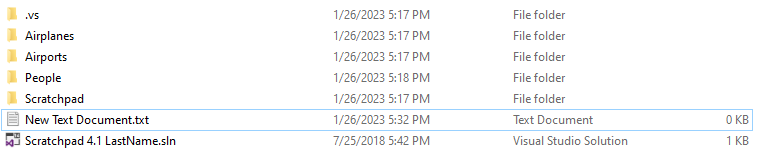
1 Create a New Text Document.txt at the root of your solution file.
New Text Document Creation for 4.1 Scratchpad Learning Activity. Use the adjacent task instructions to identify the required controls, output, or debugger values.
New Text Document Creation
2 Open the New Text Document.txt file, then copy and paste the code below into it.
@echo off
@echo Deleting all BIN and OBJ folders
FOR /F "tokens=*" %%G IN ('DIR /B /AD /S bin') DO RMDIR /S /Q "%%G"
FOR /F "tokens=*" %%G IN ('DIR /B /AD /S obj') DO RMDIR /S /Q "%%G"
@echo BIN and OBJ folders successfully deleted @echo Deleting all BIN and OBJ folders
FOR /F "tokens=*" %%G IN ('DIR /B /AD /S bin') DO RMDIR /S /Q "%%G"
FOR /F "tokens=*" %%G IN ('DIR /B /AD /S obj') DO RMDIR /S /Q "%%G"
@echo BIN and OBJ folders successfully deleted :) :) Close the window.
pause > nulwindow.
pause > nul
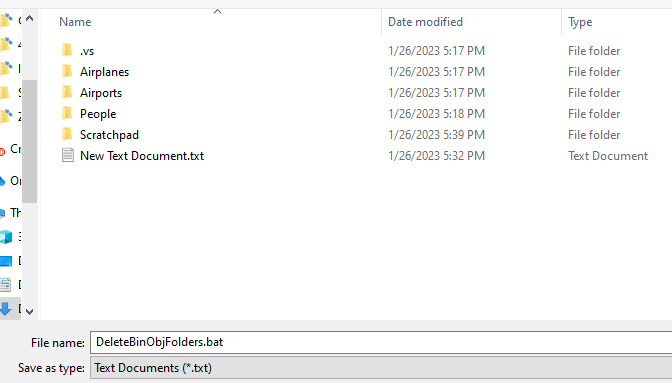
3 Save the New Text Document as DeleteBinObjFolders.bat
Saving Text Document for 4.1 Scratchpad Learning Activity. Use the adjacent task instructions to identify the required controls, output, or debugger values.
Saving Text Document
4 Delete the New Text Document file.
5 Double click the DeleteBinObjFolders.bat file to execute it and then close the command window.
6 You can use the DeleteBinObjFolders.bat file in future assignments before submitting them.
Completion review
8.Review the feature acceptance criteria
A Confirm the required results

Return to each story and verify its acceptance criteria. Preserve the submission format and destination stated in the activity; a reading, setup guide, lab, video demonstration, and oral final may require different evidence.

Encapsulation review Create a class library (DLLs) Fix the missing references. Create additional projects. Modify namespaces and add Using statements