3.4 Zoo Learning Activity

Under Construction

This page is currently being built. Please check back soon.
A platypus
3.4 Zoo Learning Activity — overview

Work through the user stories in order. Each story states the goal and acceptance criteria; its nested tasks retain the detailed implementation and verification steps.

1.Gather your resources
A Open the assignment resources
Set up the checkpoint
2.Copy your 3.3 ending code, renaming both the folder and the Visual Studio solution file
A Verify the required change or observation

Check the result against this instruction: Copy your 3.3 ending code, renaming both the folder and the Visual Studio solution file

Add a hummingbird and working toys
Problem

The Como Zoo would like to branch out and add some toys and a Hummingbird to their Zoo.

Solution

You will define classes for a WuvLuv and a HoppingChick, define behaviors for them and instantiate a new Hummingbird.

3.Review the feature design
A Identify the contracts and expected behavior

This focused design shows the members or flow relevant to this feature. Keep unchanged members from your preceding checkpoint; follow the tasks below for the order of intermediate edits.
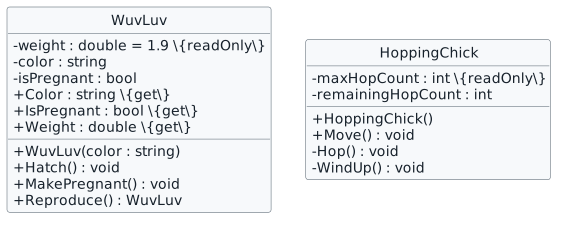
Toy behavior contracts. class WuvLuv { - weight : double = 1.9 {readOnly} - color : string - isPregnant : bool + WuvLuv(color : string) + Color : string {get} + IsPregnant : bool {get} + Weight : double {get} + Hatch() : void + MakePregnant() : void + Reproduce() : WuvLuv } class HoppingChick { - maxHopCount : int {readOnly} - remainingHopCount : int + HoppingChick() + Move() : void - Hop() : void - WindUp() : void }
Toy behavior contracts
  • New
  • Changed
  • Removed
4.Add a new folder to your project named Toys
A Verify the required change or observation

Check the result against this instruction: Add a new folder to your project named Toys.

5.In the Toys folder, define classes using this story’s design reference
Review this feature’s design and requirements
A Verify the required change or observation

Check the result against this instruction: In the Toys folder, define classes using this story’s design reference.

6.Modify the WuvLuv class
A Assign the weight field to 1.9
B In the MakePregnant method, assign the isPregnant field to true
C In the Reproduce method, assign a local variable named baby to a new instance of the WuvLuv class and pass in the color field as an argument. Call Hatch on the baby object, assign isPregnant to false and then return the baby object
7.Modify the HoppingChick class
A In the constructor, assign maxHopCount to 25 and call the WindUp method
B In the Move method, define a while loop that calls the Hop method while the remainingHopCount field is greater than 0
C In the Hop method, if the remainingHopCount is greater than 0, reduce the remainingHopCount by 1
D In the WindUp method, assign remainingHopCount to the maxHopCount field
8.Add controls for birthing Hummingbirds and WuvLuvs
A In the MainWindow.xaml, add the following code below the getComoZooAverageAnimalWeig button
<Button x:Name="birthHummingbirdButton" Content="Birth hummingbird" Click="birthHummingbirdButton_Click" />
<Button x:Name="birthWuvLuvButton" Content="Birth WuvLuv" Click="birthWuvLuvButton_Click" />
B Add event handlers for both buttons
C In the newComoZooButton_Click instantiate a new Hummingbird using the values below, call MakePregnant on the animal object and add the animal to the list of animals in the Zoo
animal = new Hummingbird("Female", "Helen", 2, 0.8);
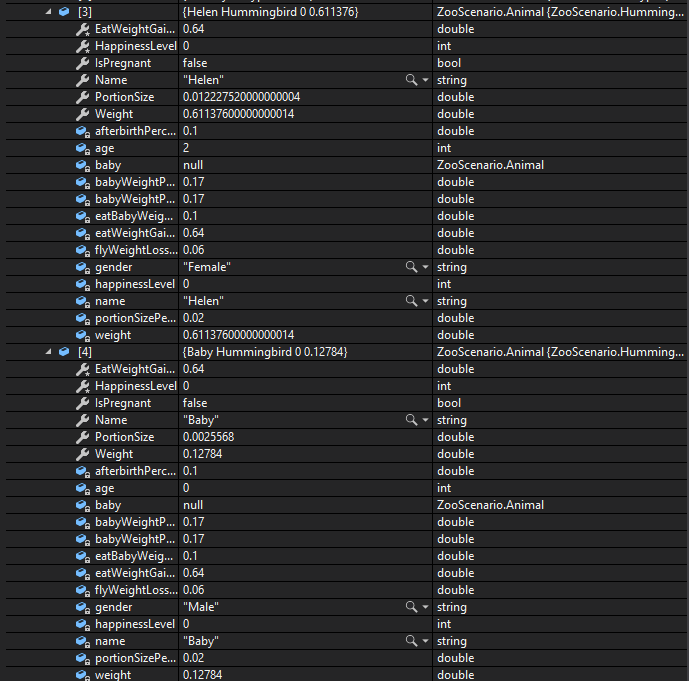
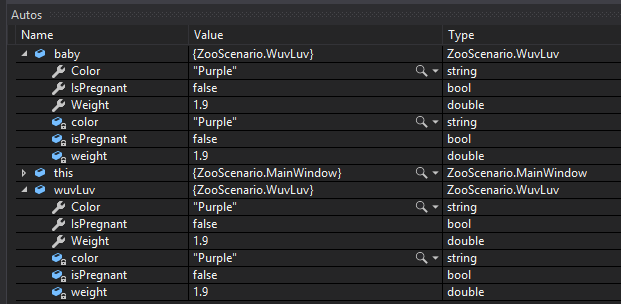
D In the birthHummingbirdButton_Click event handler, write a line of code that births a type of Hummingbird
9.Modify the birthWuvLuvButton_Click event handler
A Assign a local variable named wuvLuv to an instance of the WuvLuv class and pass in "Purple" as the argument
B Call MakePregnant on the wuvLuv object
C Assign a local variable named baby to the call to the wuvLuv object's Reproduce method
10.Check Your Work (ComoZoo):
A Set a breakpoint on the closing curly brace of the birthHummingbirdButton_Click
B Set a breakpoint on the closing curly brace of the birthWuvLuvButton_Click
C Start the application. Click the 'New Como Zoo' button. Click the 'Birth hummingbird' button
D Ensure Helen the Hummingbird and her baby are added to the Como Zoo's list of animals
CYW - Hummingbird; compare object identities, field values, and execution position with your debugger.
CYW - Hummingbird
E Press F5. Click the 'Birth WuvLuv' button. Ensure your values match the values below
CYW - WuvLuv; compare object identities, field values, and execution position with your debugger.
CYW - WuvLuv
Feed objects through an eating contract
Problem

Currently a guest can alter things about the animal like its name and its pregnancy status when it should only be able to feed it.

Solution

You will define an interface named IEater and have the Animal and Guest classes implement it.

11.Review the feature design
A Identify the contracts and expected behavior

This focused design shows the members or flow relevant to this feature. Keep unchanged members from your preceding checkpoint; follow the tasks below for the order of intermediate edits.
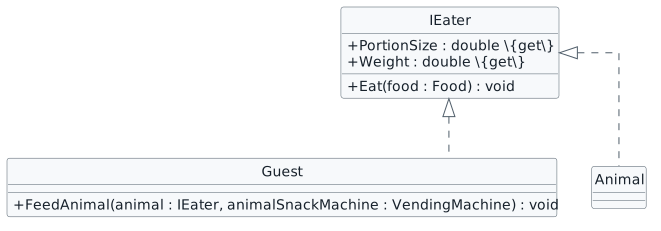
The eating interface. interface IEater { + PortionSize : double {get} + Weight : double {get} + Eat(food : Food) : void } class Guest { + FeedAnimal(animal : IEater, animalSnackMachine : VendingMachine) : void } IEater <|.. Animal IEater <|.. Guest
The eating interface
  • New
  • Changed
  • Removed
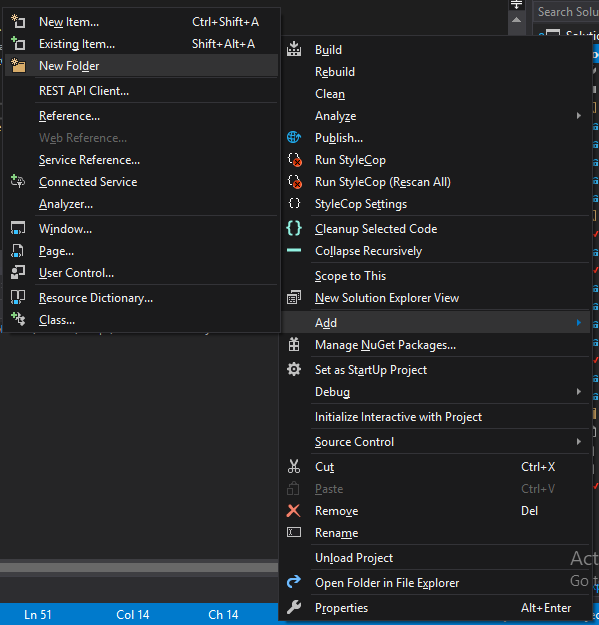
12.Right-click the ZooScenario, go down to the Add, click NewFolder and name it Interfaces 3.4.2 How to Add an Interface to Your Project
Snip: New Folder; compare object identities, field values, and execution position with your debugger.
Snip: New Folder
A Verify the required change or observation

Check the result against this instruction: Right-click the ZooScenario, go down to the Add, click NewFolder and name it Interfaces 3.4.2 How to Add an Interface to Your Project

13.Right click the Interfaces folder, go to Add and click Class
A Verify the required change or observation

Check the result against this instruction: Right click the Interfaces folder, go to Add and click Class.
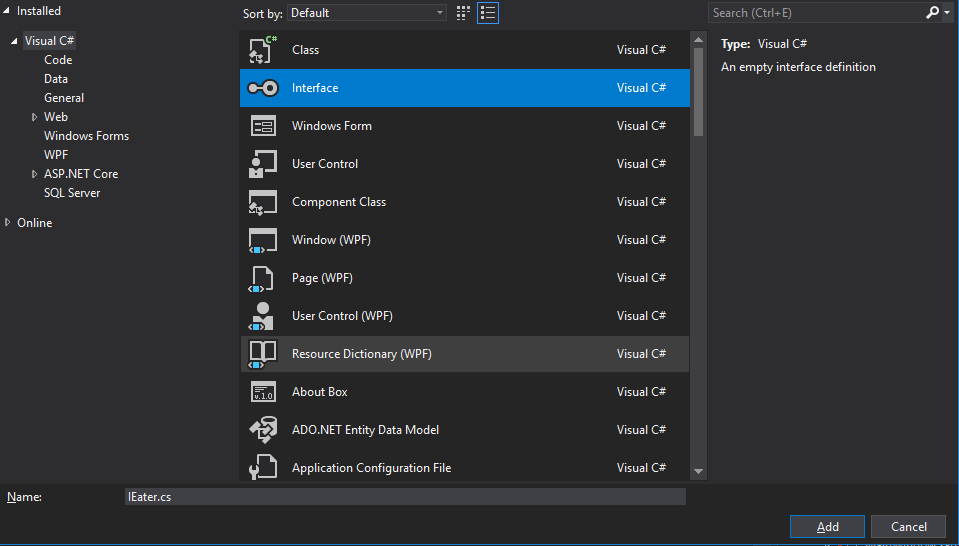
14.In the Add New Item window, select Interface and name the file IEater.cs. Click Add
Snip: Add Interface; compare object identities, field values, and execution position with your debugger.
Snip: Add Interface
A Verify the required change or observation

Check the result against this instruction: In the Add New Item window, select Interface and name the file IEater.cs. Click Add.

15.In the IEater.cs, remove the .Interfaces from the namespace and make the interface public
namespace ZooScenario
{
    public interface IEater
    {
    }
}
A Verify the required change or observation

Check the result against this instruction: In the IEater.cs, remove the .Interfaces from the namespace and make the interface public.

16.In the class body, add empty PortionSize and Weight properties and an empty Eat method
3.4.2 How to Define an Interface Review this feature’s design and requirements
/// <summary>
/// Gets the maximum portion size the animal can eat.
/// </summary>
/// <summary>
/// Gets the maximum portion size the animal can eat.
/// </summary>
double PortionSize { get; }
/// <summary>
/// Gets the weight of the eater.
/// </summary>
/// <summary>
/// Gets the weight of the eater.
/// </summary>
double Weight { get; }
/// <summary>
/// Eats the specified food.
/// </summary>
/// <param name="food">The food to eat.</param>
/// <summary>
/// Eats the specified food.
/// </summary>
/// <param name="food">The food to eat.</param>
void Eat(Food food);
A Verify the required change or observation

Check the result against this instruction: In the class body, add empty PortionSize and Weight properties and an empty Eat method.

17.In the Animal class, implement the IEater interface by adding it on to the class header
3.4.4 How to Implement an Interface
public abstract class Animal: IEater
Review this feature’s design and requirements
A Verify the required change or observation

Check the result against this instruction: In the Animal class, implement the IEater interface by adding it on to the class header.

18.In the Guest class, implement the IEater interface
Review this feature’s design and requirements
A Verify the required change or observation

Check the result against this instruction: In the Guest class, implement the IEater interface.

19.Observe the Error List Window
3.4 Zoo 2 Snip IEaterError.png; compare object identities, field values, and execution position with your debugger.
3.4 Zoo 2 Snip IEaterError.png
A Verify the required change or observation

Check the result against this instruction: Observe the Error List Window

20.Modify the Guest class
Review this feature’s design and requirements
A Assign the Guest's portionSize to 1.0
B In the Guest's Weight properties, return 0.0
C Build your solution and ensure it compiles without errors or warnings
21.In the FeedAnimal method in the Guest class, change the Animal type parameter to a type of IEater
Review this feature’s design and requirements
A Verify the required change or observation

Check the result against this instruction: In the FeedAnimal method in the Guest class, change the Animal type parameter to a type of IEater.
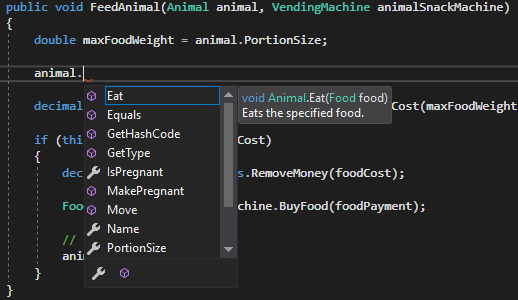
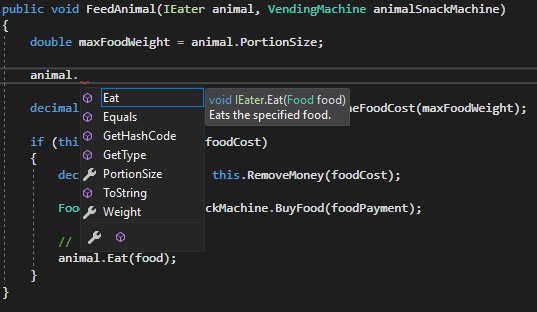
22.Check Your Work (Como Zoo):
A In the FeedAnimal method header, change the IEater type back to Animal
B In the method body, try calling methods or properties on the animal object
C Observe that that animal object has access to many methods and properties that the Guest shouldn't have access to (i.e. Name, MakePregnant)
Check Your Work: Animal Type; compare object identities, field values, and execution position with your debugger.
Check Your Work: Animal Type
D Change the Animal type back to IEater
E Try calling methods or properties on the animal object again
F Observe that that animal object only has access to methods and properties that the IEater has defined
Check Your Work: IEater Type; compare object identities, field values, and execution position with your debugger.
Check Your Work: IEater Type
Describe moving objects with an interface
Problem

The Employee would like the ability to make animals and toys move, but they shouldn't have access to all of the other members that animals or toys might have that aren't related to moving.

Solution

You will define and implement an interface named IMover for animals and toys that move.

23.Review the feature design
A Identify the contracts and expected behavior

This focused design shows the members or flow relevant to this feature. Keep unchanged members from your preceding checkpoint; follow the tasks below for the order of intermediate edits.
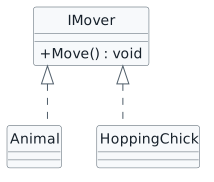
The movement interface. interface IMover { + Move() : void } IMover <|.. Animal IMover <|.. HoppingChick
The movement interface
  • New
  • Changed
  • Removed
24.Add an interface named IMover to the Interfaces folder
A Verify the required change or observation

Check the result against this instruction: Add an interface named IMover to the Interfaces folder.

25.Define the interface using this story’s design reference
Review this feature’s design and requirements
A Verify the required change or observation

Check the result against this instruction: Define the interface using this story’s design reference.

26.Implement the IMover interface in the Animal class and HoppingChick class
3.4.5 How to Implement Multiple Interfaces Review this feature’s design and requirements
A Verify the required change or observation

Check the result against this instruction: Implement the IMover interface in the Animal class and HoppingChick class.

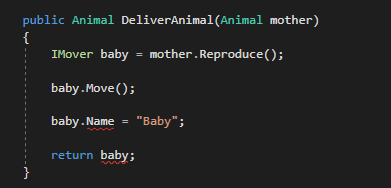
27.Check Your Work (Como Zoo):
A In the DeliverAnimal method in the Employee class, change the type of the baby variable from Animal to IMover. Ensure you get an error tell you that you can't assign the Name of the baby
CYW - Test IMover; compare object identities, field values, and execution position with your debugger.
CYW - Test IMover
B Call Move on the baby object. This should work just fine
CYW - Test IMover 2; compare object identities, field values, and execution position with your debugger.
CYW - Test IMover 2
C Change the method back to the way it was
Wake animals and test a moving toy together
Problem

Currently when the Employee wakes all of the animals (Moves them), they are only moving Animal types. But they'd also like to test the HoppingChick to make sure the toy is working properly.

Solution

You will add a list of type IMover to the Zoo and use that list to wake all things that can move instead of just Animal types.

28.Review the feature design
A Identify the contracts and expected behavior

This focused design shows the members or flow relevant to this feature. Keep unchanged members from your preceding checkpoint; follow the tasks below for the order of intermediate edits.
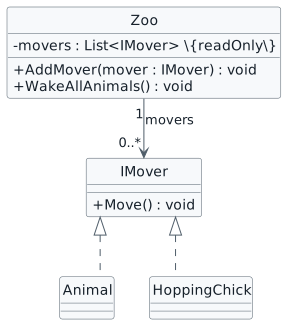
Move animals and toys through one list. class Zoo { - movers : List<IMover> {readOnly} + AddMover(mover : IMover) : void + WakeAllAnimals() : void } interface IMover { + Move() : void } Zoo "1" --> "0..*" IMover : movers IMover <|.. Animal IMover <|.. HoppingChick
Move animals and toys through one list
  • New
  • Changed
  • Removed
29.In the Zoo class, add a readonly list of type IMover called movers and instantiate it in the Zoo constructor
Review this feature’s design and requirements
A Verify the required change or observation

Check the result against this instruction: In the Zoo class, add a readonly list of type IMover called movers and instantiate it in the Zoo constructor.

30.In the AddAnimal method in the Zoo class, add the animal to the movers List in addition to the animals List
A Verify the required change or observation

Check the result against this instruction: In the AddAnimal method in the Zoo class, add the animal to the movers List in addition to the animals List.

31.Define a new method named AddMover that has a parameter named mover of type IMover. In the body of the method, if the mover parameter is not null, add it to the movers List
Review this feature’s design and requirements
A Verify the required change or observation

Check the result against this instruction: Define a new method named AddMover that has a parameter named mover of type IMover. In the body of the method, if the mover parameter is not null, add it to the movers List.

32.In the newComoZooButton_Click, call the AddMover method and pass in a new instance of the HoppingChick class
A Verify the required change or observation

Check the result against this instruction: In the newComoZooButton_Click, call the AddMover method and pass in a new instance of the HoppingChick class.

33.In the WakeAllAnimals method in the Zoo class, change the foreach loop to loop through the movers list instead of the animals list and change the type from Animal to IMover If we kept the type as Animal this method would build, but it would break at runtime when trying to get the HoppingChick because it isn't an Animal type
A Verify the required change or observation

Check the result against this instruction: In the WakeAllAnimals method in the Zoo class, change the foreach loop to loop through the movers list instead of the animals list and change the type from Animal to IMover If we kept the type as Animal this method would build, but it would break at runtime when trying to get the HoppingChick because it isn't an Animal type.

34.Check Your Work (ComoZoo):
A In the birthWuvLuvButton_Click, call the AddMover method and pass in the wuvLuv object

Ensure you get an error due to the WuvLuv not implementing IMover. Delete this line of code.

B Set a breakpoint on the closing curly brace of the newComoZooButton_Click event handler
C Set a breakpoint on the closing curly brace of the Move method in the HoppingChick class
D Start the application. Click the 'New Como Zoo' button
E Ensure the movers list has the following IMover types
CYW - Movers List; compare object identities, field values, and execution position with your debugger.
CYW - Movers List
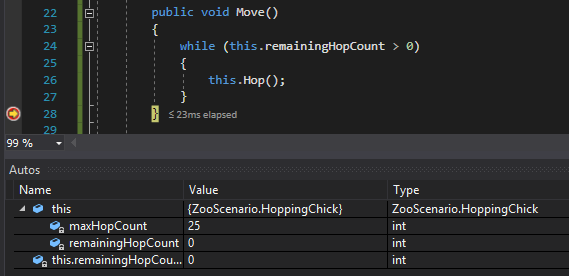
F Press F5. Click the 'Wake all animals' button. Ensure that the Move method is call on the HoppingChick and that your values match the values below
CYW - Chick Moves; compare object identities, field values, and execution position with your debugger.
CYW - Chick Moves
Feed guests and animals together
Problem

The Como Zoo would like to host a "Visitor/Animal" brunch where guests and animals eat at the same time, but we don't have a way of being able to ensure that only things that can eat should be eating.

Solution

You will define a list of type IEater with Animal and Guest types in it and loop through the list to have them eat.

35.Review the feature design
A Identify the contracts and expected behavior

This focused design shows the members or flow relevant to this feature. Keep unchanged members from your preceding checkpoint; follow the tasks below for the order of intermediate edits.
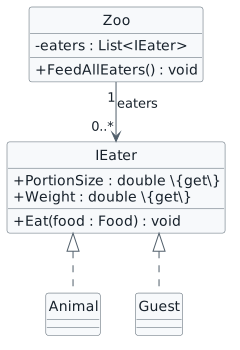
Feed guests and animals through one list. class Zoo { - eaters : List<IEater> + FeedAllEaters() : void } interface IEater { + PortionSize : double {get} + Weight : double {get} + Eat(food : Food) : void } Zoo "1" --> "0..*" IEater : eaters IEater <|.. Animal IEater <|.. Guest
Feed guests and animals through one list
  • New
  • Changed
  • Removed
36.Modify the Zoo class
A Define a list of type IEater called eaters and instantiate in in the Zoo constructor
B In the constructor, add the passed in visitor parameter to the eaters List
C In the AddAnimal method, add the animal object to the eaters list
D Define a new method named FeedAllEaters
E Define a foreach loop that loops through all the IEaters in the eaters list
F For each IEater in the list, call their Eat method and pass in a new Food object with the IEater's PortionSize as the argument
37.Add a control for handling feeding all the eaters
A In the MainWindow.xaml, add the following code below the birthWuvLuvButton
<Button x:Name="comoZooFeedAllEatersButton" Content="Feed all eaters" Click="comoZooFeedAllEatersButton_Click" />

B Create an event handler from the button
C In the event handler, call FeedAllEaters
38.Check Your Work (ComoZoo):
A Set a breakpoint on the closing curly brace of the newComoZooButton_Click
B Set a breakpoint on the closing curly brace of the FeedAllEaters method in the Zoo class
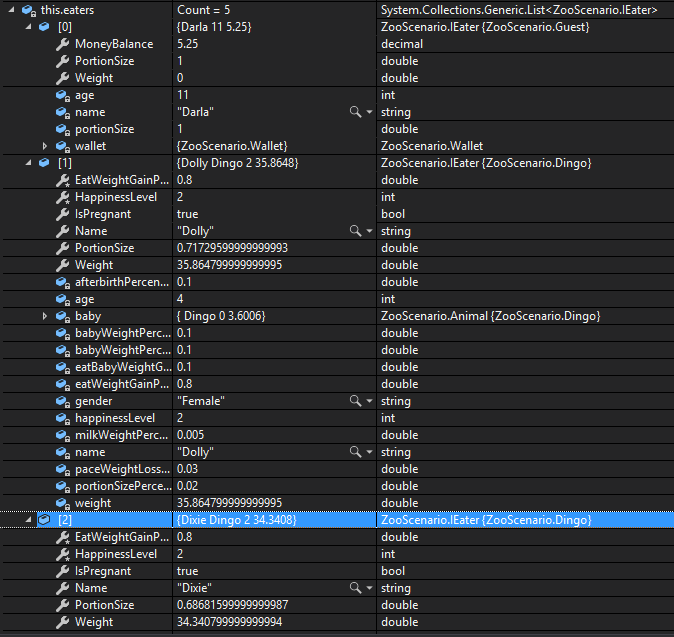
C Start the application. Click the 'New Como Zoo' button. Ensure the eater list has all of the objects in it as shown below
CYW - Eaters List; compare object identities, field values, and execution position with your debugger.
CYW - Eaters List
D Press F5. Click the 'Feed all eaters' button. Ensure that the Animals Weight has increased due to them eating
CYW - Eat; compare object identities, field values, and execution position with your debugger.
CYW - Eat
Submit your work
39.Ensure that your code is StyleCop compliant
A Verify the required change or observation

Check the result against this instruction: Ensure that your code is StyleCop compliant.

40.Zip the solution and submit to the Feedback System
A Verify the required change or observation

Check the result against this instruction: Zip the solution and submit to the Feedback System.

41.Submit the Feedback System url to the correct assignment in Canvas
A Verify the required change or observation

Check the result against this instruction: Submit the Feedback System url to the correct assignment in Canvas.

Completion checklist
42.Review the required evidence
A Check every acceptance criterion

Return to each user story and confirm that you can demonstrate its acceptance criteria. Use the task checkboxes to track completion; a checked box is not a substitute for testing or inspecting the required evidence.

Add a hummingbird and working toys Feed objects through an eating contract Describe moving objects with an interface Wake animals and test a moving toy together Feed guests and animals together
B Build and inspect the final solution

Remove temporary lines used only to demonstrate compile-time errors. Build without errors or warnings, check StyleCop compliance, and rerun the required scenario paths.

C Follow this activity’s submission instructions

Use the submission or attendance instructions in this page. For a Feedback System submission, upload the requested ZIP, review and resolve the feedback, and submit the resulting URL to the matching Canvas activity. For a Canvas quiz, enter only the requested answers; for an oral final, complete the scheduling and attendance steps.