2.5 Zoo Learning Activity

Zoo 2.5 — Encapsulation

Continue from your completed Zoo 2.4. Use the diagrams and the directions below to make the next set of changes.

1.Getting Started
A Copy your Zoo 2.4 ending code, renaming both the folder and the Visual Studio solution file for Zoo 2.5 using your last name. Open the copied solution and restore its NuGet packages.
B Update the window Title for Zoo 2.5 and your last name. Keep the project target at .NET Framework 4.8.
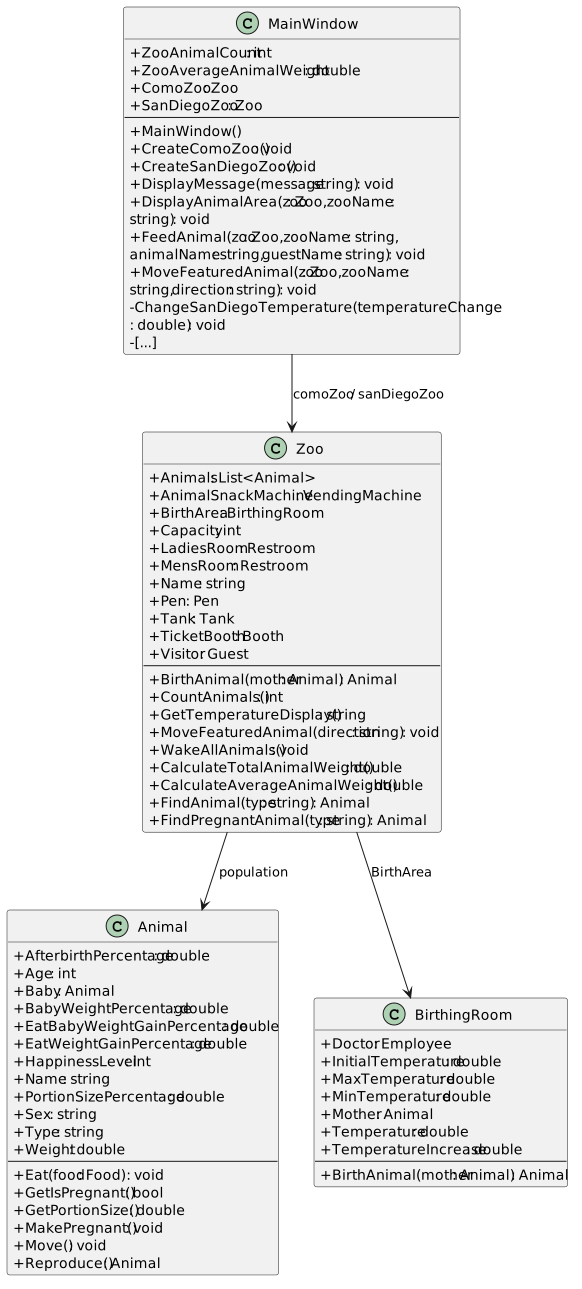
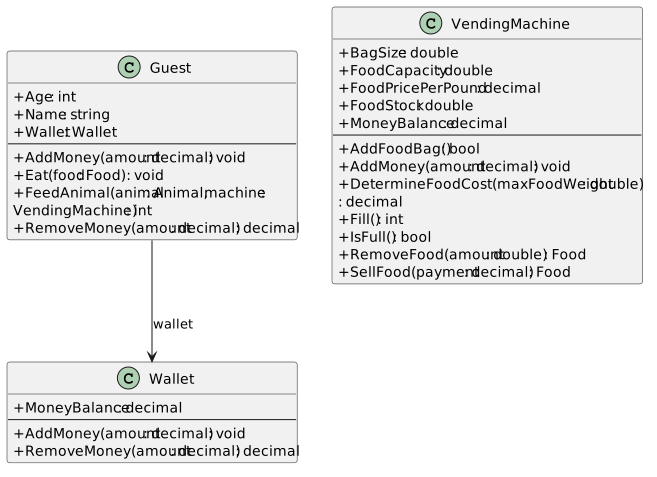
Starting structure — Zoo 2.4 population and care
  • New
  • Changed
  • Removed
Starting structure — Zoo 2.4 transactions
  • New
  • Changed
  • Removed
C Check Your Work
1 Select Build > Build Solution. Open View > Error List and resolve any errors introduced by this task.
2 Create both zoos. Use their population-count buttons: confirm Como 3 and San Diego 2.
3 Confirm Como’s initial pen has one occupant and San Diego’s initial tank has one occupant. Test one direction button for each zoo.
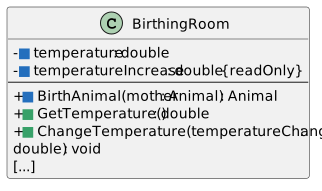
Let the BirthingRoom control its temperature
Acceptance Criteria
  • The room starts at 77.0.
  • Births and the existing temperature buttons still change the temperature.
2.Make the temperature field in BirthingRoom private
Problem

Currently the Temperature field of the BirthingRoom can be manipulated from MainWindow when it should be the BirthingRoom itself that handles the temperature and any changes.

Solution

You will make the temperature field private and give other classes public methods for reading and changing it.

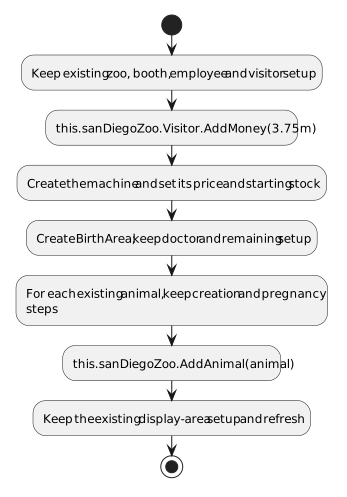
Private temperature and room methods
  • New
  • Changed
  • Removed
A Modify the BirthingRoom fields.
1 Rename Temperature to temperature and make it private. Initialize it to 77.0 in its declaration.
2 Remove InitialTemperature. The temperature field now receives its starting value directly. Keep MaxTemperature, MinTemperature, Doctor and Mother.
3 Make TemperatureIncrease private readonly, rename it temperatureIncrease and keep its value 0.5.
B Check Your Work
1 Open BirthingRoom.cs. Confirm this.temperature is a private double field.
2 Confirm this.temperatureIncrease is private readonly and initialized to 0.5.
3 Check the room’s own methods use the lowercase field names.
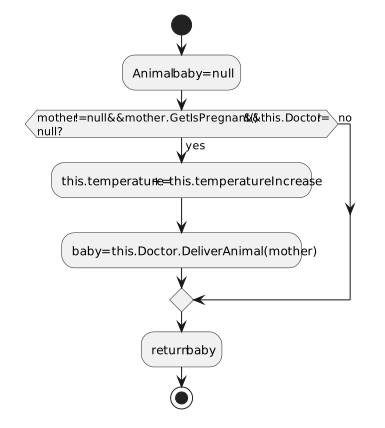
3.Update BirthingRoom.BirthAnimal(Animal mother)
A Keep the existing birth conditions and delivery call.
1 Change the room’s temperature update to use this.temperature and this.temperatureIncrease. Keep the returned baby reference.
BirthingRoom.BirthAnimal changes its own temperature before delivery.
  • New
  • Changed
  • Removed
B Check Your Work
1 Open BirthingRoom.BirthAnimal in the source. Follow its statements from top to bottom using the sample values below; this is a paper/source trace, so do not run or edit the application for this check.
2 Follow the branch with a pregnant mother and a non-null this.Doctor. Confirm this.temperature increases by this.temperatureIncrease before delivery.
3 Trace the missing-doctor and nonpregnant-mother branches separately. Confirm neither changes this.temperature.
4.Define BirthingRoom.GetTemperature()
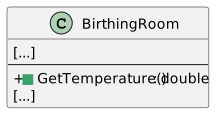
BirthingRoom.GetTemperature method signature
  • New
  • Changed
  • Removed
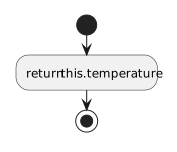
A Use the class signature and activity diagram.
1 Return this.temperature using the return type shown in the class diagram.
BirthingRoom.GetTemperature returns the stored information.
  • New
  • Changed
  • Removed
B Check Your Work
1 Open BirthingRoom.GetTemperature() in the source. Follow its statements from top to bottom using the sample values below; this is a paper/source trace, so do not run or edit the application for this check.
2 Substitute 77.0 for this.temperature. Confirm the returned value is 77.0.
3 Read every statement in this method. Confirm none assigns a new value to this.temperature.
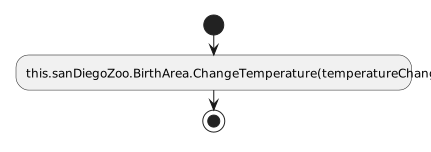
5.Define BirthingRoom.ChangeTemperature(double temperatureChange)
A Use the class signature and activity diagram.
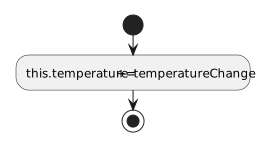
1 Add temperatureChange to the private temperature field.
ChangeTemperature updates the room-owned value.
  • New
  • Changed
  • Removed
B Check Your Work
1 Open BirthingRoom.ChangeTemperature in the source. Follow its statements from top to bottom using the sample values below; this is a paper/source trace, so do not run or edit the application for this check.
2 Start this.temperature at 77.0 and use change 0.5. Confirm the result is 77.5.
3 Start a separate trace at 77.0 with change -0.5. Confirm the result is 76.5.
6.Update Zoo.GetTemperatureDisplay()
A Read the temperature through the room’s public method.
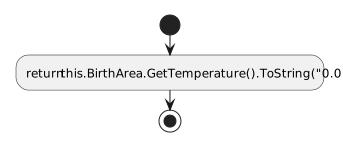
1 Replace the direct Temperature field read with this.BirthArea.GetTemperature(), retaining ToString("0.0").
GetTemperatureDisplay formats the returned room value.
  • New
  • Changed
  • Removed
B Check Your Work
1 Open Zoo.GetTemperatureDisplay() in the source. Follow its statements from top to bottom using the sample values below; this is a paper/source trace, so do not run or edit the application for this check.
2 Follow the call to this.BirthArea.GetTemperature(). For returned value 77.0, confirm ToString("0.0") produces 77.0.
3 Repeat with value 77.5 and confirm 77.5. The decimal separator follows the current culture.
Give objects control over money
Acceptance Criteria
  • Wallet and vending-machine money fields become private.
  • Existing purchase, stock, payment and refund decisions remain in place.
7.Give control over the vending machine’s money balance to VendingMachine
Problem

Currently the VendingMachine money balance can be manipulated outside the class through both the public MoneyBalance field and the public AddMoney method.

Solution

You will make the money field and helper method private so that other classes do not have access to them.

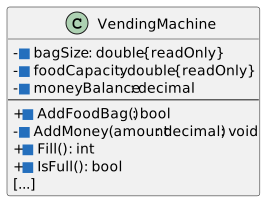
VendingMachine private money and readonly configuration
  • New
  • Changed
  • Removed
A Modify visibility and configuration in VendingMachine.
1 Rename MoneyBalance to moneyBalance, make it private and update its uses inside the class.
2 Rename BagSize to bagSize and FoodCapacity to foodCapacity. Make both private readonly and initialize them to 65.0 and 250.0.
8.Make VendingMachine.AddMoney private
A Keep its existing payment operation.
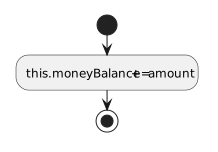
1 Change AddMoney from public to private. Keep the amount parameter and add it to this.moneyBalance. Keep SellFood calling this helper after successful dispensing.
The private AddMoney helper records accepted payment.
  • New
  • Changed
  • Removed
B Check Your Work
1 Open VendingMachine.SellFood in the source. Follow its statements from top to bottom using the sample values below; this is a paper/source trace, so do not run or edit the application for this check.
2 Find the successful-sale call to this.AddMoney(amount). Follow it into the private helper.
3 Start this.moneyBalance at 0.00m with payment 0.53m. Confirm the helper changes the field to 0.53m.
4 Confirm the helper declaration is private and the public sale method still calls it from inside the same class.
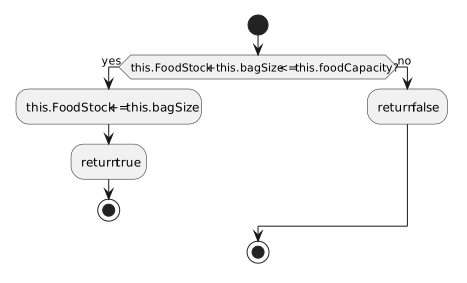
9.Update VendingMachine.AddFoodBag()
A Follow the activity diagram.
1 Replace the old BagSize and FoodCapacity field references with bagSize and foodCapacity; retain both return paths.
Update VendingMachine.AddFoodBag()
  • New
  • Changed
  • Removed
B Check Your Work
1 Open VendingMachine.AddFoodBag() in the source. Follow its statements from top to bottom using the sample values below; this is a paper/source trace, so do not run or edit the application for this check.
2 Use this.bagSize of 65.0 and this.foodCapacity of 250.0.
3 Start this.FoodStock at 12.0. Confirm one bag gives 77.0 and returns true.
4 Start a separate trace at 212.0. A bag would give 277.0; confirm stock remains 212.0 and the method returns false.
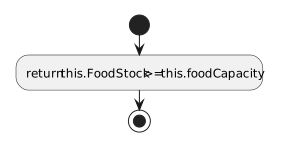
10.Update VendingMachine.IsFull()
A Follow the activity diagram.
1 Compare FoodStock with the private foodCapacity field.
Update VendingMachine.IsFull()
  • New
  • Changed
  • Removed
B Check Your Work
1 Open VendingMachine.IsFull() in the source. Follow its statements from top to bottom using the sample values below; this is a paper/source trace, so do not run or edit the application for this check.
2 With this.foodCapacity of 250.0 and this.FoodStock of 12.0, confirm false.
3 In a separate trace use stock 250.0 and confirm true.
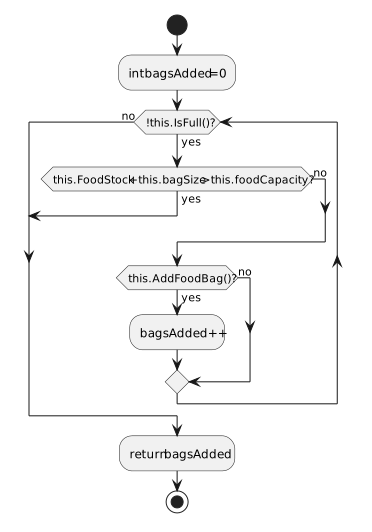
11.Update VendingMachine.Fill()
A Follow the activity diagram.
1 Update the private configuration references and keep the existing stop-before-overflow check and bag counter.
Update VendingMachine.Fill()
  • New
  • Changed
  • Removed
B Check Your Work
1 Open VendingMachine.Fill() in the source. Follow its statements from top to bottom using the sample values below; this is a paper/source trace, so do not run or edit the application for this check.
2 Start this.FoodStock at 12.0. Trace three accepted 65-pound bags: stock becomes 77.0, 142.0 and 207.0.
3 Confirm another bag would exceed this.foodCapacity of 250.0. The loop stops and returns 3.
4 Trace another Fill starting at 207.0. Confirm no bag fits, stock stays unchanged and the return value is 0.
12.Make the Wallet money balance private
A Modify Wallet.cs.
1 Rename MoneyBalance to moneyBalance, make it private and update AddMoney and RemoveMoney to use that field. Keep the existing positive-deposit and limited-withdrawal checks.
Wallet controls its private balance
  • New
  • Changed
  • Removed
B Check Your Work
1 Open Wallet.RemoveMoney in the source. Follow its statements from top to bottom using the sample values below; this is a paper/source trace, so do not run or edit the application for this check.
2 Start this.moneyBalance at 2.00m and request 3.00m.
3 Follow the insufficient-balance branch. Confirm only 2.00m is removed, the ending balance is 0.00m and the returned amount is 2.00m.
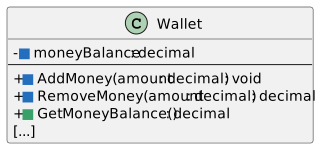
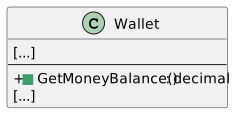
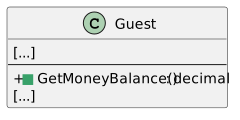
13.Define Wallet.GetMoneyBalance()
Wallet.GetMoneyBalance method signature
  • New
  • Changed
  • Removed
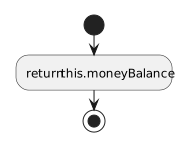
A Use the class signature and activity diagram.
1 Return this.moneyBalance using the return type shown in the class diagram.
Wallet.GetMoneyBalance returns the stored information.
  • New
  • Changed
  • Removed
B Check Your Work
1 Open Wallet.GetMoneyBalance() in the source. Follow its statements from top to bottom using the sample values below; this is a paper/source trace, so do not run or edit the application for this check.
2 Use this.moneyBalance of 5.25m. Confirm the method returns 5.25m without assigning to the field.
14.Make the Guest wallet private
Problem

Currently the guest’s wallet can be replaced from outside the Guest class.

Solution

You will make the wallet reference private and let the guest provide public operations for using it.

A Modify Guest.cs.
1 Rename Wallet to wallet and make it private. Instantiate a Wallet directly in its field declaration.
2 Change Guest’s own references from this.Wallet to this.wallet.
Private wallet reference
private Wallet wallet = new Wallet();
B Check Your Work
1 Open Guest.cs. Find private Wallet wallet = new Wallet();.
2 Confirm this.wallet is initialized for each newly created Guest.
3 Read the planned creation changes: MainWindow should deposit through Guest.AddMoney rather than replace the private wallet reference.
15.Update Guest.AddMoney(decimal amount)
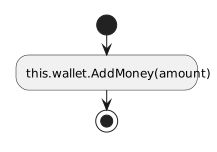
A Use the guest’s private wallet.
1 Pass amount into this.wallet.AddMoney(amount).
Guest.AddMoney delegates the deposit.
  • New
  • Changed
  • Removed
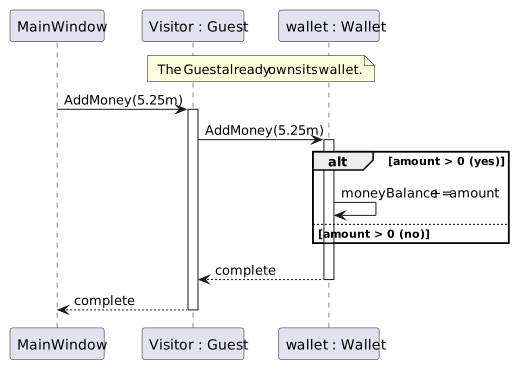
MainWindow deposits through Guest into its privately owned Wallet.
  • New
  • Changed
  • Removed
B Check Your Work
1 Open Guest.AddMoney in the source. Follow its statements from top to bottom using the sample values below; this is a paper/source trace, so do not run or edit the application for this check.
2 Use deposit 5.25m into an initially empty wallet. Follow amount into this.wallet.AddMoney(amount).
3 Inside Wallet, confirm this.moneyBalance changes from 0.00m to 5.25m.
4 Trace separate deposits of 0.00m and -1.00m. Confirm the positive-amount guard rejects both without changing the balance.
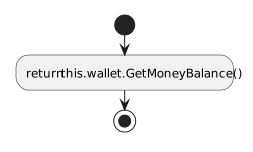
16.Define Guest.GetMoneyBalance()
Guest.GetMoneyBalance method signature
  • New
  • Changed
  • Removed
A Use the class signature and activity diagram.
1 Return this.wallet.GetMoneyBalance() using the return type shown in the class diagram.
Guest.GetMoneyBalance returns the stored information.
  • New
  • Changed
  • Removed
B Check Your Work
1 Open Guest.GetMoneyBalance() in the source. Follow its statements from top to bottom using the sample values below; this is a paper/source trace, so do not run or edit the application for this check.
2 Follow this.wallet.GetMoneyBalance() into Wallet. With this.moneyBalance of 5.25m, confirm Wallet returns 5.25m.
3 Return to Guest and confirm it returns that same amount, without depositing or withdrawing money.
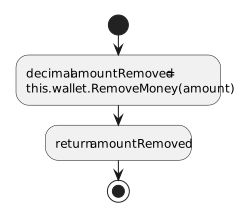
17.Make Guest.RemoveMoney private
A Keep the existing withdrawal operation.
1 Change RemoveMoney to private and use this.wallet.RemoveMoney(amount). Keep its decimal return value.
Guest.RemoveMoney returns the amount supplied by Wallet.
  • New
  • Changed
  • Removed
B Check Your Work
1 Open Guest.cs. Confirm RemoveMoney is declared private.
2 Find its call inside Guest.FeedAnimal. Confirm the call stays inside Guest and forwards the amount to this.wallet.RemoveMoney(amount).
3 Confirm Guest returns the actual amount removed by Wallet rather than the requested amount unconditionally.
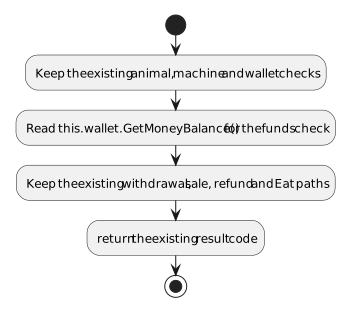
18.Update Guest.FeedAnimal(...)
A Read the wallet through its public method.
1 Keep the wallet-null check using this.wallet. Replace the direct balance read with this.wallet.GetMoneyBalance().
2 Keep all existing result codes, payment checks, refund operations and food/animal calls.
Guest.FeedAnimal retains its transaction flow with the private wallet.
  • New
  • Changed
  • Removed
B Check Your Work
1 Open Guest.FeedAnimal in the source. Follow its statements from top to bottom using the sample values below; this is a paper/source trace, so do not run or edit the application for this check.
2 Confirm the null guard checks this.wallet before calling this.wallet.GetMoneyBalance().
3 For starting balance 5.25m and valid first Como payment 0.53m, trace the success path and result 0.
4 Trace a separate zero-balance case. Confirm result 6 and no payment or feeding call.
5 Compare the other result-code and refund branches with the previous checkpoint; confirm the change to private wallet access did not remove those branches.
Give Animal control over its internal state
Acceptance Criteria
  • The unborn baby reference is private.
  • Percentage fields are readonly and the animal uses them internally.
19.Give the Animal control over its fields
Animal private baby and fixed percentages
  • New
  • Changed
  • Removed
A Modify the fields and their references inside Animal.cs.
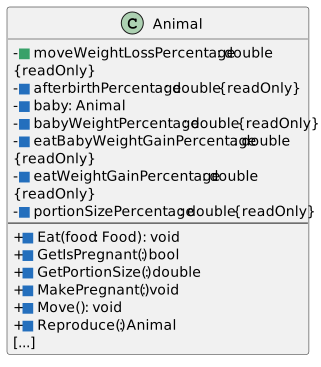
1 Rename Baby to baby and make it private. Update all uses of that field inside Animal; keep a local variable named baby in Reproduce.
2 Make the existing percentage fields private readonly with the lowercase names and values shown in the table. Use those field names in Eat, MakePregnant, GetPortionSize and Reproduce.
Animal percentages
Field Value
afterbirthPercentage 0.1
babyWeightPercentage 0.1
eatBabyWeightGainPercentage 0.1
eatWeightGainPercentage 0.8
portionSizePercentage 0.02
moveWeightLossPercentage 0.03
B Check Your Work
1 Open Animal.GetIsPregnant(). Confirm it checks this.baby != null.
2 Trace this.baby as null: expect false. Trace a non-null baby reference: expect true.
3 Confirm outside callers use GetIsPregnant() instead of reading the private baby field.
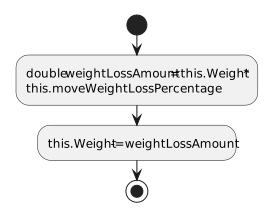
20.Update Animal.Move()
A Use the new movement percentage.
1 Calculate weightLossAmount from this.Weight multiplied by this.moveWeightLossPercentage, then subtract it from Weight.
Move now uses the configured three-percent loss.
  • New
  • Changed
  • Removed
B Check Your Work
1 Open Animal.Move() in the source. Follow its statements from top to bottom using the sample values below; this is a paper/source trace, so do not run or edit the application for this check.
2 Use Dolly’s this.Weight of 35.3 and the configured movement rate 0.03.
3 Confirm one move subtracts approximately 1.059 and leaves this.Weight approximately 34.241.
Let Zoo control additions to its population
Acceptance Criteria
  • The population list is private.
  • Callers register animals through AddAnimal and read the population size through GetAnimalCount.
21.Make the list of animals private
Problem

The Zoo class should be the only class with direct access to the list of animals. Additionally, it is possible to add null to the list, which is not something we want to happen.

Solution

You will make the list private, refactor the code to use it and make sure an animal is not null before adding it.

A Modify Zoo.cs.
1 Rename Animals to animals and make it private readonly. Keep new List<Animal>() in the field declaration.
2 Update all list references inside Zoo, including wake, weight and search methods, to use this.animals.
B Check Your Work
1 Open Zoo.cs. Confirm the population list is now this.animals and is private.
2 In both weight methods, confirm the loop reads this.animals. Trace Como’s starting total approximately 84.6 and average approximately 28.2.
3 In both search methods, confirm the loop reads this.animals and still returns the first matching reference.
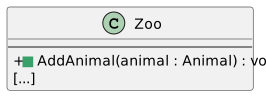
22.Define Zoo.AddAnimal(Animal animal)
Zoo.AddAnimal takes an Animal reference and returns void.
Zoo.AddAnimal signature
  • New
  • Changed
  • Removed
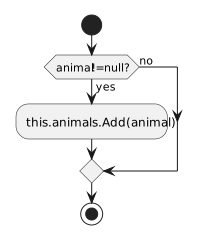
A Use a null check before changing the list.
1 Add the supplied animal to this.animals only if it is not null.
AddAnimal ignores a null reference.
  • New
  • Changed
  • Removed
B Check Your Work
1 Open Zoo.AddAnimal in the source. Follow its statements from top to bottom using the sample values below; this is a paper/source trace, so do not run or edit the application for this check.
2 Use a non-null Animal reference. Confirm this.animals.Add(animal) runs once and the count increases by one.
3 Trace separately with animal equal to null. Confirm Add is skipped and the count stays unchanged.
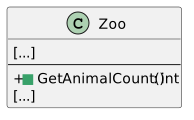
23.Define Zoo.GetAnimalCount()
Zoo.GetAnimalCount method signature
  • New
  • Changed
  • Removed
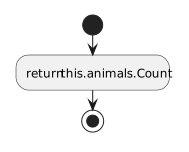
A Use the class signature and activity diagram.
1 Return this.animals.Count using the return type shown in the class diagram.
Zoo.GetAnimalCount returns the stored information.
  • New
  • Changed
  • Removed
B Check Your Work
1 Open Zoo.GetAnimalCount() in the source. Follow its statements from top to bottom using the sample values below; this is a paper/source trace, so do not run or edit the application for this check.
2 Use Como’s starting private list of three animals. Confirm this.animals.Count is 3 and the method returns 3.
3 Trace an empty list and confirm 0. Confirm reading the count does not add or remove animals.
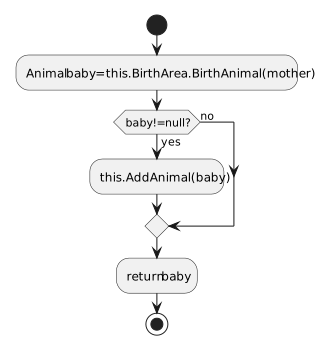
24.Update Zoo.BirthAnimal(Animal mother)
A Use the zoo-owned registration method.
1 Keep the delivered-baby check. Inside it, call this.AddAnimal(baby) instead of adding to the list directly.
BirthAnimal routes successful births through AddAnimal.
  • New
  • Changed
  • Removed
B Check Your Work
1 Open Zoo.BirthAnimal in the source. Follow its statements from top to bottom using the sample values below; this is a paper/source trace, so do not run or edit the application for this check.
2 Follow a non-null returned baby into this.AddAnimal(baby). Confirm the method returns the same reference.
3 Follow that reference into the existing window birth handler. Confirm the array receives the same newborn, not a newly created replacement.
4 Trace a null return separately. Confirm the population count does not change.
25.Make the MainWindow fields private
A Change the fields and their references in MainWindow.xaml.cs.
1 Rename ComoZoo to comoZoo and SanDiegoZoo to sanDiegoZoo and make both private.
2 Rename ZooAnimalCount to zooAnimalCount and ZooAverageAnimalWeight to zooAverageAnimalWeight and make both private.
3 Update uses of those fields throughout MainWindow. Keep method names, XAML names, strings and Click handler names unchanged.
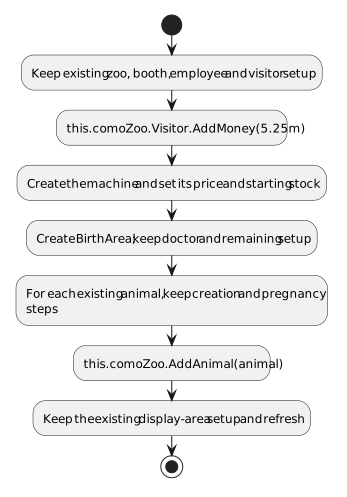
26.Update MainWindow.CreateComoZoo()
A Repair the creation path after the private-field changes.
1 Delete the statements that create Visitor.Wallet and assign its MoneyBalance. After the visitor’s name and age are set, call this.comoZoo.Visitor.AddMoney(5.25m).
2 Delete the machine BagSize and FoodCapacity assignments; those values now come from its readonly declarations. Keep the price and starting FoodStock assignments.
3 Delete the BirthArea.InitialTemperature, BirthArea.TemperatureIncrease and BirthArea.Temperature assignments. Keep the room’s doctor and other setup.
4 Replace every direct list Add in this method with this.comoZoo.AddAnimal(animal). Keep the existing animal data, array placement and display calls.
CreateComoZoo keeps the existing objects and uses public operations for protected state.
  • New
  • Changed
  • Removed
B Check Your Work
1 Open MainWindow.CreateComoZoo and read its calls in order.
2 Confirm the visitor receives starting money through Visitor.AddMoney(...) rather than direct wallet-field access.
3 Confirm temperature setup uses the room’s public methods, and animal registration uses AddAnimal(...) rather than direct access to animals.
4 Confirm all object references and original names still belong to this.comoZoo.
27.Update MainWindow.CreateSanDiegoZoo()
A Repair the creation path after the private-field changes.
1 Delete the statements that create Visitor.Wallet and assign its MoneyBalance. After the visitor’s name and age are set, call this.sanDiegoZoo.Visitor.AddMoney(3.75m).
2 Delete the machine BagSize and FoodCapacity assignments; those values now come from its readonly declarations. Keep the price and starting FoodStock assignments.
3 Delete the BirthArea.InitialTemperature, BirthArea.TemperatureIncrease and BirthArea.Temperature assignments. Keep the room’s doctor and other setup.
4 Replace every direct list Add in this method with this.sanDiegoZoo.AddAnimal(animal). Keep the existing animal data, array placement and display calls.
CreateSanDiegoZoo keeps the existing objects and uses public operations for protected state.
  • New
  • Changed
  • Removed
B Check Your Work
1 Open MainWindow.CreateSanDiegoZoo and read its calls in order.
2 Confirm the visitor receives starting money through Visitor.AddMoney(...) rather than direct wallet-field access.
3 Confirm temperature setup uses the room’s public methods, and animal registration uses AddAnimal(...) rather than direct access to animals.
4 Confirm all object references and original names still belong to this.sanDiegoZoo.
28.Update MainWindow.ChangeSanDiegoTemperature(...)
A Let the room change its own value.
1 Replace the old read-and-assign body with this.sanDiegoZoo.BirthArea.ChangeTemperature(temperatureChange).
MainWindow passes the requested change into BirthingRoom.
  • New
  • Changed
  • Removed
B Check Your Work
1 Open MainWindow’s temperature helper. Confirm the supplied positive or negative change is passed to zoo.BirthArea.ChangeTemperature(...).
2 Trace 0.5 from starting temperature 77.0: expect 77.5. Trace -0.5 from a separate starting 77.0: expect 76.5.
3 Confirm MainWindow no longer assigns the private temperature field directly.
29.Update the existing count and temperature handlers
A Keep the existing handler guards and messages; change these expressions.
1 In both population-count handlers, replace direct Animals.Count reads with the corresponding zoo.GetAnimalCount() call.
2 In the temperature handlers, pass -0.5 or 0.5 into ChangeSanDiegoTemperature. Read the displayed value through BirthArea.GetTemperature().
3 In newSanDiegoZooButton_Click, read the initial display through BirthArea.GetTemperature(). Keep ToString("0.0") on each displayed temperature.
Updated count assignments
Handler Replacement statement
getComoZooAnimalCount_Click this.zooAnimalCount = this.comoZoo.GetAnimalCount();
getSanDiegoZooAnimalCount_Click this.zooAnimalCount = this.sanDiegoZoo.GetAnimalCount();
B Check Your Work
1 Select Build > Build Solution. Open View > Error List and resolve any errors introduced by this task.
2 Create both zoos. Use population count: expect Como 3 and San Diego 2. Confirm one occupied map space in each.
3 Set a breakpoint on the closing brace of VendingMachine.Fill(). Recreate Como and fill once without feeding first. Inspect this.FoodStock as 207.0.
4 Continue, recreate San Diego and fill once without feeding. Inspect this.FoodStock as 212.0.
5 Press F5 to continue. Stop debugging and remove the breakpoint before the next check.
6 Click New San Diego Zoo to reset that zoo. Do not feed, refill, move or give birth before this test.
7 Confirm temperature 77.0. Click increase then decrease: confirm 77.5 then 77.0.
8 Recreate each zoo and feed once. Confirm each reports success.
30.Check the access rules
A Make these temporary compile checks, one at a time, then remove each test line.
1 After creating an animal in CreateComoZoo, temporarily try this.comoZoo.animals.Add(animal). Build and observe the private-access error, then remove that test line.
2 Temporarily try this.comoZoo.AnimalSnackMachine.AddMoney(3000.00m). Build and observe the private-method access error, then remove that test line.
B Check Your Work
1 Delete the temporary access-test statements from the preceding task and save the files.
2 Select Build > Build Solution. Open View > Error List and resolve any errors introduced by this task.
3 Confirm the Error List no longer reports inaccessible-member errors from those deliberate tests.
31.Follow the wallet through the feeding sequence
A Remove earlier breakpoints, start a fresh debugging session and create Como.
1 Set a breakpoint on the funds check in Guest.FeedAnimal and click Darla, feed dingo. Add the expressions in the table before stepping.
Watch inside Guest.FeedAnimal
Expression Expected state
this.wallet Existing Wallet reference
this.wallet.moneyBalance 5.25 before payment
foodCost 0.53
this.moneyBalance Unavailable; that field belongs to Wallet
amount Unavailable here; it is a parameter of later wallet methods
B Use F11 and F10 to follow the actual calls.
1 Step into Wallet.GetMoneyBalance. this now refers to Wallet, where this.moneyBalance is 5.25. Return to the funds check.
2 Follow Guest.RemoveMoney into Wallet.RemoveMoney. amount is 0.53; after subtraction the private balance is 4.72.
3 Continue through dispensing. When VendingMachine.AddMoney runs, this refers to the machine and amount is 0.53. After addition its private moneyBalance is 0.53. Press F5 to continue.
C Check Your Work
1 At the preceding payment trace, confirm this.wallet.GetMoneyBalance() supplies the guest’s balance without exposing the wallet to MainWindow.
2 Continue the purchase and confirm the normal success message.
3 Remove the payment breakpoints and recreate the zoo to reset any test values.
32.Follow the public animal-registration method
A Set a breakpoint at the first AddAnimal(animal) call in CreateComoZoo and click New Como Zoo.
Watch at the registration call
Expression In MainWindow before the call
animal.Name "Dolly"
this.comoZoo.animals Empty list; the debugger can inspect private members
this.animals Unavailable until inside Zoo.AddAnimal
1 Before the call, animal refers to Dolly. The zoo exists, but its private animals list still has Count 0.
2 Use F11 into Zoo.AddAnimal. The parameter animal becomes available in Zoo; observe this.animals.Count become 1 after Add executes.
3 Continue creation and confirm the displayed population count is 3. Remove the breakpoint.
B Check Your Work
1 Open Zoo.AddAnimal(null) in the source. Follow its statements from top to bottom using the sample values below; this is a paper/source trace, so do not run or edit the application for this check.
2 Confirm the non-null condition is false.
3 Confirm this.animals.Add(...) is skipped and the existing count stays unchanged.
4 Use the existing creation and birth calls for the runtime walkthrough; do not add a permanent null-registration test to the application.
33.Check the completed encapsulation changes
A Check Your Work
1 Set a breakpoint on the closing brace of Zoo.WakeAllAnimals().
2 Click New Como Zoo to reset that zoo. Do not feed, refill, move or give birth before this test.
3 Click Como’s wake button once. At the breakpoint inspect this.animals[0].Weight, this.animals[1].Weight and this.animals[2].Weight as approximately 34.241, 32.786 and 15.035.
4 Press F5 to continue. Stop debugging and remove the breakpoint before the next check.
5 Click New Como Zoo to reset that zoo. Do not feed, refill, move or give birth before this test.
6 Give birth once. Confirm the population-count button reports 4 and the displayed area count is 2.
7 Give birth again without clearing the baby’s destination. Confirm the occupied-space message and population still 4.
8 Remove temporary access tests. Confirm the public-field suppression is removed from Wallet and MainWindow, whose fields are now private, and retained where public fields remain.
9 Select Build > Build Solution. Open View > Error List and resolve any errors introduced by this task.
Complete Zoo 2.5
34.Review the ending structure
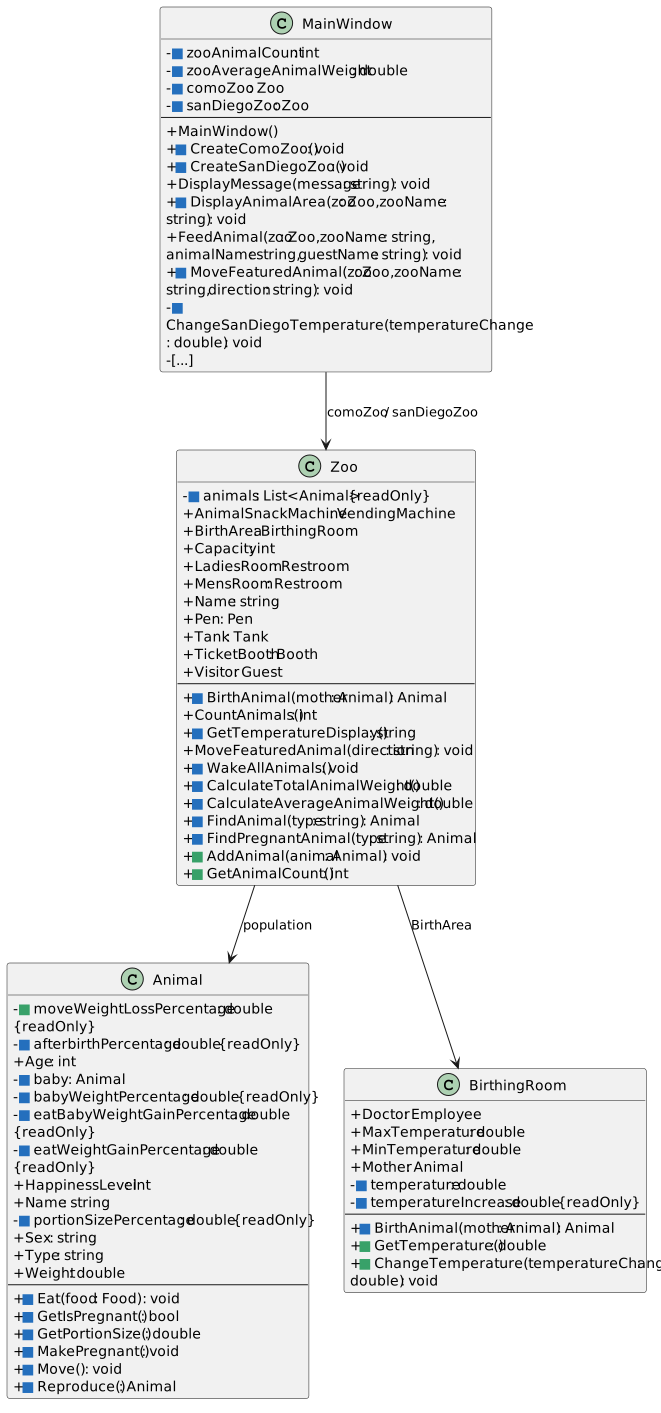
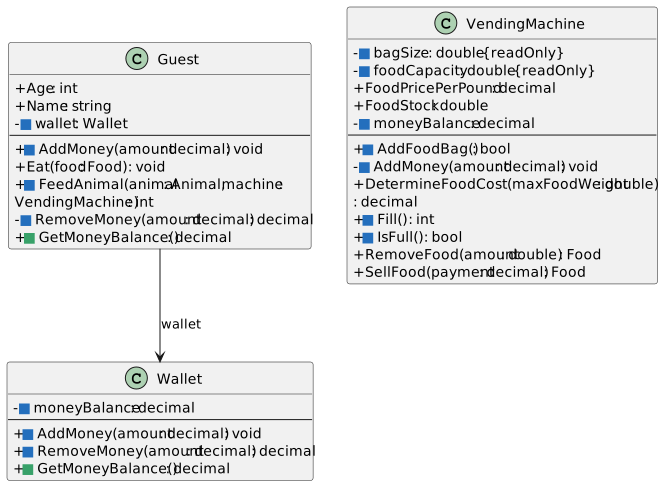
A Use the ending diagrams to explain how the objects now control or expose their state.
Ending structure — Zoo 2.5 core classes
  • New
  • Changed
  • Removed
Ending structure — Zoo 2.5 service classes
  • New
  • Changed
  • Removed
35.Submit a zipped Visual Studio solution
A Save and build your .NET Framework 4.8 solution. Zip the solution and submit it to the Feedback System. Submit the Feedback System URL to the correct assignment in Canvas.