1.7 Zoo Learning Activity

Overview
1.Prepare for Zoo 1.7
A Pass Objects Through Zoo Actions

In Zoo 1.6, the birthing room and zoo referred to the same mother, but the birth action cleared her Baby field without returning the baby. In Zoo 1.7, pass the mother into the birth action and return the baby to the caller. Give food its own class so one Food object can travel from the vending machine to the animal.

B Getting Started
1 Copy your completed Zoo 1.6 solution. Rename the copied folder and solution file for Zoo 1.7, then open the copied solution in Visual Studio.
2 Build the copied solution and resolve any starting errors.
C Starting Point — End of Zoo 1.6

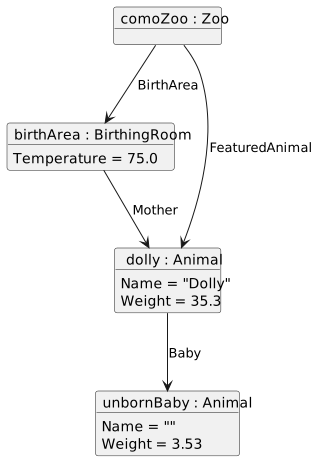
The starting class diagram shows the methods and fields you already have. The object diagram shows the shared mother before clicking a birth button. Both zoo paths lead to Dolly, and Dolly's Baby field still refers to her unborn baby.
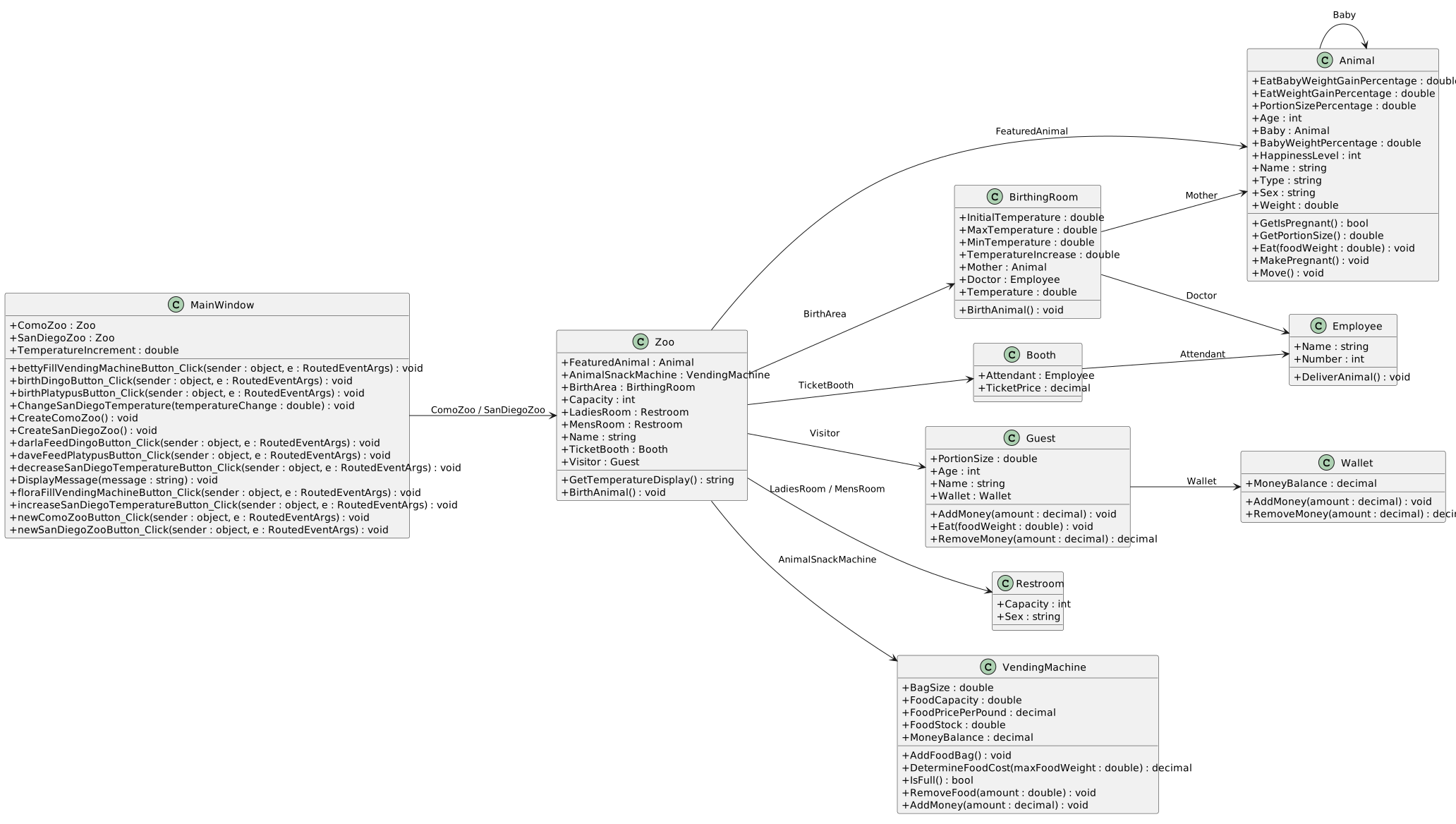
Starting Zoo 1.7 class structure, matching completed Zoo 1.6. The mother still has a Baby reference until birth.
Starting structure — completed Zoo 1.6
  • New
  • Changed
  • Removed
Before birth, Como Zoo and its birthing room reference the same Dolly; Dolly references her unborn Baby. No separate newborn field exists in Zoo.
Starting references — before birth
  • New
  • Changed
  • Removed
1 In the copied project, find birthDingoButton_Click, Zoo.BirthAnimal(), BirthingRoom.BirthAnimal(), and Employee.DeliverAnimal(). Follow their existing calls and observe where the reference to Dolly's baby is cleared.
Pass a Mother Into Care and Return Her Baby
Acceptance Criteria
  • I want each birth button to use the mother already associated with its zoo, so the birth happens for the correct animal.
  • I want the birth action to return the newborn so the window can display the baby's name, weight, and sex.
  • I want the mother's pregnancy to end after birth while the handler can still use the newborn.
  • I want a second click to tell me that no animal was born.
2.Catch the baby
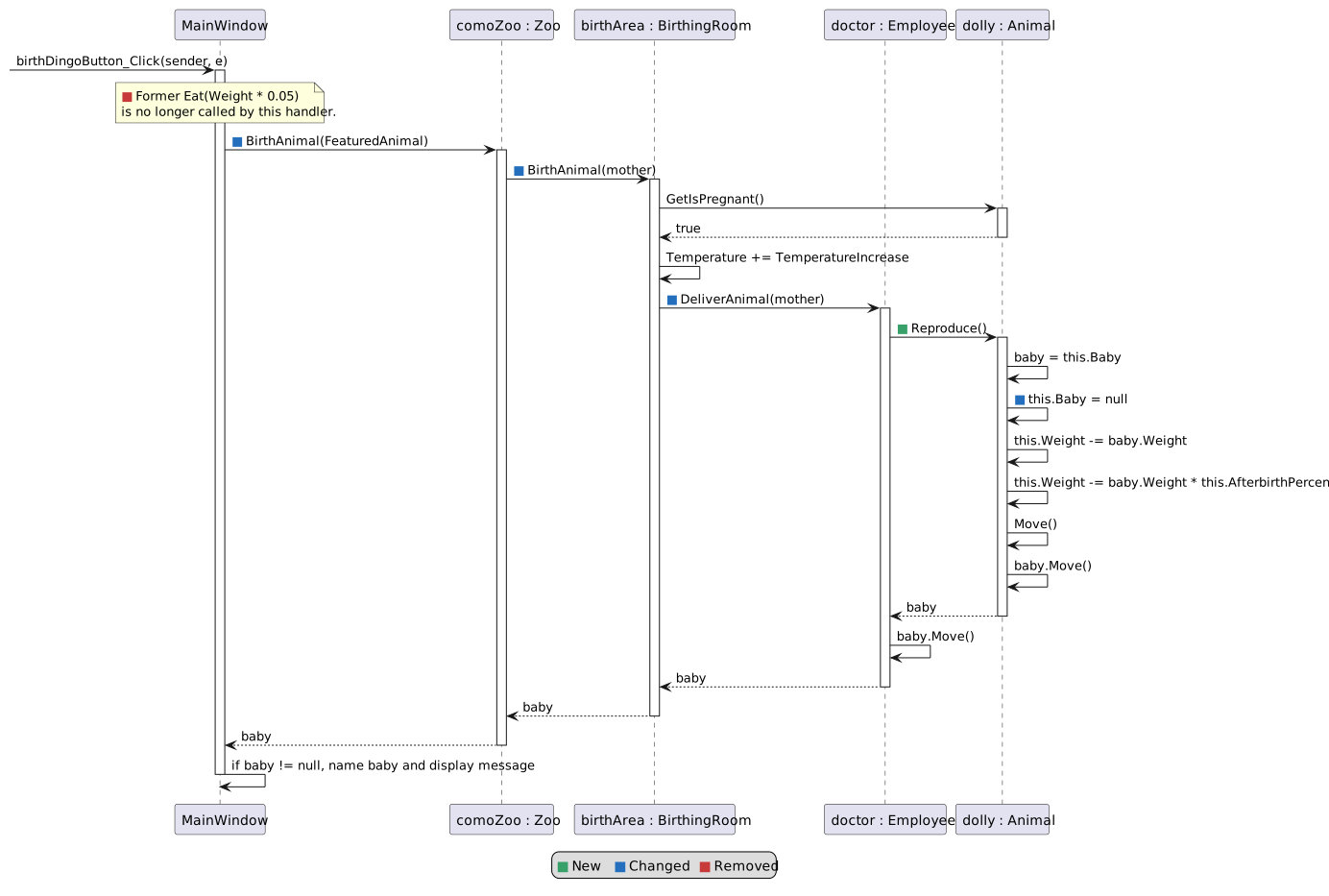
The Como birth button passes Dolly into Zoo.BirthAnimal, which passes her to BirthingRoom.BirthAnimal and Doctor.DeliverAnimal. The doctor calls Dolly.Reproduce and returns the baby through room and zoo to MainWindow. Green squares mark new calls, blue squares mark changed signatures, and red squares mark removed actions for comparison.
Birth calls and returned Animal reference
  • New
  • Changed
  • Removed
Problem

Clearing Baby ends the mother's pregnancy, but the birth action has no reference to return to the window.

Solution

Save the existing baby in a local variable before clearing the field. Return that saved Animal reference after the mother's weight and movement updates.

A Make the Changes
1 In Animal.cs, add the public double field AfterbirthPercentage initialized to 0.1. Keep the existing BabyWeightPercentage field. Add the field in a location that follows the existing StyleCop conventions:
public double AfterbirthPercentage = 0.1;
2 In Animal.cs, add public Animal Reproduce(). Store this.Baby in a local Animal named baby before setting this.Baby to null. Subtract baby.Weight from this.Weight, then subtract baby.Weight * this.AfterbirthPercentage. Call this.Move(), then baby.Move(), and return baby. Keep every statement in this order.
Animal baby = this.Baby;
this.Baby = null;
this.Weight -= baby.Weight;
this.Weight -= baby.Weight * this.AfterbirthPercentage;
this.Move();
baby.Move();
return baby;
3 Before changing the next class, trace the two references: this.Baby is cleared, while the local baby still refers to that same Animal. Reproduce is called only after the birthing room confirms that its mother is pregnant.
3.Return the Baby Through the Doctor and Room
Problem

Employee.DeliverAnimal() and BirthingRoom.BirthAnimal() currently return void, so the window cannot receive the baby.

Solution

Pass the existing mother through both calls and return the Animal returned by Reproduce().

A Make the Changes
1 In Employee.cs, change the signature to `public Animal DeliverAnimal(Animal mother)`. In its body, call Reproduce(), move the returned baby when it is not null, then return it.
Animal baby = mother.Reproduce();

if (baby != null)
{
    baby.Move();
}

return baby;
2 In BirthingRoom.cs, change the signature to `public Animal BirthAnimal(Animal mother)`. Keep the outer Mother check. Start with this local before the checks:
Animal baby = null;

Inside the nested pregnancy check, update the temperature and save the baby's returned reference. After both checks close, return baby.

if (this.Mother != null)
{
    if (this.Mother.GetIsPregnant())
    {
        this.Temperature += this.TemperatureIncrease;
        baby = this.Doctor.DeliverAnimal(mother);
    }
}
return baby;
3 In Zoo.cs, change BirthAnimal to accept Animal mother and return Animal. Pass mother to this.BirthArea.BirthAnimal(mother) and return the result. This lets the window call the zoo and receive the same baby returned by its birthing room:
return this.BirthArea.BirthAnimal(mother);
4.Use the Birthing Room's Temperature Increment

The birth action and temperature buttons use the birthing room's TemperatureIncrease field.

A Make the Changes
1 In BirthingRoom.cs, initialize the existing TemperatureIncrease field to 0.5. Keep the assignments to this field in CreateComoZoo() and CreateSanDiegoZoo().
public double TemperatureIncrease = 0.5;
2 In MainWindow.xaml.cs, remove the TemperatureIncrement field. Use this call in the decrease handler, and keep its existing temperatureTextBlock update.
this.ChangeSanDiegoTemperature(-this.SanDiegoZoo.BirthArea.TemperatureIncrease);

Use the positive increment in the increase handler. Keep its existing temperatureTextBlock update.

this.ChangeSanDiegoTemperature(this.SanDiegoZoo.BirthArea.TemperatureIncrease);
5.Use the Returned Baby in the Window
Problem

The current button handlers feed the mother and then call a void zoo method. They cannot display the newborn returned from the birthing room.

Solution

Have each handler call its zoo's BirthAnimal with its FeaturedAnimal, then display a message based on the returned Animal reference.

A Make the Changes
1 In MainWindow.xaml.cs, replace the existing pregnancy check in birthDingoButton_Click. Store the returned Animal and set the default message before the new null check:
Animal baby = this.ComoZoo.BirthAnimal(this.ComoZoo.FeaturedAnimal);
string message = "No dingo was born.";

Inside `if (baby != null)`, set the baby's name and replace the default message:

if (baby != null)
{
    baby.Name = "Baby ";
    message = "A dingo was born. It weighs " + Math.Round(baby.Weight, 2) + " and is a " + baby.Sex;
}

Keep `this.DisplayMessage(message);` after the check.

2 In birthPlatypusButton_Click, store the returned Animal and set the default message before the null check. Inside the check, name the baby and replace the message.
Animal baby = this.SanDiegoZoo.BirthAnimal(this.SanDiegoZoo.FeaturedAnimal);
string message = "No platypus was born.";

if (baby != null)
{
    baby.Name = "Baby";
    message = "A platypus was born. It weighs " + Math.Round(baby.Weight, 2) + " and is a " + baby.Sex;
}

After the check, keep the temperature refresh followed by DisplayMessage():

this.temperatureTextBlock.Text = this.SanDiegoZoo.GetTemperatureDisplay();
this.DisplayMessage(message);
B Check Your Work
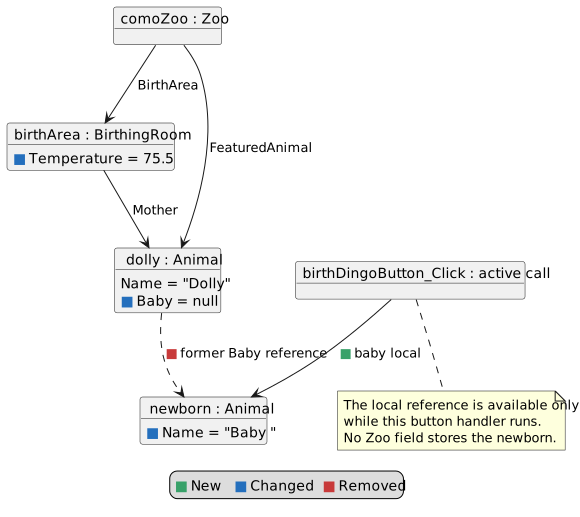
After the 1.7 birth call, the mother is shared by Zoo and BirthingRoom and her Baby field is null. The returned newborn is referenced by the button handler's baby local while that handler is running. Green squares mark new local references, blue squares mark changed field values, and red squares mark removed old connections.
Returned baby during the Como button handler
  • New
  • Changed
  • Removed
1 Create Como Zoo and click the dingo birth button once. Confirm a baby is born and the message begins "A dingo was born."
2 In the debugger, inspect baby, this.ComoZoo.FeaturedAnimal.Baby, and this.ComoZoo.BirthArea.Mother. Confirm baby refers to the newborn, the mother's Baby field is null, and both mother paths still reach Dolly.
3 Step through both calls to baby.Move().
4 Create San Diego Zoo and click the platypus birth button once. Confirm a baby is born, the message begins "A platypus was born.", and the temperature display refreshes.
5 Click the dingo birth button again. Confirm no baby is returned and the message reads "No dingo was born."
6 Click the platypus birth button again. Confirm no baby is returned and the message reads "No platypus was born."
Give the Animal a Food Object
Acceptance Criteria
  • Food has a Weight field.
  • I want each food portion to have a weight, so the vending machine can dispense the amount purchased.
  • I want the vending machine to return the same food portion removed from its stock, so I can feed that portion to an animal.
  • I want the animal to gain weight based on the food it receives, including its unborn baby when present.
6.Create and Return the Purchased Food
Problem

The vending machine removes an amount of food but returns no object that can be handed to an animal.

Solution

Create Food with a Weight field. Return an instance from RemoveFood(), then return that same instance from SellFood().

A Make the Changes
1 Add Food.cs to the Business Classes folder and project. If you add it directly to the folder, make sure its namespace is ZooScenario. Define public class Food with one public double field named Weight. Follow the existing classes' formatting and any applicable StyleCop field suppression.
[System.Diagnostics.CodeAnalysis.SuppressMessage("Microsoft.StyleCop.CSharp.MaintainabilityRules", "SA1401:FieldsMustBePrivate", Justification = "Encapsulation not yet taught.")]
public class Food
{
    public double Weight;
}
2 In VendingMachine.cs, change the return type of `RemoveFood(double amount)` to Food. Keep the stock subtraction, then add these lines to create and return the dispensed object.
Food foodPacket = new Food();
foodPacket.Weight = amount;
return foodPacket;
3 In VendingMachine.cs, add `SellFood(decimal payment)`. AddMoney first, calculate the dispensed weight from payment, then return the Food from RemoveFood().
this.AddMoney(payment);

double foodWeight = (double)(payment / this.FoodPricePerPound);

Food food = this.RemoveFood(foodWeight);
return food;
7.Pass That Food to the Animal
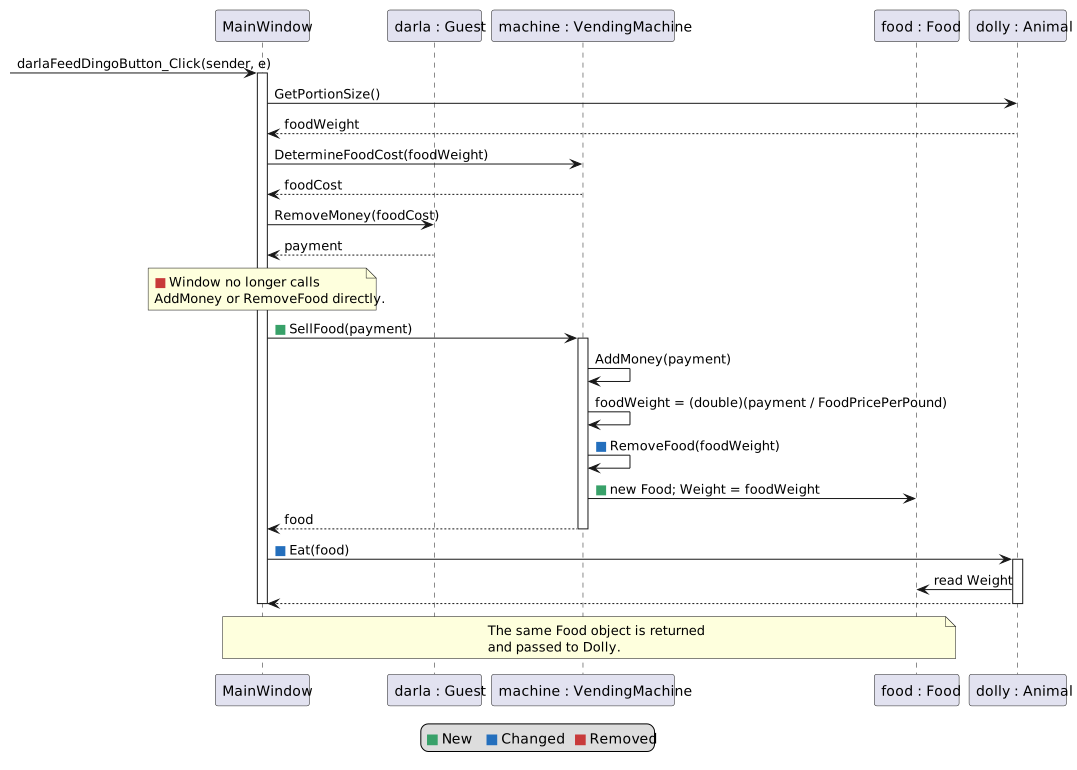
The Como feed handler computes price, receives payment from the guest, obtains one Food object from SellFood, then passes that same object to Dolly.Eat. Green squares mark new calls and objects, blue squares mark changed method signatures, and red squares mark removed calls shown for comparison.
Purchase food and pass the same object to Dolly
  • New
  • Changed
  • Removed
Problem

The handlers and Eat methods currently pass a double food weight. The animal needs the Food instance returned by the machine.

Solution

Change Eat to accept Food and read food.Weight. Use SellFood to obtain that Food object in each feeding handler.

A Make the Changes
1 In Animal.cs, change Eat(double foodWeight) to Eat(Food food). Calculate the mother's weight gain using food.Weight * this.EatWeightGainPercentage. Keep the existing weight update.
double weightGain = food.Weight * this.EatWeightGainPercentage;

Inside the existing `if (this.Baby != null)` block, replace the baby's weight calculation with this line. Keep its existing weight update.

double babyWeightGain = food.Weight * this.EatBabyWeightGainPercentage;
2 In Guest.cs, change Eat(double foodWeight) to Eat(Food food). Keep its existing empty behavior.
3 In darlaFeedDingoButton_Click, keep GetPortionSize, DetermineFoodCost, and the visitor's RemoveMoney payment. Replace the direct AddMoney and RemoveFood calls with these lines:
Food food = this.ComoZoo.AnimalSnackMachine.SellFood(payment);
this.ComoZoo.BirthArea.Mother.Eat(food);
4 Make the corresponding change in daveFeedPlatypusButton_Click using SanDiegoZoo and its existing mother reference. Pass the Food returned from that zoo's SellFood call to Eat:
Food food = this.SanDiegoZoo.AnimalSnackMachine.SellFood(payment);
this.SanDiegoZoo.BirthArea.Mother.Eat(food);
B Check Your Work
1 Create Como Zoo and stop after SellFood() returns. Inspect food.Weight, then step into Eat(food) and confirm its food parameter refers to the same Food object.
2 Repeat the Food object check for San Diego Zoo.

The machine calculates dispensed weight from the payment it receives. Because the price was rounded, this weight can differ slightly from the requested portion.

Complete Zoo 1.7
8.Review the Completed Design
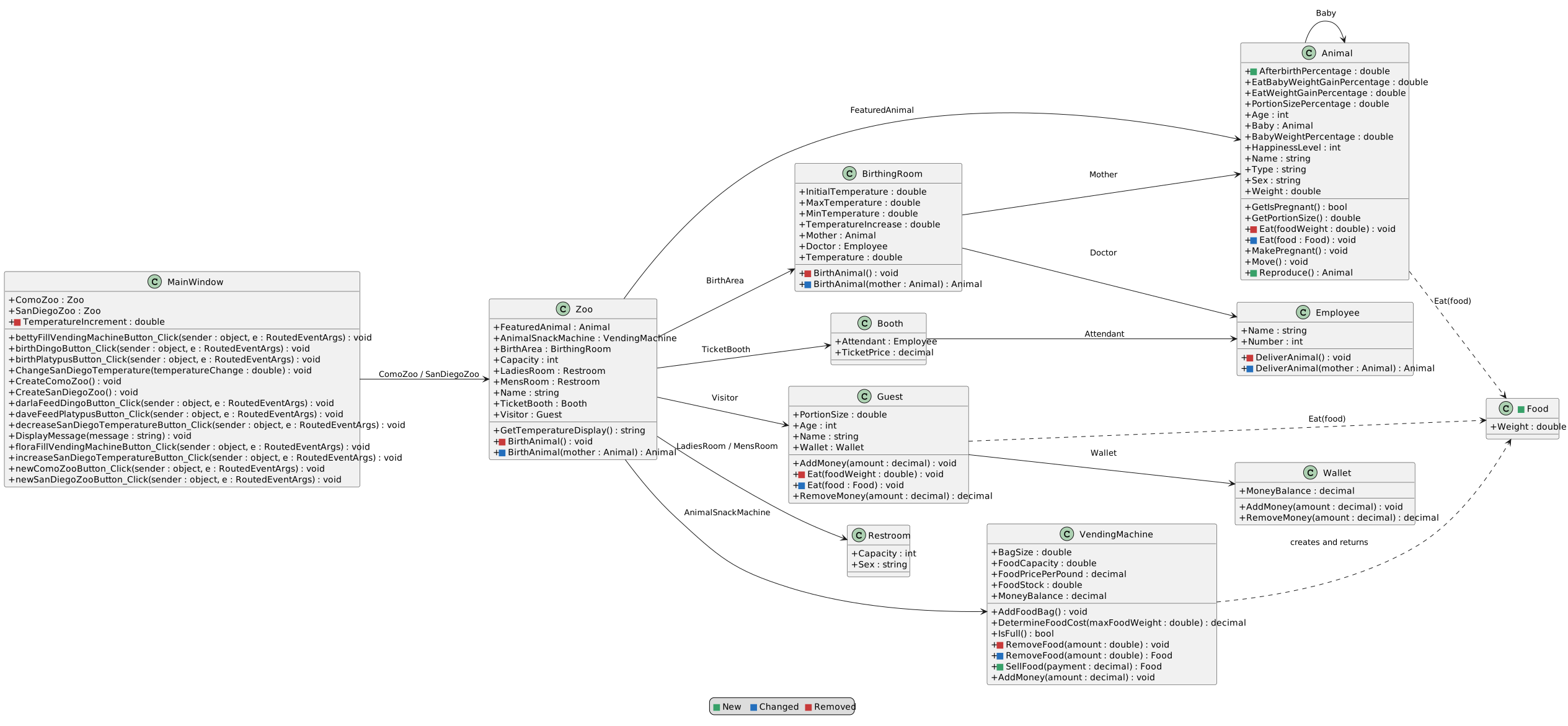
Completed Zoo 1.7 class structure. Green squares identify new fields and methods; blue squares identify changed signatures; red squares identify removed signatures and fields shown for comparison.
Ending structure — completed Zoo 1.7
  • New
  • Changed
  • Removed
A Check Your Work
1 Confirm each birth button passes its zoo's FeaturedAnimal to Zoo.BirthAnimal(), the zoo passes that mother to BirthArea.BirthAnimal(), and the doctor returns the same baby produced by Reproduce. The newborn reference travels back through the room and zoo to the handler.
2 Confirm Food.cs is included in the project and both feeding handlers pass the Food returned by their zoo's SellFood to BirthArea.Mother.Eat. Confirm the mother still starts pregnant in each new zoo.
3 Build the solution and resolve errors.
9.Submit Zoo 1.7
A Close Visual Studio and ZIP the complete Zoo 1.7 solution folder.
B Submit the ZIP through the Feedback System.
C Submit the Feedback System URL in Canvas.