Overview
1.Getting Started
A
Make a copy of your Grade Book 1.3 LastName folder and .sln file and rename the copied versions to Grade Book 1.4 LastName
B
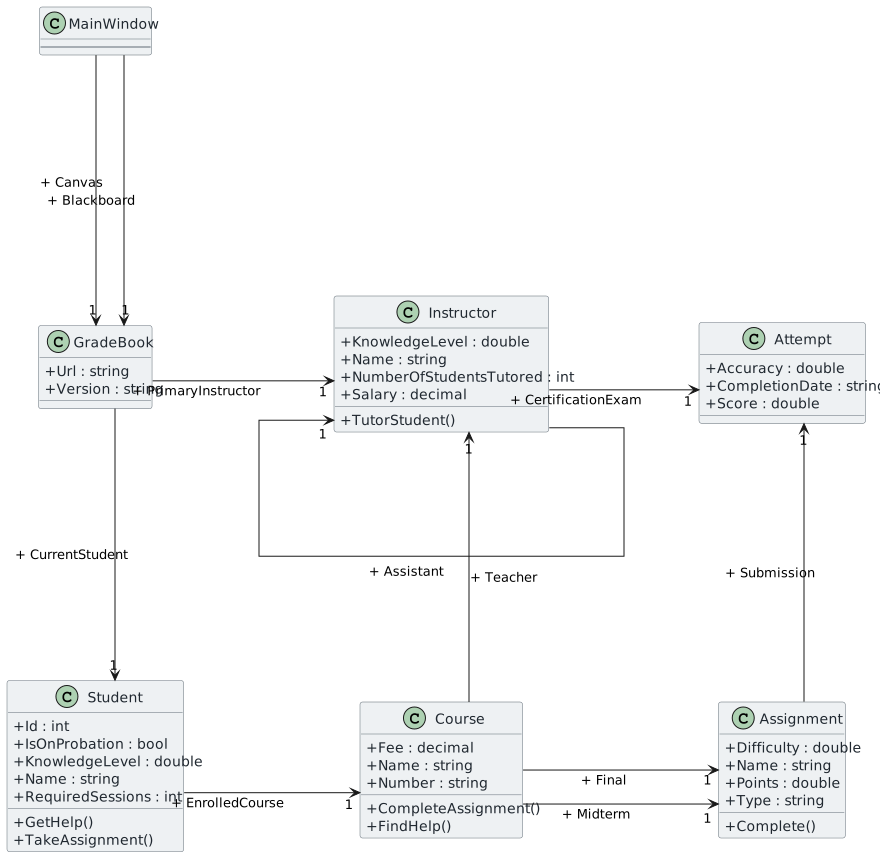
The class diagram below represents the current structure of the GradeBookScenario solution
- New
- Changed
- Removed
2.Have the student's completed assignment be based off of their knowledge level
A
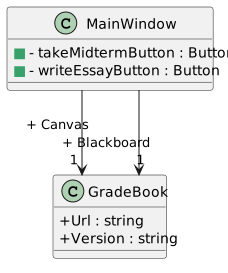
Add the Midterm and essay button controls to MainWindow.xaml based on the class diagram below. Implement their event handlers separately in MainWindow.xaml.cs
- New
- Changed
- Removed
<Button x:Name="takeMidtermButton" Content="Take midterm" Click="takeMidtermButton_Click"/>
<Button x:Name="writeEssayButton" Content="Write midterm essay" Click="writeEssayButton_Click"/>
B
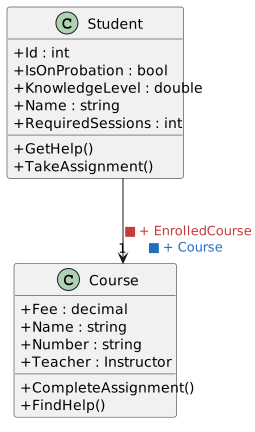
Modify the EnrolledCourse field based on the class diagram below and then update all references
- New
- Changed
- Removed
C
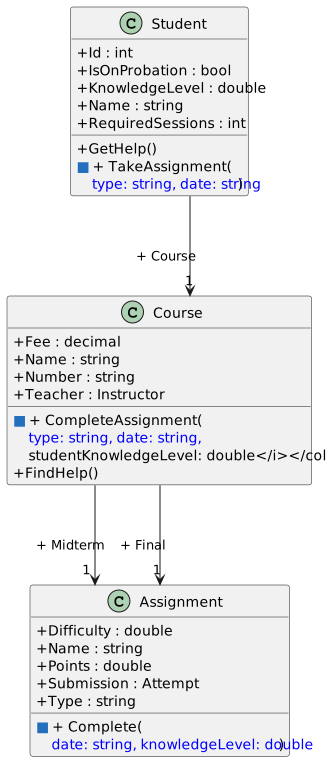
Add parameters to the methods as shown in the class diagram below
- New
- Changed
- Removed
D
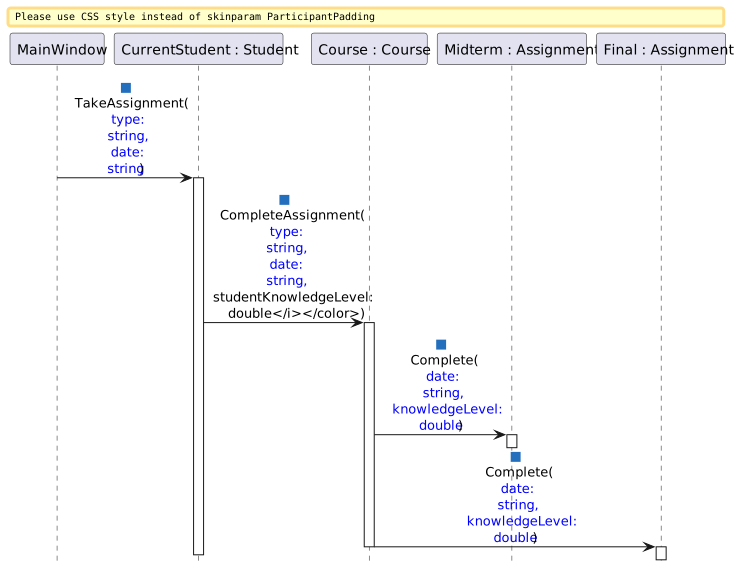
Pass in the proper arguments into the method calls based on the sequence diagram below
- New
- Changed
- Removed
1
Pass in "Midterm" and "10/07/2018" for both Midterms and "Final" and "12/18/2018" for both Finals as arguments in the TakeAssignment call
2
Pass in the student's KnowledgeLevel as an argument in the CompleteAssignment call
E
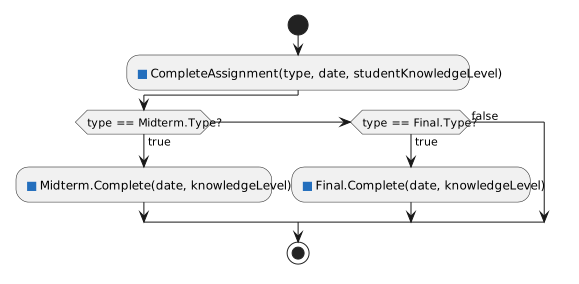
In the CompleteAssignment method, write if statements based on the activity diagram below
- New
- Changed
- Removed
F
Modify the Complete method
1
After the Submission field is instantiated, define a local variable of type double named difficultyFactor and assign it to 100 minus the half of the assignment's Difficulty
2
Assign the Submission's Accuracy to half of the student's knowledgeLevel plus half of the difficultyFactor instead of 70
3
Assign the Submission's CompletionDate to the date passed in
G
Check Your Work (Blackboard Midterm):
1
Set a breakpoint on the closing curly brace of the
takeMidtermButton_Click2
Start the application. Click the 'New Blackboard' button. Click the 'Take midterm' button
3
Ensure that Arthur's Midterm's Submission's Accuracy is 79.575 and that the CompletionDate is 10/07/2018
4
Ensure that Arthur's Final's Submission is null
H
Check Your Work (Blackboard Final):
1
Set a breakpoint on the closing curly brace of the
takeFinalButton_Click2
Start the application. Click the 'New Blackboard' button. Click the 'Take final' button
3
Ensure that Arthur's Final's Submission's Accuracy is 66.55 and that the CompletionDate is 12/18/2018
I
Check Your Work (Canvas Midterm):
1
Set a breakpoint on the closing curly brace of the
writeEssayButton_Click2
Start the application. Click the 'New Canvas' button. Click the 'Write midterm essay' button
3
Ensure that Samantha's Midterm's Submission's Accuracy is 86.08 and that the CompletionDate is 10/07/2018
4
Ensure that Samantha's Final's Submission is null
J
Check Your Work (Canvas Final):
1
Set a breakpoint on the closing curly brace of the
writeFinalPaperButton_Click2
Start the application. Click the 'New Canvas' button. Click the 'Write final essay' button
3
Ensure that Samantha's Final's Submission's Accuracy is 77.35 and that the CompletionDate is 12/18/2018
3.Modify how a student gets help
A
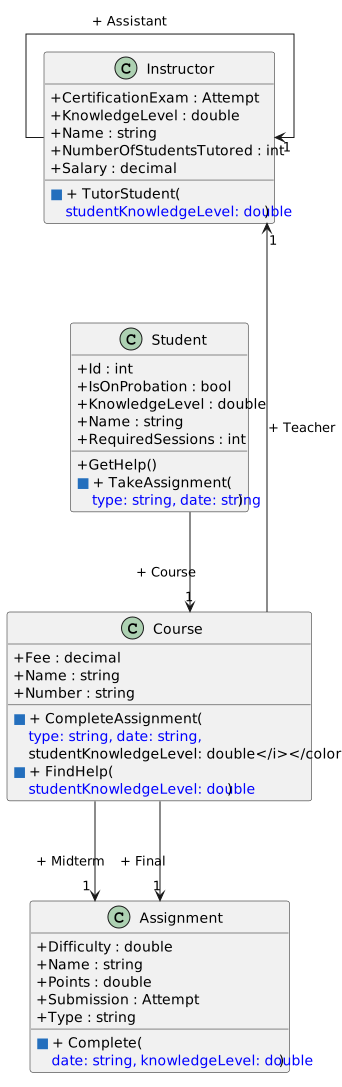
Modify the class structure based on the class diagram below
- New
- Changed
- Removed
B
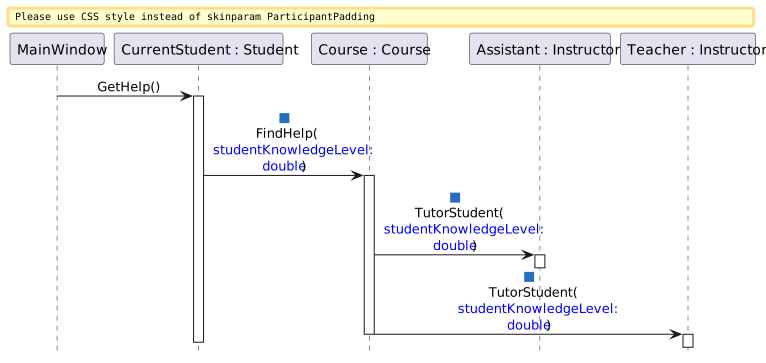
Pass in the proper arguments into method calls based on the sequence diagram below
- New
- Changed
- Removed
C
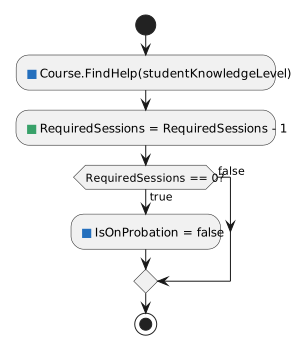
In the GetHelp method, add a conditional statement based on the activity diagram below
- New
- Changed
- Removed
D
Modify the TutorStudent method
1
Add a conditional statement that checks if the Instructor's KnowledgeLevel is greater than the student's KnowledgeLevel. If it is, increase the NumberOfStudentsTutored by 1
E
Check Your Work (Blackboard):
1
Set a breakpoint on the closing curly brace of the tutorArthurButton_Click
2
Start the application. Click the 'New Blackboard' button. Click the 'Tutor Arthur' button
3
Ensure that Alan's NumberOfStudentsTutored is 1
4
Ensure that Arthur's RequiredSessions is 2
5
Click the Continue button or press F5. The buttons should appear again
6
Click the 'Tutor Arthur' button
7
Ensure that Alan's NumberOfStudentsTutored is 2 and that Arthur's RequiredSessions is 1
8
Press F5. Click 'Tutor Arthur'
9
Ensure that Alan's NumberOfStudentsTutored is 3, that Arthur's RequiredSessions is 0 and that Arthur's IsOnProbation field is false
F
Check Your Work (Canvas):
1
Set a breakpoint on the closing curly brace of the tutorSamanthaButton_Click
2
Start the application. Click the 'New Canvas' button. Click the 'Tutor Samantha' button
3
Jeff's NumberOfStudentsTutored is 1 and Samantha's RequiredSessions is 3
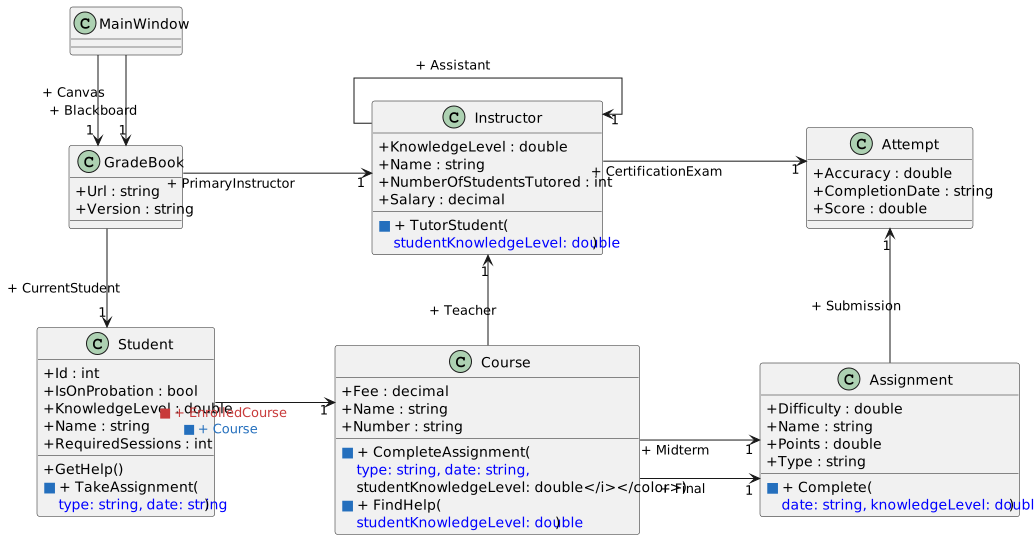
4.The class diagram below represents the structure of the application at the end of this assignment
A
Reference material
- New
- Changed
- Removed
5.Submit to the Feedback System
A
Ensure that all code is StyleCop compliant
B
Zip the solution and submit to the Feedback System
C
Submit the Feedback System url to the correct assignment in Canvas