Overview
1.Getting Started
A
Make a copy of your Grade Book 1.1 LastName folder and .sln file and rename the copied versions to Grade Book 1.2 LastName
B
The class diagram below represents the current structure of the GradeBookScenario solution
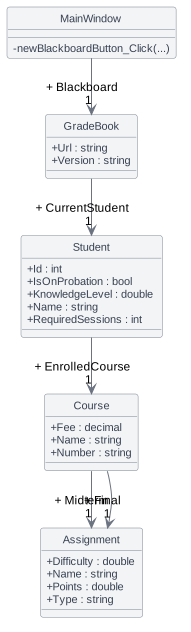
- New
- Changed
- Removed
2.Add to class structure
A
Add classes and define fields based on the class diagram below
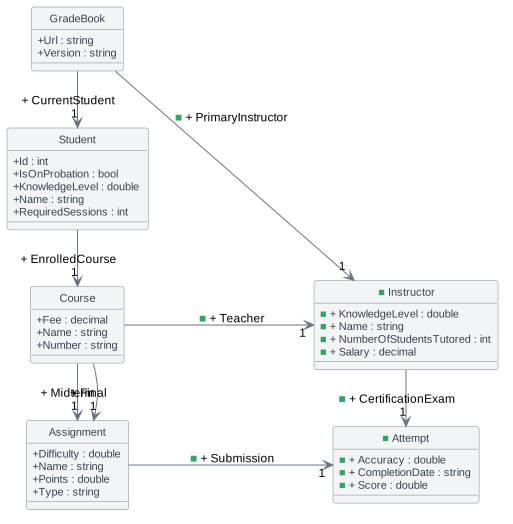
- New
- Changed
- Removed
B
Build your solution and ensure it compiles without errors or warnings
3.Instantiate Instructor and an Attempt
A
In the MainWindow in the newBlackBoardButton_Click, instantiate the Instructor and their Attempt based on the object diagram below
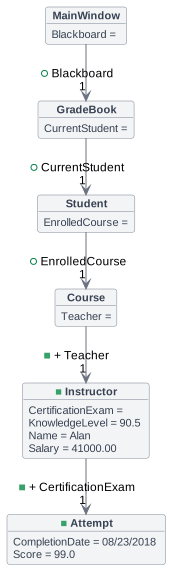
- New
- Changed
- Removed
B
Check Your Work:
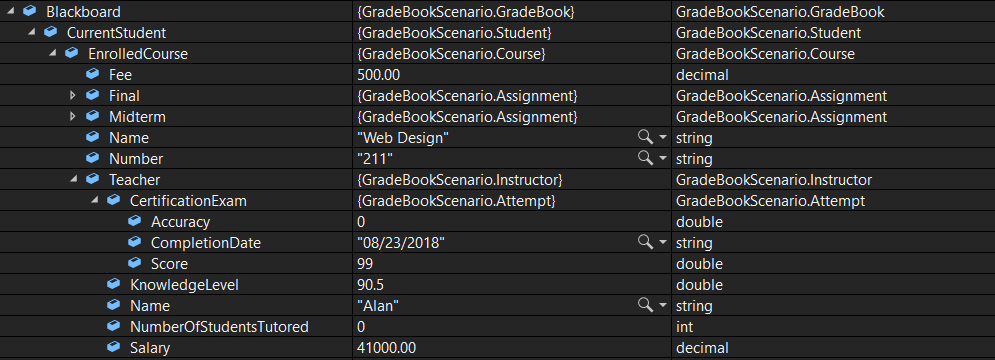
1
Set a breakpoint on the end curly brace of the newBlackBoardButton_Click
2
Start the application. Click the New Blackboard button
3
Ensure the your values match the values below
4.Add Canvas to the application
A
Create a new button in the user interface by adding the code below into the Xaml between the Sta and End Canvas comments
<Button x:Name="newCanvasButton" Content="New Canvas" Click="newCanvasButton_C
B
Create an event handler by double clicking the new button
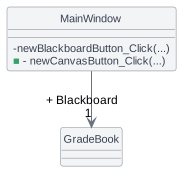
- New
- Changed
- Removed
C
In the MainWindow, define a field named Canvas of type GradeBook
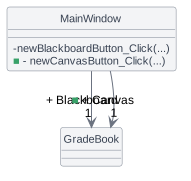
- New
- Changed
- Removed
D
In the newCanvasButton_Click event handler, instantiate and assign values to objects based on the object diagram below
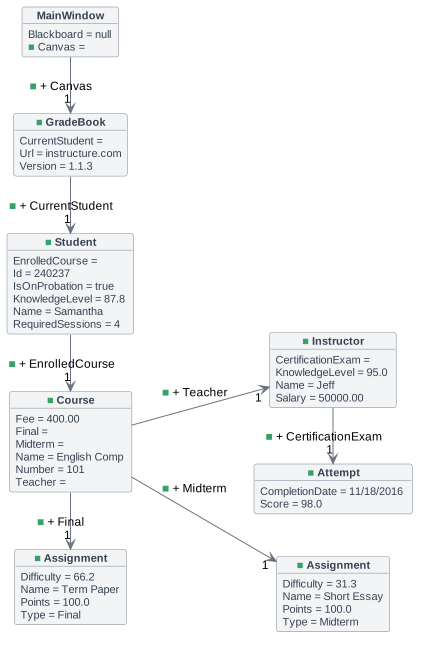
- New
- Changed
- Removed
E
Check Your Work (Canvas):
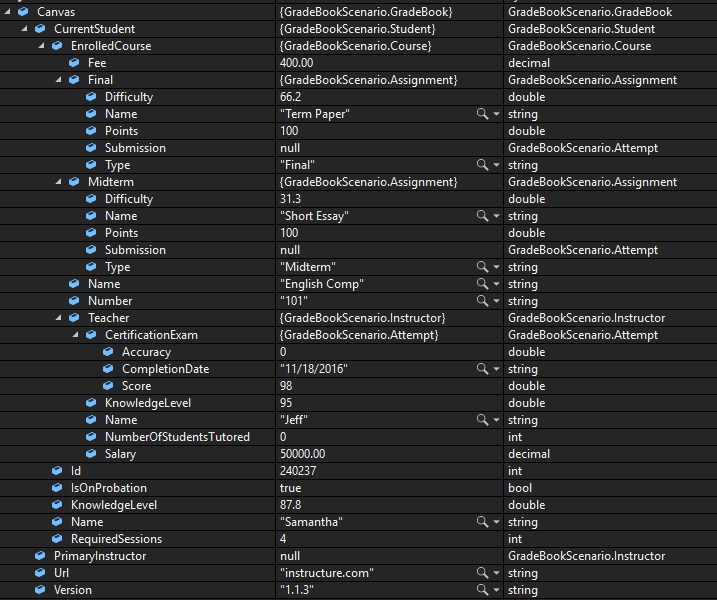
1
Set a breakpoint on the ending curly brace of the newCanvasButton_Click
2
Start the application. Click the New Canvas button
3
Ensure that your values match the values below
5.The class diagram below represents the structure of the application at the end of this assignment
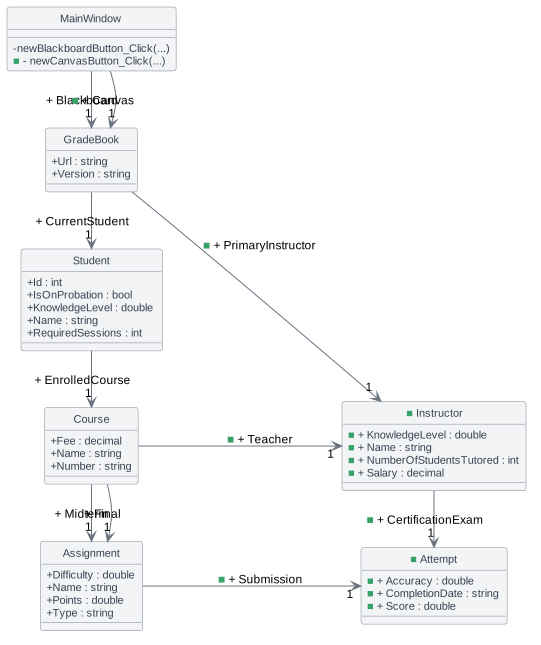
- New
- Changed
- Removed
6.Submit to the Feedback System
A
Ensure that all code is StyleCop compliant
B
Zip the solution and submit to the Feedback System
C
Submit the Feedback System url to the correct assignment in Canvas