In this lab, we will be exploring and carrying out basic tasks in SQL Server Management Studio (SSMS). The tasks will include accessing the a database, writing queries, saving queries, and adding filters to a query. Have fun!
This MUST be done on your virtual lab. Connecting to a SQL Server requires authentication, which is done through your windows account on your virtual lab.
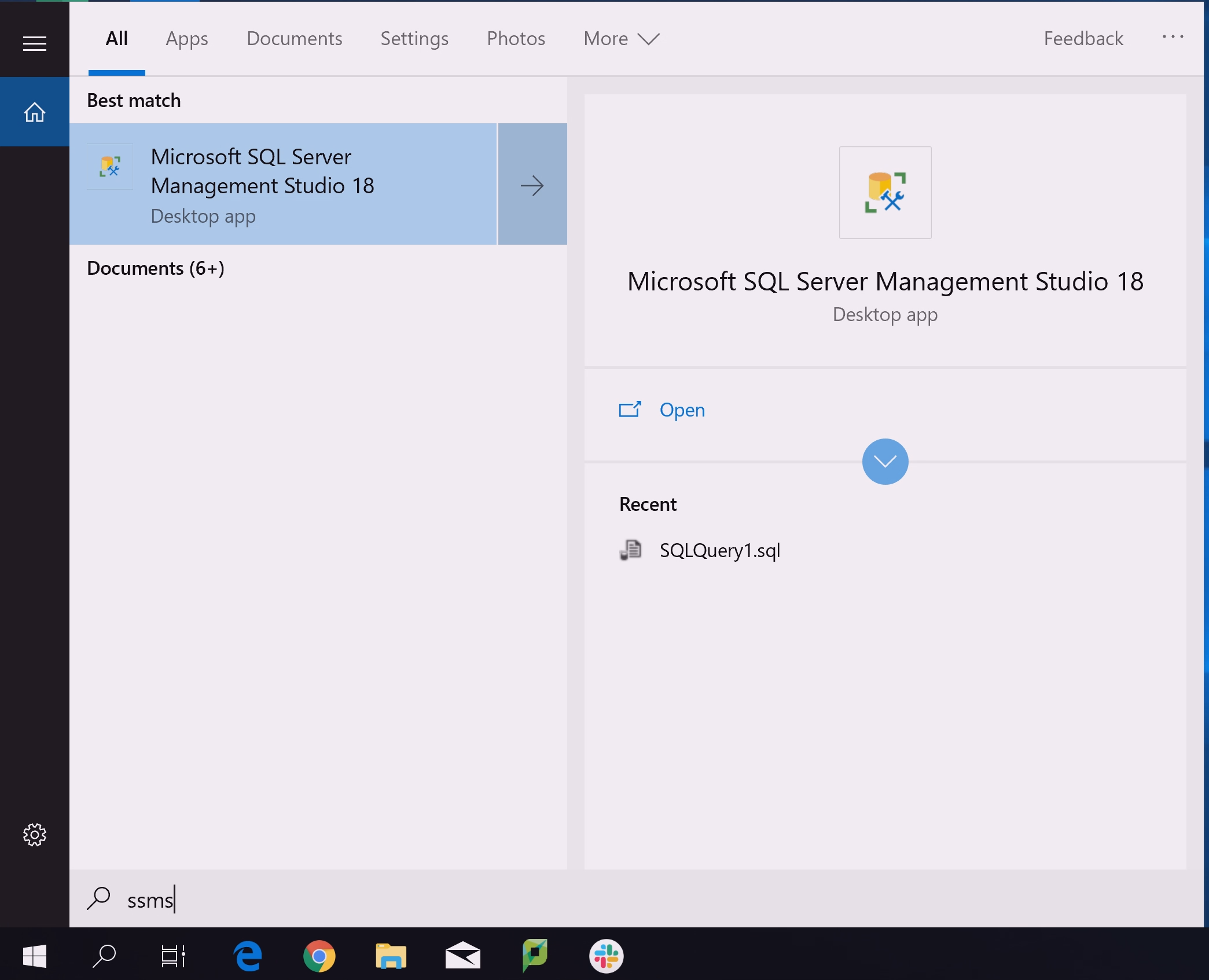
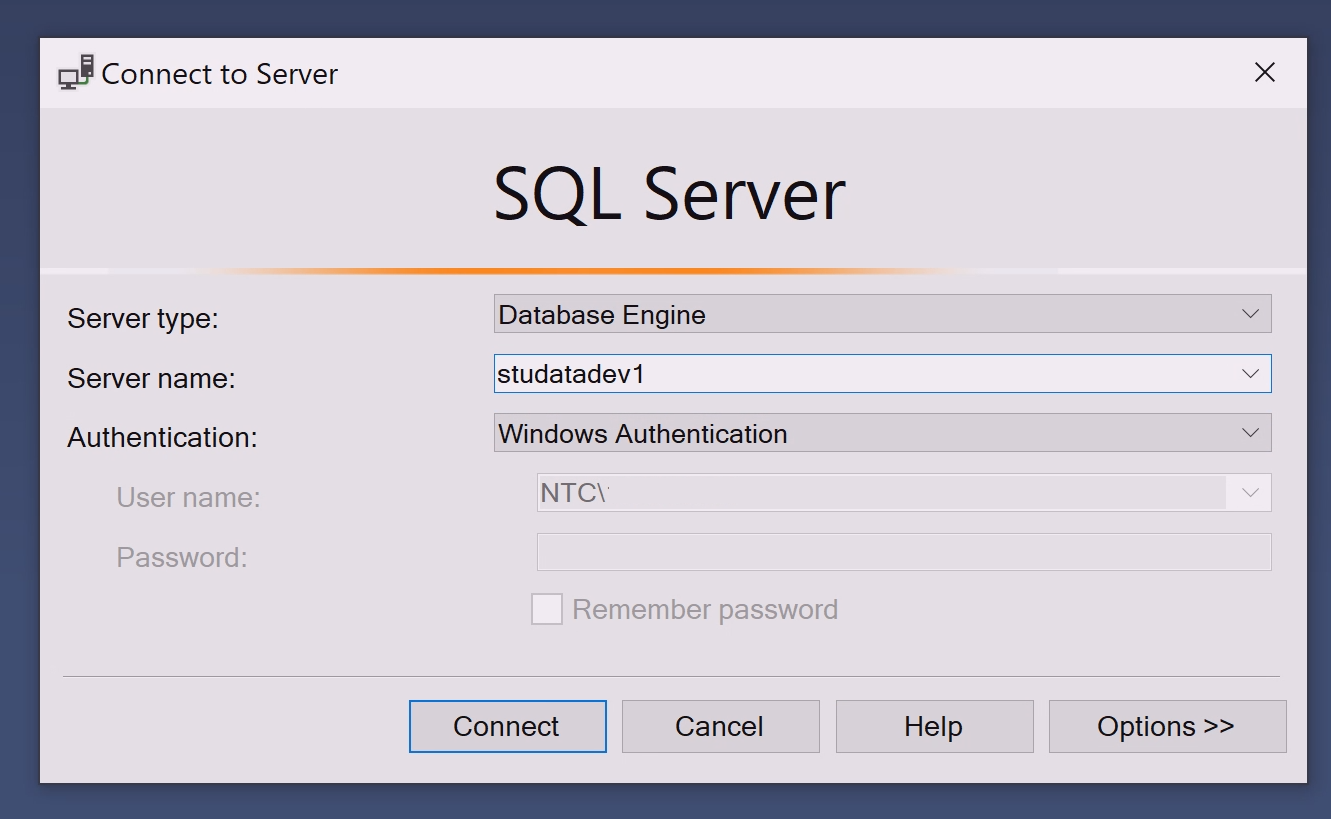
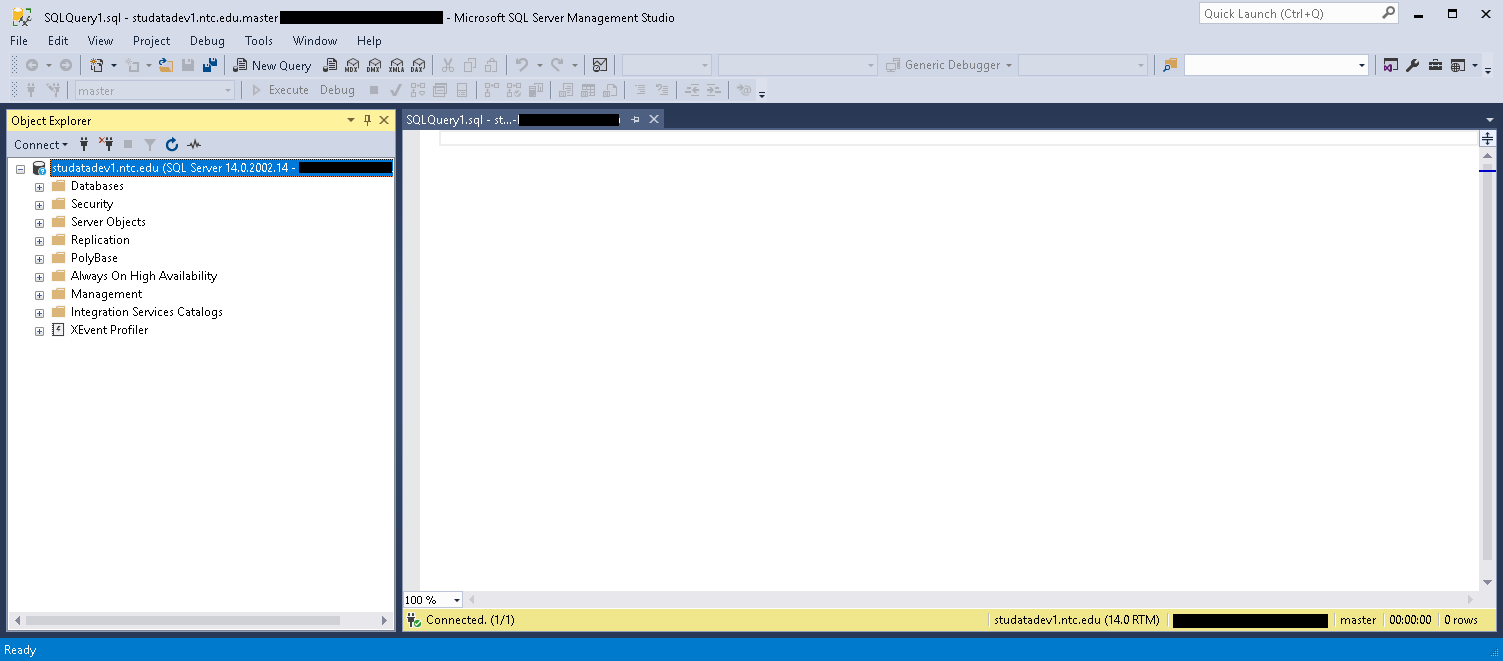
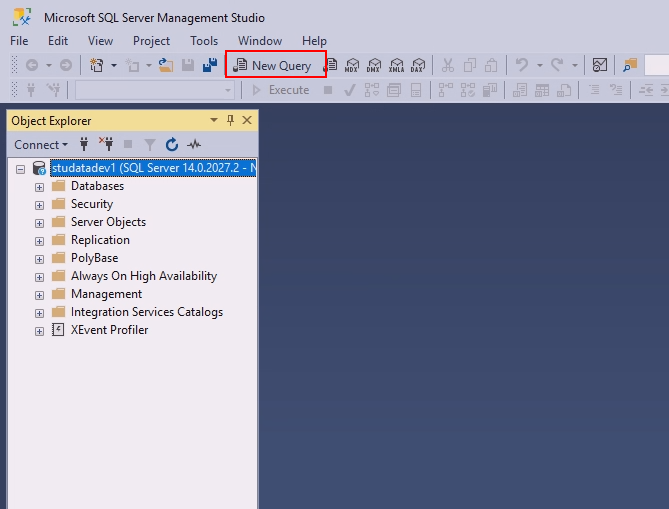
Confirm that the blue highlighted portion contains "studatadev1"
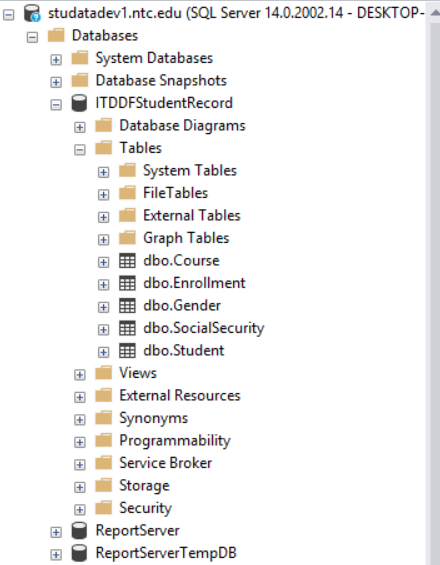
SELECT 1 + 1
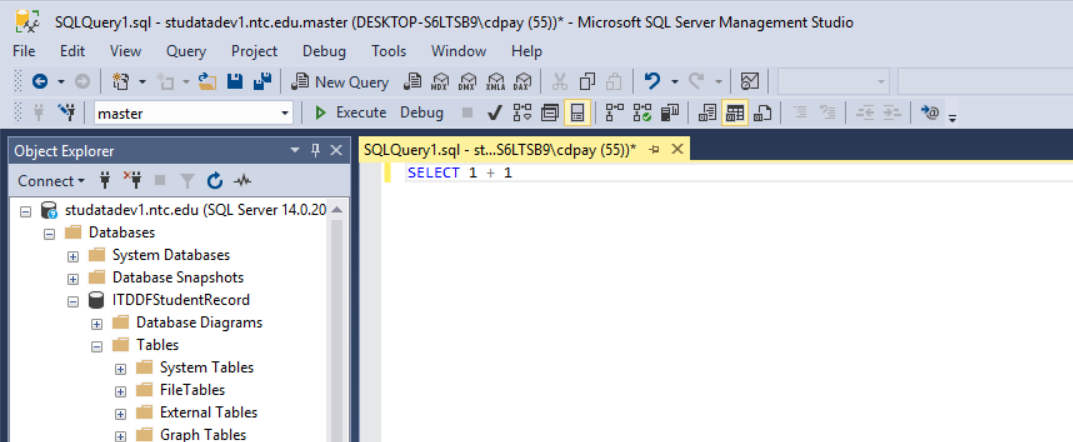
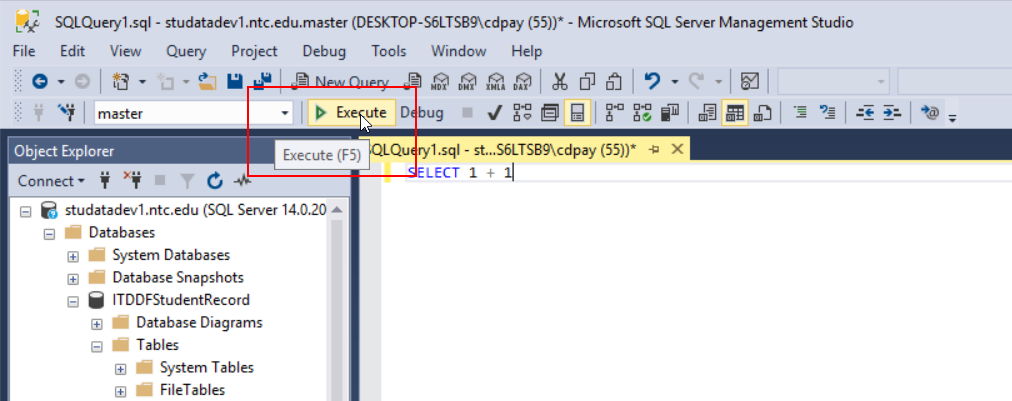
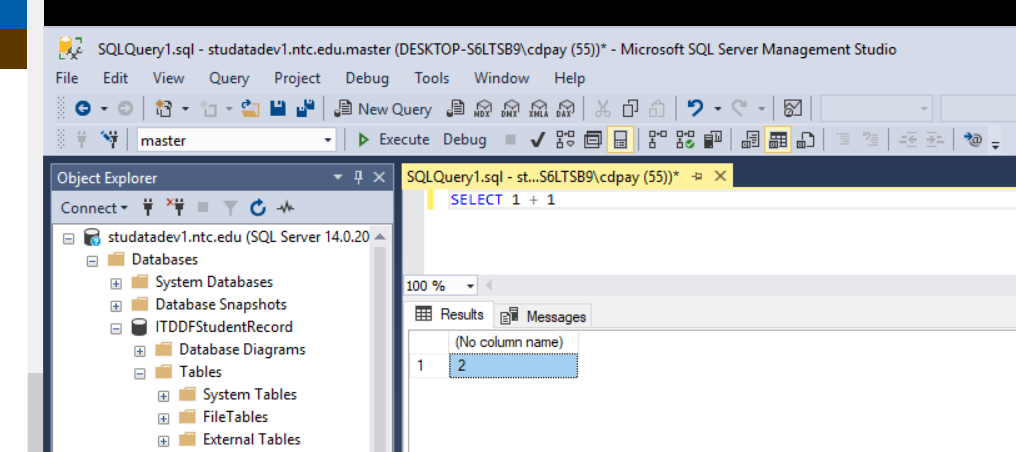
The results window will show 2. This is query is performing simple arithmetic because the numbers we are using do not have single quotes surrounding them. We'll see why this matters in the next step.
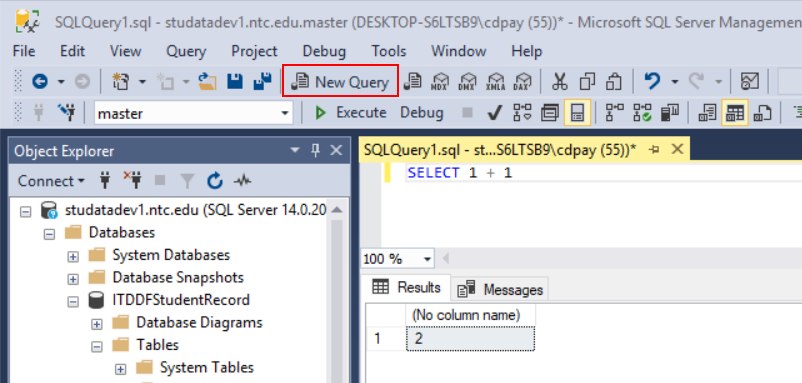
It is best practice to create a new query whenever you want to execute something new.
SELECT '1' + '1'
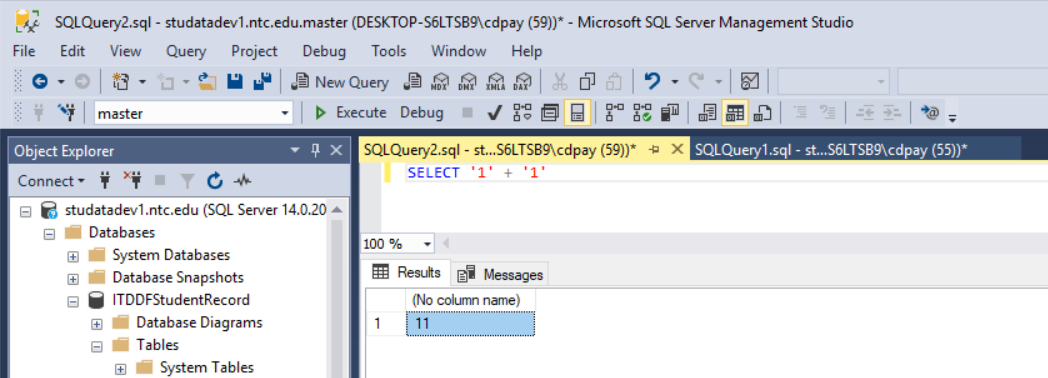
Now that there are single quotes surrounding the numbers the query does what is called concatenation where instead of doing arithmetic it combines the numbers. Note that although these look like numbers they are not considered numbers when there are quotes around them; they are now considered characters.
USE ITDDFStudentRecord
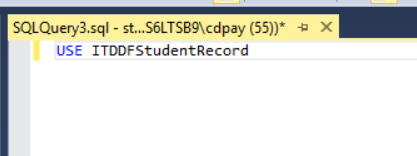
USE statements tell SSMS which database we want to be using. In this case we want to use the ITDDFStudentRecord database.
SELECT
    StudentId, FirstName, LastName, GenderId
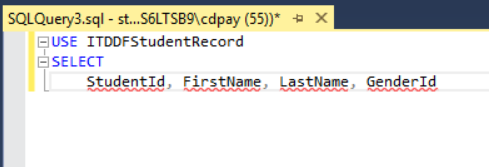
SELECT statements are used to indicate what columns we want to retrieve information from. In this case we want to see data on student Id's, first names, last names and gender Id's.
You'll notice that there are red squiggles underneath the column names. This tool is called IntelliSense. IntelliSense shows us errors in our queries before the query is ever executed.
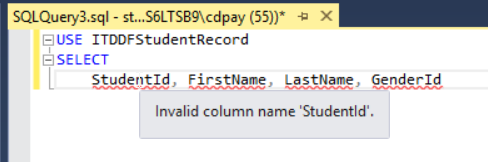
IntelliSense will give you a hint as to what the error is. In this case, the query does not yet know what table the columns "live" in because we haven't told it that information. That will come in the next step.
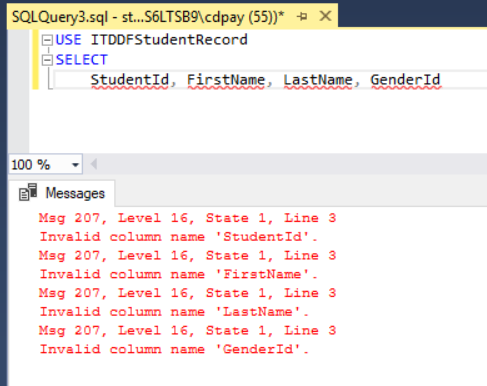
If your query has errors the errors will be printed out with a description and line number in the results window.
If you would like to turn on line numbers go to Tools | Options... | Text Editor | All Languages | General and check the Line numbers box.
FROM dbo.Student
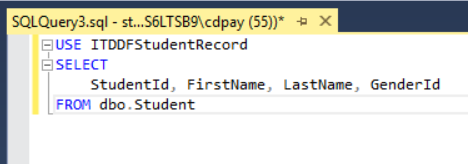
The FROM statement tells the query what particular table to get the information from. In this case we want to get information from the Student table.
Now that the query knows where the columns are coming "from" the errors go away.
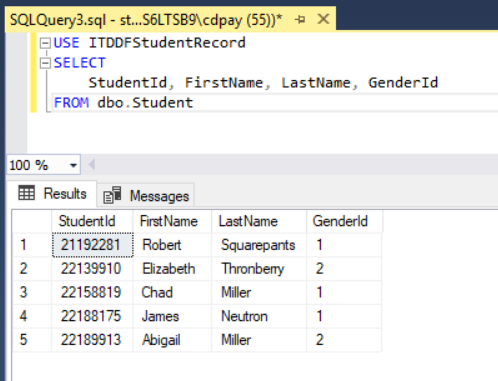
There are 5 records (rows) in the Student table that we can now read.
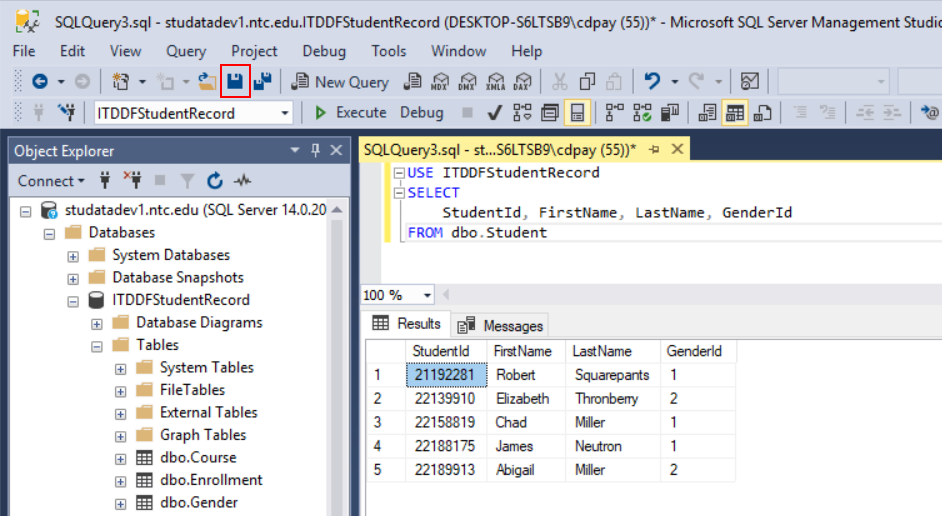
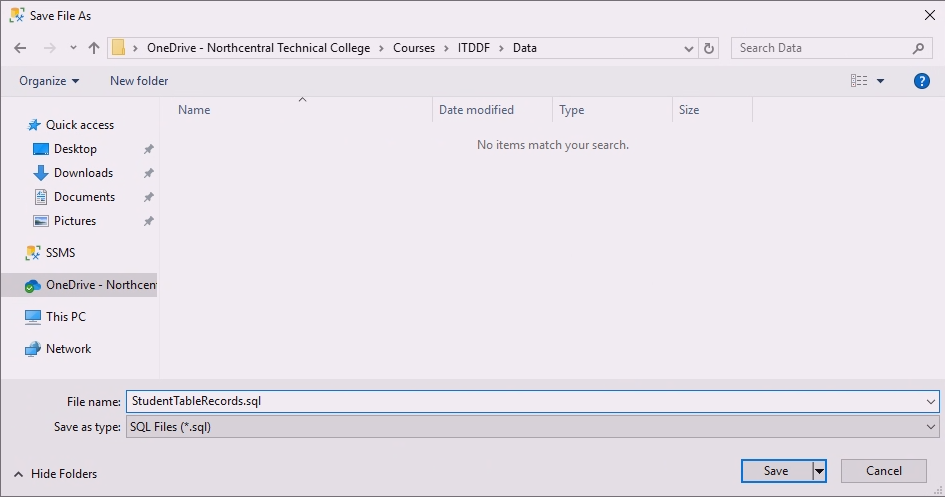
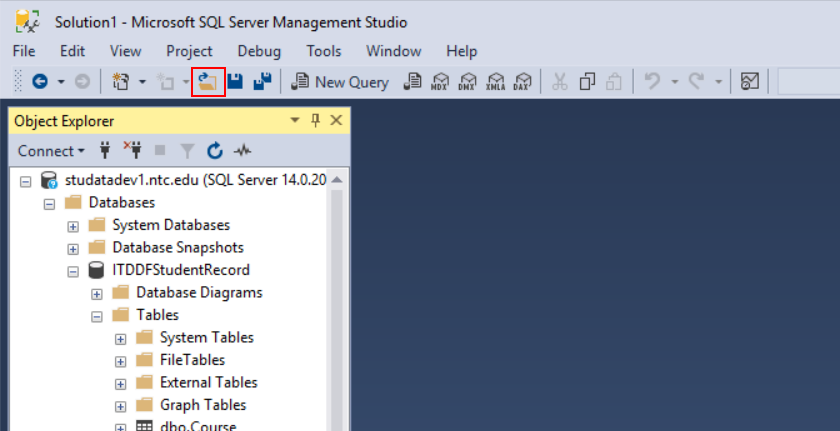
Now that you have the query saved, if data is added to the table at a later date you don't have to rewrite the query you can open it and run it easily.
Our previous query brought back all records in the Student table. While that's useful, we want to have a scenario where we only have information on the Male students.
USE ITDDFStudentRecord
SELECT
    GenderId, Gender
FROM dbo.Gender
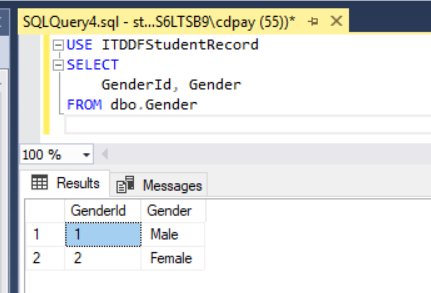
What this information tells us is that the Male gender is related to the Id of 1 and the Female gender is related to the Id of 2.
USE ITDDFStudentRecord
SELECT
    StudentId, FirstName, LastName, GenderId
FROM dbo.Student
WHERE GenderId = 1
The query is the same as the previous query that read all the data from the Student table, but we have added a WHERE statement. A WHERE statement filters the data according to a certain condition. In this case we want to see all the Male students, but our table only has GenderId's of 1 or 2 not strings like "Male" or "Female" so we will use the number related to the "Male" gender we saw when we read the Gender table.
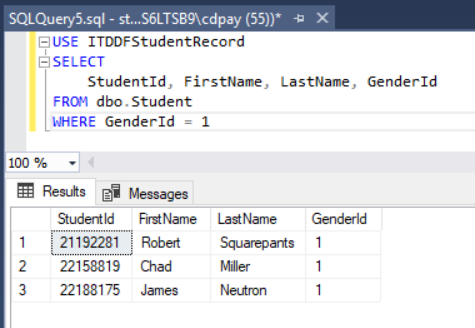
Now instead of bringing back every record in the Student table the query only brings back those records with the GenderId of 1.
USE ITDDFStudentRecord
SELECT
    StudentId, FirstName, LastName, GenderId
FROM dbo.Student
WHERE LastName = 'Miller'
Since we are filtering by a string value, the value in the WHERE statement needs to be in single quotes.
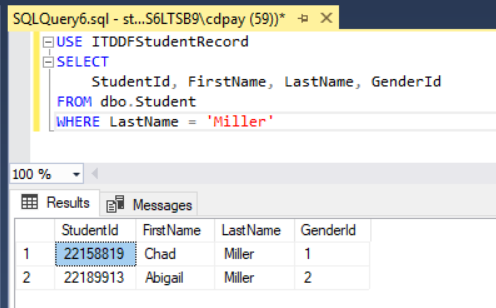
The result returns the two students with the last names of Miller.
We've been able to filter by Gender and LastName, but what if we want to find only students with the last name of Miller that are male? To do this by using multiple conditions in our WHERE statement.
USE ITDDFStudentRecord
SELECT
    StudentId, FirstName, LastName, GenderId
FROM dbo.Student
WHERE LastName = 'Miller' AND GenderId = 1
The AND keyword is what allows both conditions to be applied to the WHERE statement.
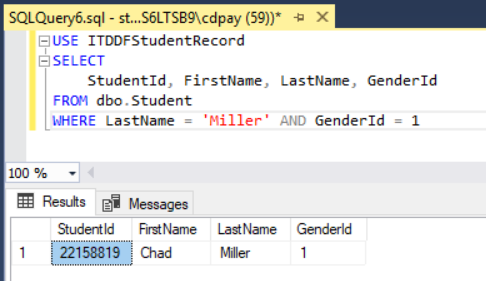
The results now only show Chad Miller because he is the only record in the Student table that has the last name of Miller and is also a male.
USE ITDDFStudentRecord
SELECT
    CourseId, CourseNumber, Name, Credit
FROM dbo.Course
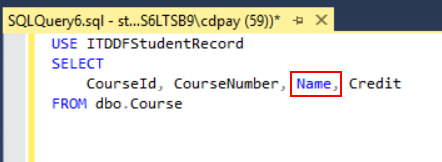
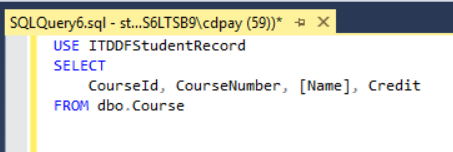
WHERE Credit < 3
The < operator brings back anything less than 3. If we used the <= operator it would bring back anything less than or equal to 3.
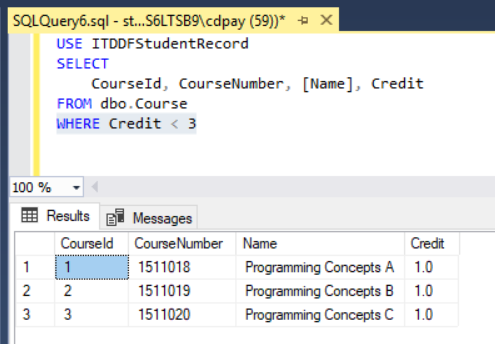
We have found classes with a credit value less than 3, but we are also interested in classes that relate to the Web in some way regardless of credit amount.
USE ITDDFStudentRecord
SELECT
    CourseId, CourseNumber, [Name], Credit
FROM dbo.Course
WHERE Credit < 3 OR [Name] LIKE 'Web%'
This WHERE statement brings back results that are either one of the conditions OR the other. We are also using a LIKE operator followed by a string with a wildcard (%) in it that says we want any records that start with Web and we don't care what's after it.
If we used an AND operator instead of an OR operator here no records would be returned because there are no records that are both 1 credit and start with Web.
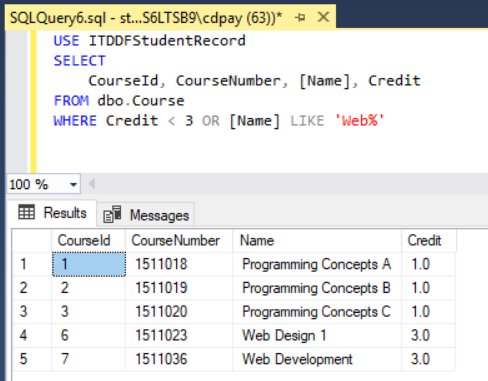
Now we can see Web Design 1 and Web Development in addition to the Programming Concepts courses even though they are named differently and are 3 credit courses.
© 2026 Northcentral Technical College