Parcheesi Assessment
In this assessment, you will build a UML object diagram that represents one specific Parcheesi game state. You will create a Player named Tara, represent four red Pawns, connect the Player to those Pawns, and use the Feedback System to check and revise your work.
1.Create a new object diagram
A
Open a new object diagram
1
Open Violet UML Diagramming Tool
2
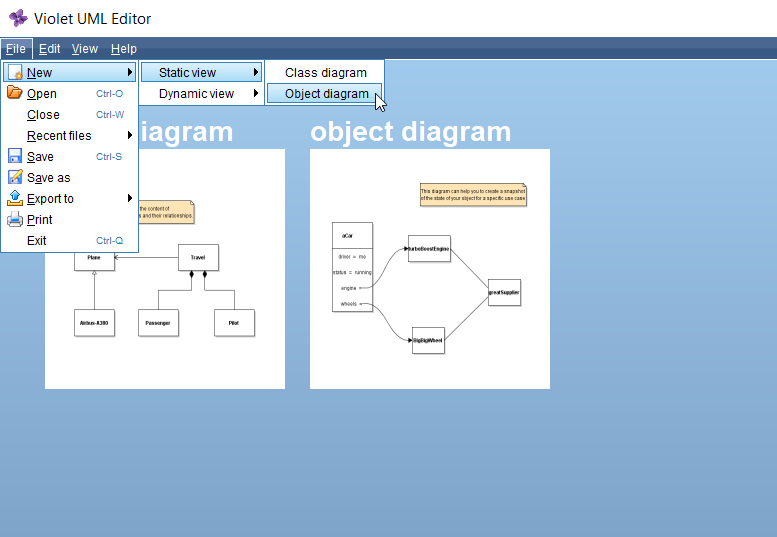
Choose File | New | Static view | Object diagram
B
Create the Player object
1
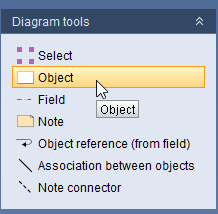
Select the Object tool and click the workspace
2
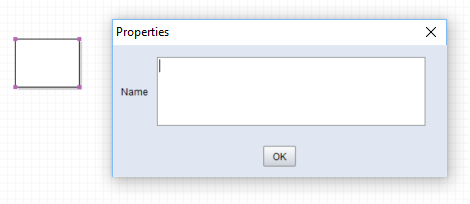
Double-click the new object node to open its Properties window
3
Set the object Name to Player, then click OK

2.Represent the first player
A
Add the first field
1
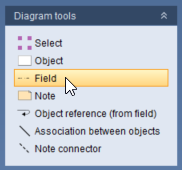
Select the Field tool in the Diagram tools menu
2
Click the Player object to add a field
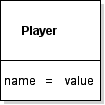
B
Open the field Properties window
1
Select the Select tool
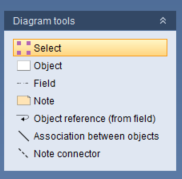
2
Double-click the new field to open its Properties window
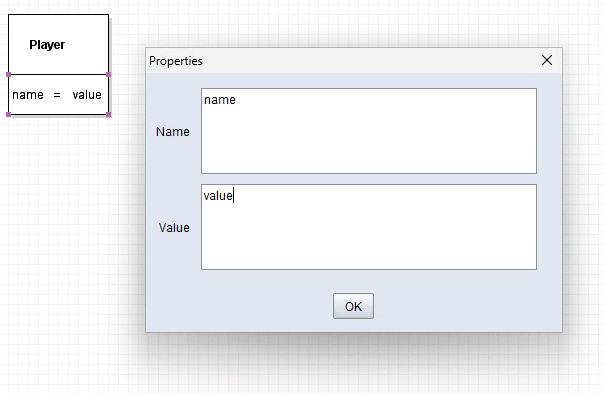
C
Set the player's number
1
Change the field Name to Number
2
Change the field Value to 1
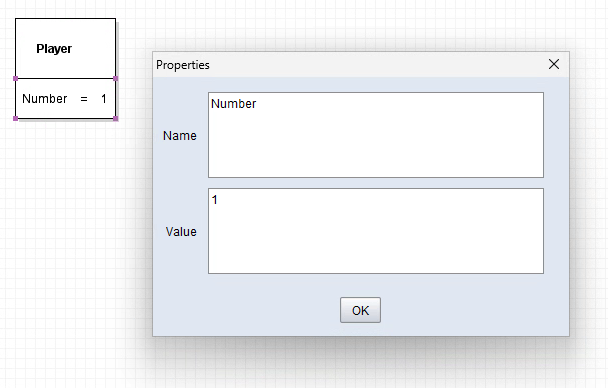
3
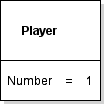
Click OK and confirm that Player now shows Number = 1
D
Add Tara's name
1
Add a second field to Player
2
Set the field Name to Name
3
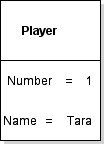
Set the field Value to Tara, then click OK
3.Represent the Pawns
A
Create the first Pawn
1
Use the Object tool to add another object node
2
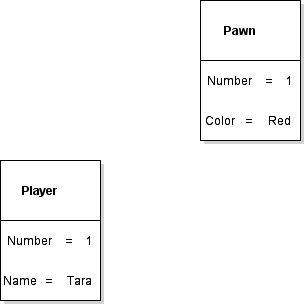
Double-click the object and set its Name to Pawn
3
Add a field named Number and set its Value to 1
4
Add a field named Color and set its Value to Red
B
Create the remaining Pawns
1
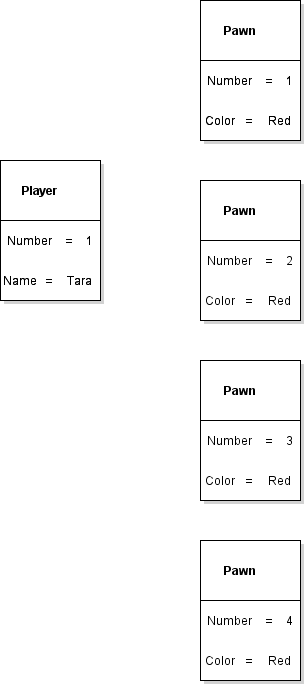
Create three additional Pawn objects
2
Set every Pawn Color to Red
3
Set the Pawn Number values to 2, 3, and 4 so the four Pawns are numbered 1 through 4
4.Connect the Player to the Pawns
A
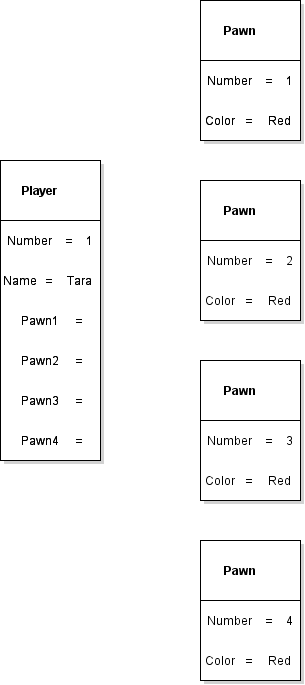
Add the Pawn reference fields
1
Add four fields to Player named Pawn1, Pawn2, Pawn3, and Pawn4
2
Leave the field values available for object-reference connections rather than typing Pawn data into the fields
B
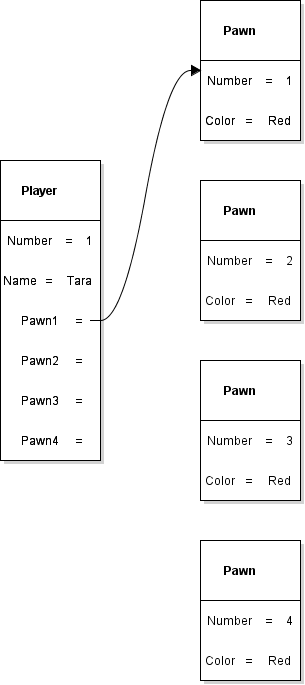
Connect Pawn1
1
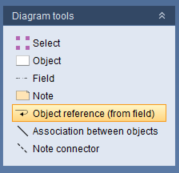
Select the Object reference (from field) tool
2
Drag from the value area of Player.Pawn1 to the Pawn whose Number is 1, then release
C
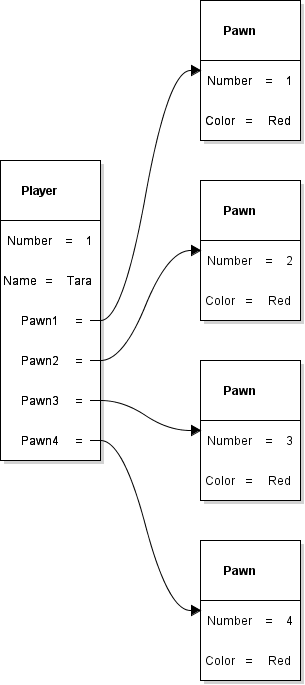
Connect the remaining Pawns
1
Connect Player.Pawn2 to the Pawn numbered 2
2
Connect Player.Pawn3 to the Pawn numbered 3
3
Connect Player.Pawn4 to the Pawn numbered 4
D
Check the completed model
1
Confirm Player shows Number = 1 and Name = Tara
2
Confirm there are four Pawn objects, all with Color = Red and Number values 1 through 4
3
Confirm Pawn1, Pawn2, Pawn3, and Pawn4 each reference the Pawn with the matching Number
5.Save, submit, and revise the diagram
Save the Violet file, submit it to the Feedback System, and use the returned feedback to correct the diagram before submitting your result to Canvas.
A
Save the Violet diagram
1
Choose File | Save in Violet
2
Use the base filename Parcheesi 0.2 LastName
3
Confirm the saved file ends with .object.violet.html
B
Submit the diagram to the Feedback System
1
ZIP the .object.violet.html file itself. Do not place it inside another folder before zipping
2
Use the ZIP filename Parcheesi 0.2 LastName.object.violet.html.zip
3
Submit the ZIP file to the Feedback System
C
Resolve any Feedback System errors
1
If feedback identifies an error, reopen the Violet file and correct the diagram
2
Save the corrected file, ZIP it again, and resubmit it
3
Repeat the correction cycle until the required feedback is resolved
D
Submit your result to Canvas
1
Submit the resulting Feedback System URL to Canvas as directed by your course