When encapsulating classes, all fields should be private. Doing so, however, prevents other objects from accessing the object's data, even if they don't want to change it. Fortunately, object-oriented languages include features to keep fields private while still giving outside objects access to read data - these features are called properties and wrapper methods. In this task, you will make the guest's Name field private and then define a property to "wrap" the private field so that other objects can still see the name data. You will check your work by setting a breakpoint, stepping into the property, and ensuring that the result of calling the property is the same as the result of calling the previously public field.
The Benefits of Encapsulation (6:56)
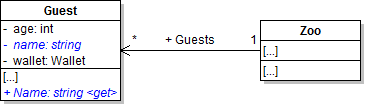
- Make the guest's Name field private and rename it so that its first letter is lowercase, as shown in the class diagram below.
- Define a Name property with a getter to "wrap" the guest's name field, as shown in the code below and class diagram above. Having only a getter in the property means that the name can no longer be set outside of the Guest class, which encapsulates and protects that data.
- Ensure that all code is StyleCop compliant.
- Check your work:
- Set a breakpoint in the zoo's FindGuest method on the line that defines the guest variable.
- Start the application. Click the New zoo button, then click the Darla, feed dingo button.
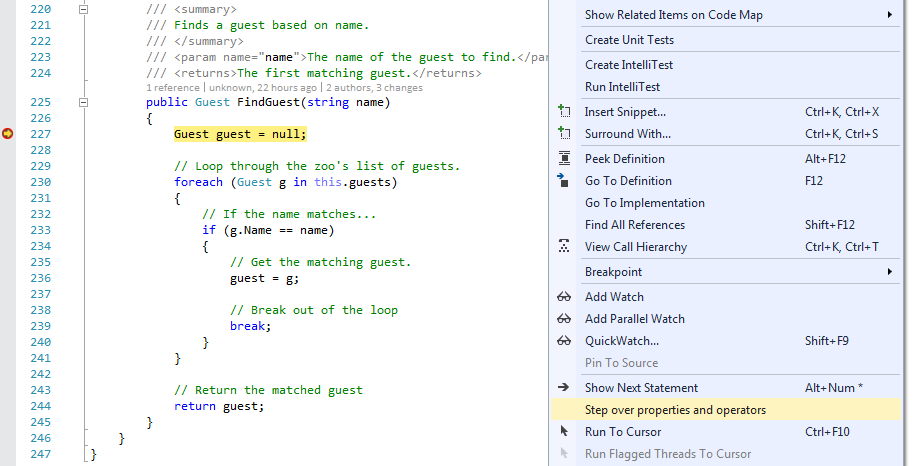
- Right-click on the background of the Zoo.cs file, and uncheck the Step over properties and operators option, as shown in the image below. This will allow you to step into properties with the debugger instead of only being able to step over them. You must be debugging the application in order to set this option.
- Step into the foreach loop the first time. Inspect the current guest's Name property, which should be "Darla".
- Press F11 to step into the guest's Name property. The Name property simply returns the private name field, whose value is also "Darla".
- Step through the rest of the FindGuest method and return to its caller. Inspect the guest variable to ensure that it holds the Darla object.
Note: If, after completing this step, the field reference in the guest constructor still refers to the uppercase field, change it so that it refers to the lowercase field (i.e. this.name = name; instead of this.Name = name;).
/// <summary>
/// Gets the name of the guest.
/// </summary>
public string Name
{
    get
    {
        return this.name;
    }
}
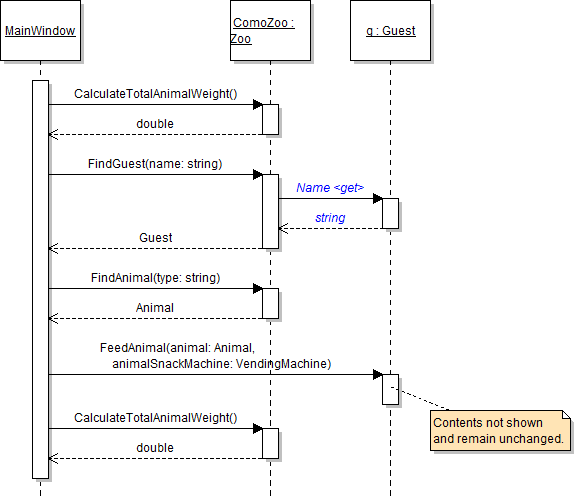
Note: Use CodeLens to see that the guest's Name property is already being referenced from the zoo's FindGuest method. This is because the method used to refer to the guest's public Name field but now refers to the guest's public Name property, as shown in the sequence diagram below.
The animal's Type field needs to be made private. In this task, you will make the animal's Type field private and then define a property to "wrap" the private field so that other objects can still see the data. You will check your work by setting a breakpoint, stepping into the property, and ensuring that the result of calling the property is the same as the result of calling the previously public field.
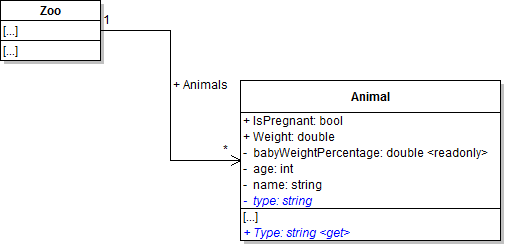
- Make the animal's Type field private and rename it so that its first letter is lowercase, as shown in the class diagram below.
- Define a Type property with a getter to "wrap" the animal's type field, as shown in the class diagram above.
- In the animal's Eat method, refer to the current object's Type property in the boolean expression rather than the type field, as shown in the code below.
- Ensure that all code is StyleCop compliant.
- Check your work:
- Set a breakpoint in the zoo's FindAnimal method (the overloaded version with only the type parameter) on the line that calls the animal's Type property. Also set a breakpoint in the animal's Eat method on the line that calls the Type property.
- Start the application. Click the New zoo button, then click the Darla, feed dingo button.
- Step into the Type property. It should simply return the value of the type field, which should be "Dingo".
- Return to the caller of the FindAnimal method. Inspect the animal variable to ensure that it is Dolly the dingo.
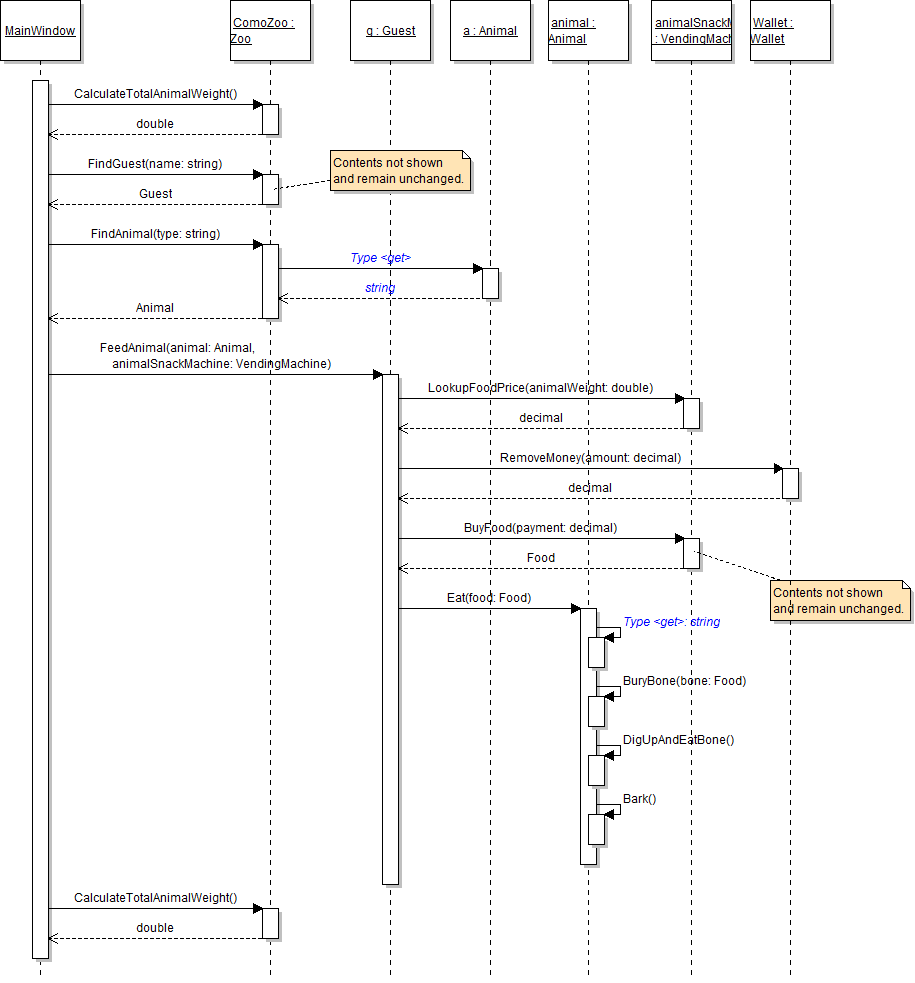
- Click the Continue button in the top toolbar, as shown in the image below. This continues running the application until the next breakpoint, if one exists, is hit. This means that you do not have to step through the entire method sequence in order to get to the next point in the code that you want to test.
- Inspect the value of the Type property. Because the current object - an animal, i.e. "this" - is Darla the dingo, the value is "Dingo". Step into the property; you should remain in the Animal.cs file and the current object should remain Darla.
Note: In general, it is good practice to always refer to a property whenever possible because the property could contain extra logic or validation that the field does not have.
if (this.Type == "Dingo")
{
    // code here
}
Note: The animal's Type property is now called in two places, as shown in the sequence diagram below.
The zoo's AnimalSnackMachine field needs to be made private. In this task, you will make the zoo's AnimalSnackMachine field private and then define a property to "wrap" the private field so that other objects can still see the data. You will check your work by setting a breakpoint, stepping into the property, and ensuring that the result of calling the property is the same as the result of calling the previously public field.
- Make the zoo's AnimalSnackMachine field private and rename it so that its first letter is lowercase, as shown in the class diagram below.
- Define an AnimalSnackMachine property with a getter to "wrap" the zoo's animalSnackMachine field, as shown in the class diagram above. The property is now called from the darlaFeedDingoButton_Click, as shown in the sequence diagram below.
- Ensure that all code is StyleCop compliant.
- Check your work:
- Set a breakpoint in the darlaFeedDingoButton_Click on the line that calls the guest's FeedAnimal method.
- Start the application. Click the New zoo button, then click the Darla, feed dingo button.
- Press F11. Even though you are pressing F11 on a method call, you should first step into the zoo's AnimalSnackMachine property, which returns the private animalSnackMachine field. Continuing to press F11 should then return you to the property's caller and into the FeedAnimal method.
- Once in the FeedAnimal method, inspect the animalSnackMachine parameter and ensure that it is the same object that is stored in the comoZoo's animalSnackMachine field.
- Step over the rest of the button click code. The total ending weight of all animals should be 85.306....

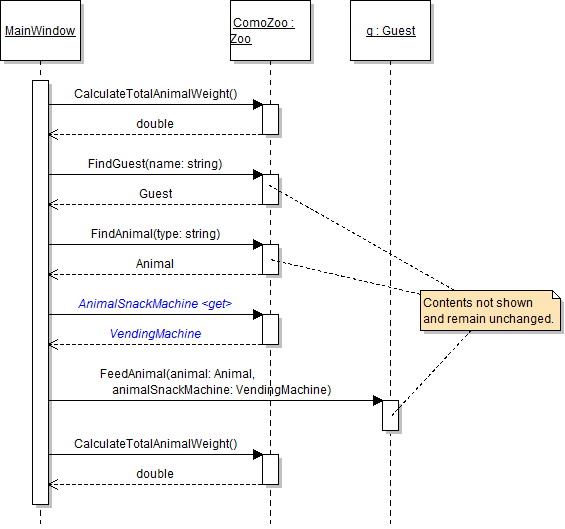
Note: Though the call to the AnimalSnackMachine property is shown before the call to the FeedAnimal method on the diagram above, the calls still occur on the same line and no code in the button click needs to change. The call to FeedAnimal should still look like the code below.
guest.FeedAnimal(animal, this.comoZoo.AnimalSnackMachine);
Note: This behavior occurs because the debugger must first get the value of the property before it can pass that value into the FeedAnimal method. This is normal behavior when you have selected to step into properties, as you did in this assignment's first step.
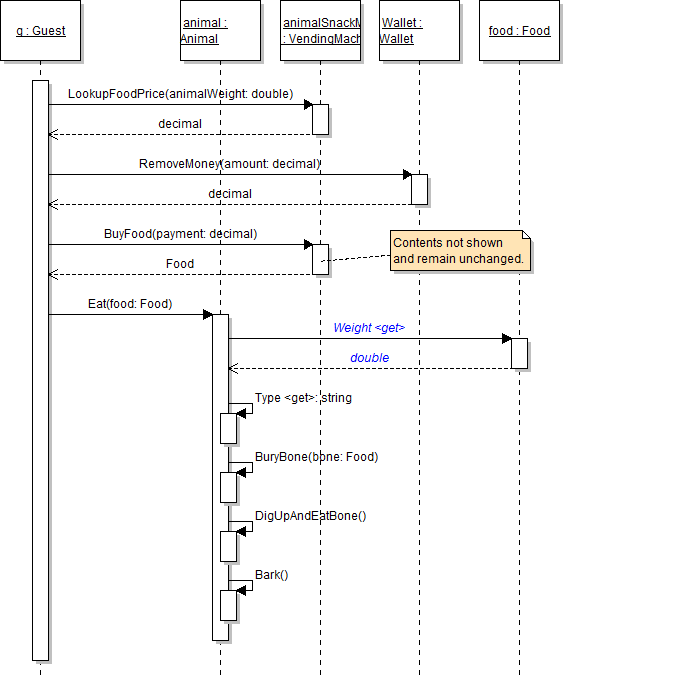
The food's Weight field needs to be made private. In this task, you will make the food's Weight field private and then define a property to "wrap" the private field so that other objects can still see the data. You will check your work by setting a breakpoint, stepping into the property, and ensuring that the result of calling the property is the same as the result of calling the previously public field.
- Make the food's Weight field private and rename it so that its first letter is lowercase. Then define a Weight property with a getter to "wrap" the weight field, as shown in the class diagram below.
- Ensure that all code is StyleCop compliant.
- Check your work:
- Set a breakpoint in the animal's Eat method on the line that calls the food's Weight property (i.e. the line that increases the animal's weight.
- Start the application. Click the New zoo button, then click the Darla, feed dingo button.
- Inspect the food's Weight property. Its value should be 0.706....
- Step over the line that increases the animal's weight. Its weight should now be 36.006....
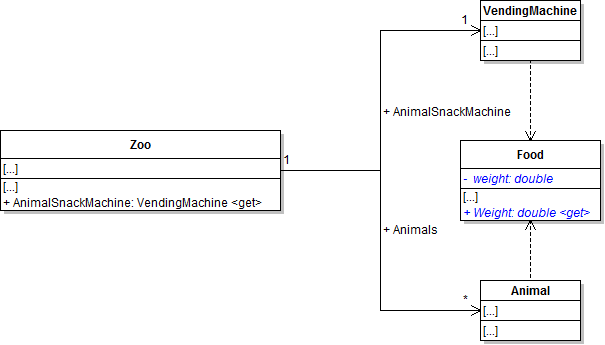
Note: The property is now called from the animal's Eat method, as shown in the sequence diagram below.
Properties are not required to return the value of a private field. Rather, they are simply used to access object data, which means that they can return a calculated value. In this task, you will refactor the CalculateTotalAnimalWeight method into a calculated property. You will check your work by setting a breakpoint, stepping through the code, and inspecting the property value before and after method calls to ensure the total weight is calculated correctly.
- Define the TotalAnimalWeight property with a getter, as shown in the class diagram below. Leave the getter empty for now, as there is no totalAnimalWeight field to return.
- Copy the code in the body of the CalculateTotalAnimalWeight method and paste it into the getter of the TotalAnimalWeight property.
- Check your work: Build the solution and ensure that the code compiles without errors or warnings.
- In the darlaFeedDingoButton_Click, remove the calls to the CalculateTotalAnimalWeight method. Replace the second call with a call to the TotalAnimalWeight property, as shown in the sequence diagram below. Store the result in a variable.
- Check your work:
- Set a breakpoint in the darlaFeedDingoButton_Click on the line that calls the FeedAnimal method.
- Start the application. Click the New zoo button, then click the Darla, feed dingo button.
- Inspect the value of the TotalAnimalWeight property. It should be 84.6.
- Step over the call to the FeedAnimal method. Inspect the value of the TotalAnimalWeight property again. It should now be 85.306....
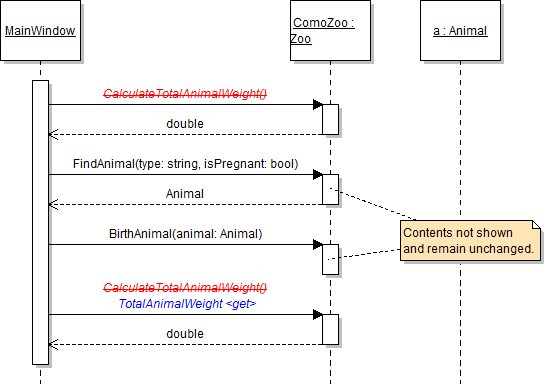
- In the birthDingoButton_Click, remove the calls to the CalculateTotalAnimalWeight method. Replace the second call with a call to the TotalAnimalWeight property, as shown in the sequence diagram below. Store the result in a variable.
- Delete the CalculateTotalAnimalWeight method, as shown in the class diagram above.
- Ensure that all code is StyleCop compliant.
- Check your work:
- Set a breakpoint in the birthDingoButton_Click on the line that calls the BirthAnimal method.
- Start the application. Click the New zoo button, then click the Birth dingo button.
- Inspect the value of the TotalAnimalWeight property. It should be 84.6.
- Step over the call to the BirthAnimal method. Inspect the value of the TotalAnimalWeight property again. It should now be 83.7175.
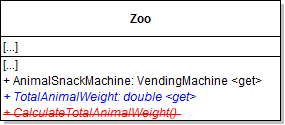
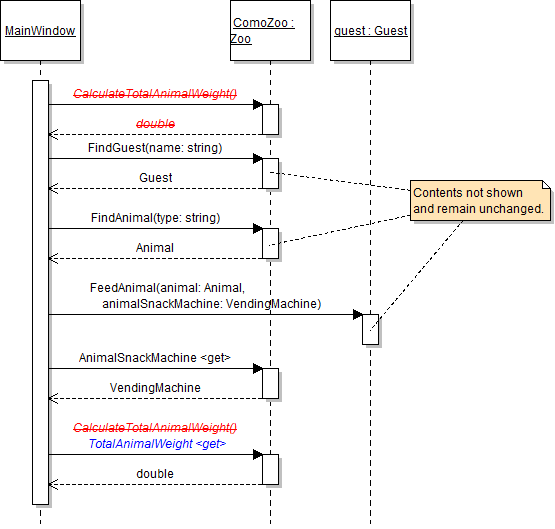
Note: The property only needs to be called once because you can inspect the value of the property before and after you feed an animal. The method needed to be called twice because its return value must be stored in a variable in order for you to inspect it.
The animal's IsPregnant field needs to be made private. In this task, you will make the animal's IsPregnant field private and then define a property to "wrap" the private field so that other objects can still see the data. You will also write a wrapper method to allow outsiders to make an animal pregnant without allowing them to make it not pregnant. You will check your work by setting a breakpoint, stepping into the property, and ensuring that the result of calling the property is the same as the result of calling the previously public field.
- Make the animal's IsPregnant field private and rename it so that its first letter is lowercase. Then define an IsPregnant property with a getter to "wrap" the isPregnant field, as shown in the class diagram below.
- Write and use a wrapper method to make animals pregnant.
- Define the MakePregnant method in the Animal class as shown in the class diagram below.
- In the method, set the isPregnant field to true.
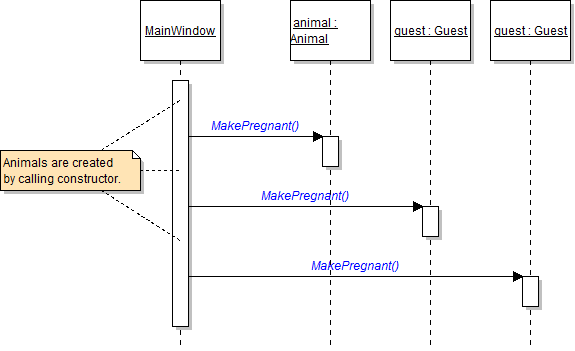
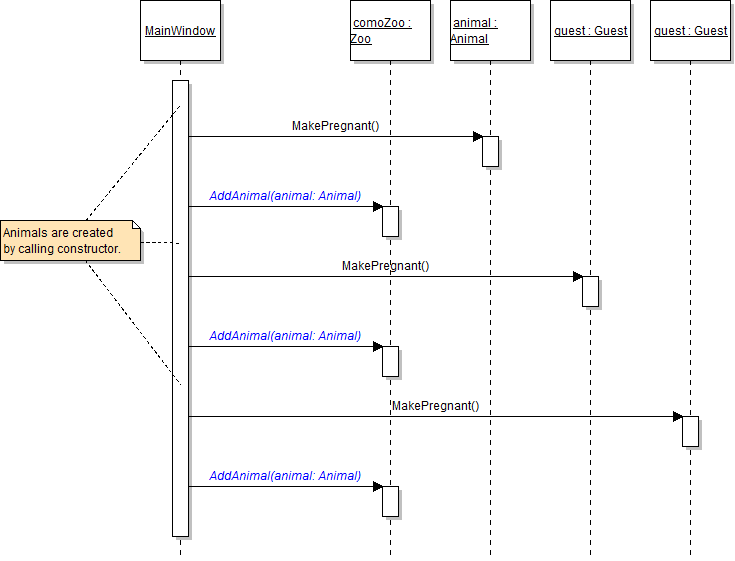
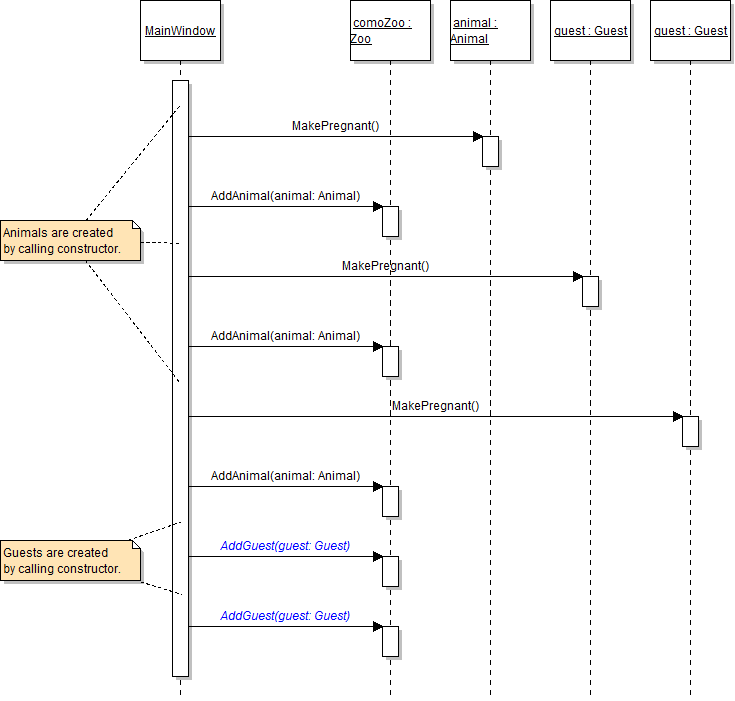
- In the newZooButton_Click, call the MakePregnant method on each animal instead of setting its IsPregnant field to true, as shown in the code and sequence diagram below.
- Ensure that all code is StyleCop compliant.
- Check your work:
- Set a breakpoint in the birthDingoButton_Click on the line that calls the zoo's FindAnimal method.
- Start the application. Click the New zoo button, then click the Birth dingo button.
- Step over the call to the FindAnimal method. Inspect the animal variable to ensure that it holds Dolly the dingo.
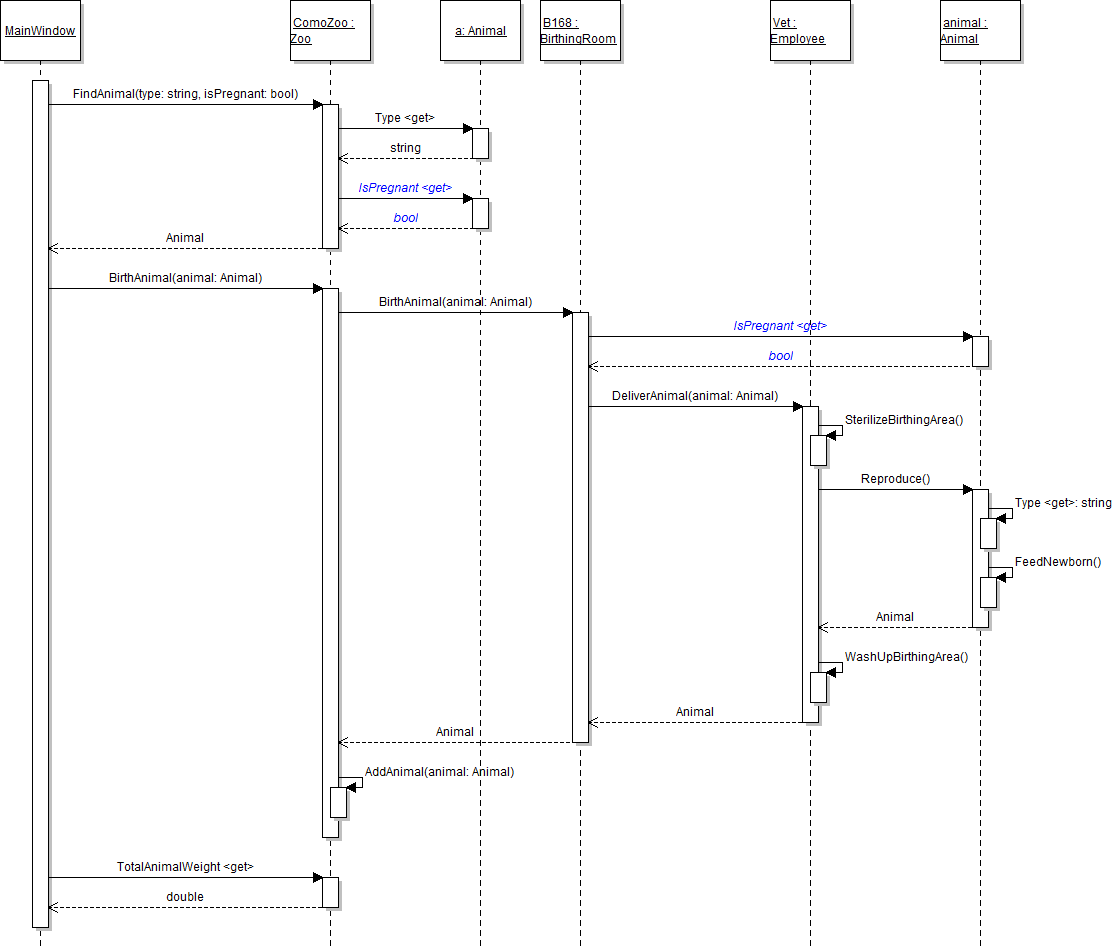
- Step into the method calls until you reach b168's BirthAnimal method. Inspect the value of the animal's IsPregnant property, which should be true (because only a pregnant animal should be found by the overloaded FindAnimal method that was called). Step over the rest of the code and ensure that the baby is instantiated correctly and added to the zoo's list.
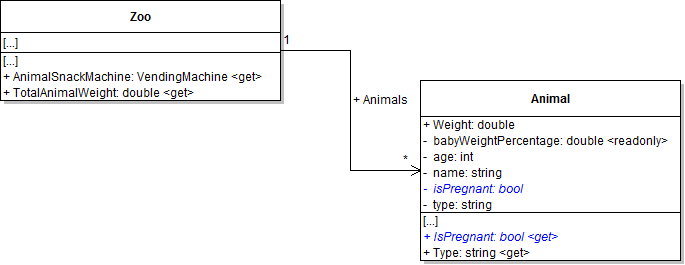
Note: The property is now called from the zoo's FindAnimal method and the birthing room's BirthAnimal method, as shown in the sequence diagram below.
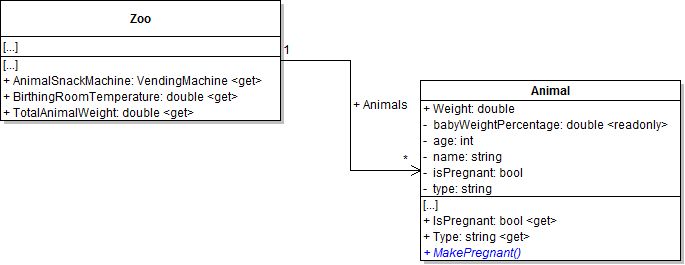
animal.MakePregnant();
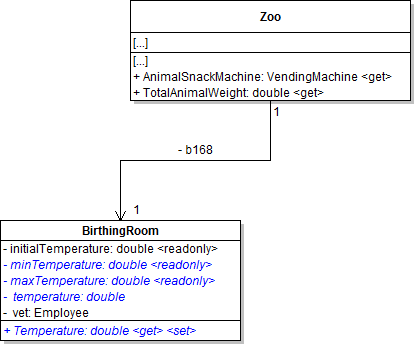
The birthing room's Temperature field needs to be made private. In this task, you will make the birthing room's Temperature field private and then define a property to "wrap" the private field so that other objects can still see the data. You will also add validation to the property to ensure the temperatue is within a valid range. You will check your work by setting a breakpoint, stepping into the property, and ensuring that the result of calling the property is the same as the result of calling the previously public field.
- Make the birthing room's Temperature field private and rename it so that its first letter is lowercase, as shown in the class diagram below.
- Define a Temperature property with a getter and setter to "wrap" the temperature field, as shown in the code below and the class diagram above.
- Validate the temperature in the property setter.
- Define the minTemperature and maxTemperature fields as shown in the class diagram above. At the field definitions, set the minTemperature to 35.0 and set the maxTemperature to 95.0.
- In the setter of the Temperature property, only set the value of the backing field if the value is between the minTemperature and maxTemperature, as shown in the code below.
- In the birthing room's BirthAnimal method, increase the temperature by 0.5 in after having the vet deliver the animal, as shown in the sequence diagram below. Refer to the Temperature property so that the validation in the setter will run (that code will not run if you simply refer to the field).
- Ensure that all code is StyleCop compliant.
- Check your work:
- Set a breakpoint in the birthing room's BirthAnimal method on the line that increases the temperature.
- Start the application. Click the New zoo button, then click the Birth dingo button.
- Press F11 to step into the Temperature property. You first should step into the getter in order to get the value of the field (which should be 77.0).
- Continue to press F11 until you step into the setter of the Temperature property. Inspect the value keyword; its value should be 77.5 because 0.5 was added to the previous temperature of 77.0.
- Step over the rest of the setter. Because 77.5 is within the acceptable range, the field should be set to the value.
public double Temperature
{
    get
    {
        return this.temperature;
    }
    set
    {
        this.temperature = value;
    }
}public double Temperature
{
get
{
return this.temperature;
}
set
{
// If the value is in range...
if (value >= this.minTemperature && value <= this.maxTemperature)
{
this.temperature = value;
}
}
}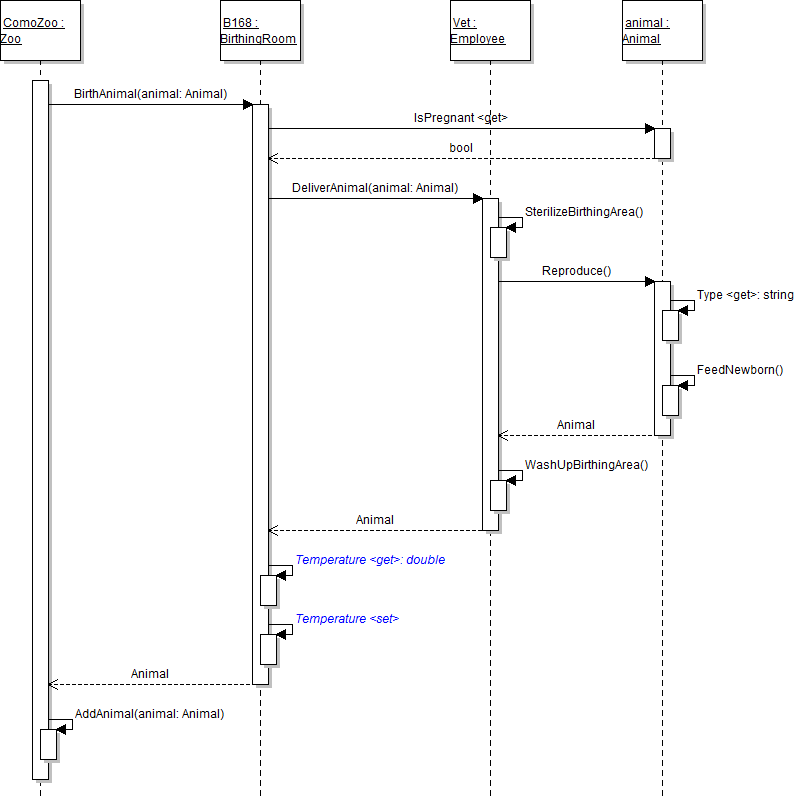
Note: Though the calls to the getter and setter of the Temperature property are shown separately on the diagram above, they occur on the same line of code, as shown below. The application first needs to get the value of the property before it can set the new value, which is why both the getter and setter are called.
this.Temperature += 0.5;
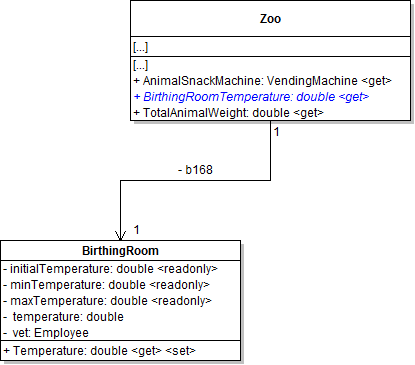
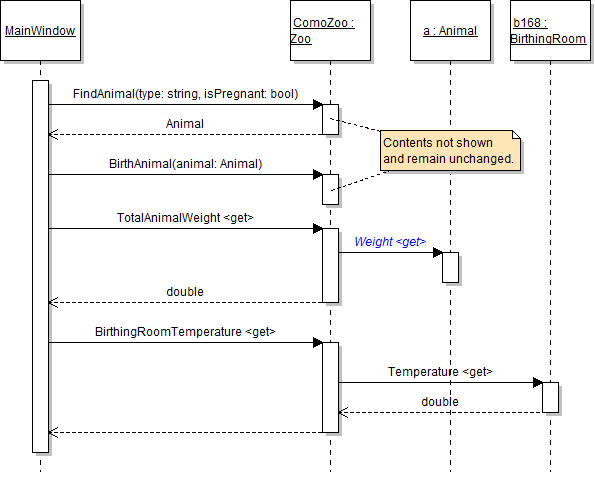
The zoo wants to give outsiders access to know the temperature of its birthing room without giving access to the birthing room itself. In this task, you will define a property on the zoo that gives access to the birthing room's temperature. You will check your work by setting a breakpoint, stepping into the property, and ensuring that the result of calling the property is the same as the result of calling the birthing room's Temperature property.
- Define the BirthingRoomTemperature property with a getter to "wrap" the Temperature property of the zoo's b168 field, as shown in the code and class diagram below.
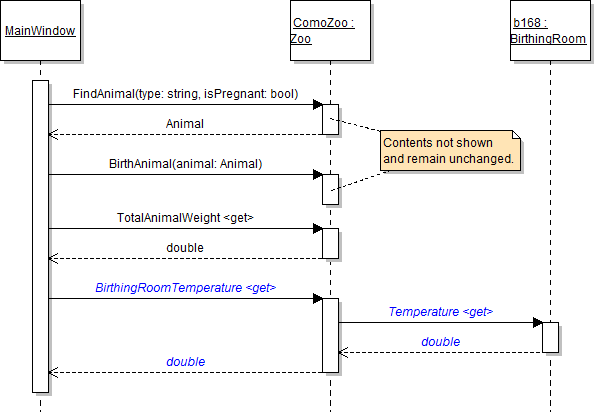
- In the birthDingoButton_Click, call the comoZoo's BirthingRoomTemperature property after calling the TotalAnimalWeight property, as shown in the sequence diagram below. Store the result in a variable.
- Ensure that all code is StyleCop compliant.
- Check your work:
- Set a breakpoint in the birthDingoButton_Click on the line that calls the BirthAnimal method.
- Start the application. Click the New zoo button, then click the Birth dingo button.
- Inspect the value of the BirthingRoomTemperature property; it should be 77.0. Then use the Locals window to examine the value of b168's temperature. It should also be 77.0 because the BirthingRoomTemperature property gets the value of the birthing room's Temperature property.
- Step over the call to BirthAnimal and TotalAnimalWeight. Step into the BirthingRoomTemperature property, and then step into b168's Temperature property.
- Return to the original caller and examine the value of the BirthingRoomTemperature property and the value of b168's Temperature property. Both should be 77.5.
public double BirthingRoomTemperature
{
    get
    {
        return this.b168.Temperature;
    }
}
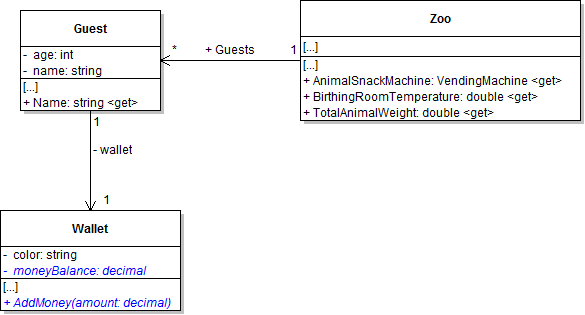
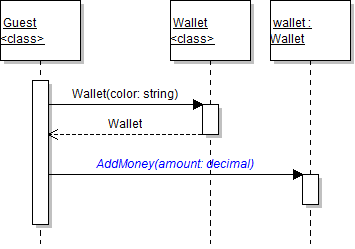
The wallet's MoneyBalance field needs to be made private, but it also needs a way to add money to its balance. In this task, you will define a wrapper method to allow outsiders to add money to the wallet's money balance and call that method after instantiating a wallet. You will check your work by setting a breakpoint, stepping through the code, and ensuring that the wallet's money balance is set the same way it was before using the wrapper method.
- Write a wrapper method to add money to the balance.
- Define the AddMoney method in the Wallet class, as shown in the class diagram below.
- In the method, add the passed-in amount to the wallet's MoneyBalance field, as shown in the code below.
- In the guest constructor, call the wallet's AddMoney method and pass in the moneyBalance parameter, as shown in the sequence diagram below, instead of just setting the MoneyBalance field.
- Make the wallet's MoneyBalance field private and rename it so that its first letter is lowercase, as shown in the class diagram above.
- Ensure that all code is StyleCop compliant.
- Check your work:
- Set a breakpoint in the guest's constructor on the line that calls the wallet's AddMoney method.
- Start the application. Click the New zoo button.
- Note that the wallet's money balance is 0. Step over the call to the AddMoney method. The wallet's money balance should now be 5.25.
// Add the money to the wallet money balance.
this.MoneyBalance += amount;
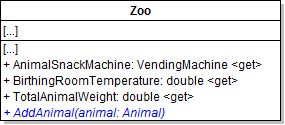
The zoo's Animals field need to be made private, but the MainWindow still needs a way to add the three animals to the zoo's list. In this task, you will define a wrapper method to allow outsiders to add animals to the zoo's list and call the method after creating each animal. You will check your work by setting a breakpoint, stepping through the code, and ensuring that each animal is added to the list correctly.
Encapsulating Lists (coming soon)
- Write a wrapper method to add an animal to the zoo's list.
- Define the AddAnimal method in the Zoo class, as shown in the class diagram below.
- In the method, add the passed-in animal to the zoo's Animals list, as shown in the code below.
- In the newZooButton_Click, call the zoo's AddAnimal method to add each animal to the zoo, as shown in the code and sequence diagram below, instead of adding the animals to the list directly.
- In the zoo's BirthAnimal method, call the AddAnimal method to add the baby to the zoo instead of adding it to the list directly, as shown in the code below.
- Make the zoo's Animals field private and rename it so that its first letter is lowercase.
- Ensure that all code is StyleCop compliant.
- Check your work:
- Set a breakpoint in the newZooButton_Click on the line that adds Dolly to the zoo.
- Start the application. Click the New zoo button.
- Step into the AddAnimal method. Ensure that the animal parameter is Dolly and that she is successfully added to the zoo.
- Step over the other calls to the AddAnimal method. Inspect the comoZoo's animals list and ensure the three animals were all added to the list.
// Add the animal to the zoo's list of animals.
this.Animals.Add(animal);
this.comoZoo.AddAnimal(animal);
if (baby != null)
{
    this.AddAnimal(baby);
}It is not necessary to set the instantiated employees to a local variable prior to passing them as parameters to the zoo constructor. In this task, you will instantiate both employees within the call to the zoo constructor. You will check your work by ensuring that the employees are instantiated and assigned to the appropriate fields.
- Move the code instantiating the employees into the parameters passed to the zoo constructor.
- Check your work:
- Set a breakpoint in the newZooButton_Click event handler on the directly before instantiating the zoo.
- Start the application. Click the New zoo button.
- Ensure that the both employees are instantiated and that the booth's attendant and birthing room's vet are set.
// Create an instance of the Zoo class.
this.comoZoo = new Zoo("Como Zoo", 1000, 4, 0.75m, 15.0m, new Employee("Sam", 42), new Employee("Flora", 98));
The zoo's Guests field need to be made private, but the MainWindow still needs a way to add the two guests to the zoo's list. In this task, you will define a wrapper method to allow outsiders to add guests to the zoo's list and call the method after creating each guest. You will check your work by setting a breakpoint, stepping through the code, and ensuring that each guest is added to the list correctly.
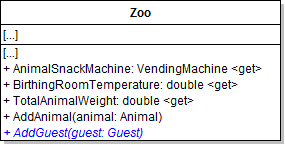
- Write a wrapper method to add a guest to the zoo's list.
- Define the AddGuest method in the Zoo class, as shown in the class diagram below.
- In the method, add the passed-in guest to the zoo's Guests list, as shown in the code below.
- In the newZooButton_Click, call the zoo's AddGuest method to add each guest to the zoo, as shown in the sequence diagram below, instead of adding the guests to the list directly.
- Make the zoo's Guests field private and rename it so that its first letter is lowercase.
- Ensure that all code is StyleCop compliant.
- Check your work:
- Set a breakpoint in the newZooButton_Click on the line that adds Darla to the zoo.
- Start the application. Click the New zoo button.
- Step into the AddGuest method. Ensure that the guest parameter is Darla and that she is successfully added to the zoo.
- Step over the other calls to the AddGuest method. Inspect the comoZoo's guests list and ensure the two guests were added to the list.
// Add the guest to the zoo's list of guests.
this.Guests.Add(guest);
// Create Darla and add her to the zoo's guest list.
this.comoZoo.AddGuest(new Guest("Darla", 11, 5.25m, "Salmon"));The animal's Weight field needs to be made private. In this task, you will make the animal's Weight field private and then define a property to "wrap" the private field so that other objects can still see the data. You will check your work by setting a breakpoint, stepping into the property, and ensuring that the result of calling the property is the same as the result of calling the previously public field.
- Make the animal's Weight field private and rename it so that its first letter is lowercase. Then define a Weight property with a getter to "wrap" the weight field, as shown in the class diagram below.
- In the animal's Reproduce method, refer to the Weight property whenever the value is needed - in this case, when instantiating the baby animal and when referrring to the baby's weight, as shown in the code below.
- In the animal's FeedNewborn method, refer to the Weight property whenever the value is needed, as shown in the code below.
- Ensure that all code is StyleCop compliant.
- Check your work:
- Set a breakpoint in the guest's FeedAnimal method on the line that calls the animalSnackMachine's DetermineFoodPrice method.
- Start the application. Click the New zoo button, then click the Darla, feed dingo button.
- Step into the animal's Weight property, which should return the 35.3, value of the weight field.
- Step over the rest of the code in the FeedAnimal method. After stepping over the call to the animal's Eat method, inspect the animal's Weight property. The value should be 36.006....
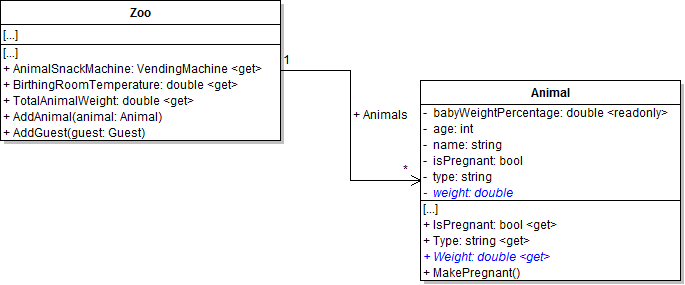
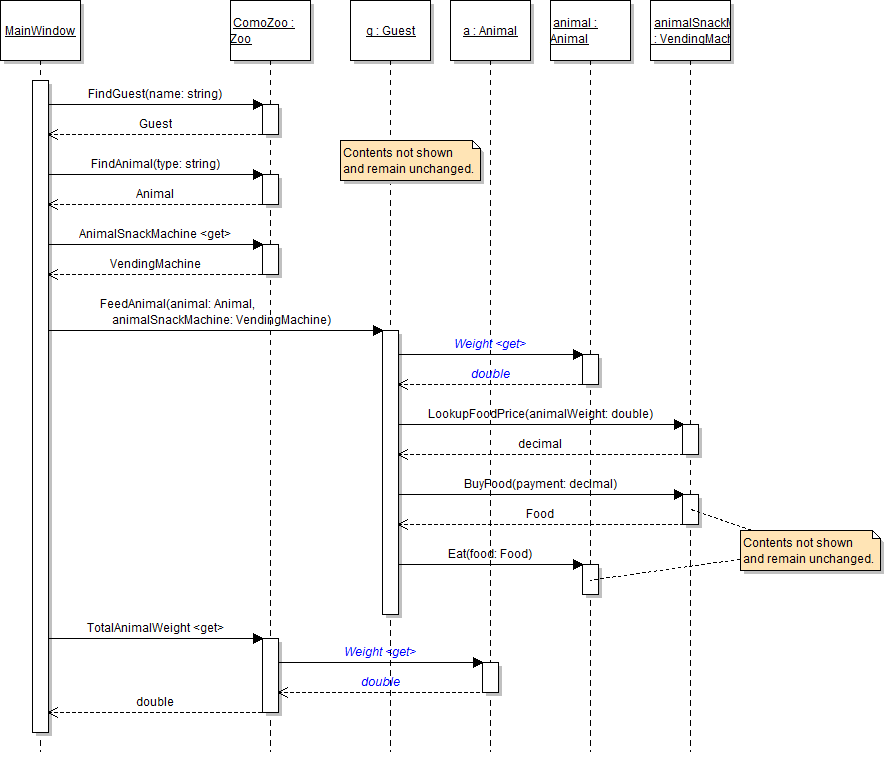
Note: The property is now called from the guest's FeedAnimal method and the zoo's TotalAnimalWeight property, as shown in the sequence diagrams below.
// Create new animal.
Animal baby = new Animal(this.Type, "Baby", 0, this.Weight * (this.babyWeightPercentage / 100));

// Reduce mother's weight.
this.weight -= baby.Weight * 1.25;
// Determine milk weight.
double milkWeight = this.Weight * 0.005;
- Ensure that all code is StyleCop compliant.
- Browse to the project folder and add it to a newly created zip archive.
- Submit the zipped project folder to the correct assignment in Blackboard.