The purpose of this week's lab is to change the way that objects are instantiated by implementing constructors in each class. Because some object instantiation will occur inside of the constructors, it no longer needs to occur in the MainWindow's newZooButton_Click. In this task, you will remove all of the instantiation code from the button click. You will check your work by ensuring that the solution builds without compiler errors or warnings.
Encapsulation, Revisited (15:28)
- Remove all of the code from the newZooButton_Click. The body of the method should be empty.
- Check your work: Build the solution and ensure that the code compiles without errors or warnings.
Constructors are used to instantiate objects and are instrumental in implementing encapsulation because they allow fields to become private in many cases. In this task, you will define a constructor for the Employee class and use it to instantiate the zoo's booth attendant. You will also make the employee's fields private. You will check your work by setting a breakpoint, stepping into the constructor, and ensuring that the object is created correctly.
Only Talk To Your Friends (5:00)
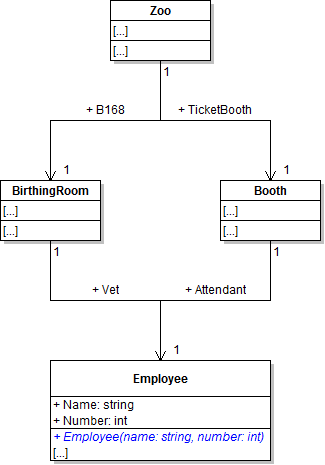
- Define the constructor for the Employee class as specified in the code and class diagram below. Constructors are defined similarly to methods, but constructors are always named the same as the class and they do not define a return type.
- In the body of the constructor, set the Name field to the name parameter and set the the Number field to the number parameter, as shown in the code below.
- Check your work: Build the solution and ensure that the code compiles without errors or warnings.
- In the newZooButton_Click, define a variable of type Employee called attendant and instantiate it to a new Employee object to represent the booth attendant, as shown in the code and object diagram below.
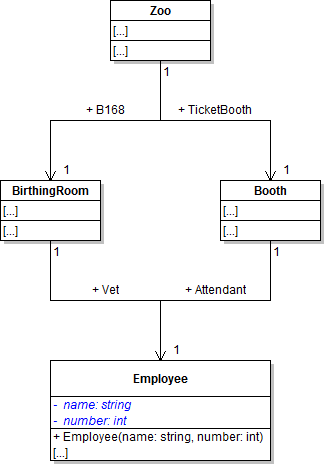
- Make the employee's Name and Number fields private and lowercase the first letter, as shown in the class diagram below. The fields can be made private now that the Employee class has a constructor that sets the fields when it is called and the fields no longer need to be set from outside of the class.
- Make the constructor StyleCop compliant by auto-generating the summary tags above it, just as you would with a method. The text of the summary tag should be "Initializes a new instance." as shown in the code below.
- Check your work:
- Set a breakpoint in the newZooButton_Click on the line that instantiates the attendant.
- Start the application. Click the New zoo button.
- Press F11 to step into the employee constructor. The value of the name parameter should be "Sam" and the value of the number parameter should be 42 (i.e. the values passed in to the constructor). Step over the lines that set the field values. The fields should be set accordingly.
- Press F10 to return to the button click and step over the line of code that instantiates the attendant. Inspect the attendant variable and ensure that the Name field is set to "Sam" and the Number field is set to 42.
public Employee(string name, int number)
{

}
public Employee(string name, int number)
{
    this.Name = name;
    this.Number = number;
}// Create the booth attendant
Employee attendant = new Employee("Sam", 42);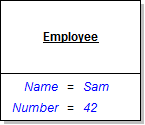
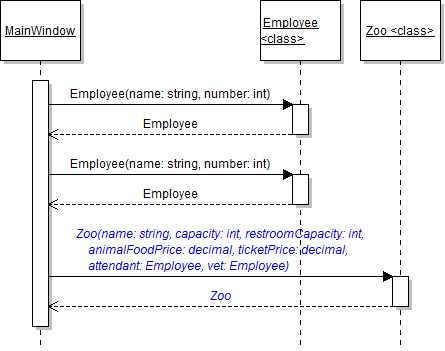
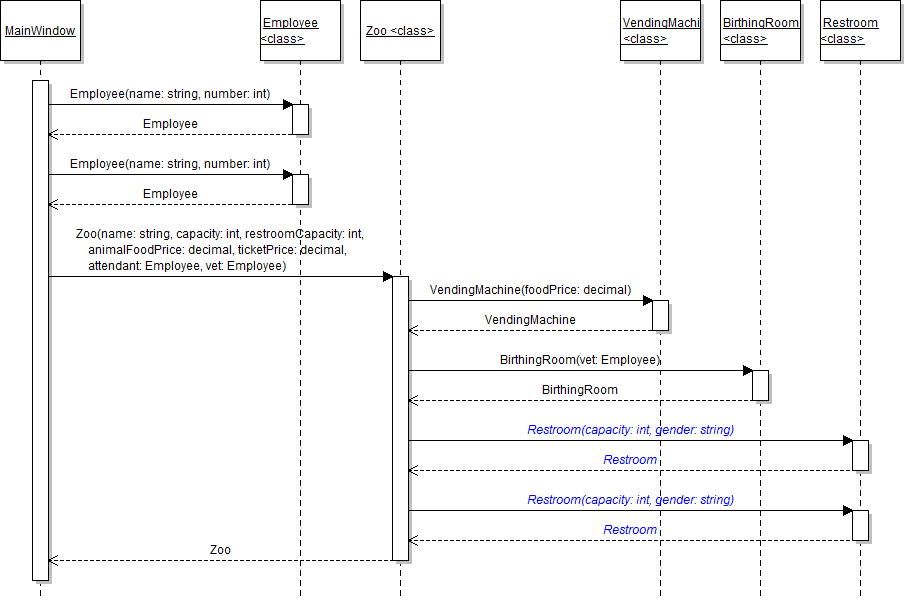
Note: This code calls the newly defined constructor for the Employee class, which requires a name and number to be passed in to it and returns a new Employee object, as shown in the sequence diagram below.
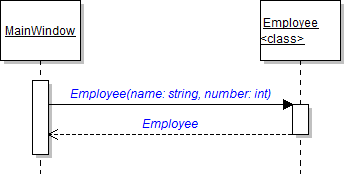
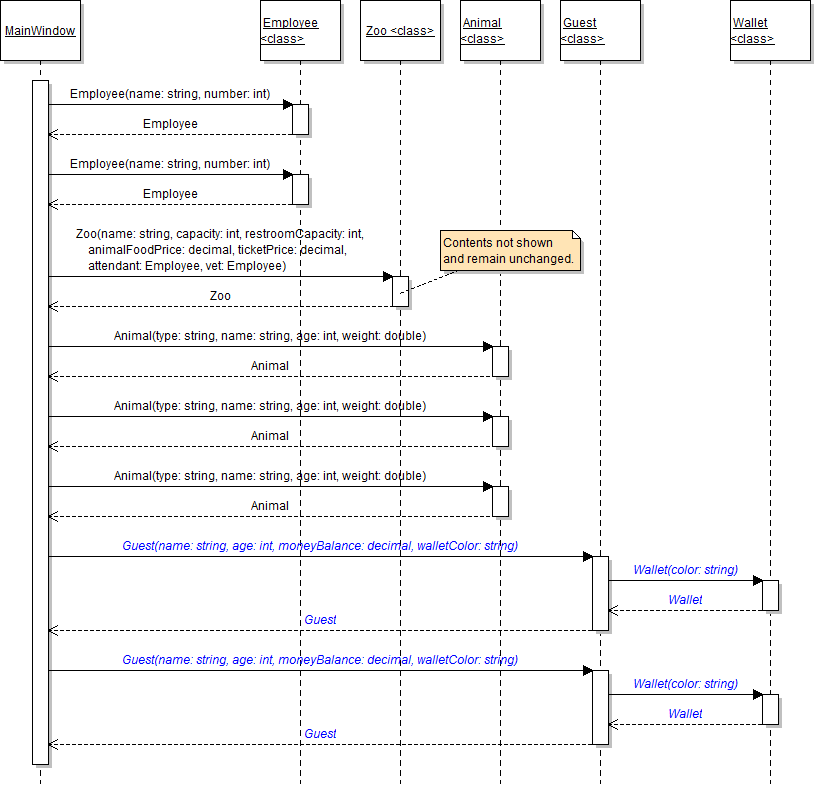
Note: The employee constructor is called on the Employee class, not on an employee object. This is because a constructor requests an object of the type on which it is called. This is denoted in the sequence diagram above by the <class> notation. Calls to constructors will be shown on sequence diagrams throughout this assignment, but they will not be shown on sequence diagrams in future assignments.
/// <summary>
/// Initializes a new instance.
/// </summary>
/// <param name="name">The employee's name.</param>
/// <param name="number">The employee's number.</param>
public Employee(string name, int number)
{
    // code here
}
Note: The summary text of a constructor should always be "Initializes a new instance." Use this text for all constructors you document.
You have instantiated an employee to act as the zoo's booth attendant, but the zoo needs an employee to act as the vet as well. In this task, you will call the employee's constructor again to instantiate the zoo's vet. You will check your work by setting a breakpoint, stepping through the code, and ensuring that the vet object is instantiated correctly.
- In the newZooButton_Click after instantiating the attendant, define a variable of type Employee called vet and instantiate it to a new Employee object, as shown in the object diagram and sequence diagram below. This object represents the vet, so pass in "Flora" for the name and 98 for the number.
- Check your work:
- Set a breakpoint in the newZooButton_Click on the line that instantiates the vet.
- Start the application. Click the New zoo button.
- Press F10 to step over the line of code that instantiates the vet. Inspect the vet variable and ensure that the name is "Flora" and the number is 98.
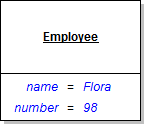
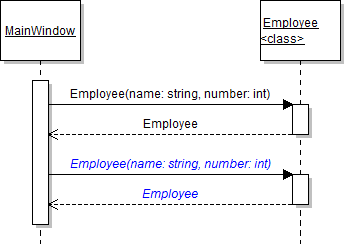
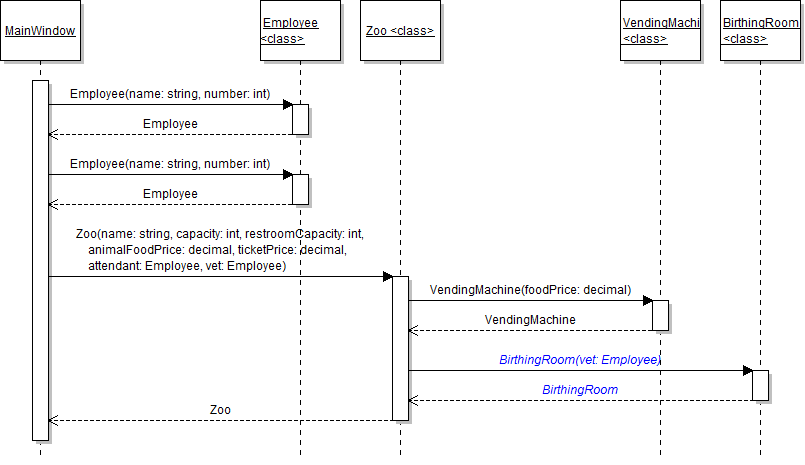
The zoo needs a constructor to create instances of the class and set its fields. In this task, you will define a constructor for the Zoo class and use it to instantiate the ComoZoo. You will also make some of the zoo's fields private. You will check your work by setting a breakpoint, stepping into the constructor, and ensuring that the object is created correctly.
- Define the constructor for the Zoo class as specified in the class diagram below.
- In the zoo's constructor, set the Capacity field to the capacity parameter and the Name field to the name parameter. Also, instantiate the Animals and Guests fields to new lists.
- Make the zoo's Capacity, Name, B168, LadiesRoom, MensRoom, and TicketBooth fields private and lowercase the first letter of the field names.
- Check your work: Build the solution and ensure that the code compiles without errors or warnings.
- In the newZooButton_Click after instantiating the attendant and vet, instantiate the ComoZoo field to a new Zoo object, as shown in the code, object diagram, and sequence diagram below.
- Ensure that all code is StyleCop compliant.
- Check your work:
- Set a breakpoint in the newZooButton_Click on the line that instantiates the ComoZoo field.
- Start the application. Click the New zoo button.
- Press F11 to step into the zoo's constructor. Ensure the parameters are set to the values passed in to the constructors and that the name and capacity fields are set correctly.
- Press F10 to return to the caller of the constructor and step over the line of code that instantiates the ComoZoo field. Ensure that the ComoZoo's name is "Como Zoo" and the capacity is 1000.
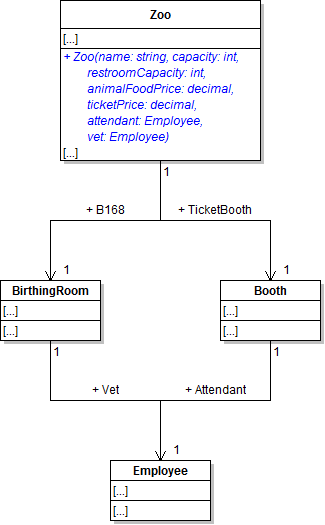
Note: The other parameters in the constructor will be used later when instantiating other fields in the zoo. Do nothing with them for now.
// Create an instance of the Zoo class
this.ComoZoo = new Zoo("Como Zoo", 1000, 4, attendant, vet);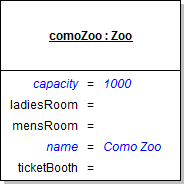
The vending machine needs a constructor to create instances of the class and set its fields. In this task, you will define a constructor for the VendingMachine class and use it to instantiate the zoo's AnimalSnackMachine field. You will also make some of the vending machine's fields private. You will check your work by setting a breakpoint, stepping into the constructor, and ensuring that the object is created correctly.
- Define the constructor for the VendingMachine class as specified in the class diagram below.
- Define the readonly maxFoodStock field as shown in the class diagram above. Set it to 20.0 where it is defined, as shown in the code below.
- Make the foodStock field private.
- In the constructor, set the foodStock field to the value of the maxFoodStock field (which means that each time a new vending machine is created, it is fully stocked). Set the FoodPricePerPound field to the foodPrice parameter.
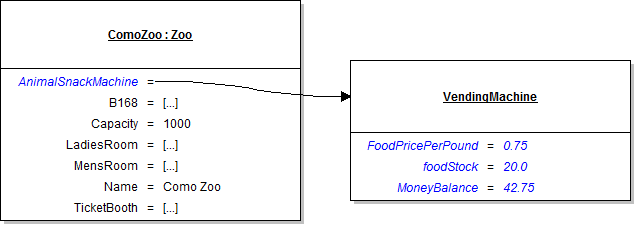
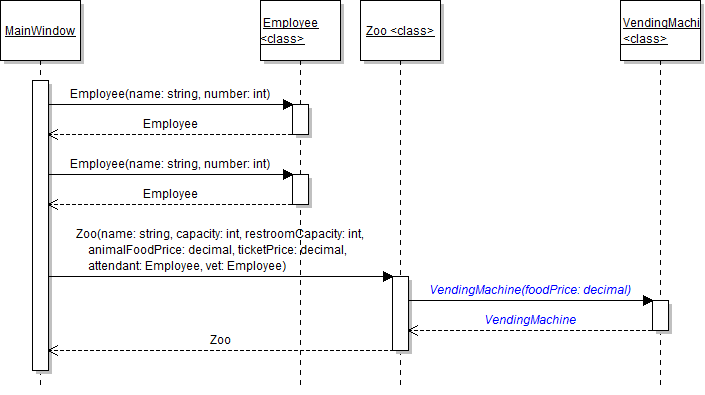
- In the zoo's constructor, instantiate the AnimalSnackMachine field to a new VendingMachine by calling the constructor, as shown in the object diagram and sequence diagram below. Pass in 0.75m for the food price. After instantiating the machine, add 42.75m to the machine's money balance.
- Ensure that all code is StyleCop compliant.
- Check your work:
- Set a breakpoint in the zoo's constructor on the line that instantiates the animal snack machine.
- Start the application. Click the New zoo button.
- Press F11 to step into the vending machine constructor. Note that the debugger first goes to the definition of the maxFoodStock field because it needs to be set. Step through the rest of the constructor and ensure that the foodStock field is set to 20.0 and the FoodPricePerPound field is set to 0.75.
- Press F10 to return to the caller and step over the line of code that adds money to the machine. Inspect the animal snack machine and ensure that its money balance is set to 42.75.

private readonly double maxFoodStock = 20.0;
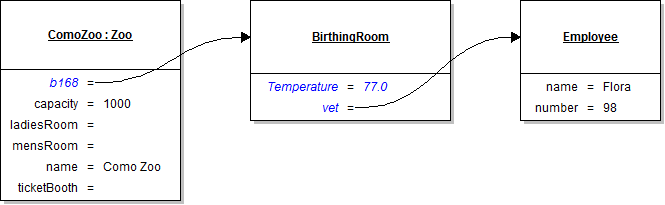
The birthing room needs a constructor to create instances of the class and set its fields. In this task, you will define a constructor for the BirthingRoom class and use it to instantiate the zoo's b168 field. You will also make some of the birthing room's fields private. You will check your work by setting a breakpoint, stepping into the constructor, and ensuring that the object is created correctly.
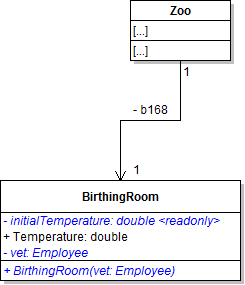
- Define the constructor for the BirthingRoom class as specified in the class diagram below.
- Define the initialTemperature field as shown in the class diagram above. Initialize it to 77.0 at the field definition, as shown in the code below.
- Make the Vet field private and lowercase its first letter, as shown in the class diagram above.
- In the constructor, set the Temperature field to the initialTemperature field. Set the vet field to the vet parameter.
- In the zoo's constructor, instantiate the b168 field to a new BirthingRoom by calling the constructor, as shown in the object diagram and sequence diagram below. Pass in the vet parameter to the constructor call.
- Ensure that all code is StyleCop compliant.
- Check your work:
- Set a breakpoint in the zoo's constructor on the line that instantiates the b168 field.
- Start the application. Click the New zoo button.
- Inspect the vet parameter in the zoo's constructor. It should be Flora.
- Press F11 to step into the birthing room constructor. Inspect the vet parameter. Again, it should be Flora because vet parameter from the zoo constructor was passed through to the birthing room constructor.
- Press F10 to step through the rest of the constructor, return to the caller, and over the line that instantiates b168. Inspect b168 and ensure that its temperature is 77.0 and its vet is Flora the employee.
private readonly double initialTemperature = 77.0;
Note: This takes the employee object that was created and passed into the zoo's constructor as the vet (i.e. "Flora") and passes it along to the birthing room's constructor. There is no need to create a new employee object for the birthing room's vet parameter because you already have access to a vet inside of the zoo's constructor.
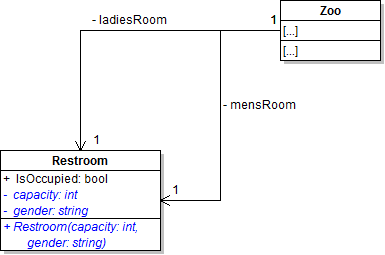
The restroom needs a constructor to create instances of the class and set its fields. In this task, you will define a constructor for the Restroom class and use it to instantiate the zoo's ladiesRoom and mensRoom fields. You will also make some of the restroom's fields private. You will check your work by setting a breakpoint, stepping into the constructor, and ensuring that the object is created correctly.
- Define the constructor for the Restroom class and make the Capacity and Gender fields private and lowercase the first letter, as shown in the class diagram below.
- In the restroom constructor, set the capacity field to the capacity parameter, set the gender field to the gender parameter, and set the IsOccupied field to false.
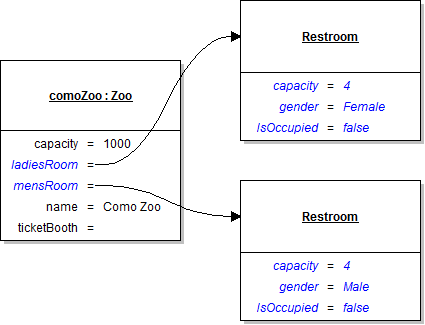
- In the zoo's constructor, instantiate the ladiesRoom and mensRoom fields to new Restroom instances by calling the constructor, as shown in the object diagram and sequence diagram below. Pass in the restroomCapacity parameter and a string representing the correct gender (i.e. "Male" for the mens' room and "Female" for the ladies' room).
- Ensure that all code is StyleCop compliant.
- Check your work:
- Set a breakpoint in the zoo's constructor on the line that instantiates the first restroom.
- Start the application. Click the New zoo button.
- Press F10 to step over the lines of code that instantiate the ladiesRoom and mensRoom fields. Inspect the fields and ensure that the ladiesRoom has a capacity of 4, a gender of "Female" and is not occupied. Ensure that the mensRoom has a capacity of 4, a gender of "Male" and is not occupied.
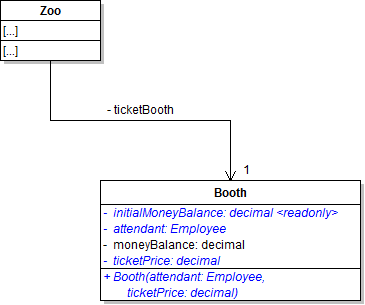
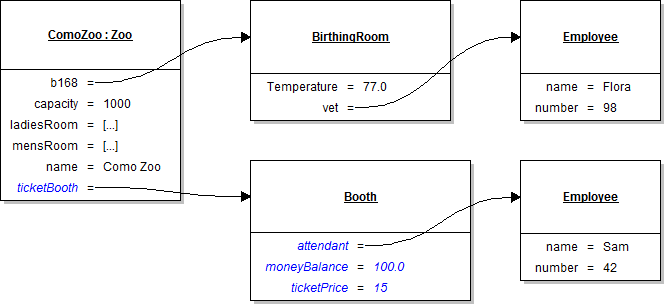
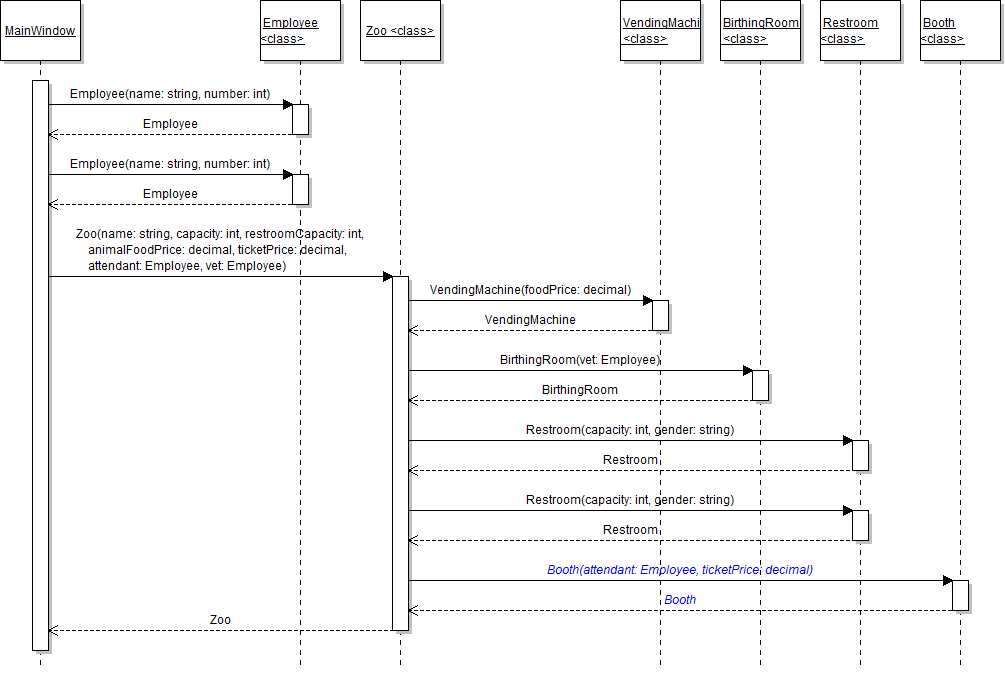
The booth needs a constructor to create instances of the class and set its fields. In this task, you will define a constructor for the Booth class and use it to instantiate the zoo's ticketBooth field. You will also make some of the restroom's fields private. You will check your work by setting a breakpoint, stepping into the constructor, and ensuring that the object is created correctly.
- Define the constructor for the Booth class and make the Attendant and TicketPrice fields private and lowercase the first letter, as shown in the class diagram below.
- Define the initialMoneyBalance field as shown in the class diagram above. Set it to 100m at the field definition.
- In the constructor, set the attendant field to the attendant parameter. Set the moneyBalance field to the initialMoneyBalance field (which means that each time a new booth is created, it starts with the same money balance). Set the ticketPrice field to the ticketPrice parameter.
- In the zoo's constructor, instantiate the ticketBooth field to a new Booth by calling the constructor, as shown in the object diagram and sequence diagram below. Pass in the attendant parameter and 15m as the ticket price to the constructor call.
- Check your work:
- Set a breakpoint in the zoo's constructor on the line that instantiates the ticketBooth field.
- Start the application. Click the New zoo button.
- Note that the attendant is Sam. Press F11 to step into the booth constructor. The debugger will first set the readonly initialMoneyBalance field. Note that the attendant parameter is also Sam the employee.
- Press F10 to step through the rest of the constructor, return to the caller, and over the line that instantiates the ticket booth. Inspect the ticketBooth field and ensure that the money balance is 100, the ticket price is 15, and the attendant is Sam.
The animal needs a constructor to create instances of the class and set its fields. In this task, you will define a constructor for the Animal class and use it to instantiate the zoo's animals. You will also make some of the animal's fields private. You will check your work by setting a breakpoint, stepping into the constructor, and ensuring that the objects are created correctly.
- Comment out the entire body of the animal's Reproduce method; doing this will prevent compiler errors after making changes later in this step.
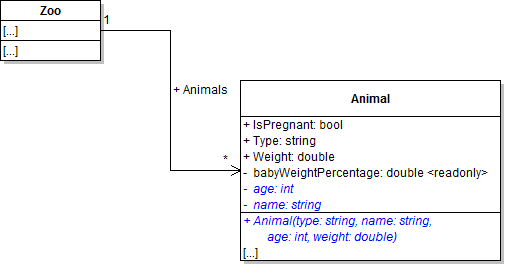
- Define the constructor for the Animal class and make the Age and Name fields private and lowercase the first letter, as shown in the class diagram below.
- In the constructor, set the age field to the age parameter. Set the name field to the name parameter. Set the Type field to the type parameter. Set the Weight field to the weight parameter.
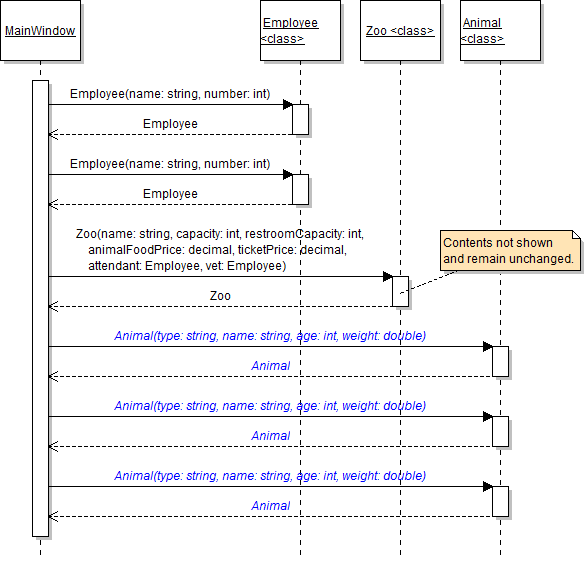
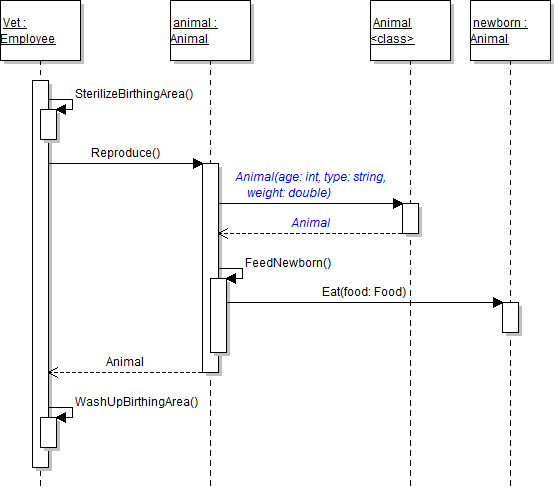
- Refactor the creation of the zoo's animals, as shown in the sequence diagram below.
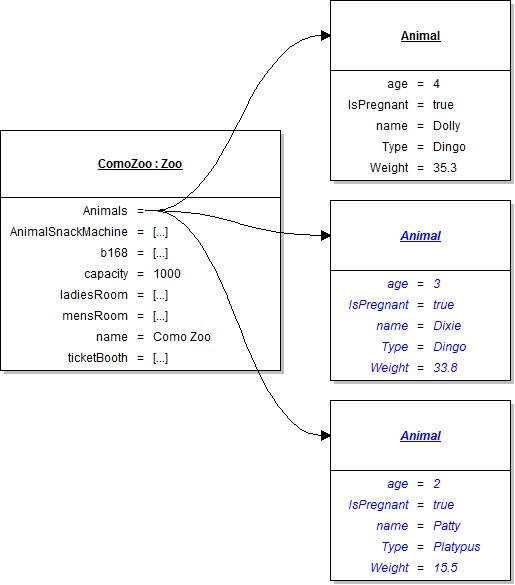
- In the newZooButton_Click after instantiating the ComoZoo, define an animal variable and set it to a new animal object representing Dolly the dingo. Then make Dolly pregnant and add her to the zoo's list of animals, as shown in the code and object diagram below.
- After adding Dolly to the zoo's list, instantiate Dixie and Patty, make them pregnant, and add them to the zoo's list, as shown in the object diagram below.
- Ensure that all code is StyleCop compliant.
- Check your work:
- Set a breakpoint in the newZooButton_Click on the line that instantiates Dolly.
- Start the application. Click the New zoo button.
- Press F10 to step over the instantiation of the three animals. Inspect each animal and ensure that each animal's field values match the values specified in the object diagram above. Ensure that each animal is added to the Animals list correctly.
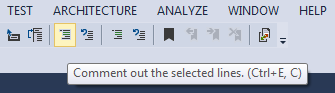
Note: This task can be accomplished quickly by selecting the entire method body and clicking the button to comment out code (shown in the image below) or by pressing Ctrl + E, C.
// Define an animal variable.
Animal animal;

// Create Dolly.
animal = new Animal("Dingo", "Dolly", 4, 35.3);

// Make Dolly pregnant.
animal.IsPregnant = true;

// Add Dolly to the zoo's animal list.
this.ComoZoo.Animals.Add(animal);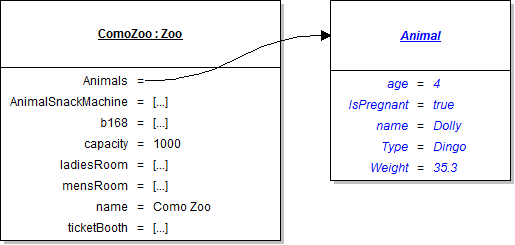
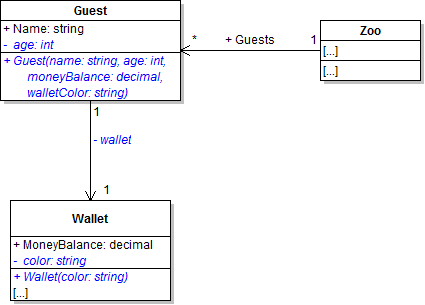
Both guests and wallets need a constructor to create instances of the classes and set their fields. In this task, you will define a constructor for the Guest class and the Wallet class and use them to instantiate the zoo's guests and their wallets. You will also make some of the fields private. You will check your work by setting a breakpoint, stepping into the constructor, and ensuring that the objects are created correctly.
- Define the constructor for the Guest class and Wallet class, as shown in the class diagram below. Also make the Age, Wallet, and Color fields private and lowercase the first letter.
- In the wallet constructor, set the color field to the color parameter.
- In the guest constructor, set the age field to the age parameter. Set the Name field to the name parameter. Instantiate the wallet field to a new Wallet object, and pass in the walletColor parameter to the constructor. Then set the wallet's MoneyBalance field to the moneyBalance parameter, as shown in the code below.
- Refactor the creation of the zoo's guests, as shown in the sequence diagram below.
- In the newZooButton_Click after adding the animals, define a guest variable and set it to a new guest object representing Darla. Then add Darla to the zoo's list of animals, as shown in the code below.
- After adding Darla to the zoo's list, instantiate Greg and add him to the zoo's list, as shown in the object diagram below.
- Ensure that all code is StyleCop compliant.
- Check your work:
- Set a breakpoint in the newZooButton_Click on the line that instantiates Darla.
- Start the application. Click the New zoo button.
- Press F11 to step into the guest constructor. The age and Name fields should be set to the appropriate parameter values.
- Press F11 to step into the wallet constructor. The color field should be set to the color parameter value. Return to the caller and step over the line that sets the wallet's money balance. It should be set to 5.25 - the value of the moneyBalance parameter.
- Press F10 to return to the caller of the guest constructor. Inspect the guest variable and ensure that Darla's field values match those specified in the object diagram above. Step over the rest of the guest instantiation code and ensure that all field values are set correctly and Darla and Greg are added to the zoo's Guests list.
this.wallet = new Wallet(walletColor);
this.wallet.MoneyBalance = moneyBalance;
// Define a guest variable.
Guest guest;

// Create Darla.
guest = new Guest("Darla", 11, 5.25m, "Salmon");

// Add Darla to the zoo's guest list.
this.ComoZoo.Guests.Add(guest);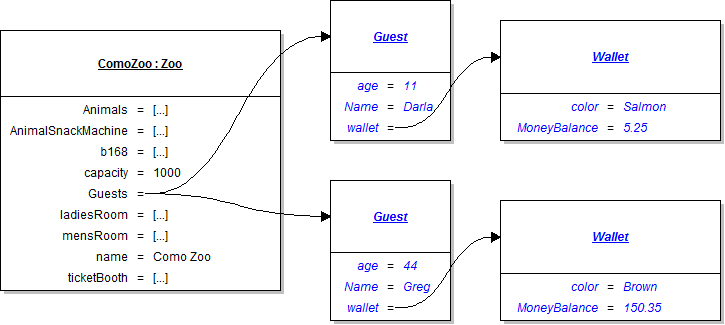
The body of the animal's Reproduce method is still commented out and remains nonfunctional. In this task, you will call the animal's constructor to instantiate the baby animal after the mother reproduces. You will check your work by setting a breakpoint, stepping through the code, and ensuring that the baby is instantiated and added to the zoo's list correctly.
- Uncomment the code in the animal's Reproduce method. Do this by selecting all of the code and clicking the uncomment code button in the top toolbar or by pressing Ctrl + E, U.
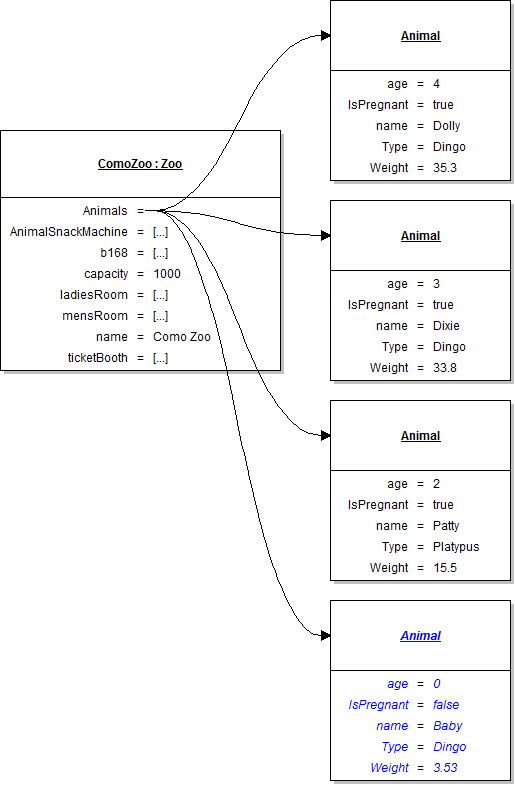
- Replace all of the code that instantiates the baby animal and sets its fields with a call to the animal constructor, as shown in the code and sequence diagram below.
- Check your work:
- Set a breakpoint in the animal's Reproduce method on the line that instantiates the baby animal.
- Start the application. Click the New zoo button, then click the Birth dingo button.
- Press F10 to step over the instantiation of the baby animal. Inspect the baby variable and ensure that its field values match those specified in the object diagram below.
- Press F10 to return the callers of each method until you reach the zoo's BirthAnimal method. Ensure that the baby is not null and is added to the zoo's list of animals.
// Create baby animal
Animal baby = new Animal(this.Type, "Baby", 0, this.Weight * (this.babyWeightPercentage / 100));
The food needs a constructor to create instances of the class and set its fields. In this task, you will define a constructor for the Food class and use it to instantiate food for animals to eat. You will check your work by setting a breakpoint, stepping into the constructor, and ensuring that the objects are created correctly.
- Comment out the entire body of the vending machine's BuyFood method and the animal's FeedNewborn method. Doing this will prevent compiler errors after making changes later in this step.
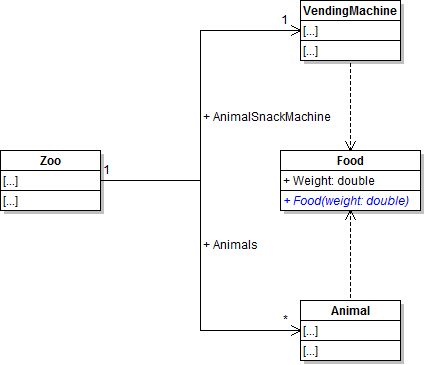
- Define the constructor for the Food class as shown in the class diagram below.
- In the constructor, set the Weight field to the weight parameter.
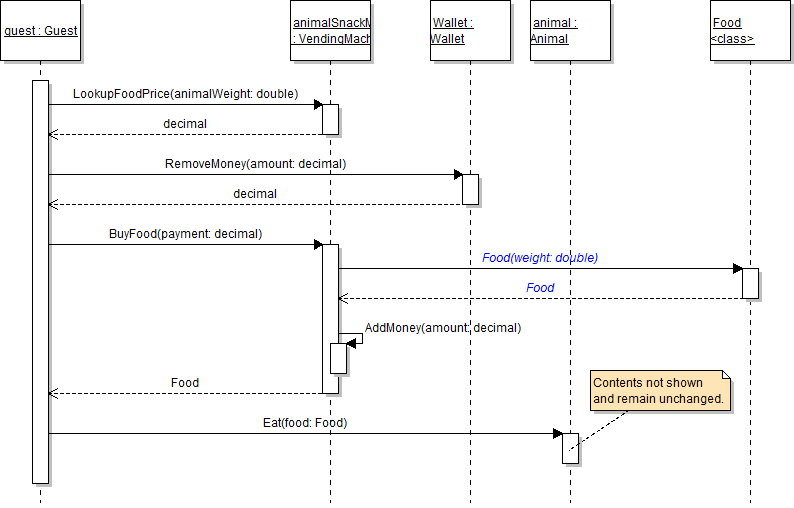
- In the vending machine's BuyFood method, replace the code that instantiates the food variable with code that calculates the food's weight and calls the food constructor to instantiate and return the food object, as shown in the code and sequence diagram below.
- In the animal's FeedNewborn method, replace the code that instantiates the food variable with code that calls the food constructor to instantiate and return the food object, as shown in the code below.
- Ensure that all code is StyleCop compliant.
- Check your work:
- Set a breakpoint in the vending machine's BuyFood method on the line that instantiates the food object.
- Start the application. Click the New zoo button, then click the Darla, feed dingo button.
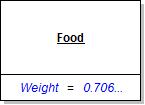
- Press F10 to step over the instantiation of the food object and return to the caller. Inspect the food variable and ensure that its field values match those specified in the object diagram below.
- Check your work:
- Set a breakpoint in the animal's FeedNewborn method on the line that instantiates the food object.
- Start the application. Click the New zoo button, then click the Birth dingo button.
- Press F10 to step over the instantiation of the food object. Inspect the food variable and ensure that its weight is 0.154....
this.AddMoney(payment);

// Determine food weight using the price per pound
double weight = (double)(payment / this.FoodPricePerPound);

return new Food(weight);
// Determine milk weight.
double milkWeight = this.Weight * 0.005;

// Generate milk.
Food milk = new Food(milkWeight);

// Feed newborn baby.
newborn.Eat(milk);

// Reduce mother's weight.
this.Weight -= milkWeight;
- Ensure that all code is StyleCop compliant.
- Browse to the project folder and add it to a newly created zip archive.
- Submit the zipped project folder to the correct assignment in Blackboard.