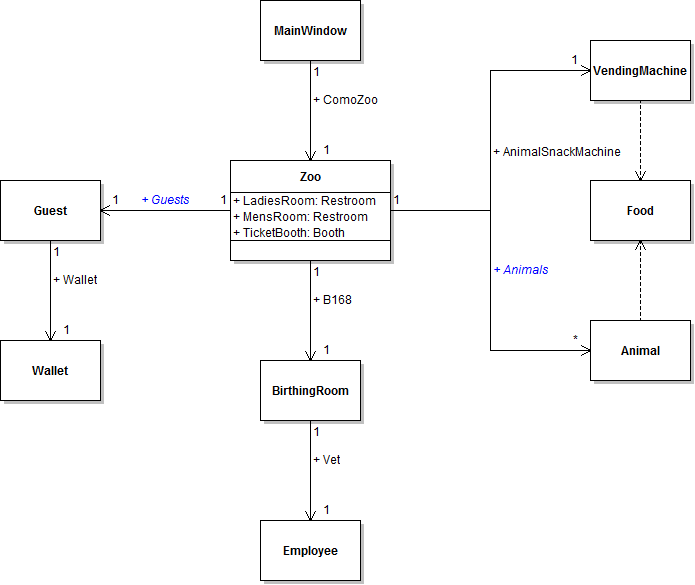
Any respectable zoo has multiple animals, but the ComoZoo has only a single dingo stored in its Dingo field. In this task, you will define a list field on the Zoo class that will be used to hold multiple animal objects. You will check your work by ensuring that the solution builds without compiler errors or warnings.
Using Lists to Manage Multiple Objects (20:24)
Lists on Object and Class Diagrams (6:30)
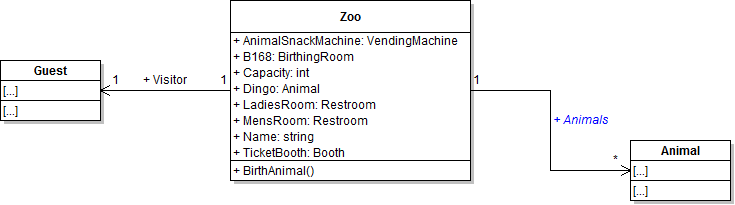
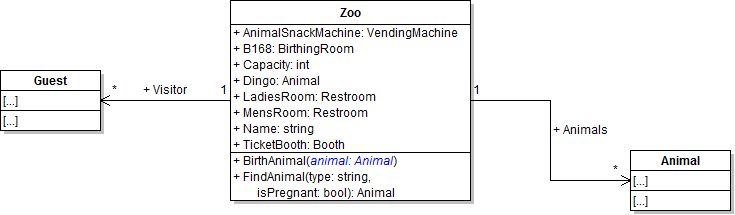
- Define the Animals field in the Zoo class as specified in the code and class diagram below.
- Ensure that all code is StyleCop compliant.
- Check your work: Build the solution and ensure that the code compiles without errors or warnings.
public List<Animal> Animals;
You must instantiate the Animals field before you can begin adding animals to it. In this task, you will remove the instantiation of the zoo's Dingo field and instead instantiate the zoo's Animals field. You will check your work by setting a breakpoint, stepping through the code, and ensuring that the list is instantiated correctly.
- In newZooButton_Click in MainWindow.xaml.cs, remove the line of code that instantiates the zoo's Dingo field, as shown in the object diagram below.
- Replace the code that instantiated the Dingo field with code that instantiates the zoo's Animals field, as shown in the code and object diagram below.
- Check your work:
- Set a breakpoint in newZooButton_Click on the line of code that instantiates the Animals field.
- Start the application.
- Click the New zoo button.
- Note that the ComoZoo's Animals field is null. Press F10 to step over the line that instantiates the Animals field. Note that the Animals field is now instantiated. Examine the field using the Locals window - it is represented as Count = 0, which means that it is a list with zero items in it.
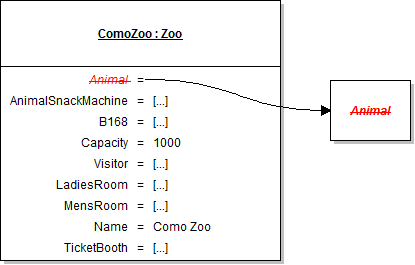
this.ComoZoo.Animals = new List<Animal>();

Now that the zoo has a list to hold multiple animals and that list is instantiated, you can create multiple animals and add them all to the list. In this task, you will instantiate and set field values for three animals and add each of them to the zoo's list of animals. You will check your work by setting a breakpoint, stepping through the code, and ensuring that each animal is instantiated and added to the list correctly.
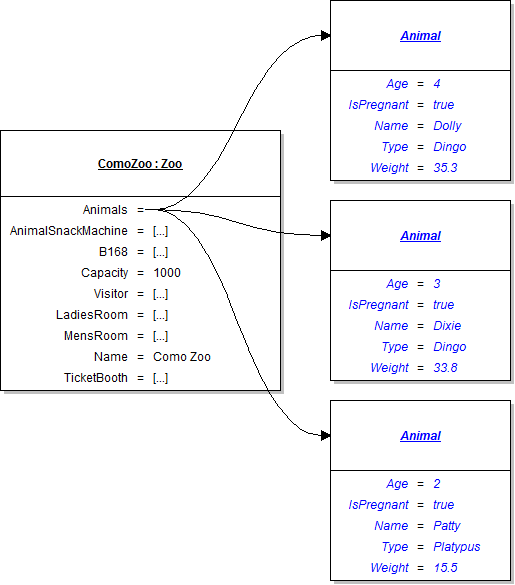
- Underneath the code that sets all of the ComoZoo's fields, create Dolly the dingo and add her to the list as shown in the code and object diagram below.
- After creating Dolly and adding her to the zoo's list, use the existing animal variable to create Dixie, set her fields' values, and add her to the list, as shown in the code below and the object diagram above.
- After creating Dixie and adding her to the zoo's list, use the existing animal variable to create Patty, set her fields' values as shown in the object diagram above, and add her to the list.
- Check your work:
- Set a breakpoint in newZooButton_Click on the line of code that instantiates the animal variable.
- Start the application.
- Click the New zoo button.
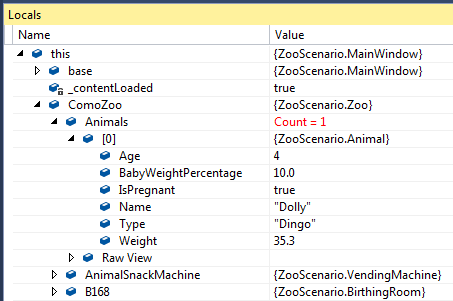
- Press F10 to step over the code that creates Dolly and adds her to the animals list. The count of the Animals field should go from 0 to 1. Expand the Animals field in the Locals window, then expand the [0] entry as shown in the image below. The [0] object represents the first item in the list. Note that the object is Dolly the dingo.
- Press F10 to step over the code that creates Dixie and adds her to the animals list. The count of the Animals field should go from 1 to 2. Expand the Animals field in the Locals window, then expand the [1] entry. Note that the object is Dixie the dingo.
- Press F10 to step over the code that creates Patty and adds her to the animals list. The count of the Animals field should go from 2 to 3. Expand the Animals field in the Locals window, then expand the [2] entry. Note that the object is Patty the platypus.
// Define an animal variable
Animal animal;

// Create Dolly
animal = new Animal();

// Set field values of Dolly.
animal.Age = 4;
animal.Name = "Dolly";
animal.Type = "Dingo";
animal.Weight = 35.3;
animalIsPregnant = true;

// Add Dolly to the zoo's list of animals
this.ComoZoo.Animals.Add(animal);
Reusing Variables (coming soon)
// Create Dixie
animal = new Animal();

// Set field values of Dixie
animal.Age = 3;
animal.Name = "Dixie";
animal.Type = "Dingo";
animal.Weight = 33.8;
animal.IsPregnant = true;

// Add Dixie to the zoo's list of animals
this.ComoZoo.Animals.Add(animal);
Now that the zoo has a list of animals, it needs a way find an animal in order to birth it. In this task, you will define and write a method that loops through the list of animals and compares each animal's field values to parameter values. It captures the first matching animal, breaks out of the loop, and then returns the matching animal. You will check your work by setting a breakpoint, stepping through the loop code, and ensuring that the correct animal is found and returned to the method caller.
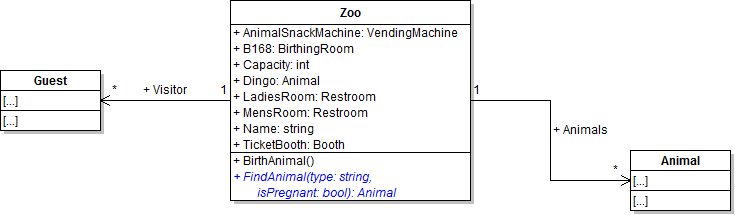
- Define the FindAnimal method in the Zoo class as specified in the class diagram below.
- In the FindAnimal method, define a return variable of type Animal. Then, loop through the list of animals and check each animal to see if it matches the method's parameters (type and pregnancy status). If the animal matches, set the return variable and then break out of the loop. This process is shown in the code below.
- Check your work: Build the solution and ensure that the code compiles without errors or warnings.
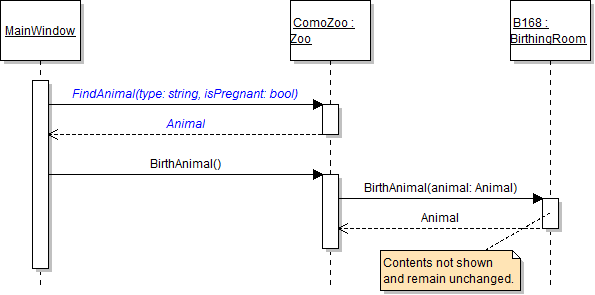
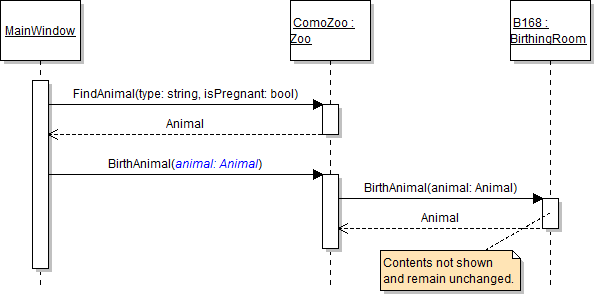
- In birthDingoButton_Click, call the zoo's FindAnimal method before calling the BirthAnimal method, as shown in the sequence diagram below. You need to find a pregnant dingo, so pass in "Dingo" and true as parameters - these values represent the type of animal to find and the pregnancy status of the animal to find.
- Ensure that all code is StyleCop compliant.
- Check your work:
- Set a breakpoint in birthDingoButton_Click on the line that calls the FindAnimal method.
- Start the application.
- Click the New zoo button. Then click the Birth dingo button.
- Press F11 to step into the FindAnimal method. Note that the type parameter is "Dingo" and the isPregnant parameter is true.
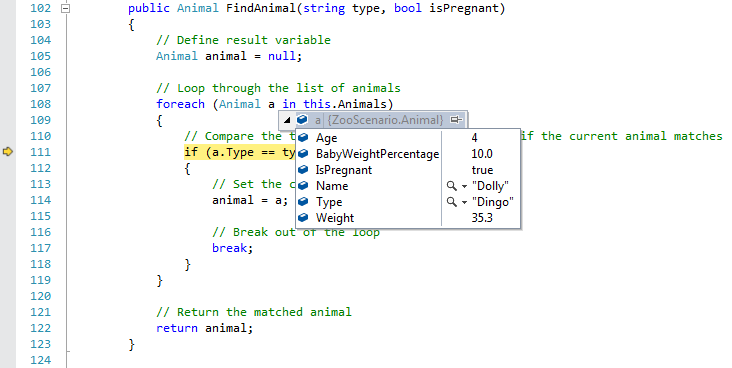
- Press F10 to step through the foreach loop. The first time through the loop, examine the a variable (which is storing the current animal in the list) as shown in the image below. The current animal is Dolly, who is a dingo and is pregnant. Her field values match the values passed in to the method, so the animal variable should be set to the Dolly object and the loop should be broken.
- Press F10 to continue through the loop. The code inside the if statement should run, which will break the loop. This means that the code will jump out of the loop to the next line of code - in this case, the return statement.
- Press F10 to return to the birthDingoButton_Click and step over the call to the FindAnimal method. The animal variable used to accept the method return should be instantiated to the Dolly object.
Using Loops to Work with Lists (9:23)
// Define result variable
Animal animal = null;

// Loop through the list of animals
foreach (Animal a in this.Animals)
{
    // Compare the type and pregnancy status to see if the current animal matches
    if (a.Type == type && a.IsPregnant == isPregnant)
    {
        // Set the current animal to the variable
        animal = a;

        // Break out of the loop
        break;
    }
}

// Return the matched animal
return animal;
Note: The && operator in the boolean expression means that both sides of the expression have to evaluate to true in order for the entire expression to evaluate to true. In other words, both the animal's type and its pregnancy status must match the parameters in order for it to evaluate to true. If only the type matches or only the pregnancy status matches, then the expression will evaluate to false.
Now that the zoo has a way to find an animal by type and pregnancy status, that method can be used to find an animal that needs to give birth. In this task, you will modify the zoo's BirthAnimal method to take a parameter and pass in the result of calling the FindAnimal method. You will check your work by setting a breakpoint, stepping through the code, and ensuring that Dolly the dingo is found and is correctly passed as a parameter to the zoo's and birthing room's BirthAnimal methods.
- Add an animal parameter to the zoo's BirthAnimal method, as shown in the class diagram below.
- In the birthDingoButton_Click, pass the animal variable used to accept the result of calling the FindAnimal method to the BirthAnimal method, as shown in the sequence diagram below.
- In the zoo's BirthAnimal method, pass the animal parameter to the birthing room's BirthAnimal method instead of passing the zoo's Dingo field.
- Ensure that all code is StyleCop compliant.
- Check your work:
- Set a breakpoint in the birthDingoButton_Click on the line that calls the zoo's BirthAnimal button.
- Start the application.
- Click the New zoo button. Then click the Birth dingo button.
- Note that the animal returned from the FindAnimal method is Dolly the dingo. Press F11 to step into the BirthAnimal method. Note that the animal parameter is also Dolly the dingo.
- Press F11 to step into B168's BirthAnimal method. Note that the animal parameter is also Dolly the dingo.
All newborn baby animals need to be added to the zoo's animals list. In this task, you will add the baby animal to the list of animals, but only after ensuring that it actually exists. You will check your work by setting a breakpoint, stepping through the code, and ensuring that the baby object is added to the zoo's list.
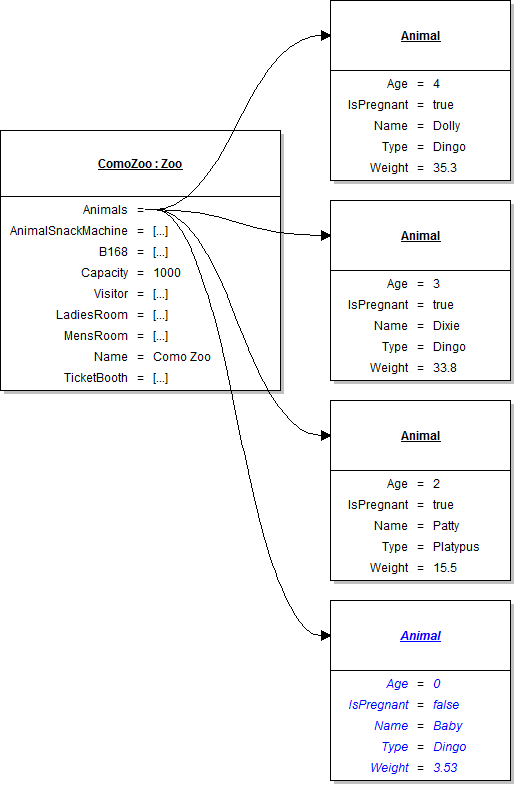
- In the zoo's BirthAnimal method, add the baby animal to the zoo's list of animals using the list's Add method. Before adding it, check to see if the baby exists (i.e. is not null). This will prevent a null value from being added to the list of animals. This process is shown in the code below. The object diagram represents the state of the zoo's Animals field after adding the baby.
- Check your work:
- Set a breakpoint in the zoo's BirthAnimal method on the line that calls B168's BirthAnimal method.
- Start the application.
- Click the New zoo button. Then click the Birth dingo button.
- Press F10 to step over the call to BirthAnimal. Ensure that the baby was instantiated (i.e. is not null).
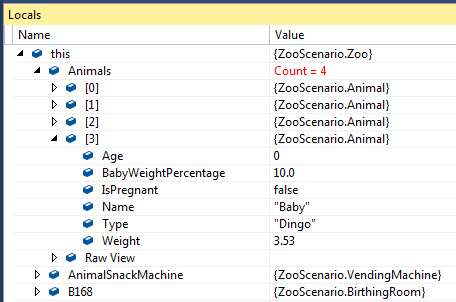
- Press F10 to step through the code that checks if the baby is not null and adds it to the list. After the baby is added, ensure that the count of the Animals field changes from 3 to 4. Expand the [3] entry, which contains the baby object. It should look similar to the image below.
// If a baby was born
if (baby != null)
{
    // Add the baby to the list of animals
    this.Animals.Add(baby);
}
Loops can be used to accomplish more tasks than simply finding the first animal that matches specified parameters. They can also be used to sum, or accumulate, a total amount of each item in the list. In this task, you will write a loop that sums the weights of all animals in the zoo's list. You will then use that loop to see the difference in the total animal weight before and after a baby is born. You will check your work by setting breakpoints, stepping through the code, and ensuring that the total animal weights are calculated correctly.
- At the beginning of the birthDingoButton_Click, write an accumulator foreach loop that loops through the list of animals and totals the weights of all animals in the list by adding each animal's weight to a variable. This code is shown below.
- Check your work:
- Set a breakpoint in the birthDingoButton_Click on the line that defines the accumulator variable.
- Start the application.
- Click the New zoo button. Click the Birth dingo button.
- Press F10 to step through the accumulator loop. Once the loop is done, the value of the total variable should be 84.6, which is the sum of the three animals weights.
- In the birthDingoButton_Click, copy the code that defines the accumulator variable and loops through the list. Paste it at the end of the method. Change the name of the variable in the pasted code to be endWeight.
- Check your work:
- Set a breakpoint in the birthDingoButton_Click on the line that defines the endWeight accumulator variable.
- Start the application.
- Click the New zoo button. Click the Birth dingo button.
- Press F10 to step through the endWeight accumulator loop. Once the loop is done, the value of the total variable should be 84.6, which is the sum of the three animals' weights. The value of the endWeight variable should be 83.7175, which is the sum of the four animals' weights, including the baby.
- Refactor accumulator loop to a zoo method. In general, you should avoid repeating or copying and pasting code whenever possible. In cases where you need to reuse code, it is often better to put that code into a method that you can call multiple times. That way, if you ever need to change or refactor the code, you only need to change it in one place. This also makes your code easier to test.
- Define the CalculateTotalAnimalWeight method in the Zoo class as specified in the class diagram below.
- In the birthDingoButton_Click, cut the code for the first accumulator loop and paste it into the zoo's CalculateTotalAnimalWeight method. Return the total variable after looping through the list of animals.
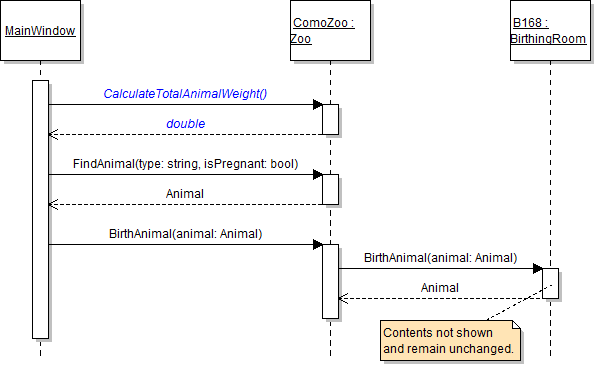
- At the beginning of the birthDingoButton_Click, define a double variable called startWeight and set it to the result of calling the ComoZoo's CalculateTotalAnimalWeight method, as shown in the sequence diagram below.
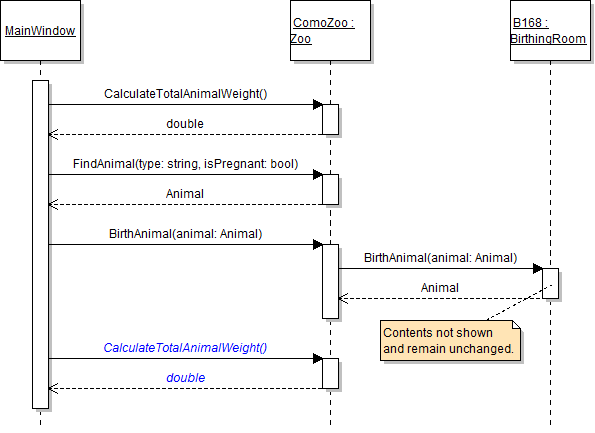
- Replace the second accumulator loop with another call to the ComoZoo's CalculateTotalAnimalWeight method, as shown in the sequence diagram below. Store the return value in a double variable called endWeight.
- Ensure that all code is StyleCop compliant.
- Check your work:
- Set a breakpoint in the birthDingoButton_Click on the line that calls the zoo's CalculateTotalAnimalWeight method the first time.
- Start the application.
- Click the New zoo button. Click the Birth dingo button.
- Press F10 to step through the code in the button click. The value of the startWeight variable should be 84.6. The value of the endWeight variable should be 83.7175.
// Define accumulator variable
double total = 0;

// Loop through the list of animals
foreach (Animal a in this.Animals)
{
    // Add current animal's weight to the total
    total += a.Weight;
}Note: The total weight went down because the mother animal lost 25 percent more weight than the new baby weighs.
Refactoring Code/Don't Repeat Yourself (coming soon)

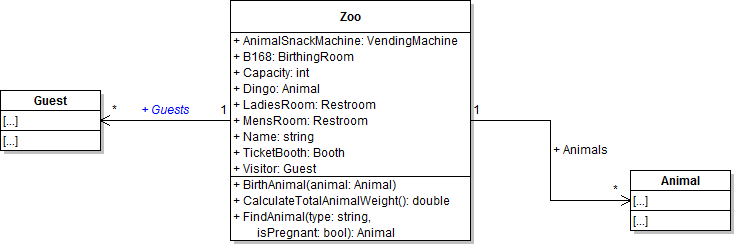
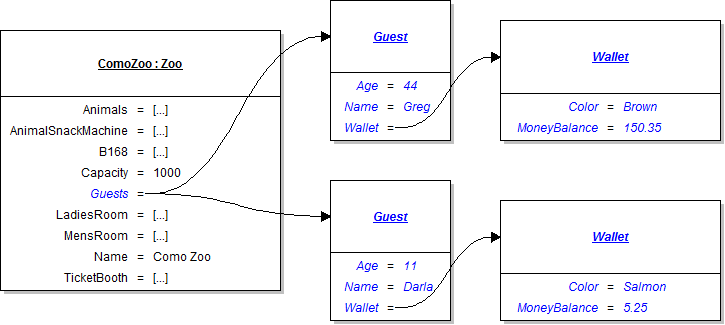
In addition to having a list of animals, the zoo needs a way to keep track of multiple guests - allowing only one guest at a time is no way to run a business. In this task, you will define a field on the Zoo class to hold multiple guests, instantiate that field, and create two guests and add them to the list. You will check your work by setting a breakpoint, stepping through the code, and ensuring that the list and guests are instantiated correctly and the guests are added to the list.
- Define the Guests field in the Zoo class as specified in the class diagram below.
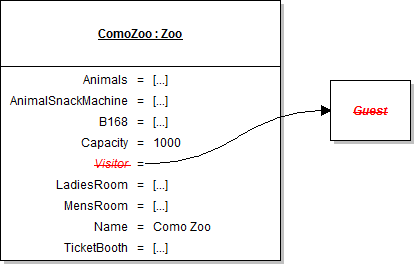
- In newZooButton_Click in MainWindow.xaml.cs, remove the line of code that instantiates the zoo's Visitor field, as shown in the object diagram below.
- Replace the code that instantiated the Visitor field with code that instantiates the zoo's Guests field, as shown in the code below.
- Add guests to the list.
- Underneath the code that sets the vet's fields, create Greg and add him to the list as shown in the code and object diagram below.
- After creating Greg and adding him to the zoo's list, use the existing guest variable to create Darla, set her fields' values as shown in the object diagram above, and add her to the list.
- Ensure that all code is StyleCop compliant.
- Check your work:
- Set a breakpoint in the newZooButton_Click on the line that instantiates the zoo's Guests field.
- Start the application.
- Click the New zoo button.
- Press F10 to step over the line that instantiates the Guests field. Ensure that the field is instantiated correctly.
- Press F10 to step over the code that creates Darla and Greg, sets their field values, and adds them to the Guests list. Examine the Guests list in the Locals window and ensure that it has a count of 2. Expand the [0] entry and ensure that the object is Darla. Expand the [1] entry and ensure that the object is Greg.
this.ComoZoo.Guests = new List<Guest>();
// Define a guest variable
Guest guest;

// Create Greg
guest = new Guest();

// Set field values of Greg
guest.Name = "Greg";
guest.Age = 44;
guest.Wallet = new Wallet();
guest.Wallet.Color = "Brown";
guest.Wallet.MoneyBalance = 150.35m;

// Add Darla to the zoo's list of guests
this.ComoZoo.Guests.Add(guest);
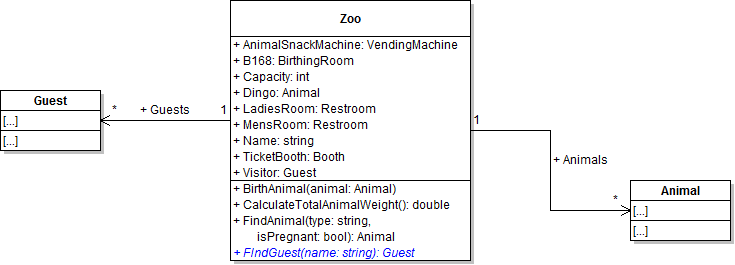
Now that the zoo contains multiple guests, it needs a way to find a guest by their name. This is similar to the method used to find an animal by type and pregnancy status. In this task, you will define and write a method that loops through the list of guests and finds the first guest whose name matches the name specified as the method parameter. You will also call this method and use the found guest to feed an animal. You will check your work by setting a breakpoint, stepping through the loop code, and ensuring that the correct guest is found and returned to the caller.
- Define the FindGuest method in the Zoo class as specified in the class diagram below.
- In the FindGuest method, loop through the list of guests to find the guest whose name matches the passed-in name. This loop will look very similar to the loop inside the FindAnimal method. The code is below.
- At the beginning of the darlaFeedDingoButton_Click, define a guest variable and set it to the result of calling the zoo's FindGuest method, as shown in the sequence diagram below. Darla is the guest who wants to feed the animal, so pass in "Darla" when calling the method.
- Call the FeedAnimal method on the guest variable instead of the zoo's Visitor field.
- Ensure that all code is StyleCop compliant.
- Check your work:
- Set a breakpoint in the darlaFeedDingoButton_Click on the line that calls the zoo's FindGuest method.
- Start the application.
- Click the New zoo button. Then click the Darla, feed dingo button.
- Press F11 to step into the FindGuest method. Press F10 to step through the loop. The first guest in the list is Darla, so the boolean expression in the if statement should evaluate to true the first time through the loop.
- Press F10 to step through the rest of the FindGuest method, return to the caller, and step over the call to the FindGuest method. Ensure that the guest variable is instantiated to the Darla object.
// Define a return variable
Guest guest = null;

// Loop through the zoo's list of guests
foreach (Guest g in this.Guests)
{
    // If the current guest's name matches the passed-in name
    if (g.Name == name)
    {
        // Assign the guest to the return variable
        guest = g;

        // Break out of the loop
        break;
    }
}

// Return the matched guest
return guest;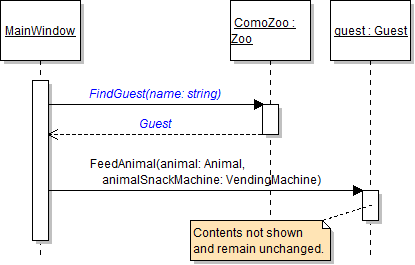
Darla wants to feed a dingo - any dingo - but she has no way to find an animal in the zoo's list using only an animal type. In this task, you will create an overloaded version of the FindAnimal method to find an animal only by its type instead of by both its type and its pregnancy status. You will then call that method and have Darla feed the found animal. You will check your work by setting a breakpoint, stepping through the loop code, and ensuring that the correct animal is found and returned to the caller.
- Define the overloaded FindAnimal method in the Zoo class as specified in the class diagram below.
- In the method, loop through the list of animals to find the first animal whose type matches the passed-in type. This loop will look very similar to the loop inside the first FindAnimal method. The code is below.
- In the darlaFeedDingoButton_Click after calling the FindGuest method, define an animal variable and set it to the result of calling the zoo's FindAnimal method, as shown in the sequence diagram below. Darla wants to feed a dingo, so pass in "Dingo" when calling the method.
- Pass the animal variable in to the FeedAnimal method instead of the zoo's Dingo field.
- Ensure that all code is StyleCop compliant.
- Check your work:
- Set a breakpoint in the darlaFeedDingoButton_Click on the line that calls the zoo's FindAnimal method.
- Start the application.
- Click the New zoo button. Then click the Darla, feed dingo button.
- Press F11 to step into the FindAnimal method. Press F10 to step through the loop. The first animal in the list is Dolly the dingo, so the boolean expression in the if statement should evaluate to true the first time through the loop.
- Press F10 to step through the rest of the FindAnimal method, return to the caller, and step over the call to the FindAnimal method. Ensure that the animal variable is instantiated to the Dolly object.
// Define and instantiate a return variable
Animal animal = null;

// Loop through the list of animals
foreach (Animal a in this.Animals)
{
    // Compare the current animal's type to the passed-in type
    if (a.Type == type)
    {
        // Assign the current animal to the return variable
        animal = a;

        // Break out of the loop
        break;
    }
}

// Return the matched animal
return animal;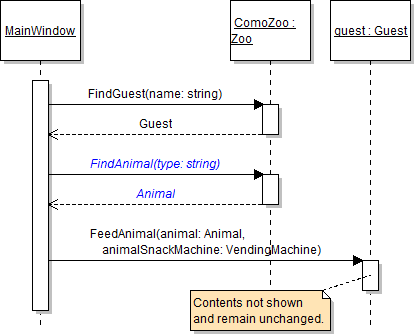
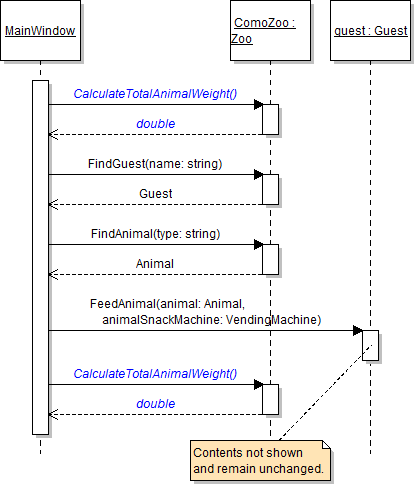
You've proved that the total animal weight changes after an animal gives birth to a baby; now you should do the same after a guest feeds an animal. In this task, you will call the CalculateTotalAnimalWeight method before and after the events of the feed animal sequence and store the values in local variables. You will check your work by setting a breakpoint, stepping through the code, and ensuring that the values of the local weight variables are correct.
- At the beginning of the darlaFeedDingoButton_Click, define a double variable called startWeight and set it to the result of calling the zoo's CalculateTotalAnimalWeight method, as shown in the sequence diagram below.
- At the end of the darlaFeedDingoButton_Click, define a double variable called endWeight and set it to the result of calling the zoo's CalculateTotalAnimalWeight method, as shown in the sequence diagram above.
- Check your work:
- Set a breakpoint in the darlaFeedDingoButton_Click on the line that calls the CalculateTotalAnimalWeight method the first time.
- Start the application.
- Click the New zoo button. Then click the Darla, feed dingo button.
- Press F10 to step over the code in the button click. The value of the startWeight variable should be 84.6. The value of the endWeight variable should be 85.306.... This is because the animal Darla fed gained weight after eating the food.
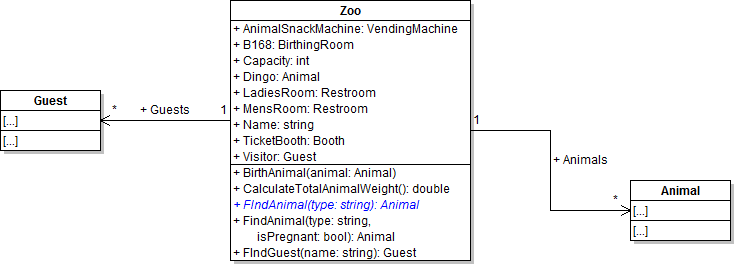
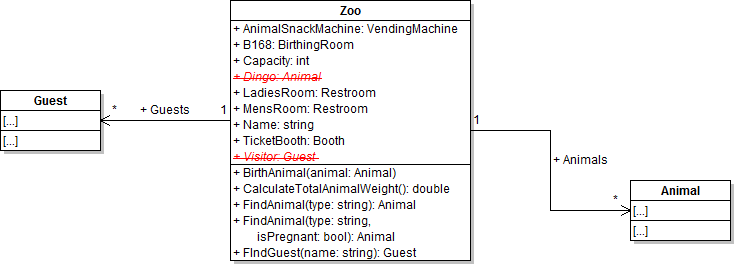
Now that the zoo has lists for holding multiple animals and guests, it no longer needs the Dingo and Visitor fields that were being used to hold a single animal and a single guest, respectively. In this task, you will remove the Dingo and Visitor fields from the Zoo class. You will check your work by ensuring that the solution builds without compiler errors or warnings.
- Remove the Dingo and Visitor fields from the Zoo class, as shown in the class diagram below. If there are any other references to those fields, remove those as well.
- Check your work: Build the solution and ensure that the code compiles without errors or warnings.
- Ensure that all code is StyleCop compliant.
- Browse to the project folder and add it to a newly created zip archive.
- Submit the zipped project folder to the correct assignment in Blackboard.