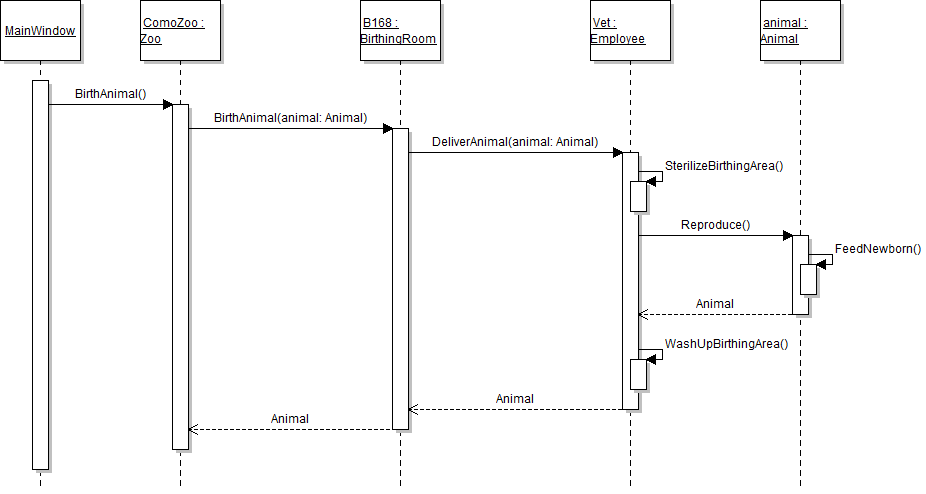
The newborn baby's fields are never set after it is born, and instead they are left at the default values. In this task, you will use logic and mathematic operators to set the baby's field values after it is born. You will check your work by setting a breakpoint, stepping through the code, and ensuring that the baby's fields are set to the correct values.
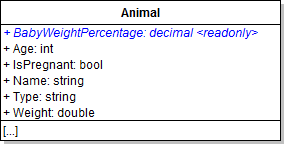
- Define the readonly BabyWeightPercentage field in the Animal class as specified in the class diagram below. Because the field is readonly (meaning that it cannot be changed once the application is running), it must be set where it is defined, as shown in the code below.
- In the animal's Reproduce method after creating the baby animal, set the baby's Type field to the current animal's type (i.e. the mother's type). Also set the baby's Name field to "Baby", as shown in the code below.
- After setting the baby's type and name, set its Weight field to the percentage of its mother's weight that is specified in the BabyWeightPercentage field. The math and logic that will accomplish this task is shown in the code below.
- After setting the baby's weight, reduce the mother's weight by a value equal to 25 percent more than the baby's weight, as shown in the code below. The -= operator subtracts the value on the right side of the operator from the value on the left side of the operator.
- After changing the mother's weight, the mother should no longer be pregnant, so set the mother's IsPregnant field to false, as shown in the code below.
- Check your work:
- Set a breakpoint in the animal's Reproduce method on the line that instantiates the baby variable.
- Start the application.
- Click the New zoo button. Then click the Flora, birth dingo button.
- Press F10 to step over the lines of code that set the baby's fields and reduce the mother's weight. After stepping through the code, the fields should have the following values:
- baby's Type: "Dingo"
- baby's Name: "Baby"
- baby's Weight: 3.53
- mother's Weight: 30.887...
public readonly double BabyWeightPercentage = 10.0;
// Set baby's type to its mother's type
baby.Type = this.Type;

// Set baby's name
baby.Name = "Baby";
Mathematical Operators (coming soon)
// Set baby's weight to the baby weight percentage of its mother's weight
baby.Weight = this.Weight * (this.BabyWeightPercentage / 100);
// Reduce mother's weight by 25 percent more than the value of the baby's weight
this.Weight -= baby.Weight * 1.25;
Tip: The code above is equivalent to the code below. Use whichever version you prefer.
this.Weight = this.Weight - (baby.Weight * 1.25);
// Make mother not pregnant after giving birth
this.IsPregnant = false;
The birthing room needs to check whether the animal it was passed is actually pregnant before it has the vet deliver the animal. In this task, you will use conditional logic, an if block, and a boolean expression to conditionally call the method to have the vet deliver the animal. You will check your work by setting a breakpoint, stepping through the code, and ensuring that the boolean expression is evaluated correctly.
- In the birthing room's BirthAnimal method, check if the passed-in animal is pregnant before having the vet deliver the animal, as shown in the code below.
- Check your work:
- Set a breakpoint in the birthing room's BirthAnimal method on the line that defines and instantiates the baby variable.
- Start the application.
- Click the New zoo button. Then click the Birth dingo button.
- Press F10 to step over the code. The boolean expression of animal.IsPregnant should evaluate to true, and the code inside the if block should run. The baby variable should be instantiated and returned. Ensure that the baby's fields have the following values:
- Name: "Baby"
- Type: "Dingo"
- Weight: 3.53
Defensive Coding (coming soon)
Animal baby = null;

// If the animal is present and is pregnant...
if (animal.IsPregnant)
{
    // Have the vet deliver the animal.
    baby = this.Vet.DeliverAnimal(animal);
}

return baby;
Note: The baby variable must be declared outside of the if block so that it is available to be returned. If the variable were declared inside the if block, it would only be available inside of the if block.
The birthing room needs to check whether the animal it was passed is a null value before it has the vet try to deliver the animal. In this task, you will use conditional logic, an if block, and a boolean expression to conditionally call the method to have the vet deliver the animal. You will check your work by setting a breakpoint, stepping through the code, and ensuring that the boolean expression is evaluated correctly.
- In the birthing room's BirthAnimal method, check if the passed-in animal is not null in addition to checking if it is pregnant before having the vet deliver the animal, as shown in the code below.
- Check your work:
- Set a breakpoint in the birthing room's BirthAnimal method on the line that defines and instantiates the baby variable.
- Start the application.
- Click the New zoo button. Then click the Birth dingo button.
- Press F10 to step over the code. The boolean expression of animal != null should evaluate to true, and the code inside the if block should run. The baby variable should be instantiated and returned.
// If the animal is present and is pregnant...
if (animal != null && animal.IsPregnant)
The temperature of the birthing room increases as a result of the animal's birth. Write code in the birthing room's BirthAnimal method which increases the temperature after the vet delivers the newborn animal. Check your work by verifying that the temperature is above 77 degrees.
- After the call to the DeliverAnimal method, increment the birthing room's Temperature field by half of a degree, as shown in the code below.
- Check your work:
- Set a breakpoint in the birthing room's BirthAnimal method on the line that defines and instantiates the baby variable.
- Start the application.
- Click the New zoo button. Then click the Birth dingo button.
- Press F10 to step over the code. The birthing room's Temperature field be incremented to 77.5 degrees.
// Increase the temperature due to the heat generated from birthing.
this.Temperature += 0.5;
The mother animal should feed her baby after it has been born, and she needs to calculate how much milk to feed her baby. In this task, you will add a parameter to the FeedNewborn method to represent a baby. You will calculate how much milk is required to feed the baby, and then have the baby eat the milk. You will check your work by setting a breakpoint, stepping through the code, and using the Locals window and the call stack to ensure that the values are calculated correctly and the methods are called correctly.
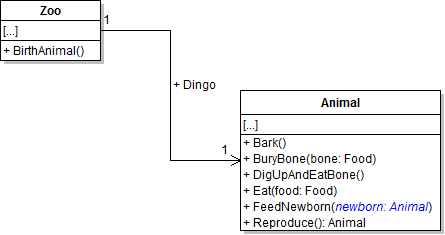
- Add the newborn parameter to the animal's FeedNewborn method, as shown in the class diagram below.
- In the FeedNewborn method, determine the amount of milk the mother should feed the baby, generate the milk (i.e. food), have the newborn eat, and then reduce the mother's weight, as shown in the code below.
- In the animal's Reproduce method, pass the baby object to the call to the FeedNewborn method.
- Ensure that all code is StyleCop compliant.
- Check your work:
- Set a breakpoint in the animal's Reproduce method on the line that calls the FeedNewborn method.
- Start the application.
- Click the New zoo button. Then click the Birth dingo button.
- Press F11 to step into the FeedNewborn method. Ensure that the newborn parameter is the baby object. Step over the milk weight calculation; the value of the milkWeight variable (and therefore the weight of the food variable) should be 0.154....
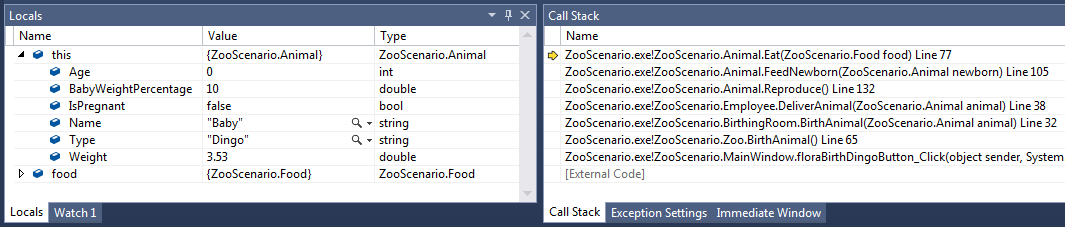
- Before stepping into the newborn's Eat method, note that the current object - "this" - is the mother animal, Dolly. Press F11 to step into the newborn's Eat method. Note that you are still in the Animal.cs file, but the current object - "this" - is now the newborn animal, Baby. Confirm this by examining the Locals window and the call stack, which should look similar to the image below.
- Press F10 to step through the rest of the Eat method and return to the caller. Note that the current object - "this" - is once again the mother animal, Dolly.
public void FeedNewborn(Animal newborn)
{
    // Determine milk weight.
    double milkWeight = this.Weight * 0.005;

    // Generate milk.
    Food milk = new Food();
    milk.Weight = milkWeight;

    // Feed newborn baby.
    newborn.Eat(milk);

    // Reduce the mother's weight.
    this.Weight -= milkWeight;
}
Note: This occurs because "this" refers to the current object, not the current class, and methods are called on objects (instances of a class). So if an object, say the mother animal Dolly, calls a method on another object of the same type (her newborn baby animal, Baby), the methods are defined on the same class but are called on different instances of that class.
The vet wants to keep track of how many animals she has delivered. In this task, you will define a field for holding the number of animals delivered, and you will increment, or increase the value by one, the field each time the vet delivers an animal. You will check your work by setting a breakpoint, stepping through the code, and ensuring that the value of the field increments correctly.
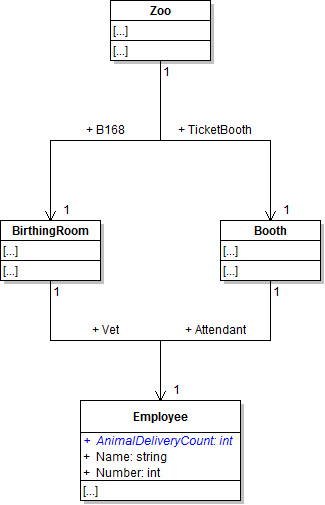
- Define the AnimalDeliveryCount field in the Employee class, as shown in the class diagram below.
- In the employee's DeliverAnimal method after calling the WashUpBirthingArea method, increment the AnimalDeliveryCount field by one, as shown in the code below.
- Ensure that all code is StyleCop compliant.
- Check your work:
- Set a breakpoint in the employee's DeliverAnimal method on the line that increments the delivery count.
- Start the application.
- Click the New zoo button. Then click the Birth dingo button.
- Examine the value of the AnimalDeliveryCount field. It should be 0.
- Press F10 to step over the line that increments the delivery count. Examine the value of the AnimalDeliveryCount field again. It should now be 1.
this.AnimalDeliveryCount++;
Tip: The ++ operator used above adds 1 to the current value of the AnimalDeliveryCount field. It is the equivalent of both lines of code below.
this.AnimalDeliveryCount += 1;
this.AnimalDeliveryCount = this.AnimalDeliveryCount + 1;
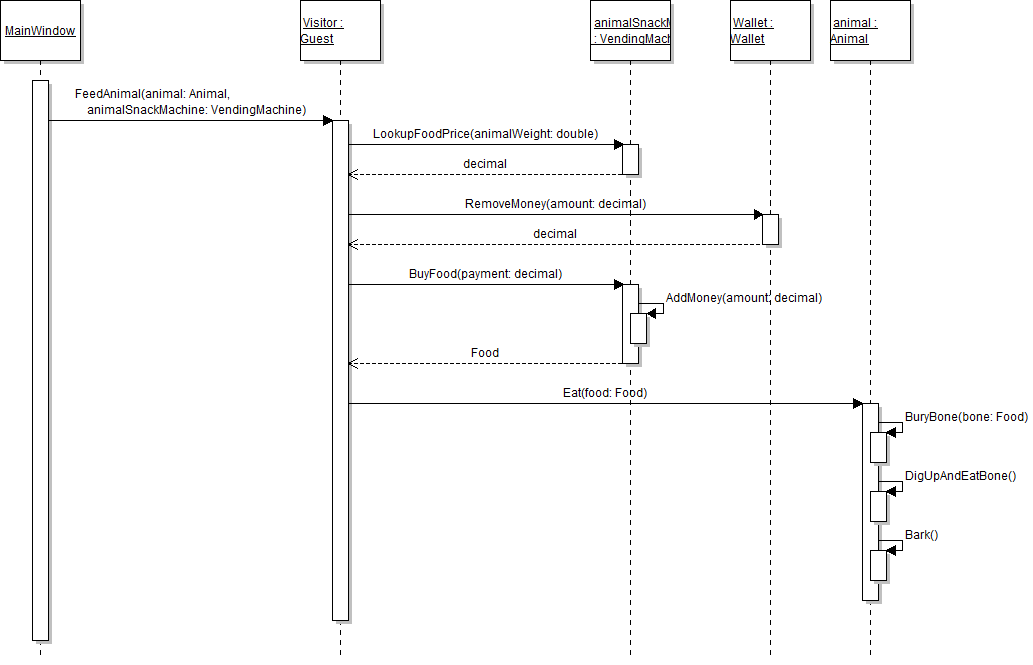
Currently, the vending machine returns a hard-coded value when looking up a food price. Instead, it should calculate the food price based upon the passed-in animal weight and its price per pound. In this task, you will use mathematic operators to calculate the food price. You will also use an existing method in the .NET framework to round the price to two decimal places. You will check your work by setting a breakpoint, stepping through the code, and ensuring that the food price is calculated and rounded correctly.
- In the vending machine's DetermineFoodPrice method, first determine the weight of the food by taking two percent of the passed-in animal weight. Then return the value of multiplying the food weight by the vending machine's food price per pound, as shown in the code below.
- Check your work:
- Set a breakpoint in the vending machine's DetermineFoodPrice method on the line that determines the food weight.
- Start the application.
- Click the New zoo button. Then click the Darla, feed dingo button.
- Press F10 to step over the line of code that determines the food weight. The value of the foodWeight variable should be 0.706.
- Press F10 to step over the line of code that determines the food price. The value of the foodPrice variable should be 0.5295.
- The food price determined by the DetermineFoodPrice method doesn't look like a normal price because there are too many decimals. Round the value of the food price to two decimals by using the Math.Round method, as shown in the code below.
- Check your work:
- Set a breakpoint in the vending machine's DetermineFoodPrice method on the line that determines the food weight.
- Start the application.
- Click the New zoo button. Then click the Darla, feed dingo button.
- Press F10 to step over the lines of code that determine the food weight and food price. The values should still be 0.706 and 0.5295, respectively.
- Press F10 to step over the line of code that rounds the price to two decimal places. The value of the foodPrice variable should be 0.53.
// Determine food weight as 2 percent of the animal weight
double foodWeight = animalWeight * 0.02;

// Determine food price by multiplying food weight by price per pound
decimal foodPrice = (decimal)foodWeight * this.FoodPricePerPound;

// Return price
return foodPrice;
Note: Variables of type double and type decimal cannot be multiplied together, so the foodWeight variable must be cast to type decimal, as shown in the return line of the code above. That code gets the double value of the foodWeight variable, turns it into a decimal value and then multiplies the decimal value by the food price per pound.
// Round the price to two decimal places
foodPrice = Math.Round(foodPrice, 2);
Currently, the wallet always returns the amount that was requested to remove from its money balance. It doesn't check that it has enough money to remove, and it never actually removes the requested amount from its money balance. In this task, you will use conditional logic to determine how much money can actually be removed from the wallet. You will also use mathematic operators to subtract the amount from the money balance. You will check your work by setting a breakpoint, stepping through the code, and ensuring that the boolean expression is evaluated correctly and that the amount removed is subtracted from the money balance correctly.
- In the wallet's RemoveMoney method, add logic to check if there is enough money to remove the requested amount. If there is not, remove all the money that is left. Then subtract the amount removed from the money balance, as shown in the code below.
- Check your work:
- Set a breakpoint in the guest's FeedAnimal method on the line that calls the wallet's RemoveMoney method.
- Start the application.
- Click the New zoo button. Then click the Darla, feed dingo button.
- Note that the price variable is 0.53. Press F11 to step into the RemoveMoney method. Note that the value of the amount parameter is 0.53 and the value of the MoneyBalance field is 5.25, which means that the wallet has enough money to remove all of the requested amount.
- Press F10 to step through the method. Because the wallet has enough money, you should step through the if block and the amountRemoved variable should be set to 0.53 (the requested amount). The amountRemoved should be subtracted from the money balance, which should become 4.72.
- Check your work:
- In newZooButton_Click in MainWindow.xaml.cs, change the visitor's wallet's money balance to be 0.45m.
- Set a breakpoint in the wallet's RemoveMoney method on the line that defines the amountRemoved variable.
- Start the application.
- Click the New zoo button. Then click the Darla, feed dingo button.
- Note that the wallet's money balance is 0.45 and the requested amount is 0.53, which means that the wallet does not have enough money to remove the entire requested amount. Press F10 to step over the if/else block. The boolean expression evaluates to false (because 0.45 is not greater than or equal to 0.53) and so the code in the else block runs and the amountRemoved is set to the money balance instead of the requested amount.
- Stop the application. Change the visitor's wallet's money balance back to 5.25m.
decimal amountRemoved;

// If there is enough money in the wallet
if (this.MoneyBalance >= amount)
{
    // Return the requested amount
    amountRemoved = amount;
}
else
{
    // Otherwise return all the money that is left
    amountRemoved = this.MoneyBalance;
}

// Subtract the amount removed from the wallet's money balance
this.MoneyBalance -= amountRemoved;

// Return amount removed
return amountRemoved;Like the wallet, the vending machine never actually adds to its money balance when it is given money. In this task, you will use mathematic operators to add the specified amount of money to the vending machine's money balance. You will check your work by setting a breakpoint, stepping through the code, and ensuring that the amount is added to the money balance correctly.
- In the vending machine's AddMoney method, add the passed-in amount to the machine's MoneyBalance field, as shown in the code below.
- Check your work:
- Set a breakpoint in the vending machine's AddMoney method on the line that adds the amount to the money balance.
- Start the application.
- Click the New zoo button. Then click the Darla, feed dingo button.
- Note that the amount is 0.53 and the money balance is 42.75. Press F10 to step over the code that adds the amount to the money balance. The money balance should now be 43.28.
// Add amount to the money balance
this.MoneyBalance += amount;
When a guest purchases animal food, the food's weight is set to a hard-coded value instead of being calculated correctly. In this task, you will use mathematic operators to calculate how much the purchased piece of food weighs. You will check your work by setting a breakpoint, stepping through the code, and ensuring that the food's Weight field is calculated and set correctly.
- In the vending machine's BuyFood method, calculate the food's weight instead of using a hard-coded value. Determine the weight by dividing the payment by the machine's price per pound, as shown in the code below.
- Check your work:
- Set a breakpoint in the vending machine's BuyFood method on the line that sets the food's Weight field.
- Start the application.
- Click the New zoo button. Then click the Darla, feed dingo button.
- Press F10 to step over the line of code that sets the food's Weight field. The weight should be 0.706....
- Check your work:
- In newZooButton_Click in MainWindow.xaml.cs, change the visitor's wallet's money balance to be 0.45m.
- Set a breakpoint in the vending machine's BuyFood method on the line that sets the food's Weight field.
- Start the application.
- Click the New zoo button. Then click the Darla, feed dingo button.
- Press F10 to step over the line of code that sets the food's Weight field. The weight should be 0.6 instead of 0.706.... This is because the guest had less money than before (0.45 instead of 0.53) to purchase food, so they only get the amount of food that they can afford.
- Stop the application. Change the visitor's wallet's money balance back to 5.25m.
// Determine food weight using the price per pound.
food.Weight = (double)(payment / this.FoodPricePerPound);
Currently, when an animal eats, it always buries its bone, digs up and eats its bone, and then barks. But only dingoes exhibit those behaviors - what if a platypus needs to eat? It can't bark. In this task, you will use a boolean expression to conditionally call the eating methods that pertain to dingoes. You will also use mathematic operators to change the animal's weight based upon the food's weight. You will check your work by setting a breakpoint, stepping through the code, and ensuring that the boolean expression is evaluated correctly and that the animal gains weight correctly.
- In the animal's Eat method, check that the animal's type is "Dingo" before calling the BuryBone, DigUpAndEatBone, and Bark methods, as shown in the code below. Only dingoes have that behavior, so those method calls should not occur if the animal is not a dingo.
- At the end of the animal's Eat method, increase the animal's weight by the value of the food's weight, as shown in the code below.
- Check your work:
- Set a breakpoint in the animal's Eat method on the line that checks if the animal is a dingo.
- Start the application.
- Click the New zoo button. Then click the Darla, feed dingo button.
- Note that the animal's type is "Dingo", so the code inside the if block - the method calls - should run. Press F10 to step over the method calls.
- Note that the animal's weight is 35.3 and the food's weight is 0.706.... Press F10 to step over the line of code that increases the animal's weight. The animal's weight should now be 36.006....
// If the animal is a dingo
if (this.Type == "Dingo")
{
    this.BuryBone(food);

    this.DigUpAndEatBone();

    this.Bark();
}// Increase animal's weight as a result of eating food this.Weight += food.Weight;
- Ensure that all code is StyleCop compliant.
- Browse to the project folder and add it to a newly created zip archive.
- Submit the zipped project folder to the correct assignment in Blackboard.