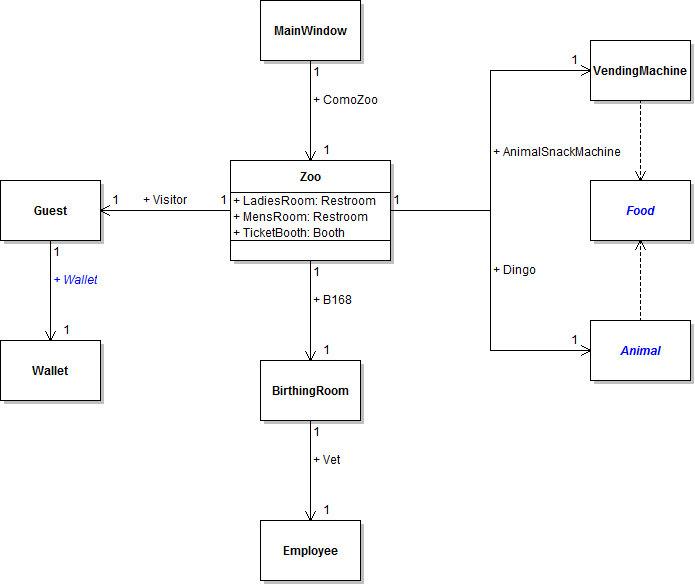
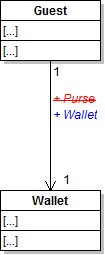
Fields can be named the same as the name of its type - in other words, a guest can have a field named Wallet of type Wallet. Wallet is a better, more generic name for the guest's money holder than Purse. In this task, you will rename the guest's Purse field so that it is named Wallet instead. You will check your work by ensuring that the solution builds without compiler errors or warnings.
- Rename the guest's Purse field to be named Wallet, as specified in the class diagram below.
- Check your work: Build the solution and ensure that the code compiles without errors or warnings.
Tip: The easiest way to rename a field is to put your cursor over the field name and press Ctrl + R, R. The field name and all of its references will be highlighted in green. Change the name of the field to your desired name and press Enter. The field and all references to it should change. If you had simply changed the name of the field, it would have caused compiler errors because the references to the field would have remained Purse instead of changing to Wallet.
Note: If you are using a version of Visual Studio earlier than 2015, press F2 to rename a field instead of Ctrl + R, R.
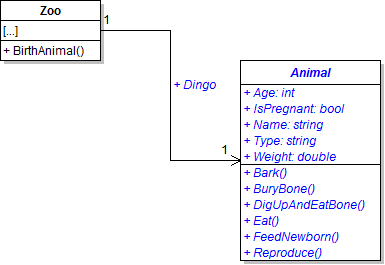
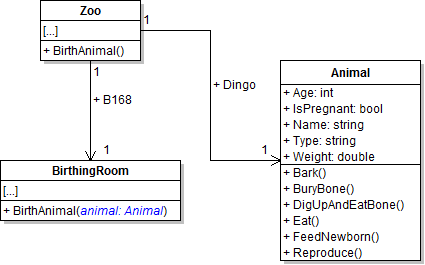
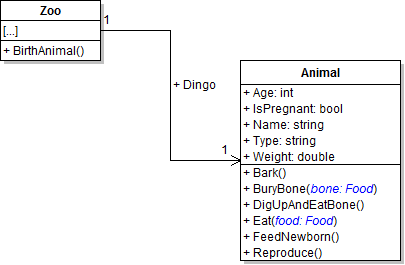
The Como Zoo needs some animals for its visitor to view and feed and its vet to birth. In this task, you will create and define a class to represent an animal. You will check your work by ensuring that the solution builds without compiler errors or warnings.
- Create the Animal class in the Business Classes folder and define it as specified in the class diagram below.
- Add the Dingo field to the Zoo class as specified in the class diagram above.
- Ensure that all code is StyleCop compliant.
- Check your work: Build the solution and ensure that the code compiles without errors or warnings.
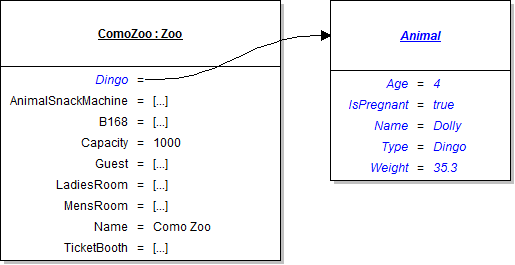
Now that the Como Zoo has a field for storing a dingo, that dingo can be created along with the zoo's other objects. In this task, you will instantiate a the zoo's Dingo field and set the values of its fields. You will check your work by setting a breakpoint, stepping over the lines of code that set the dingo's field values, and ensuring that the correct values are set.
- In newZooButton_Click in MainWindow.xaml.cs, instantiate the zoo's Dingo field to a new instance of the Animal class. Do this after setting the zoo's Capacity field.
- Underneath the code that sets the vet's fields, write the following code comment:
- Underneath the code comment, set or instantiate the Age, IsPregnant, Name, Type and Weight fields as specified in the object diagram below.
- Check your work:
- Set a breakpoint in the newZooButton_Click on the line of code that sets the Age field of the Dingo field.
- Start the application.
- Click the New zoo button.
- Press F10 to step over the lines of code that set the field values of the Dingo field. Use the Locals window to ensure that the fields are set to the correct values.
// Set field values of the dingo.
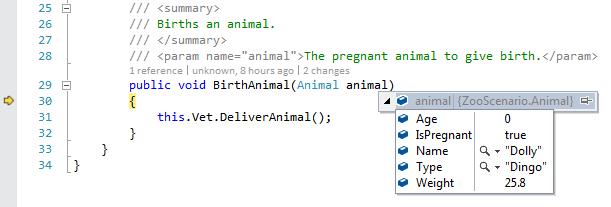
The birthing room needs an animal in order to birth it, but it currently has no access to any animal objects. This can be solved by adding an animal parameter. In this task, you will add an animal parameter to the birthing room's BirthAnimal method and pass an animal object in when the method is called. You will check your work by setting a breakpoint, stepping into the BirthAnimal method, and examining the animal parameter to ensure it is the correct object.
Passing Parameters to Methods (14:34)
- Add an animal parameter to the birthing room's BirthAnimal method, as shown in the code and class diagram below.
- Build the solution. The build should fail because the birthing room's method now requires a parameter to be passed whenever it is called. The method is being called from the zoo's BirthAnimal method but no parameter is being passed, which causes a build error.
- In the zoo's BirthAnimal method, pass the zoo's dingo as the parameter in the call to the birthing room's BirthAnimal method, as shown in the code and sequence diagram below.
- Ensure that all code is StyleCop compliant.
- Check your work:
- Set a breakpoint in the zoo's BirthAnimal method on the line that calls the birthing room's BirthAnimal method.
- Start the application.
- Click the New zoo button. Then click the Birth dingo button.
- Press F11 to step into B168's BirthAnimal method. Once there, view the field values of the animal parameter by hovering the cursor over it or using the Locals window. Note that the object stored in the animal parameter is the same object that is stored in the zoo's Dingo field. This is because it is the same object, and the birthing room's BirthAnimal method now has access to the object for further use.
/// <summary>
/// Births an animal.
/// </summary>
/// <param name="animal">The animal that is to give birth.</param>
public void BirthAnimal(Animal animal)
{

}
this.B168.BirthAnimal(this.Dingo);
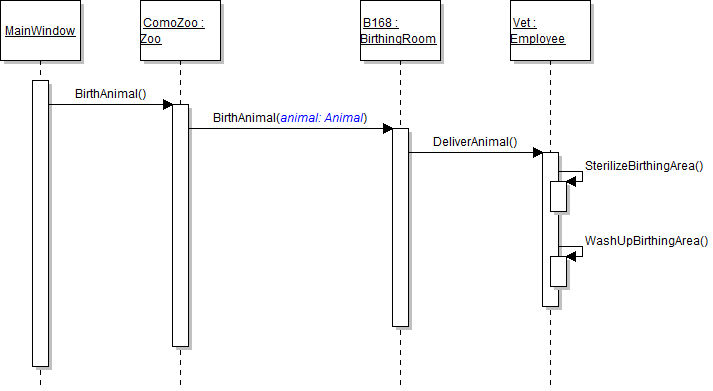
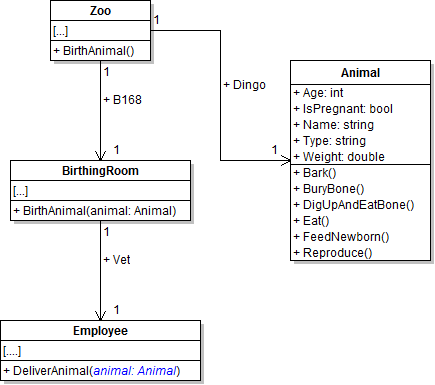
In the same way that the birthing room needed access to an animal, so does the employee in order to deliver it. In this task, you will add an animal parameter to the employee's DeliverAnimal method to give it access to an animal to deliver. You will check your work by setting a breakpoint, stepping into the DeliverAnimal method, and examining the animal parameter to ensure it is the correct object.
- Add an animal parameter to the employee's DeliverAnimal method, as shown in the class diagram below.
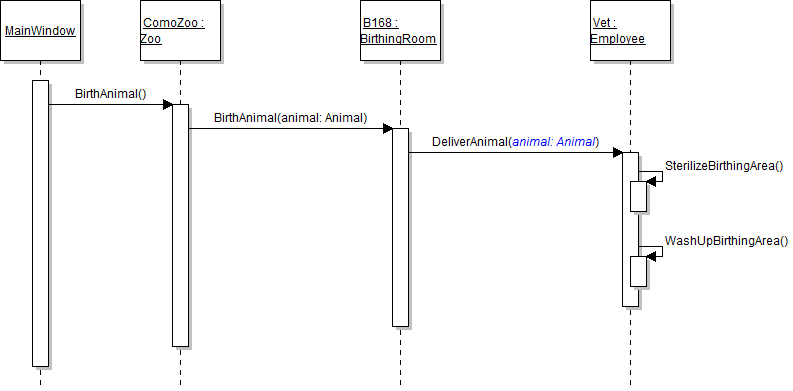
- In the birthing room's BirthAnimal method, pass the animal parameter as the parameter in the call to the employee's DeliverAnimal method, as shown in the code and sequence diagram below.
- Ensure that all code is StyleCop compliant.
- Check your work:
- Set a breakpoint in the birthing room's BirthAnimal method on the line that calls the vet's DeliverAnimal method.
- Start the application.
- Click the New zoo button. Click the Birth dingo button.
- Press F11 to step into the DeliverAnimal method. Examine the animal parameter to ensure that it is the same object as the zoo's dingo and the animal parameter in the birthing room's BirthAnimal method.
public void BirthAnimal(Animal animal)
{
    this.Vet.DeliverAnimal(animal);
}
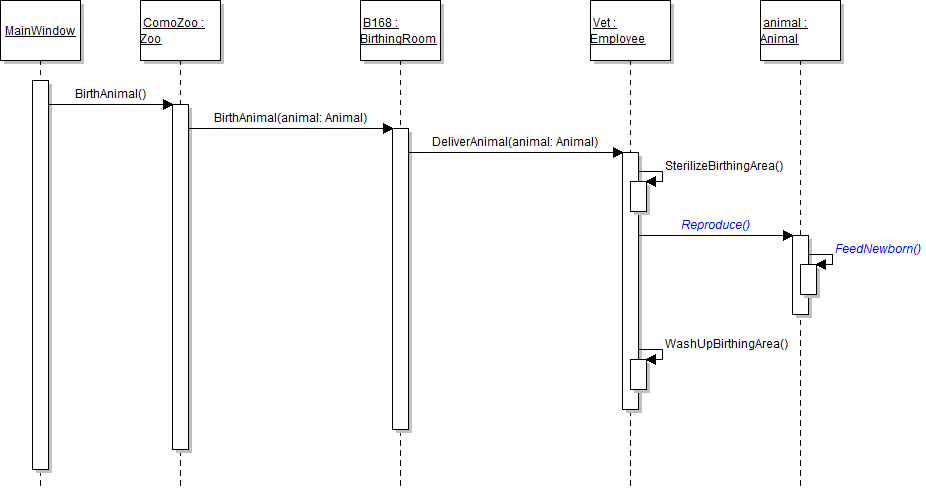
Now that the employee has access to an animal to deliver, the employee can have the animal reproduce and feed its newborn. In this task, you will use the animal parameter to call the animal's Reproduce method, which will in turn call the FeedNewborn method. You will check your work by setting a breakpoint, stepping into the Reproduce method, and examining the current object to ensure it is Dolly the dingo - the same object stored in the zoo's Dingo field.
- In the employee's DeliverAnimal method, use the animal parameter to call the Reproduce method, as shown in the code and sequence diagram below.
- In the animal's Reproduce method, call the FeedNewborn method as specified in the sequence diagram above. Note that the FeedNewborn method is called on the current object, so it should be called using the "this." notation.
- Check your work:
- Set a breakpoint in the employee's DeliverAnimal method on the line that calls the animal's Reproduce method.
- Start the application.
- Click the New zoo button. Then click the Birth dingo button.
- Press F11 to step into the animal's Reproduce method. Use the Locals window to examine the current object - it should be Dolly the dingo, which is the object stored in the zoo's Dingo field and passed as a parameter to the BirthAnimal and DeliverAnimal methods.
- Press F11 to step into the FeedNewborn method. You should stay in the Animal.cs file and in the same Dolly the dingo object.
/// <summary>
/// Aids the specified animal in delivering its baby.
/// </summary>
/// <param name="animal">The animal that is to give birth.</param>
public void DeliverAnimal(Animal animal)
{
    // Sterilize birthing area.
    this.SterilizeBirthingArea();

    // Give birth.
    animal.Reproduce();

    // Wash up birthing area.
    this.WashUpBirthingArea();
}
In the same way that the birthing room and employee needed access to an animal in order to birth it, the guest needs access to both an animal and a vending machine in order to feed an animal. In this task, you will add parameters to the guest's FeedAnimal method and pass parameters into the method call. You will check your work by setting a breakpoint, stepping into the FeedAnimal method, and examining the animal parameter and animalSnackMachine parameters to ensure they are the correct objects.
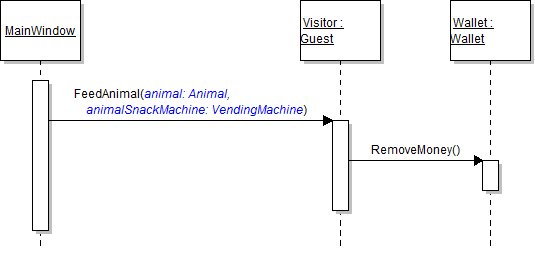
- Add animal and animalSnackMachine parameters to the guest's FeedAnimal method, as shown in the code and class diagram below.
- In the darlaFeedDingoButton_Click in MainWindow.xaml.cs, pass the ComoZoo's Dingo field and AnimalSnackMachine field into the call to the FeedAnimal method, as shown in the code and sequence diagram below.
- Ensure that all code is StyleCop compliant.
- Check your work:
- Set a breakpoint in the darlaFeedDingoButton_Click on the line that calls the guest's FeedAnimal method.
- Start the application.
- Click the New zoo button. Then click the Darla, feed dingo button.
- Press F11 to step into the FeedAnimal method. Once there, examine the animal parameter. It should be Dolly the dingo. Then examine the animalSnackMachine parameter. It should be the ComoZoo's AnimalSnackMachine field and its fields should have the same values as the AnimalSnackMachine field.
public void FeedAnimal(Animal animal, VendingMachine animalSnackMachine)
{

}
this.ComoZoo.Visitor.FeedAnimal(this.ComoZoo.Dingo, this.ComoZoo.AnimalSnackMachine);
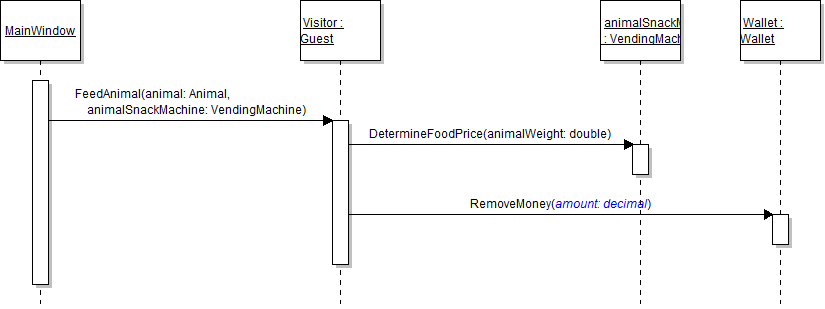
In order for a guest to feed an animal, they need to look up the price of food for the animal. The price is based on the animal's weight, which will be passed as a parameter to the method looking up the food price. In this task, you will define methods for purchasing food and call the method to look up the food price. You will check your work by setting a breakpoint, stepping into the DetermineFoodPrice method, and ensuring that the value of the animalWeight parameter is correct.
- Define the AddMoney, BuyFood, and DetermineFoodPrice methods in the VendingMachine class as specified in the class diagram below.
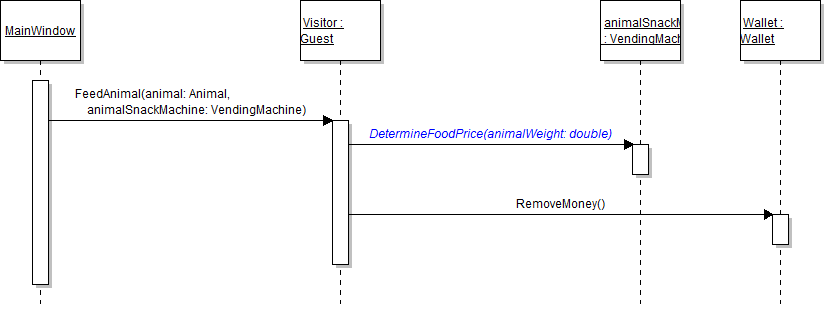
- In the guest's FeedAnimal method, call the animalSnackMachine's DetermineFoodPrice method before calling the Wallet's RemoveMoney method, as shown in the code and sequence diagram below. Pass in the value of the animal's Weight field.
- Ensure that all code is StyleCop compliant.
- Check your work:
- Set a breakpoint in the guest's FeedAnimal method on the line that calls the animalSnackMachine's DetermineFoodPrice method.
- Start the application.
- Click the New zoo button. Then click the Darla, feed dingo button.
- Examine the value of the animal parameter's Weight field. It should be 25.8. This is the value that is being passed into the DetermineFoodPrice method.
- Press F11 to step into the animalSnackMachine's DetermineFoodPrice method. You are now inside the animalSnackMachine object, which is the same object stored in the ComoZoo's AnimalSnackMachine field. Examine the animalWeight parameter to ensure that its value is 25.8 - the same value as Dolly the dingo's weight, which is what was passed in to this method.

public void FeedAnimal(Animal animal, VendingMachine animalSnackMachine)
{
    // Find food price.
    animalSnackMachine.DetermineFoodPrice(animal.Weight);

    // Get money from wallet.
    this.Wallet.RemoveMoney(1.0m);
}
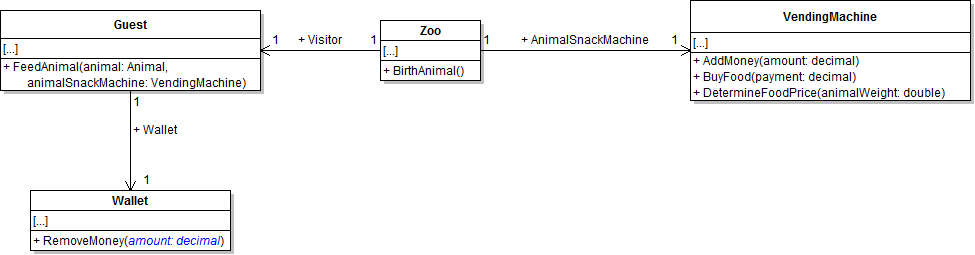
Before it can remove any money from its money balance, the wallet needs to know how much it should remove. In this task, you will add a parameter to the wallet's RemoveMoney method to represent the amount that it should remove from its balance. You will then pass in a value when calling the method. You will check your work by setting a breakpoint, stepping into the RemoveMoney method, and ensuring that the value of the parameter is correct.
- Add a decimal parameter to the wallet's RemoveMoney method, as shown in the class diagram below.
- In the guest's FeedAnimal method, pass the value 1m as the parameter in the call to the wallet's RemoveMoney method, as shown in the code and sequence diagram below.
- Ensure that all code is StyleCop compliant.
- Check your work:
- Set a breakpoint in the guest's FeedAnimal method on the line that calls the wallet's RemoveMoney method.
- Start the application.
- Click the New zoo button. Then click the Darla, feed dingo button.
- Press F11 to step into the wallet's RemoveMoney method. Once there, ensure that the current object is the Visitor field's wallet by checking that the color is "Salmon" and the money balance is 5.25. Examine the amount parameter. Its value should be 1, which is the value passed in to the method when it was called from the FeedAnimal method.
this.Wallet.RemoveMoney(1m);
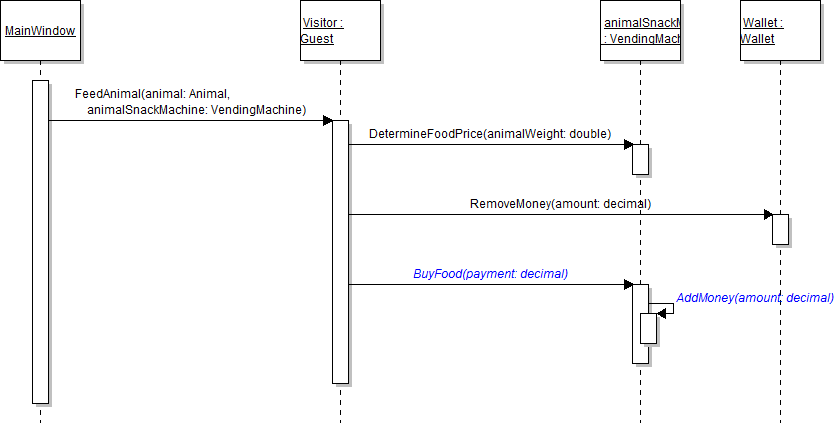
The next step in the guest's process of feeding animals is buying food from the vending machine. In this task, you will call the vending machine's BuyFood and AddMoney methods to simulate the guest purchasing animal food from the vending machine. You will check your work by setting a breakpoint, stepping into the BuyFood and AddMoney methods, and ensuring that the value of the parameters are correct.
- In the guest's FeedAnimal method, call the animalSnackMachine's BuyFood method, as shown in the sequence diagram below. Pass in the value 1m for the payment parameter.
- In the vending machine's BuyFood method, call the AddMoney method, as shown in the sequence diagram above. Pass the BuyFood method's payment parameter to the call to the AddMoney method, as shown in the code below.
- Check your work:
- Set a breakpoint in the guest's FeedAnimal method on the line that calls the animalSnackMachine's BuyFood method.
- Start the application.
- Click the New zoo button. Then click the Darla, feed dingo button.
- Press F11 to step into the animalSnackMachine's BuyFood method. Ensure that the value of the payment parameter is 1 (the value passed in to the method when it was called from the FeedAnimal method).
- Press F11 to step into the AddMoney method. Ensure that the value of the amount parameter is 1 (the value passed in to the method when it was called from the BuyFood method).
public void BuyFood(decimal payment)
{
    // Add money to the vending machine.
    this.AddMoney(payment);
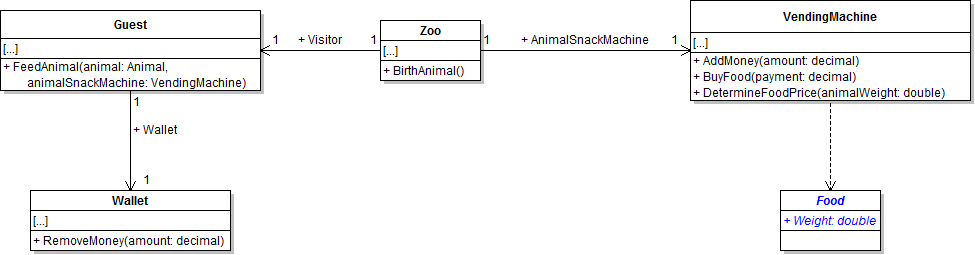
}The application needs a class to represent food before an animal can eat anything. In this task, you will define a class to represent a piece of food and use that type to define parameters in the animal's eating methods. You will check your work by ensuring that the solution builds without compiler errors or warnings.
- Create the Food class in the Business Classes folder and define it as specified in the class diagram below.
- Add a bone parameter to the animal's BuryBone method and a food parameter to the animal's Eat method as shown in the class diagram below.
- Ensure that all code is StyleCop compliant.
- Check your work: Build the solution and ensure that the code compiles without errors or warnings.
Note: The dashed line represents an association between the VendingMachine and Food classes - the VendingMachine class uses the Food class but does not have a direct reference to the class through a field.
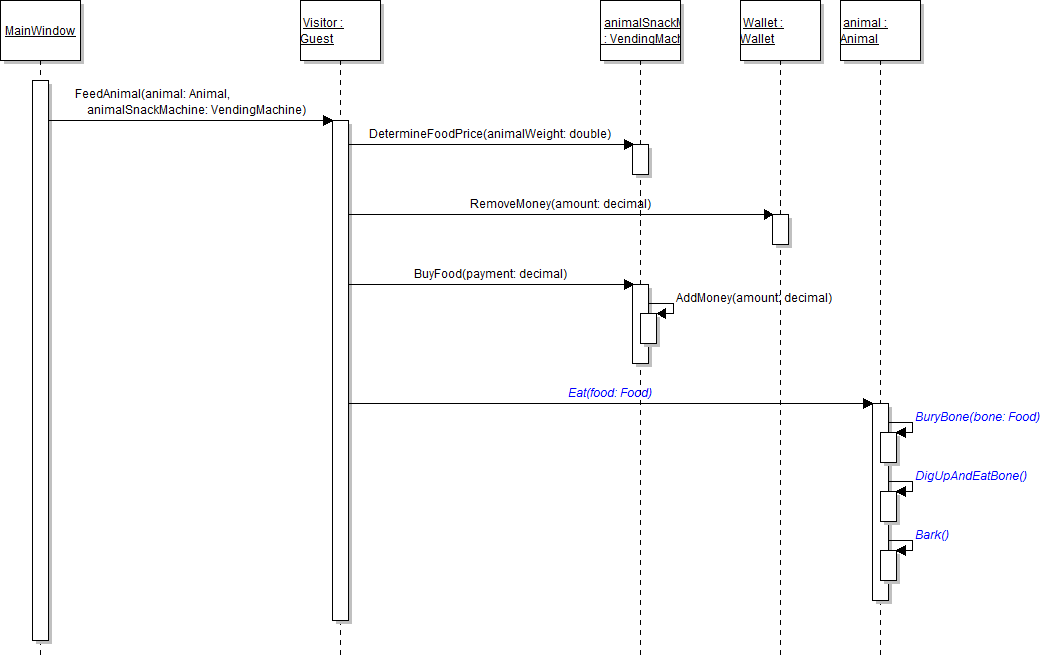
The final step in having a guest feed an animal is having the animal actually eat the food that the guest purchased for them. In this task, you will call the animal's eating methods. You will check your work by setting a breakpoint, stepping into each method, and ensuring that the parameters are the correct objects and each method is called correctly.
- In the guest's FeedAnimal method after calling the BuyFood method, define a food variable and instantiate it to a new instance of the Food class, as shown in the code below.
- In the guest's FeedAnimal method, call the animal's Eat method as shown in the sequence diagram below. Pass in the food variable.
- In the animal's Eat method, call the BuryBone, DigUpAndEatBone, and Bark methods as shown in the sequence diagram above. Pass the food parameter through to the BuryBone method.
- Check your work:
- Set a breakpoint in the guest's FeedAnimal method on the line that calls the animal's Eat method.
- Start the application.
- Click the New zoo button. Then click the Darla, feed dingo button.
- Ensure that the food variable is instantiated. Its BestIfEatenBy field should be null, and its Weight field should be 0.0.
- Press F11 to step into the animal's Eat method. Once there, examine the food parameter to ensure that it is instantiated and its field values are the same as the food object passed in to the method when it was called from the FeedAnimal method.
- Press F11 to step into the animal's BuryBone method. Once there, examine the bone parameter to ensure that it is instantiated and its field values are the same as the food object passed in to the method when it was called from the Eat method.
- Press F11 to step into and through the DigUpAndEatBone and Bark methods to ensure that they are called correctly.
// Create food (temporary).
Food food = new Food();
- Ensure that all code is StyleCop compliant.
- Browse to the project folder and add it to a newly created zip archive.
- Submit the zipped project folder to the correct assignment in Blackboard.