- Make a copy of your OOP 1 Zoo 1.2 folder and .sln file and rename the copied version to OOP 1 Zoo 2.1.
- Open the newly created OOP1Zoo2.1 project in Visual Studio to complete this assignment.
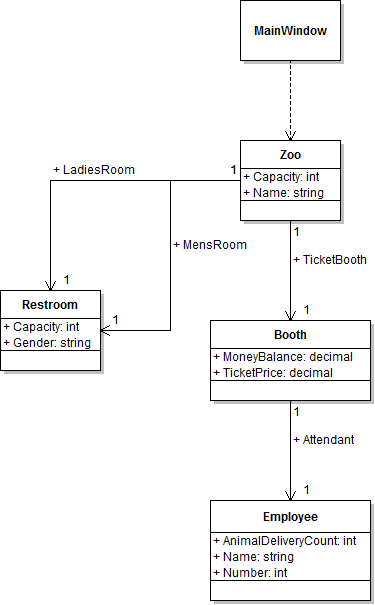
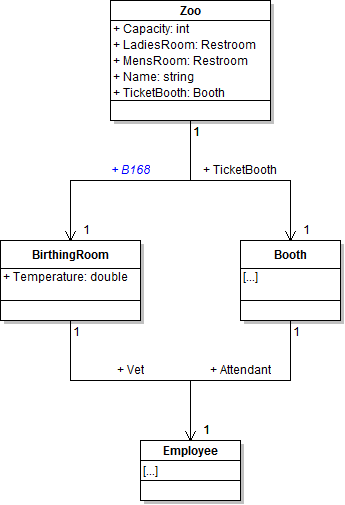
- The class diagram below represents the current structure of the ZooScenario solution.
Note: Make of copy of your code at the beginning of each week and rename the folder and .sln file to the appropriate week number. Doing so will help you maintain a record of your work and keep a working copy of your code in case you need to revert your changes.
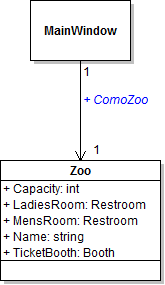
Instantiating a local zoo variable in the newZooButton_Click means that the zoo is only available inside that method rather than being available throughout the MainWindow class. In this task, you will replace the local comoZoo variable with a ComoZoo field in the MainWindow and set the field's values instead of setting the local variable's values. You will check your work by setting a breakpoint, stepping through the code, and ensuring that the MainWindow's ComoZoo field is being instantiated instead of the local variable.
Variables, Fields, and Scope, Revisited (20:22)
- Define a field called ComoZoo of type Zoo in MainWindow.xaml.cs as specified in the class diagram and code below.
- In the newZooButton_Click, instantiate the ComoZoo field instead of instantiating a local variable, as shown in the code below:
- Change the rest of the code in the newZooButton_Click to refer to the ComoZoo field instead of the comoZoo local variable.
- Run StyleCop and make all code StyleCop compliant.
- Check your work:
- Set a breakpoint on the opening curly brace of the newZooButton_Click.
- Start the application.
- Click the New zoo button.
- Open the Watch 1 window and type this.ComoZoo into the top row under the Name column. Expand the triangle next to this.ComoZoo. Notice that the ComoZoo field is null.
- Press F10 to step over the line of code that instantiates the ComoZoo field. In the Watch 1window, the ComoZoo field should change from null to a zoo object, represented as {ZooScenario.Zoo}.
- Press F10 to step through the rest of the code in the newZooButton_Click. Ensure that all of the fields are set to the correct values.
- Stop the application and remove the breakpoint.
/// <summary>
/// Minnesota's Como Zoo.
/// </summary>
public Zoo ComoZoo;
Note: The documentation above the field definition makes that code StyleCop compliant. You can auto-generate the three-line <summary> documentation by placing the cursor on the line above the field and typing a forward slash three times.
// Create an instance of the Zoo class.
this.ComoZoo = new Zoo();
Tip: The Watch window is a useful way to specify which objects you observe while debugging.
Note: You should stop the application and remove all breakpoints after you have completed testing each step. Future testing instructions will not include a step for stopping the application and removing the breakpoint.
In this task, you will create and define a class to represent a birthing room. You will check your work by ensuring that the code builds without compiler errors or warnings.
Classes, Abstractions of Objects (8:34)
- Create a new class to represent a birthing room.
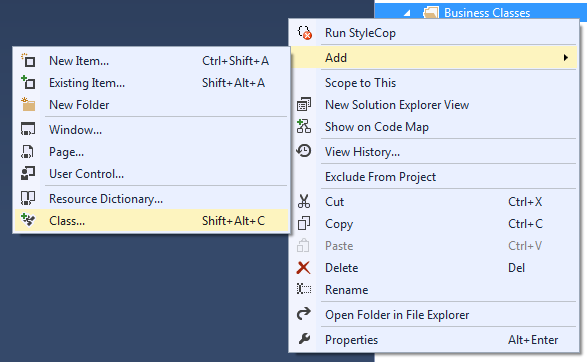
- Create a new class in the Business Classes folder by right-clicking on the folder, hovering over the Add menu, and clicking on Class.
- Name the new class BirthingRoom and click Add.
- Remove the .Business_Classes designation from the class's namespace near the top of the file. The namespace should be only the following:
- Make the class public by adding the public keyword before the class definition, as shown in the code below:
- Add the following line of code immediately above the class definition:
- Add documentation for the class by placing the cursor on the line immediately above the suppression message and typing a forward slash three times. Include a description of the class inside the <summary> documentation, as shown in the code below.
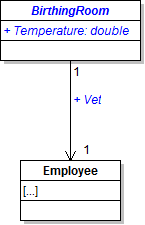
- Define the Temperature and Vet fields of the BirthingRoom class as specified in the class diagram and code below. The comment above the field definition makes that code StyleCop compliant.
- Run StyleCop and make all code StyleCop compliant.
- Check your work: Build the solution and ensure that the code compiles without errors or warnings.
namespace ZooScenario
public class BirthingRoom
[System.Diagnostics.CodeAnalysis.SuppressMessage("Microsoft.StyleCop.CSharp.MaintainabilityRules", "SA1401:FieldsMustBePrivate", Justification = "Encapsulation not yet taught.")]/// <summary> /// The class which is used to represent a birthing room. /// </summary>
The resulting class definition should look similar to the image below.

Defining Fields in C# Classes (12:44)
Class Diagrams and Corresponding Code (6:05)
Choosing Variable and Field Types (13:17)
/// <summary>
/// The current temperature of the birthing room.
/// </summary>
public double Temperature;

/// <summary>
/// The employee currently assigned to be the vet of the birthing room.
/// </summary>
public Employee Vet;
Now that the BirthingRoom class exists, the zoo needs a field for its birthing room called B168. In this task, you will define a field of type BirthingRoom on the Zoo class. You will check your work by ensuring that the code builds without compiler errors or warnings.
- Add the B168 field to the Zoo class as specified in the class diagram below.
- Run StyleCop and make all code StyleCop compliant.
- Check your work: Build the solution and ensure that the code compiles without errors or warnings.
/// <summary>
/// The zoo's room for birthing animals.
/// </summary>
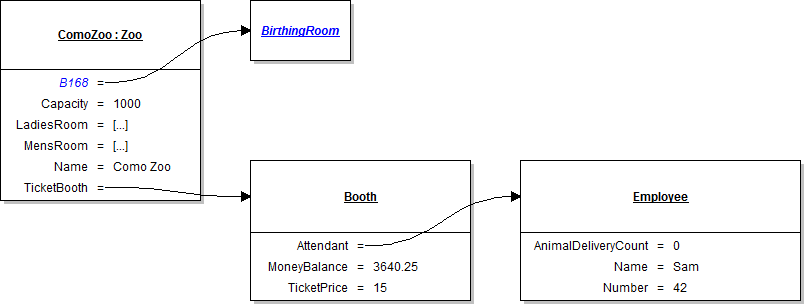
The zoo's B168 field needs to be instantiated. In this task, you will create a new instance of the BirthingRoom class and set the B168 field to that object. You will check your work by setting a breakpoint, stepping through the code, and ensuring that the B168 field is instantiated.
- In the newZooButton_Click in MainWindow.xaml.cs, instantiate the ComoZoo's B168 field to a new instance of the BirthingRoom class. Write a line of code to do this immediately above the line of code that sets the zoo's Capacity field.
- Run StyleCop and make all code StyleCop compliant.
- Check your work:
- Set a breakpoint in the newZooButton_Click on the line of code that instantiates the birthing room.
- Start the application.
- Click the New zoo button.
- Press F10 to step over the line of code that instantiates the B168 field. In the Locals window, B168 should go from null to a new BirthingRoom object, represented as {ZooScenario.BirthingRoom}.
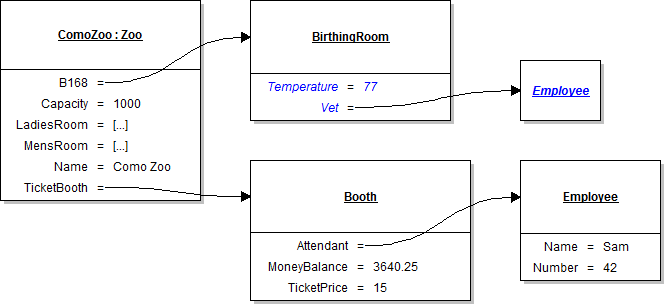
The B168 birthing room has a Temperature and Vet field which both need to be set. In this task, you will set the value of the birthing room's Temperature and Vet fields. You will check your work by setting a breakpoint, stepping through the code, and ensuring that the temperature is set to the correct value.
- Underneath the code that sets the comoZoo's fields, write the following code comment:
- Underneath the code comment, set the Temperature field of B168 as specified in the object diagram below.
- Underneath the previous line of code which sets the Temperature, set the Vet field of B168 as specified in the object diagram below.
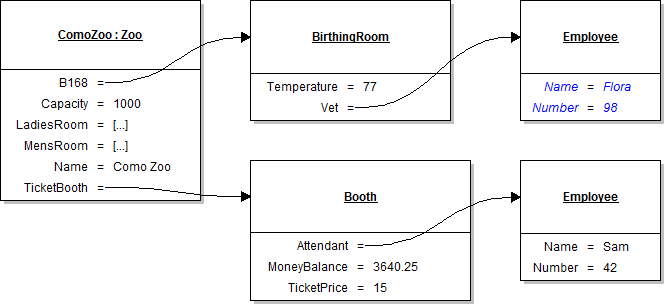
- Set the vet's fields.
- Underneath the code that sets B168's fields, write the following code comment:
- Underneath the code comment, set the Name and Number fields of the Vet field as specified in the object diagram below.
- Check your work:
- Set a breakpoint in the newZooButton_Click on the line of code that sets the birthing room's temperature.
- Start the application.
- Click the New zoo button.
- Press F10 to step over the line of code that sets the birthing room's temperature. In the Locals window, B168's Temperature should go from 0.0 to 77.0.
// Set field values of room B168.
// Set field values of the vet.
In this task, you will create and define a class to represent a vending machine. You will check your work by ensuring that the code builds without compiler errors or warnings.
- Create and define the VendingMachine class inside the Business Classes folder, as specified in the class diagram below.
- Make the class public, strip .Business_Classes from the namespace, and add the following line of code immediately above the class definition:
- Run StyleCop and make all code StyleCop compliant.
- Check your work: Build the solution and ensure that the code compiles without errors or warnings.
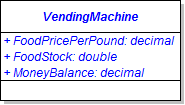
/// <summary>
/// The price of food (per pound).
/// </summary>

/// <summary>
/// The amount of food currently in stock (in pounds).
/// </summary>

/// <summary>
/// The amount of money currently in the vending machine.
/// </summary>
[System.Diagnostics.CodeAnalysis.SuppressMessage("Microsoft.StyleCop.CSharp.MaintainabilityRules", "SA1401:FieldsMustBePrivate", Justification = "Encapsulation not yet taught.")]Note: You will need to complete these tasks for every new class that you define. These tasks will not be called out in future assignments.
Now that the VendingMachine class exists, the zoo needs a field for its snack vending machine called AnimalSnackMachine. In this task, you will define a field of type VendingMachine on the Zoo class. You will check your work by ensuring that the code builds without compiler errors or warnings.
- Add the AnimalSnackMachine field to the Zoo class as specified in the class diagram below.
- Run StyleCop and make all code StyleCop compliant.
- Check your work: Build the solution and ensure that the code compiles without errors or warnings.
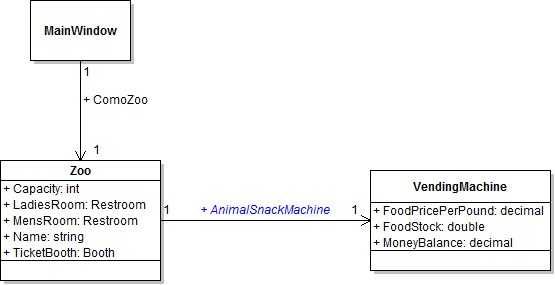
/// <summary>
/// The zoo's vending machine which allows guests to buy snacks for animals.
/// </summary>
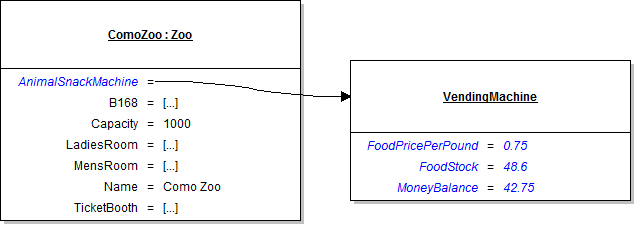
The zoo's AnimalSnackMachine field needs to be instantiated and its fields need to be set. In this task, you will create a new instance of the VendingMachine class, set the AnimalSnackMachine field to that object, and set the values of all the machine's fields. You will check your work by setting a breakpoint, stepping through the code, and ensuring that the AnimalSnackMachine field is instantiated and that its fields are set to the correct values.
- In the newZooButton_Click in MainWindow.xaml.cs, instantiate the ComoZoo's AnimalSnackMachine field to a new instance of the VendingMachine class. Put this line of code immediately above the line of code that instantiates the zoo's B168 field.
- Set the animal snack machine's fields.
- Underneath the code that sets the comoZoo's fields, write the following code comment:
- Underneath the code comment, set the fields of the animal snack machine to the values specified in the object diagram below.
- Check your work:
- Set a breakpoint in the newZooButton_Click on the line of code that instantiates the zoo's AnimalSnackMachine field.
- Start the application.
- Click the New zoo button.
- Press F10 to step over the line of code that instantiates the AnimalSnackMachine field. In the Locals window, AnimalSnackMachine should go from null to a new VendingMachine object, represented as {ZooScenario.VendingMachine}.
- Press F10 to step over the lines of code that set the fields of the animal snack machine. Use the Locals window to ensure that the fields are set to the correct values.
// Set field values of the animal snack machine.
- Ensure that your code matches the structure of this class diagram.
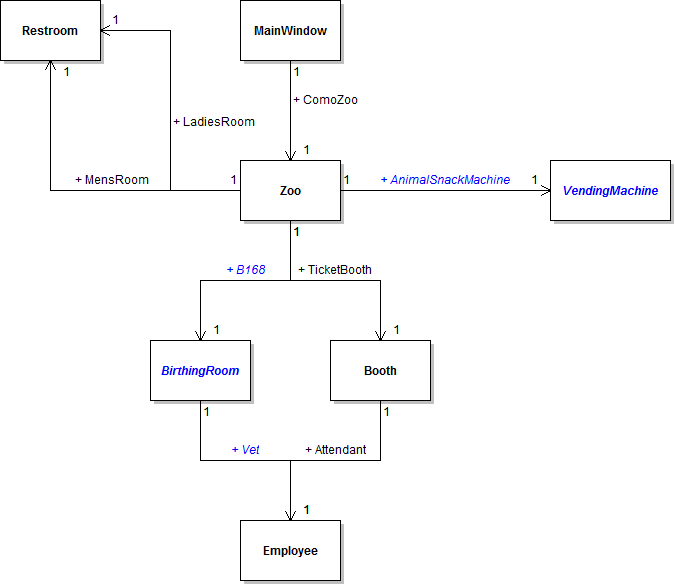
- Ensure that all code is StyleCop compliant.
- Browse to the project folder and add it to a newly created zip archive.
- Submit the zipped project folder to the correct assignment in Blackboard.