Create a class diagram that represents the existing 1.2 Zoo source code, which should look very similar to the class diagram below.
Class Diagrams vs. Object Diagrams (9:40)
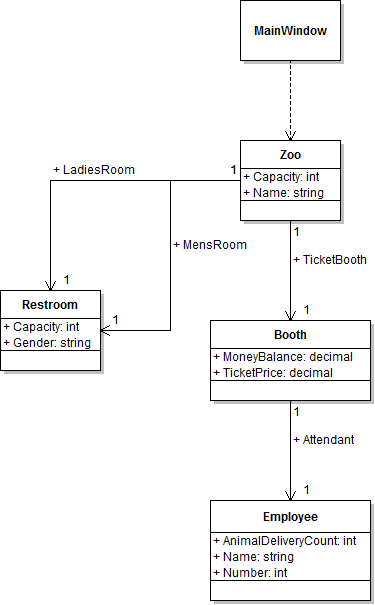
Using the diagram from the previous step, make the changes listed below.
- Add a BirthingRoom class with a field named Temperature of type double and Vet of type Employee.
- Create a field in the Zoo class named B168 of type BirthingRoom.
- Add a VendingMachine class with a field named FoodStock of type double and field named MoneyBalance of type decimal.
- Create a field in the Zoo class named AnimalSnackMachine of type VendingMachine.
- "Fold in" the LadiesRoom and MensRoom fields of the Zoo class and remove the Restroom class from the diagram.
- Remove the dependency reference from the MainWindow class to the Zoo class, and replace it with a 1-to-1 association reference named ComoZoo.
- Save the diagram by clicking File | Save in Violet.
- Export the diagram by clicking File | Export to | Image file in Violet and exporting a .png file.
- Submit the diagram by uploading the .png file to Blackboard.
Tip: Ensure that Violet adds a .class.violet extension to the file when saving.