The link above will take you to a sign-up page for the Slack team. Use your NTC student email address to sign up, if you have not already been invited.
Note: After signing up, complete the registration process by logging in to your NTC student email and clicking the link provided in the Slack invitation email.
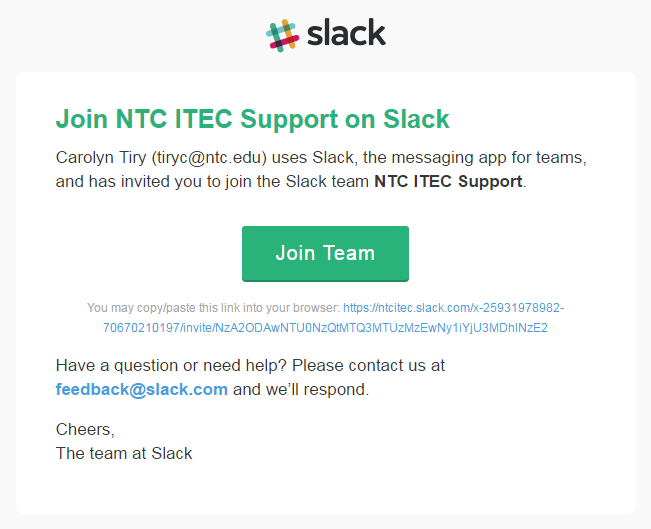
If the Slack team administrator has already invited you, you will receive an invitation email from Slack, as shown in the image below. Use the link in that email to join the team and set up your username and password.
Note: Your instructor or the team administrator will do this for you, as you cannot add yourself to the channel. If you are not added to the channel within 24 hours of joining the team, contact your instructor or the team administrator for assistance.
- name
- program
- semester
- a little extra about yourself (career goals, hobbies, accomplishments, etc.)
- Take a screenshot of your post in the OOP 1 channel and save the image.
- Upload your screenshot to the appropriate Blackboard assignment.
Tip: To take a screenshot, press the Print Screen button on your computer. Alternatively, you can use the Snipping Tool application, which allows you to take a snippet of part of your screen.