- Make a copy of your OOP 1 Restaurant 1.2 folder and .sln file and rename the copied version to OOP 1 Restaurant 2.1.
- Open the newly created OOP 1 Restaurant 2.1 project in Visual Studio to complete this assignment.
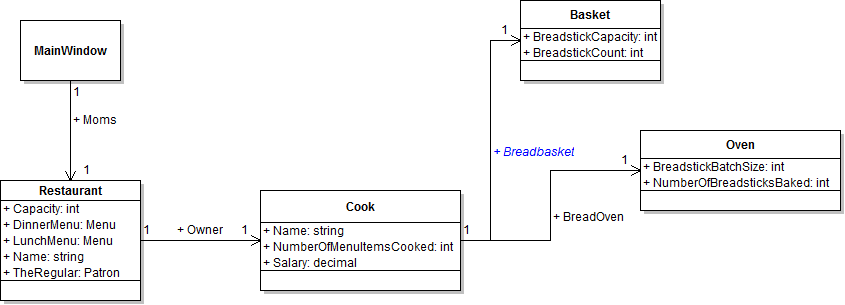
- The class diagram below represents the current structure of the RestaurantScenario solution.
Note: Make of copy of your code at the beginning of each week and rename the folder and .sln file to the appropriate week number. Doing so will help you maintain a record of your work and keep a working copy of your code in case you need to revert your changes.
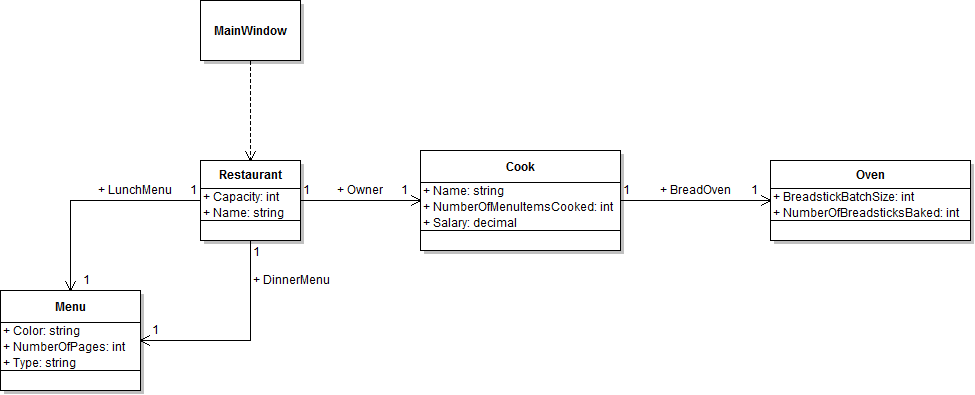
Instantiating a local moms variable in the newRestaurantButton_Click means that the restaurant object is only available inside the method. In this task, you will replace the local moms variable with a Moms field in the MainWindow and set the field's values instead of setting the local variable's values. You will check your work by setting a breakpoint, stepping through the code, and ensuring that the Moms field is instantiated correctly.
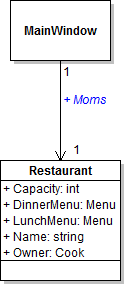
- Define a field called Moms of type Restaurant in MainWindow.xaml.cs, as shown in the class diagram below. Put the field above the button click event handler.
- In the newRestaurantButton_Click, instantiate the Moms field instead of instantiating the local variable. Delete the local variable.
- Change the rest of the code in the newRestaurantButton_Click to refer to the Moms field instead of the local variable.
- Ensure that all code is StyleCop compliant.
- Check your work:
- Set a breakpoint at the opening curly brace of the newRestaurantButton_Click.
- Start the application.
- Click the New restaurant button.
- Press F10 to step over the line of code that instantiates the Moms field. Ensure that the field is instantiated correctly.
- Press F10 to step through the rest of the code in the newRestaurantButton_Click. Ensure that all fields are set or instantiated correctly (i.e. as they were before making the change to the Moms field).
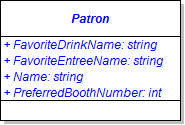
In this task, you will create and define a class to represent a patron. You will check your work by ensuring that the code builds without compiler errors or warnings.
- Create a new class named Patron in the Business Classes folder.
- Remove the .Business_Classes from the namespace, make the class public, and add the StyleCop suppression message immediately above the class definition.
- Define the fields of the Patron class as shown in the class diagram below.
- Ensure that all code is StyleCop compliant.
- Check your work: Build the solution and ensure that the code compiles without errors or warnings.
Tip: For a refresher on how to complete this step, refer to step 3A in the 2.1 Zoo Lab.
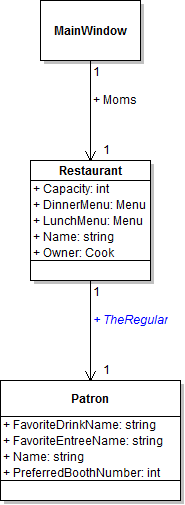
Now that the Patron class exists, the restaurant needs a field for one of its regulars. In this task, you will define a field of type Patron on the Restaurant class. You will check your work by ensuring that the code builds without compiler errors or warnings.
- Add the TheRegular field to the Restaurant class, as shown in the class diagram below.
- Ensure that all code is StyleCop compliant.
- Check your work: Build the solution and ensure that the code compiles without errors or warnings.
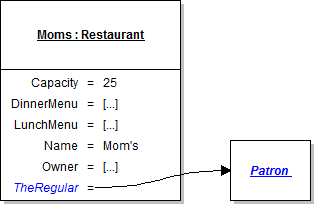
The restaurant's TheRegular field needs to be instantiated. In this task, you will create a new instance of the Patron class and set the TheRegular field to that object. You will check your work by setting a breakpoint, stepping through the code, and ensuring that the TheRegular field is instantiated.
- In the newRestaurantButton_Click in MainWindow.xaml.cs, instantiate Moms' TheRegular field to a new instance of the Patron class, as shown in the object diagram below. Put this line of code immediately after the line of code that sets the restaurant's Owner field.
- Check your work:
- Set a breakpoint in the newRestaurantButton_Click on the line of code that instantiates the TheRegular field.
- Start the application.
- Click the New restaurant button.
- Press F10 to step over the line of code that instantiates the TheRegular field. Ensure that the field is instantiated correctly.
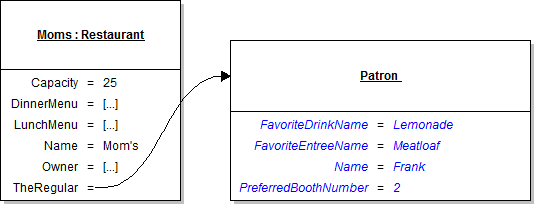
The patron has a few fields that need to be set. In this task, you will set the value of the patron's fields. You will check your work by setting a breakpoint, stepping through the code, and ensuring that the fields are set to the correct values.
- At the end of the newRestaurantButton_Click, write the following code comment:
- Underneath the code comment, set the field values of TheRegular as specified in the object diagram below.
- Check your work:
- Set a breakpoint in the newRestaurantButton_Click on the line that sets the regular's first field.
- Start the application.
- Click the New restaurant button.
- Press F10 to step over the lines of code that set the regular's field values. Ensure that each field is set to the correct value.
// Set field values of the regular.
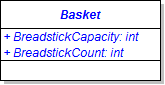
In this task, you will create and define a class to represent a basket. You will check your work by ensuring that the code builds without compiler errors or warnings.
- Create and define the Basket class inside the Business Classes folder, as shown in the class diagram below.
- Ensure that all code is StyleCop compliant.
- Check your work: Build the solution and ensure that the code compiles without errors or warnings.
Now that the Basket class exists, the cook needs a field for its breadbasket. In this task, you will define a field of type Basket on the Cook class. You will check your work by ensuring that the code builds without compiler errors or warnings.
- Add the Breadbasket field to the Cook class as shown in the class diagram below.
- Ensure that all code is StyleCop compliant.
- Check your work: Build the solution and ensure that the code compiles without errors or warnings.
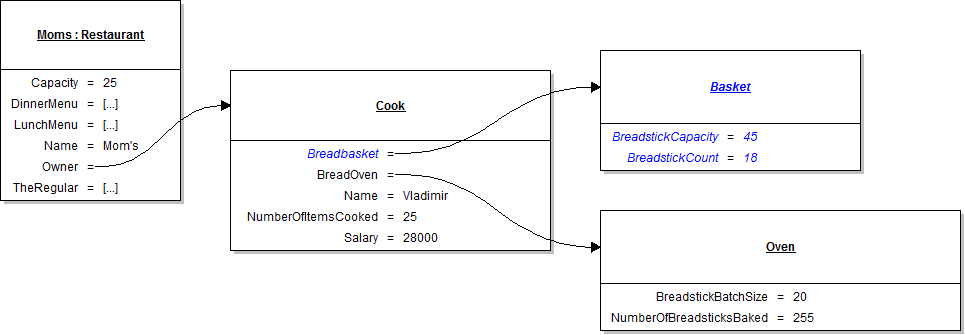
The owner's Breadbasket field needs to be instantiated and its fields need to be set. In this task, you will create a new instance of the Basket class, set the Breadbasket field to that object, and set the values of the basket's fields. You will check your work by setting a breakpoint, stepping through the code, and ensuring that the Breadbasket field is instantiated and that its fields are set to the correct values.
- In the newRestaurantButton_Click in MainWindow.xaml.cs, instantiate the owner's Breadbasket field to a new instance of the Basket class. Put this line of code immediately above the line that instantiates the owner's BreadOven field.
- Set the breadbasket's fields.
- Underneath the code that sets the owner's fields, write the following code comment:
- Underneath the code comment, set the fields of the bread basket to the values specified in the object diagram below.
- Check your work:
- Set a breakpoint in the newRestaurantButton_Click on the line that instantiates the owner's Breadbasket field.
- Start the application.
- Click the New restaurant button.
- Press F10 to step over the lines of code that instantiate the Breadbasket field and set its field values. Ensure that the Breadbasket is instantiated correctly and that its field values are set correctly.
// Set field values of the bread basket.
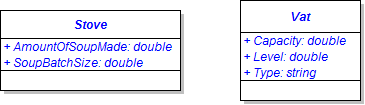
In this task, you will create and define classes to represent a gas stove and a soup vat. You will check your work by ensuring that the code builds without compiler errors or warnings.
- Create and define classes called Stove and Vat in the Business Classes folder, as shown in the class diagram below.
- Ensure that all code is StyleCop compliant.
- Check your work: Build the solution and ensure that the code compiles without errors or warnings.
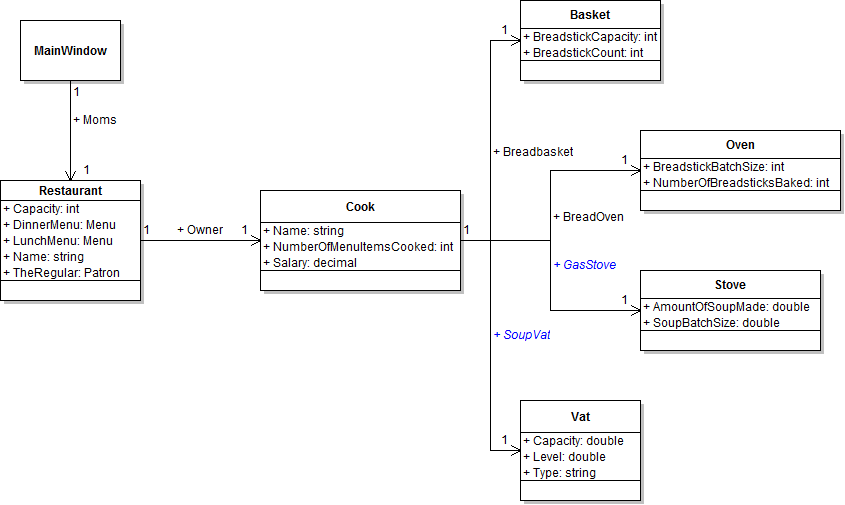
The cook needs a field for his gas stove and a field for his soup vat. In this task, you will define a field of type Stove and a field of type Vat on the Cook class. You will check your work by ensuring that the code builds without compiler errors or warnings.
- Add the GasStove and SoupVat fields to the Cook class, as shown in the class diagram below.
- Ensure that all code is StyleCop compliant.
- Check your work: Build the solution and ensure that the code compiles without errors or warnings.
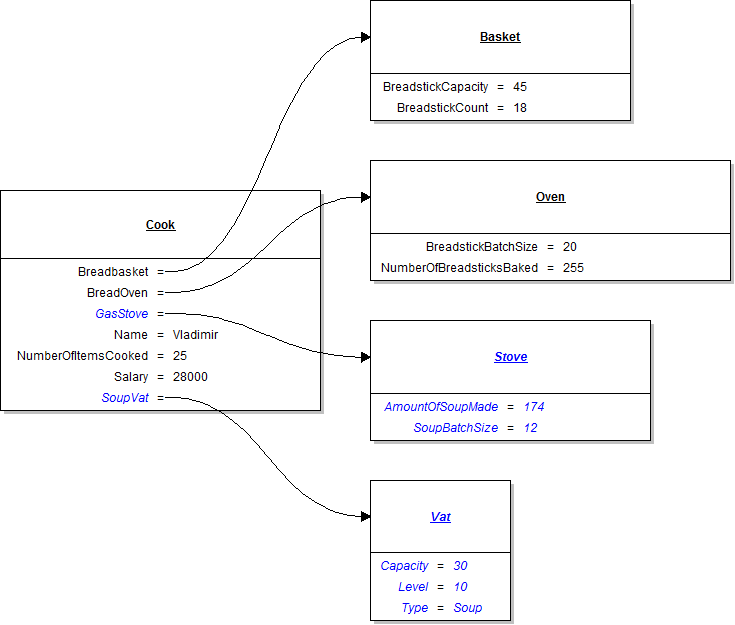
The GasStove and SoupVat fields need to be instantiated and their fields need to be set. In this task, you will instantiate both fields and set all of their field values. You will check your work by setting a breakpoint, stepping through the code, and ensuring that the fields are instantiated or set correctly.
- Instantiate and assign fields values of the gas stove.
- In the newRestaurantButton_Click in MainWindow.xaml.cs, instantiate the owner's GasStove field to a new instance of the Stove class. Put this line of code immediately below the line that instantiates the owner's BreadOven field.
- Underneath the code that sets the bread oven's fields, write the following code comment:
- Underneath the code comment, set the fields of the gas stove to the values specified in the object diagram below.
- Instantiate and assign fields values of the soup vat.
- In the newRestaurantButton_Click in MainWindow.xaml.cs, instantiate the owner's SoupVat field to a new instance of the Vat class. Put this line of code immediately below the line that sets the owner's salary.
- Underneath the code that sets the gas stove's fields, write the following code comment:
- Underneath the code comment, set the fields of the soup vat to the values specified in the object diagram above.
- Check your work:
- Set a breakpoint in the newRestaurantButton_Click on the line that instantiates the owner's GasStove field.
- Start the application.
- Click the New restaurant button.
- Press F10 to step over the lines of code that instantiate the GasStove and SoupVat fields. Ensure that each field is instantiated correctly.
- Press F10 to step over the lines of code that set the field values of the gas stove and soup vat. Ensure that each field value is set correctly.
// Set field values of the gas stove.
// Set field values of the soup vat.
- Build the application and ensure that it has no compiler errors or warnings.
- Ensure that all code is StyleCop compliant.
- Browse to the project folder and add it to a newly created compressed, or zipped, archive.
- Submit the compressed, or zipped, project folder to the correct assignment in Blackboard.