In this task, you will remove all of the instantiation code from the button click. You will check your work by ensuring that the solution builds without compiler errors or warnings.
- Remove all of the code from the newGradeBookButton_Click. The body of the method should be empty.
- Check your work: Build the solution and ensure that the code compiles without errors or warnings.
In this task, you will make the MainWindow's Blackboard field private. You will check your work by ensuring that the solution builds without compiler errors or warnings.
- Make the MainWindow's Blackboard field private and rename it so that its first letter is lowercase. Ensure that all references to the field are now lowercase.
- Check your work: Build the solution and ensure that the code compiles without errors or warnings.
The GradeBook, Student, and Calendar classes all need constructors. In this task, you will make some fields private, define constructors for each of the three classes, and instantiate blackboard, its current student, and its calendar. You will check your work by setting a breakpoint, stepping into the constructors, and ensuring all objects are instantiated correctly.
- Make fields private and rename them so that the first letter is lowercase in the GradeBook, Student, and Calendar classes, as shown in the class diagram below.
- Add constructors.
- Define the constructors for the GradeBook, Student, and Calendar classes, as shown in the class diagram above.
- In each constructor, initialize all fields.
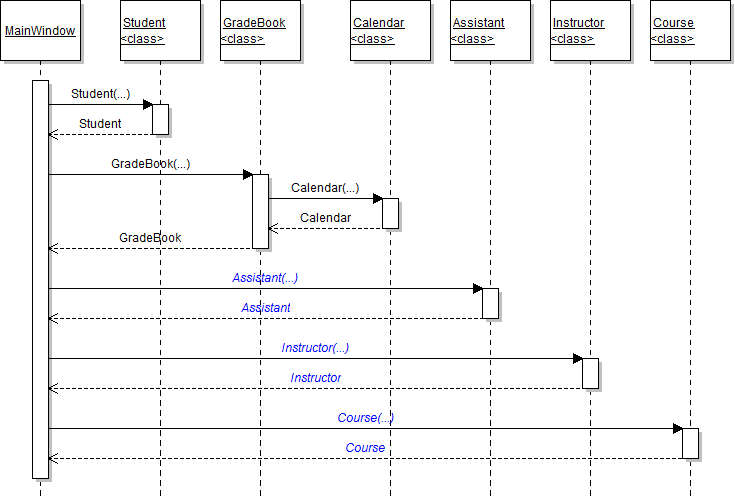
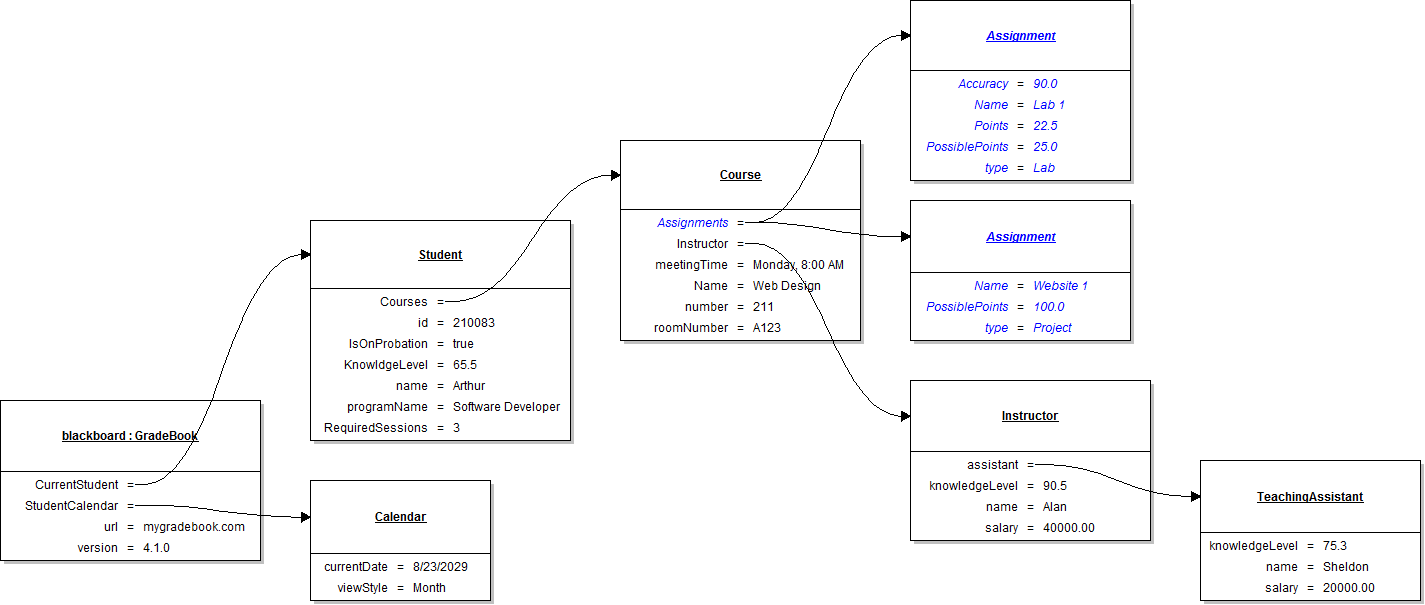
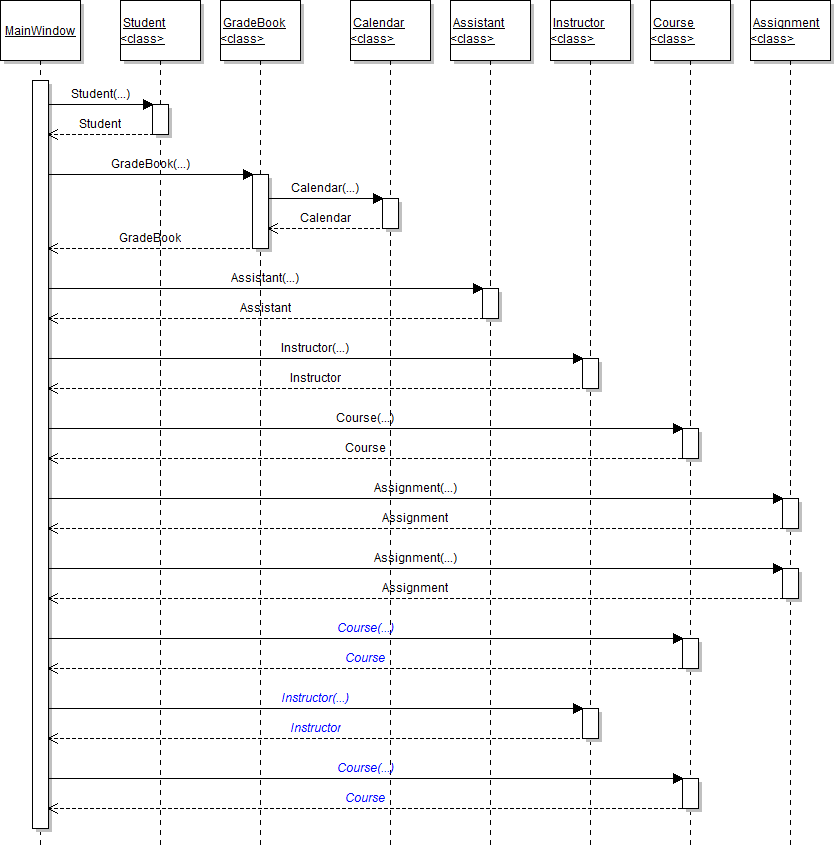
- In the newGradeBookButton_Click, instantiate the blackboard field, the student, and the calendar as shown in the object and sequence diagram below.
- Check your work:
- Set a breakpoint in the newGradeBookButton_Click on the line that instantiates the student.
- Start the application. Click the New grade book button.
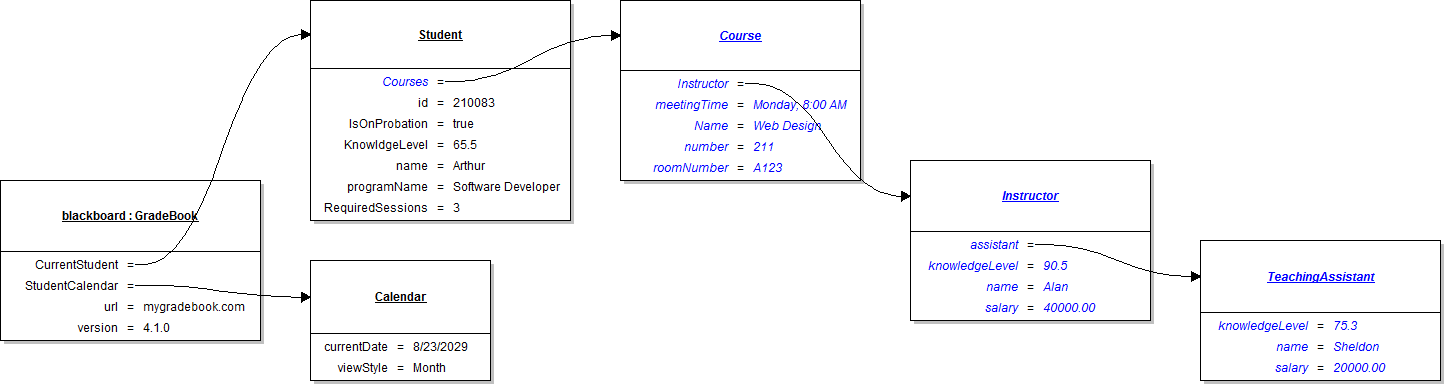
- Press F11 to step into the Student constructor and over the code that sets each field. Ensure the student's field values match those specified in the object diagram above.
- Press F10 to return to the caller. Press F11 to step into the grade book constructor and over the code that sets the fields. Ensure the grade book's and calendar's field values match those specified in the object diagram above.
- Press F10 to return to the caller and step over the line that instantiates the blackboard field. Ensure the field is instantiated and all of its field values are set correctly.
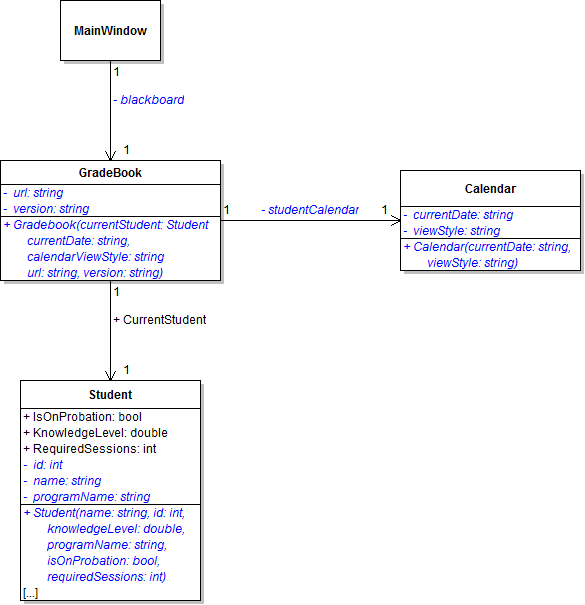
Tip: Match field and parameter names to determine which fields to set to which parameters. If a field is a nested object and does not have a matching parameter, it must be instantiated.
Tip: Use the sequence diagram below as a reference when determining how to instantiate nested objects. There should be no hard-coded values (strings, numbers, etc.) in any constructor.
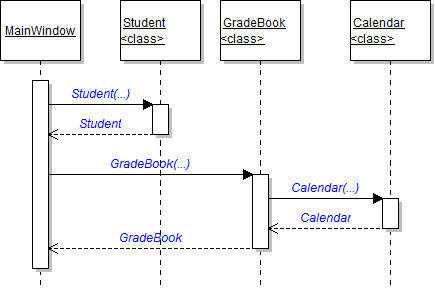
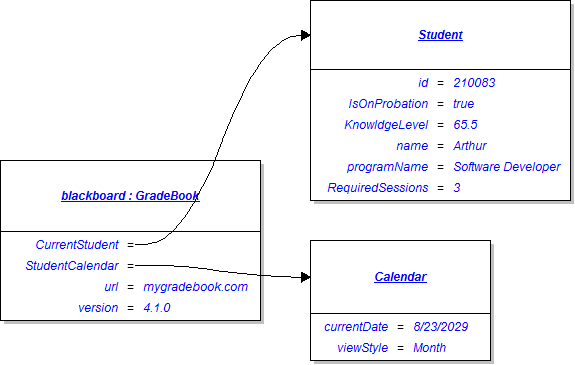
The TeachingAssistant, Instructor, and Course classes all need constructors. In this task, you will make some fields private, define constructors for each of the three classes, and instantiate a course, its instructor, and the instructor's teaching assistant. You will check your work by setting a breakpoint, stepping into the constructors, and ensuring all objects are instantiated correctly.
- Make fields private and rename them so that the first letter is lowercase in the TeachingAssistant, Instructor, and Course classes, as shown in the class diagram below.
- Add constructors.
- Define the constructors for the TeachingAssistant, Instructor, and Course classes, as shown in the class diagram above.
- In each constructor, initialize all fields.
- In the newGradeBookButton_Click, instantiate the course, its instructor, and the teaching assistant as shown in the object and sequence diagram below.
- Check your work:
- Set a breakpoint in the newGradeBookButton_Click on the line that instantiates the teaching assistant.
- Start the application. Click the New grade book button.
- Press F11 to step into the TeachingAssistant constructor, over the code that sets each field, and return to the caller. Inspect the teaching assistant variable and ensure the assistant's field values match those specified in the object diagram above.
- Press F11 to step into the Instructor constructor, over the code that sets each field, and return to the caller. Inspect the instructor variable and ensure the field values match those specified in the object diagram above.
- Press F11 to step into the Course constructor, over the code that sets each field, and return to the caller. Inspect the course variable and ensure the field values match those specified in the object diagram above.
- Press F10 to step over the line of code that adds the course to the student's list. Ensure that the student's list of courses contains one object - the Web Design course.
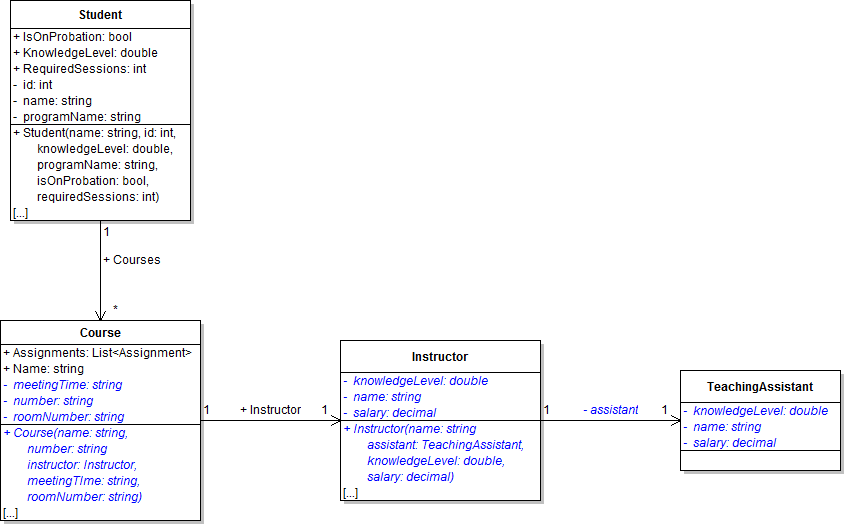
The Assignment class needs a constructor. In this task, you will make some fields private, define a constructor the class, and instantiate multiple assignments. You will check your work by setting a breakpoint, stepping into the constructors, and ensuring all objects are instantiated correctly.
- Make fields private and rename them so that the first letter is lowercase in the Assignment class, as shown in the class diagram below.
- Define the constructor as shown in the class diagram above. In it, initialize all fields with matching parameters.
- In the newGradeBookButton_Click, instantiate two assignments for the Web Design course, as shown in the object and sequence diagram below.
- Check your work:
- Set a breakpoint in the newGradeBookButton_Click on the line that instantiates the first assignment.
- Start the application. Click the New grade book button.
- Press F11 to step into the Assignment constructor, over the code that sets each field, and return to the caller. Inspect the assignment variable and ensure the field values match those specified in the object diagram above.
- Press F10 to step over the code that instantiates the second assignment. Ensure that its field values match those specified in the object diagram above.
- Press F10 until you reach the closing curly brace of the newGradeBookButton_Click. Ensure that the Web Design course's list of assignments contains both the Lab 1 and Website 1 objects. Also ensure that the objects match the object diagram above.
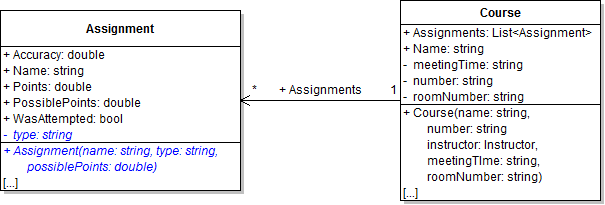
Note: Do not set the Accuracy and Points fields in the assignment constructor.
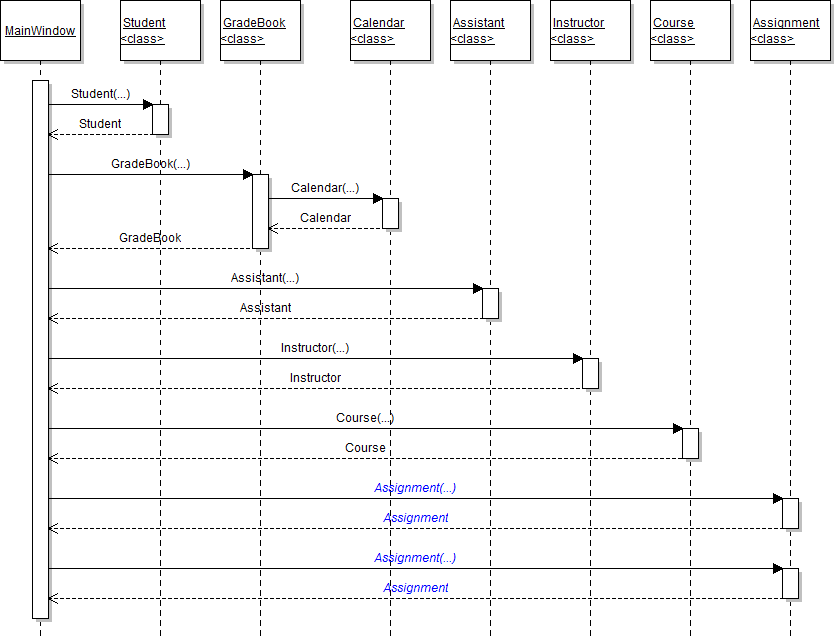
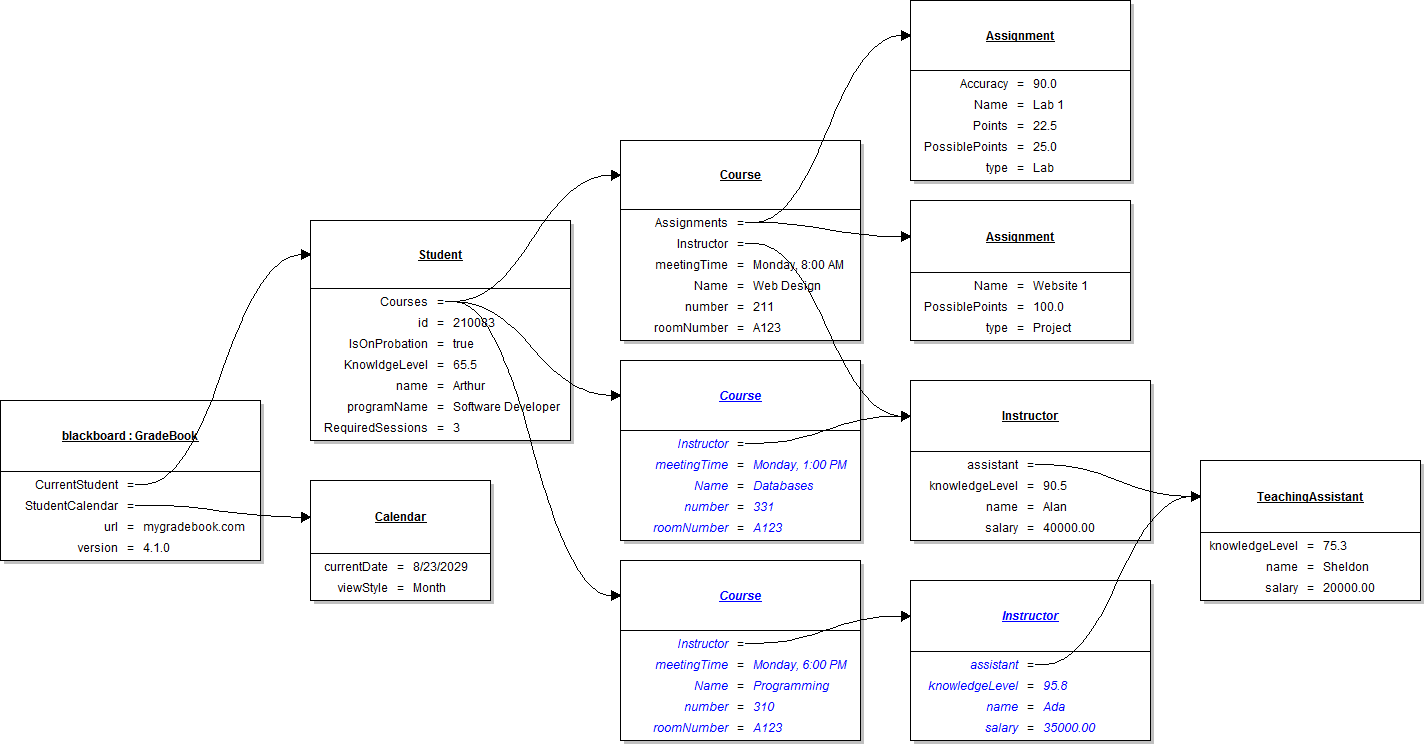
Arthur, the current student, is taking two other classes in addition to Web Design. Two of his classes are taught by the same instructor, and he has a different instructor for the third class. Both instructors share the same teaching assistant. In this task, you will instantiate more courses and another instructor to add to Arthur's list. You will check your work by setting a breakpoint, inspecting the objects, and ensuring that all objects are instantiated correctly and all field values are set correctly.
- In the newGradeBookButton_Click, instantiate two more courses and another instructor, as shown in the sequence and object diagrams below.
- Check your work: test
- Set a breakpoint in the newGradeBookButton_Click on the closing curly brace.
- Start the application. Click the New grade book button.
- Inspect the current student. Ensure that his list of courses contains all three course objects.
- Inspect each of the three courses. Ensure that instructor Alan teaches both Web Design and Databases, and that instructor Ada teaches Programming.
- Inspect each instructor. Ensure that both instructor's share the same teaching assistant, Sheldon.
Tip: Instructor Alan and teaching assistant Sheldon should be instantiated only once.
- Build the application and ensure that it has no compiler errors or warnings.
- Ensure that all code is StyleCop compliant.
- Browse to the project folder and add it to a newly created zipped archive.
- Submit the zipped project folder to the correct assignment in Blackboard.