Courses typically have multiple assignments to complete throughout the semester, but the Course class currently supports only a single project. Instead, it should have a list of assignments and a re-usable way to find an assignment by name and a re-usable way for students to complete an assignment. In this task, you will define a list field to hold multiple assignments, instantiate multiple assignments and add them to the list, add parameters to existing methods to make them re-usable, and write and call a method to find a specific assignment. You will check your work by setting a breakpoint, stepping through the method calls, and ensuring that the correct assignment is found and completed.
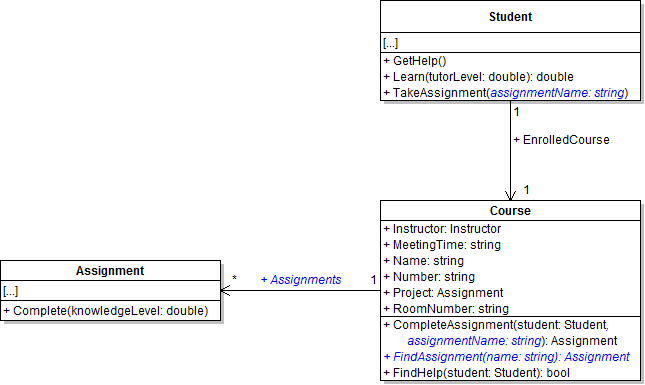
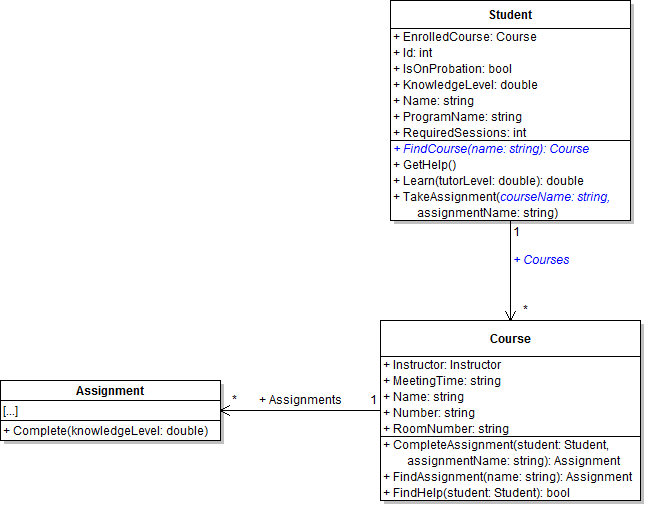
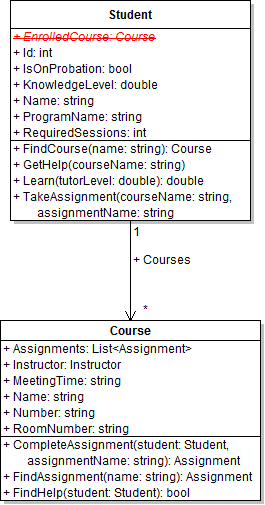
- Define the Assignments field as a list on the Course class, as shown in the class diagram below.
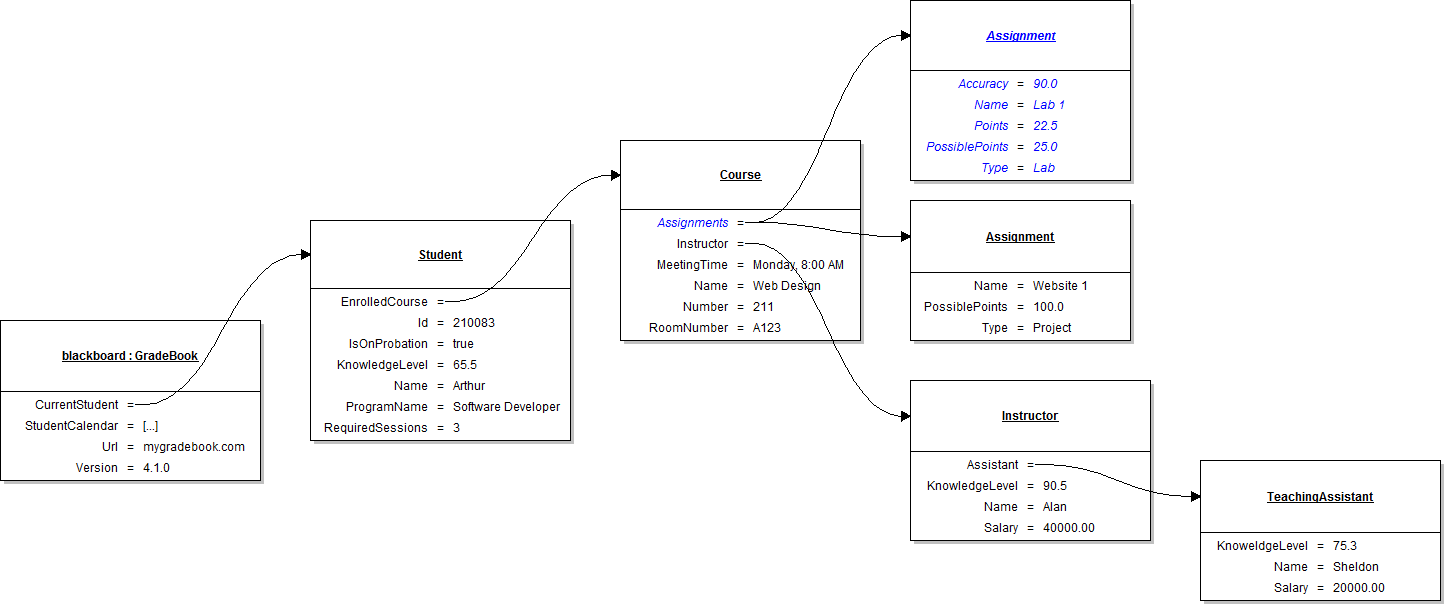
- In the newGradeBookButton_Click, instantiate the course's Assignments field. Then instantiate the assignments shown in the object diagram below and add them to the list.
- Check your work:
- Set a breakpoint in the newGradeBookButton_Click on the line that instantiates the Assignments field.
- Start the application.
- Click the New grade book button.
- Press F10 to step over the code that instantiates the Assignments field. Ensure that the field is instantiated correctly.
- Press F10 to step over the lines of code that instantiate the two assignment objects and add them to the list. Ensure that the objects are created correctly and are added to the list correctly. The Assignments field should contain two assignment objects.
- Define the FindAssignment method on the Course class, as shown in the class diagram above. In the method, use a control-break loop to loop through the list of assignments and find the first one whose name matches the passed-in name.
- Add the assignment name parameter to the TakeAssignment and CompleteAssignment methods, as shown in the class diagram above.
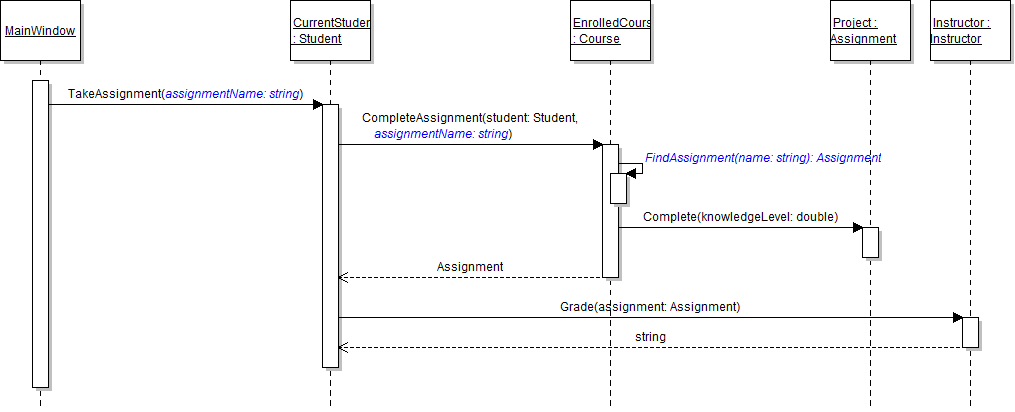
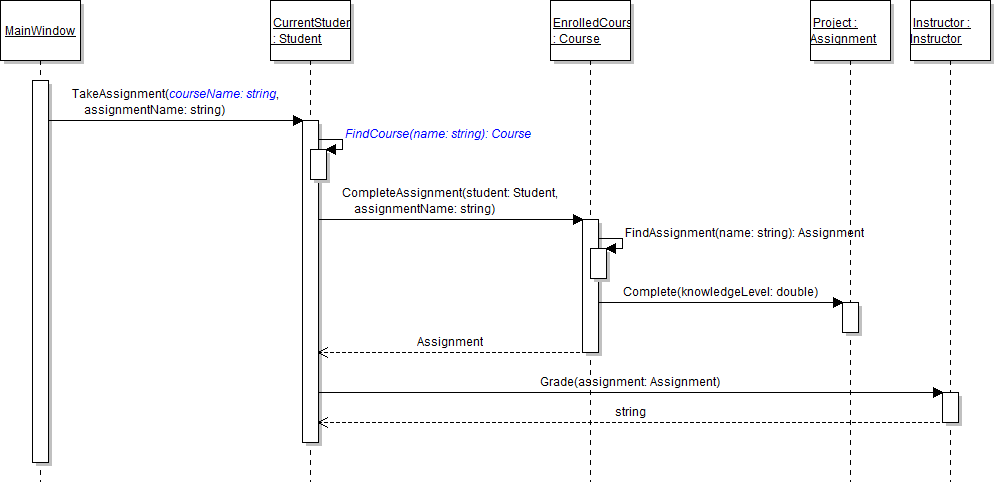
- Update the existing method calls and call the FindAssignment method as shown in the sequence diagram below. In the giveProjectButton_Click, pass the string "Website 1" as the parameter to the TakeAssignment method.
- In the course's CompleteAssignment method, accept the object returned from the FindAssignment method and store it in a local variable. Call the Complete method on this variable, but only if the returned assignment is not null. Then return the assignment.
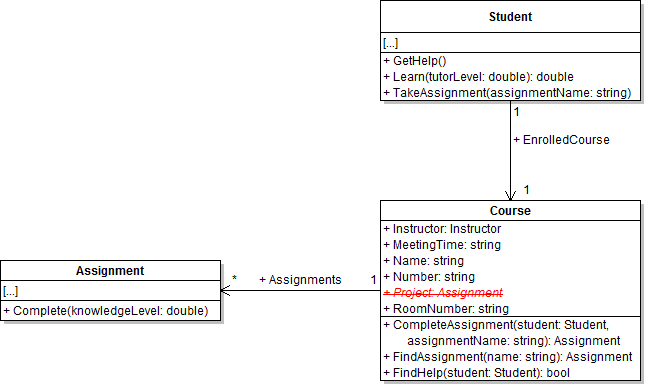
- Remove the Project field from the Course class, as shown in the class diagram below.
- Ensure that all code is StyleCop compliant.
- Check your work:
- Set a breakpoint in the giveProjectButton_Click on the line that calls the TakeAssignment method.
- Start the application.
- Click the New grade book button. Then click the Give project button.
- Press F11 to step into the TakeAssignment method. Ensure that the value of the assignmentName parameter is "Website 1".
- Press F11 to step into the CompleteAssignment method. Ensure that the value of the assignmentName parameter is "Website 1".
- Press F11 to step into the FindAssignment method. Ensure that the value of the name parameter is "Website 1". Press F10 to step through the foreach loop; the correct assignment, the website 1 project, should be found and returned.
- Press F10 to return to the CompleteAssignment method and step over the call to the FindAssignment method. Ensure that the variable that catches the FindAssignment return contains the website 1 assignment object.
- Press F10 to return to the TakeAssignment method and step over the call to the CompleteAssignment method. Ensure that the variable that catches the CompleteAssignment return contains the website 1 assignment object.
Note: Remove the code which instantiated the course's Project field and set its field values.
The grade book's current student is actually enrolled in multiple courses, but the application currently supports only one course. The application should also have a way to find a particular course by name and make the methods for completing an assignment for a course re-usable. In this task, you will define a list field to hold multiple courses, create multiple course objects and add them to the list, and define and call a method for finding a specific course. You will check your work by setting a breakpoint, stepping through the method calls, and ensuring that the course objects are created correctly and the correct course is found.
- Define the Courses field as a list on the Student class, as shown in the class diagram below.
- In the newGradeBookButton_Click, instantiate the course's Assignments field. Then instantiate the assignments shown in the object diagram below and add them to the list.
- Check your work:
- Set a Set a breakpoint in the newGradeBookButton_Click on the line that instantiates the Courses field.
- Start the application.
- Click the New grade book button.
- Press F10 to step over the code that instantiates the Courses field. Ensure that the field is instantiated correctly.
- Press F10 to step over the lines of code that instantiate the two course objects and add them to the list. Ensure that the objects are created correctly and are added to the list correctly. The Courses field should contain three course objects.
- Define the FindCourse method on the Student class, as shown in the class diagram above. In the method, use a control-break loop to loop through the list of courses and find the first one whose name matches the passed-in name.
- Add the courseName parameter to the TakeAssignment method, as shown in the class diagram above.
- Update the existing method call and call the FindCourse method as shown in the sequence diagram below. In the giveProjectButton_Click, pass the string "Web Design" as the courseName parameter to the TakeAssignment method.
- In the TakeAssignment method, accept the return from the FindCourse method and store it in a local variable. Use that course variable to call the CompleteAssignment method and the instructor's Grade method, but only call the methods if the returned course is not null.
- Ensure that all code is StyleCop compliant.
- Check your work:
- Set a breakpoint in the giveProjectButton_Click on the line that calls the TakeAssignment method.
- Start the application.
- Click the New grade book button. Then click the Give project button.
- Press F11 to step into the TakeAssignment method. Ensure that the value of the courseName parameter is "Web Design".
- Press F11 to step into the FindCourse method. Ensure that the value of the name parameter is "Web Design". Press F10 to step through the foreach loop; the correct course, the web design course, should be found and returned.
- Press F10 to return to the TakeAssignment method and step over the call to the FindCourse method. Ensure that the variable that catches the FindCourse return contains the web design course object.
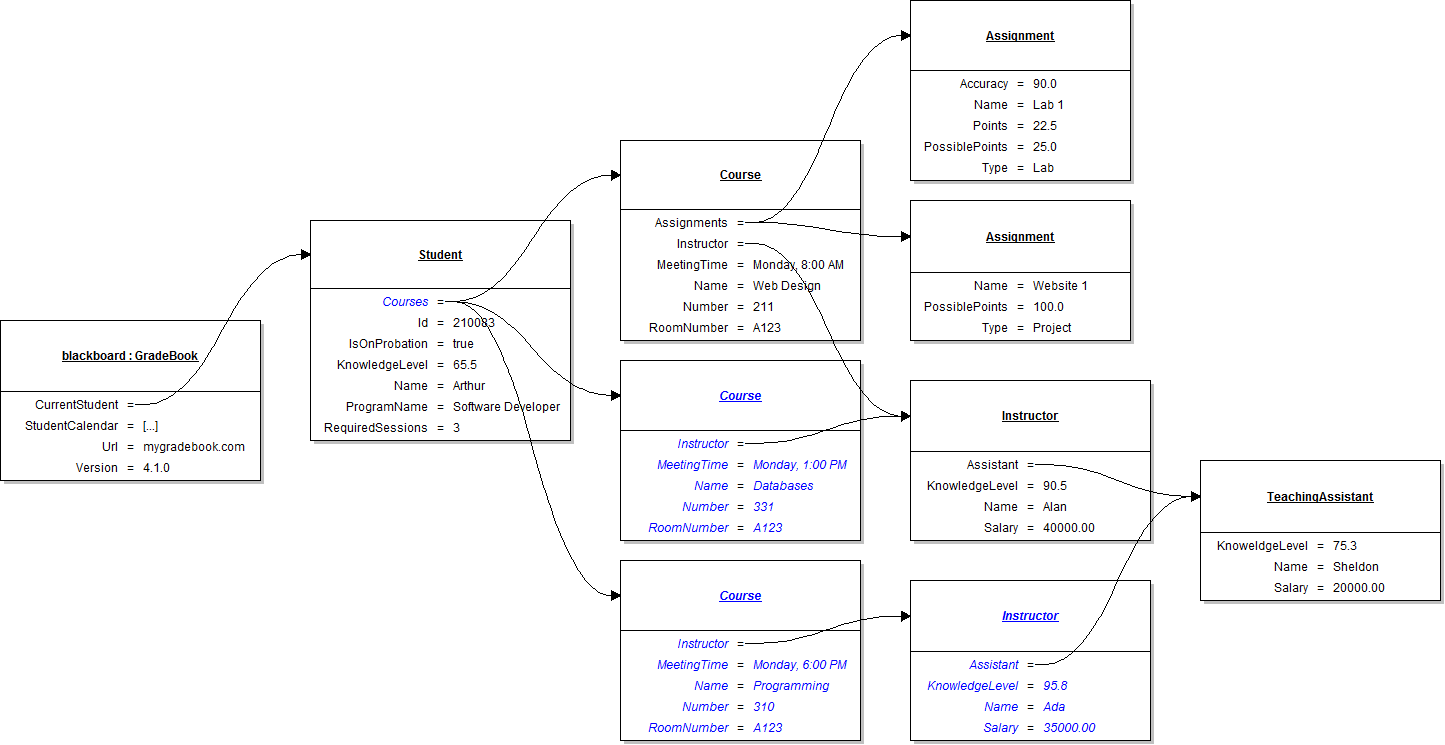
Tip: Use the following code comments as a guide when instantiating the objects and setting their fields. The instantiation must be done in a particular order so that two courses can share an instructor and the two instructors can share an assistant.
// Create an instance of the GradeBook class.

// Set field values of Blackboard

// Set field values of the current student.

// Instantiate the assistant and set his field values.

// Instantiate the instructor (Alan) and set his field values.

// Instantiate the course (Web Design) and set its field values.

// Instantiate the assignment (Website 1), set its field values, and add it to the list

// Instantiate the assignment (Lab 1), set its field values, and add it to the list

// Add the course to the student's list

// Instantiate the course (Databases), set its field values, and add it to the list

// Instantiate the instructor (Ada) and set her field values

// Instantiate the course (Programming), set its field values, and add it to the list

// Set field values of the calendar
The application's tutoring methods need to be made re-usable, just as the methods for completing an assignment were, by adding parameters specifying the course name. In this task, you will add a course name parameter to the student's GetHelp method and use that information to find the correct course. You will check your work by setting a breakpoint, stepping into the method calls, and ensuring that the correct course is found.
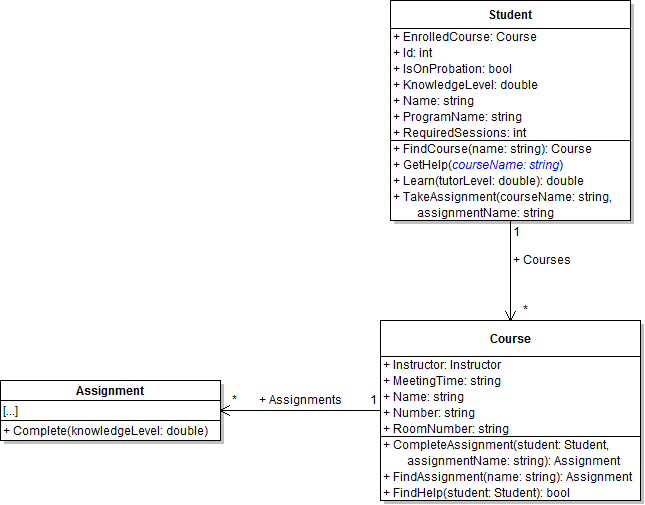
- Add the courseName parameter to the GetHelp method, as shown in the class diagram below.
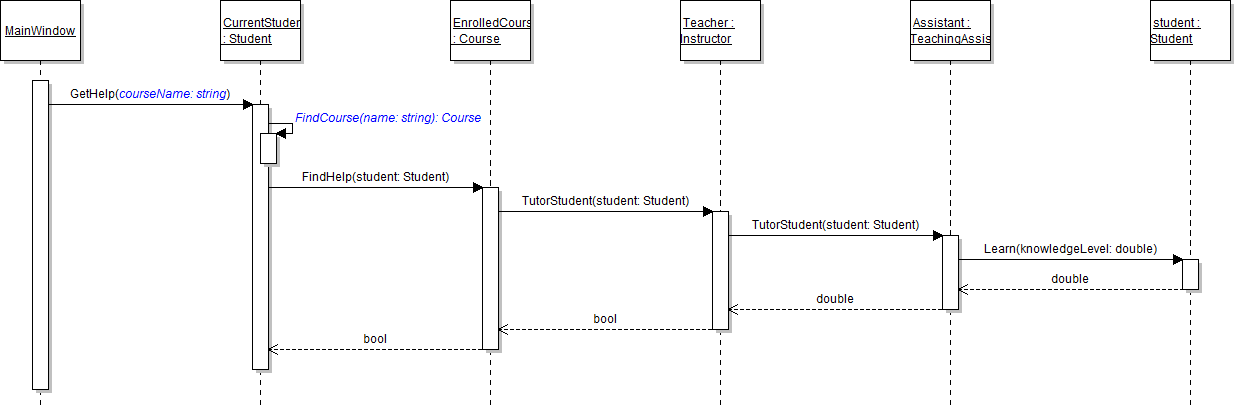
- Update the method call and call the FindCourse method as shown in the sequence diagram below. In the tutorArthurButton_Click, pass the string "Web Design" to the GetHelp method. Use that information to find the web design course.
- In the GetHelp method, accept the return from the FindCourse method and store it in a local variable. Use that course variable to call the FindHelp method, but only if the returned course is not null.
- Remove the EnrolledCourse field from the Student class, as shown in the class diagram below.
- Ensure that all code is StyleCop compliant.
- Check your work:
- Set a breakpoint in the tutorArthurButton_Click on the line that calls the GetHelp method.
- Start the application.
- Click the New grade book button. Then click the Tutor Arthur button.
- Press F11 to step into the GetHelp method. Ensure that the value of the courseName parameter is "Web Design".
- Press F10 to step over the call to the FindCourse method. Examine the variable that caught the return from the method. Ensure that it contains the web design course object.
- Press F11 to step into the FindHelp method. Ensure that you stepped into the web design course object.
- Build the application and ensure that it has no compiler errors or warnings.
- Ensure that all code is StyleCop compliant.
- Browse to the project folder and add it to a newly created compressed, or zipped, archive.
- Submit the compressed, or zipped, project folder to the correct assignment in Blackboard.