Currently, the values returned from the tutoring methods are hard-coded, but they should be calculated and the student should gain knowledge. In this task, you will use mathematic operators and boolean expressions to add logic to the methods. You will check your work by setting a breakpoint, stepping through the code, and ensuring that the correct values are calculated and returned from the methods.
Use the sequence diagram below as a guide as you complete this task.
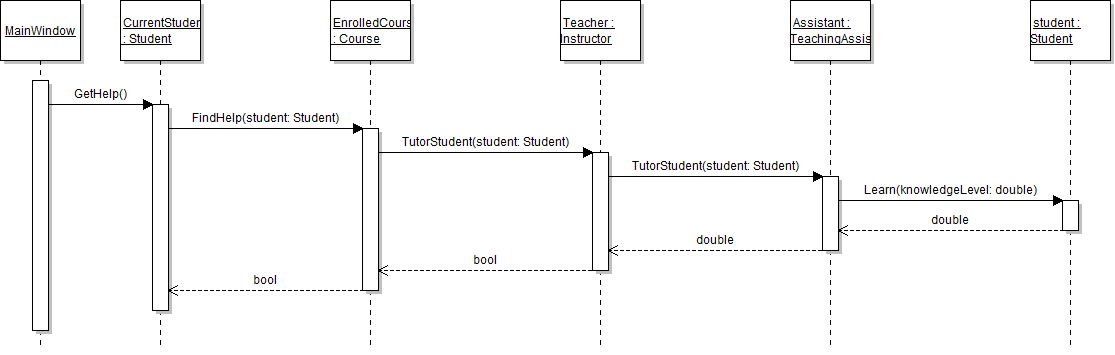
- Add logic to the course's FindHelp method.
- After the call to the instructor's TutorStudent method, check if the value returned from the method is true and that the student has more than 0 required sessions. If so, decrement the student's required sessions.
- Then, check if the student has 0 required sessions. If so, remove the student from probation by setting the field to false.
- Check your work:
- Set a breakpoint in the course's FindHelp method on the line that defines the first if statement.
- Start the application.
- Click the New grade book button. Then click the Tutor Arthur button.
- The result of tutoring the student should be true, and Arthur has 3 required sessions, so the boolean expression should evaluate to true. Press F10 to step into the if statement and decrement the required sessions. The field value should change from 3 to 2.
- Arthur still has two required sessions, so the boolean expression in the second if statement should evaluate to false. Press F10 to step over the if statement.
- In the instructor's TutorStudent method, return a boolean value that indicates whether or not the result of the assistant tutoring the student was greater than 0.
- Check your work:
- Set a breakpoint in the instructor's TutorStudent method on the line that calls the assistant's TutorStudent method.
- Start the application.
- Click the New grade book button. Then click the Tutor Arthur button.
- Press F10 to step over the call to the TutorStudent method. The return value should be 3.0, which is greater than 0. That means that the instructor's TutorStudent method should return true.
- Press F10 to return to the course's FindHelp method and step over the call to the instructor's TutorStudent method. The value returned from the method should be true.
- Add logic to the student's Learn method.
- First, store the student's initial knowledge level in a local variable.
- Then, calculate the increase in knowledge by finding 1.5 percent of the tutor's knowledge level. Round the result to two decimal places. Store the value in a local variable.
- Then, set the student's knowledge level to whichever number is the minimum of 100 or the student's initial knowledge level plus the increase in knowledge.
- Then, return the amount of knowledge gained by subtracting the student's initial knowledge level from the current knowledge level.
- Check your work:
- Set a breakpoint in the student's Learn method on the line that stores the initial knowledge level.
- Start the application.
- Click the New grade book button. Then click the Tutor Arthur button.
- Press F10 to step over the line of code that stores the initial knowledge level, which should be 65.5.
- Press F10 to step over the line of code that calculates the increase in knowledge. Ensure that the increase is 1.13.
- Press F10 to step over the line of code that sets the student's new knowledge level. The value of the KnowledgeLevel field should now be 66.63.
- Press F10 to return to the instructor's TutorStudent method and step over the call to the assistant's TutorStudent method. The value returned from the method should be 1.13.
Tip: This can be accomplished in one line with the return keyword, or you can store the value in a local variable and return the local variable.
Tip: Use the Math.Round method to round to two decimal places.
Tip: Use the Math.Min method to find the minimum number.
Currently, the values returned from the methods for completing assignments are hard-coded, but they should be calculated and the student's assignment should be graded according to how well it was completed. In this task, you will use mathematic operators and boolean expressions to add logic to the methods. You will check your work by setting a breakpoint, stepping through the code, and ensuring that the correct values are calculated and returned from the methods.
Use the sequence diagram below as a guide as you complete this task.
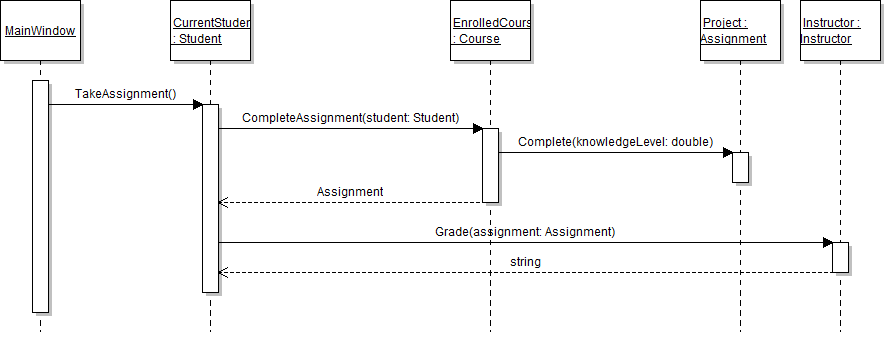
- In the student's TakeAssignment method, check if the assignment returned from the CompleteAssignment method is not equal to null. Put the call to the Grade method inside the if statement.
- In the assignment's Complete method, set the accuracy to 95 percent of the passed-in knowledge level.
- Check your work:
- Set a breakpoint in the assignment's Complete method on the line that sets the Accuracy field.
- Start the application.
- Click the New grade book button. Then click the Give project button.
- Press F10 to step over the line that sets the Accuracy field. The value of the field should change from 0 to 62.224....
- Press F10 to return to the student's TakeAssignment method and step over the call to the CompleteAssignment method. The returned assignment object should not be null, so the boolean expression in the if statement should evaluate to true.
- Add logic to the instructor's Grade method.
- First, set the assignment's Points field to the assignment's possible points times the accuracy, as a percentage.
- Then, define a local variable of type string called grade.
- After defining the variable, use a series of if-else-if statements to determine the letter grade.
- Accuracy is greater than 80.0, then "A"
- Accuracy is greater than 70.0, then "B"
- Accuracy is greater than 60.0, then "C"
- Otherwise, "F"
- Then return the grade.
- Check your work:
- Set a breakpoint in the instructor's Grade method on the line that sets the assignment's Points field.
- Start the application.
- Click the New grade book button. Then click the Give project button.
- Press F10 to step over the line that calculates and sets the Points field. The field should be set to 62.224..., which is 62.224... percent (the accuracy as a percentage) of the possible points (100).
- Press F10 to step through the if-else-if statements. The accuracy is greater than 60 but less than 70, so the grade variable should be set to "C".
- Press F10 to return to the student's TakeAssignment method and step over the call to the Grade method. Ensure that the value returned from the Grade method is "C".
Tip: To use the accuracy as a percentage, divide it by 100. Then use that value when multiplying with the possible points.
- Build the application and ensure that it has no compiler errors or warnings.
- Ensure that all code is StyleCop compliant.
- Browse to the project folder and add it to a newly created compressed, or zipped, archive.
- Submit the compressed, or zipped, project folder to the correct assignment in Blackboard.