Arthur, the current student, needs help in his Web Design class, but he has no way to ask for or find assistance. In this task, you will define and call methods for getting help for Arthur. You will check your work by setting a breakpoint, stepping into the method calls, and ensuring that each method is called correctly.
- Add a button to the MainWindow called tutorArthurButton. Give it appropriate content and add a click event.
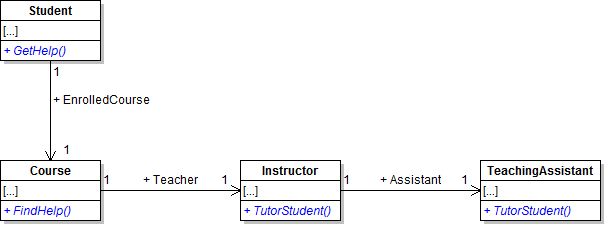
- Define the methods on each class as shown in the class diagram below.
- Check your work: Build the solution and ensure that the code compiles without errors or warnings.
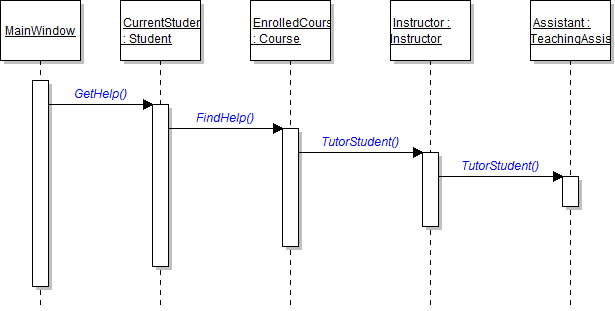
- Starting in the tutorArthurButton_Click in MainWindow.xaml.cs, call the methods on the appropriate objects, as shown in the sequence diagram below.
- Ensure that all code is StyleCop compliant.
- Check your work:
- Set a breakpoint in the tutorArthurButton_Click on the line that calls the GetHelp method.
- Start the application.
- Click the New grade book button. Then click the Tutor Arthur button.
- Press F11 to step into the GetHelp method. Ensure that you stepped into the Arthur object.
- Press F11 to step into the FindHelp method. Ensure that you stepped into the Web Design course object.
- Press F11 to step into the TutorStudent method. Ensure that you stepped into the Alan the instructor object.
- Press F11 to step into the TutorStudent method. Ensure that you stepped into the Sheldon the assistant object.
- Use the call stack to ensure that the methods were called on the correct objects and in the correct order, as shown in the sequence diagram above.
Arthur needs to complete his first website in his Web Design class, but he has no way to take the assignment. In this task, you will define and call methods for Arthur to complete the assignment. You will check your work by setting a breakpoint, stepping into the method calls, and ensuring that each method is called correctly.
- Add a button to the MainWindow called giveProjectButton. Give it appropriate content and add a click event.
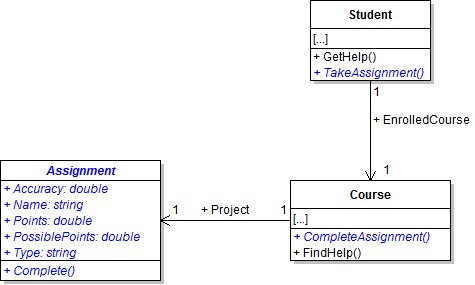
- Create the Assignment class in the Business Classes folder and define it as shown in the class diagram below. Also, define the Project field on the Course class and the methods on the Student and Course classes.
- Check your work: Build the solution and ensure that the code compiles without errors or warnings.
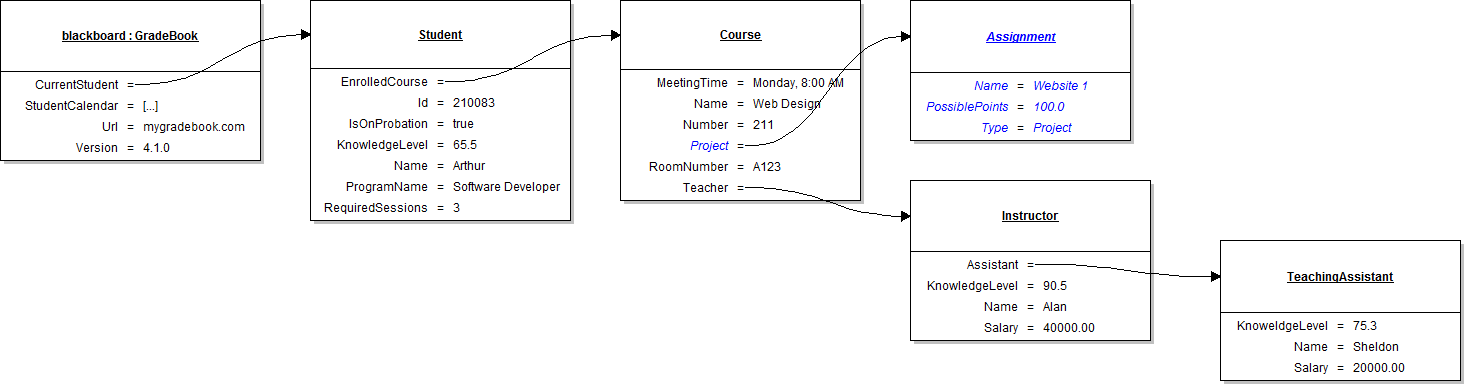
- In the newGradeBookButton_Click, instantiate the assignment object and set its fields as shown in the object diagram below.
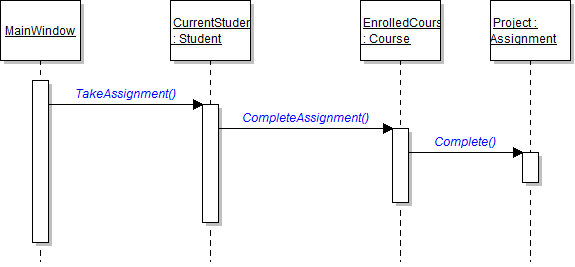
- Starting in the giveProjectButton_Click in MainWindow.xaml.cs, call the methods on the appropriate objects, as shown in the sequence diagram below.
- Ensure that all code is StyleCop compliant.
- Check your work:
- Set a breakpoint in the giveProjectButton_Click on the line that calls the TakeAssignment method.
- Start the application.
- Click the New grade book button. Then click the Give project button.
- Press F11 to step into the TakeAssignment method. Ensure that you stepped into the Arthur object.
- Press F11 to step into the CompleteAssignment method. Ensure that you stepped into the Web Design course object.
- Press F11 to step into the Complete method. Ensure that you stepped into the website 1 assignment object.
- Use the call stack to ensure that the methods were called on the correct objects and in the correct order, as shown in the sequence diagram above.
- Build the application and ensure that it has no compiler errors or warnings.
- Ensure that all code is StyleCop compliant.
- Browse to the project folder and add it to a newly created compressed, or zipped, archive.
- Submit the compressed, or zipped, project folder to the correct assignment in Blackboard.