- Download this starting zip file.
- Extract the contents of the zip file to a location of your choice.
- Rename the "OOP 1 Gradebook 1.2 LastName" folder, replacing LastName with your last name.
- Within the folder renamed in the previous step, rename the file "OOP 1 Gradebook 1.2 LastName.sln" file, replacing LastName with your last name.
1.2 Gradebook starting code (download)
Warning: This starting code is intended for use with Visual Studio 2015 or later. If you have an earlier version of Visual Studio, please upgrade to 2015. If you need to use an earlier version of Visual Studio, you may need to change project settings (e.g. TargetFrameworkVersion) in the provided starting code.
The application needs a grade book object to be instantiated and its fields to be instantiated or set as appropriate. In this task, you will create a grade book instance, assign it to a variable, and set the field values of all instantiated objects. You will check your work by setting a breakpoint, stepping through the code, and ensuring that all objects are instantiated correctly and all fields are set to the correct values.
- In the newGradeBookButton_Click in MainWindow.xaml.cs, create an instance of the GradeBook class and assign it to a local variable named blackboard.
- After defining and instantiating the blackboard variable, instantiate the objects and set the values of their fields as shown in the object diagram below.
- Check your work:
- Set a breakpoint in the newGradeBookButton_Click on the line that instantiates the blackboard variable.
- Start the application.
- Click the New grade book button.
- Press F10 to step over the code that instantiates the blackboard variable. Ensure that the variable is instantiated correctly.
- Press F10 to step over the code that sets the gradebook's field values. Ensure that the CurrentStudent and StudentCalendar fields are instantiated correctly and that the Url and Version fields are set to the correct values.
- Press F10 to step over the code that sets the current student's field values. Ensure that the EnrolledCourse field is instantiated correctly and that the rest of the fields are set to the correct values.
- Press F10 to step over the code that sets the course's field values. Ensure that each of the fields are set to the correct values.
- Press F10 to step over the code that sets the calendar's field values. Ensure that each of the fields are set to the correct values.
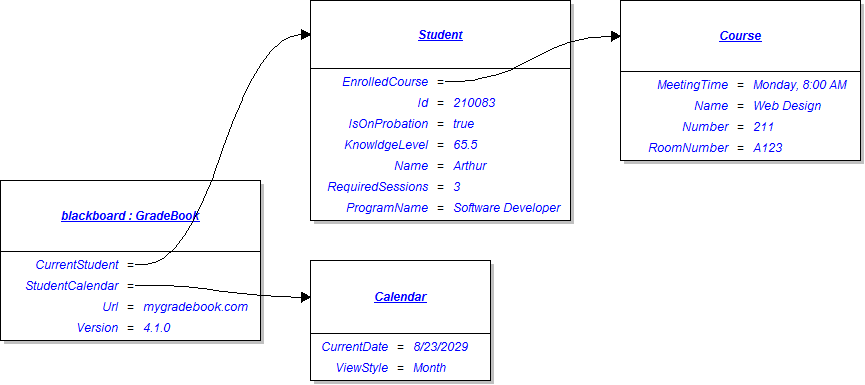
Tip: Use the following code comments as a guide when instantiating objects and setting field values.
// Create an instance of the GradeBook class.

// Set field values of Blackboard.

// Set field values of the current student.

// Set field values of the current student's course.

// Set field values of the calendar.
- Build the application and ensure that it has no compiler errors or warnings.
- Ensure that all code is StyleCop compliant.
- Browse to the project folder and add it to a newly created compressed, or zipped, archive.
- Submit the compressed, or zipped, project folder to the correct assignment in Blackboard.