
10-152-312 - Object-Oriented Programming 2
3.5 Zoo Assignment
Implement the observer pattern with animal movement
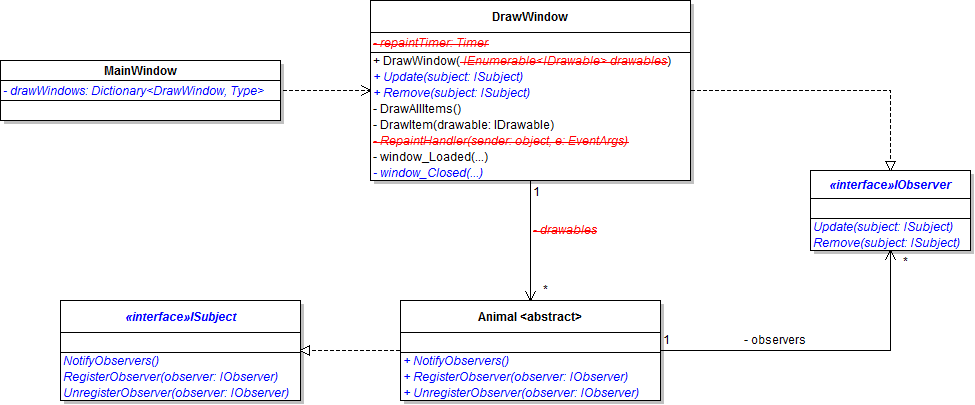
- Create a new class library called Observers
- Create the IObserver interface as specified in the diagram above in the Observers package
- Create the ISubject interface as specified in the diagram above in the Observers package
- Have the IDrawable interface implement the ISubject interface
- Implement the ISubject interface in Animal
- Add a list of IObservers
- In the RegisterObserver() method, add the passed-in IObserver to the observer list
- In the UnregisterObserver() method, remove the passed-in IObserver from the observer list
- In the NotifyObservers() method, call the Update() method on each observer in the list
- You will need to create a temporary list and loop through that to avoid issues of looping through a list while objects are being added to it
- Call NotifyObservers() when the animal moves
- Comment out the requirement that Guest implement IDrawable (this will be fixed later)
- Implement the IObserver interface in DrawWindow
- In the DrawItem method, set the viewbox's Tag to the animal
- In the Remove() method, unregister the window from the passed-in ISubject and remove that subject's viewbox from the grid
- In the Update() method, remove the passed-in ISubject's viewbox from the drawableGrid and then re-draw it
- Put this code inside an Action delegate in the Dispatcher's Invoke method (like the code in the RepaintHandler)
- Remove the list of animals field and the parameter from the DrawWindow
- Also remove the AddDrawnItem method, which uses the now-deleted list
- Comment out the line(s) of code in the drawGuestButton click event handler that call AddDrawnItem to get the application to compile (this will be fixed later)
- When a new DrawWindow is shown:
- Add it to the dictionary of draw windows
- Get a list of animals of the specified animal type
- For each animal in the list, register the new window as an observer and notify the animal's observers
- Each time an animal is added to the zoo (through manual adding or birthing), register all cage windows of the corresponding animal type with the newly added animal
- Each time an animal is removed from the zoo, remove the animal from all cage windows of the corresponding animal type
- Add a window_Closed event handler to the DrawWindow
- In the handler, unregister the window from each item in the drawableGrid (items can be obtained from their viewbox)
- Remove the repaint timer and its event handler from DrawWindow, as the repainting is now handled by the observer pattern
- Run the application to ensure that animals still move and paint as they did before
- Animals will occasionally get stuck in the window after they have been removed
- Animals will occasionally flip the order in which they are drawn
- Drawing guests will not work at this point
Drawing guests using the observer pattern
- Uncomment the requirement that Guest implement IDrawable
- Implement the ISubject interface in Guest
- Add a list of IObservers
- In the RegisterObserver() method, add the passed-in IObserver to the observer list
- In the UnregisterObserver() method, remove the passed-in IObserver from the observer list
- In the NotifyObservers() method, call the Update() method on each observer in the list
- You will need to create a temporary list and loop through that to avoid issues of looping through a list while objects are being added to it
- In the drawGuestButton click event handler, register with the guest each window that is associated with the specified animal type
- Once all observers have been registered, notify the guest's observers
- Run the application
- Choose a guest and an animal and click the draw guest button
- Guests should be drawn in the cage window associated with the animal type of the chosen animal
Fixing animals getting stuck after being removed
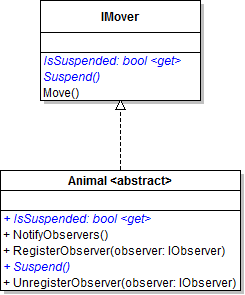
- Add the IsSuspended read-only property and Suspend method to the IMover interface as specified in the diagram above
- Implement the new IMover interface in Animal
- Disable the moveTimer in the Suspend method
- Return true if the moveTimer is not enabled and false if it is enabled in the IsSuspended property
- Suspend an animal when it is removed from the zoo
- Add a test to the DrawWindow's Update() method - only call the DrawItem() method if the animal is not suspended
Fixing the drawing order
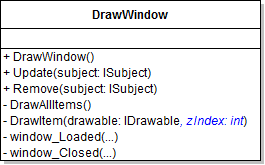
- Add the zIndex parameter to the DrawItem() method as specified in the diagram above
- In the DrawItem() method, instead of adding the viewbox to the drawableGrid, insert it using the zIndex
- In the DrawAllItems() method:
- Create a list of Drawables and add each viewbox's drawable to the list
- Clear the drawableGrid
- Initialize a zIndex variable to 0
- Draw each item in the temporary list, incrementing the zIndex variable each time
- In the Dispatcher's Invoke() method inside the Update() method:
- Initialize a zIndex variable to 0
- Loop through the viewboxes to find the viewbox associated with the passed-in subject
- Once the viewbox is found, set the zIndex to the current loop count and remove the viewbox from the grid
- Pass in the zIndex variable to the existing call to the DrawItem() method
Writing the hover behavior
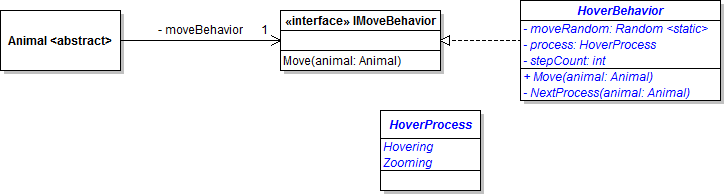
- Create the HoverProcess enumeration as specified in the diagram above
- Create the HoverBehavior as specified in the diagram above
- Write the hovering algorithm as follows:
- The hover behavior spans multiple Move method calls. The behavior uses its field to keep track of how many steps are left in the current process before switching to the next process. It is easiest to start this variable at the max value and decrement it each time the animal moves.
- Move in the same random diagonal direction at 4x the animal's normal move distance for a random number of times between 5 and 8, inclusive (zooming mode)
- Then, move in a different random diagonal direction between 7 and 10 times, inclusive (hovering mode)
Allowing animal cages to be shown only once
- In the MainWindow's drawWindows dictionary, switch the key and value types so that the key is of type Type and the value is of type DrawWindow
- Each time an animal is added to the zoo, replace the existing loop with this code:
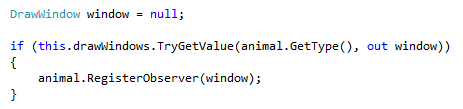
- Add the same code to the drawGuestButton click event handler, but register the window with the guest instead of the animal
- Each time an animal is removed from the zoo, replace the existing loop with this code:
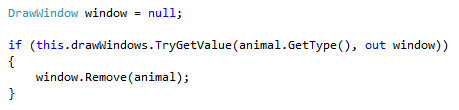
- In the showAnimalCageButton click event handler:
- Refactor the existing code inside the null check to a method called CreateCageWindow that takes a Type and a DrawWindow as parameters
- If the animal type is not null (existing test):
- Define a DrawWindow variable but do not initialize it
- Try to get the dictionary value (window) that matches the animal type key
- If the window is not null:
- If the window is visible, activate it
- Otherwise, remove the key from the dictionary and recreate the cage window
- Otherwise, recreate the cage window
- Run the application
- Open an animal cage window
- With the window still open, try to open another cage window for the same animal type - another window should not open
- Serializing will not work because the dictionary still references DrawWindows
Fixing serialization
- Add a private method to MainWindow called CloseDrawWindows
- In CloseDrawWindows, close each window in the drawWindows dictionary
- Call CloseDrawWindows and set the drawWindows dictionary to null before saving the zoo
- Run the application
- Add some animals and guests
- Open one or more cage windows
- Close the application with all cage windows closed and with some cage windows open
- Restart the application to ensure that the zoo was saved and was deserialized correctly
3.5 Zoo Assignment: Package Diagram
Create/revise the classes as indicated by the following UML package (class) diagram.

Notes
- Create WPF Window classes if class names end with Window; otherwise create basic classes.
- Note that not all classes need to be on a class diagram; if classes which existed previously do not appear on this particular diagram, they should not be deleted, as they are simply not relevant to this assignment, but may again be used in future assignments.
3.5 Zoo Assignment: Class Diagram
Create/modify the classes as specified in the following UML class diagram.

Grading and Submission
- Build/compile your program
- Debug/test your program against the following rubric:

- Make your code StyleCop-compliant
- Close your Visual Studio solution
- Compress your Visual Studio solution to a zip file
- Submit the zip file via Blackboard