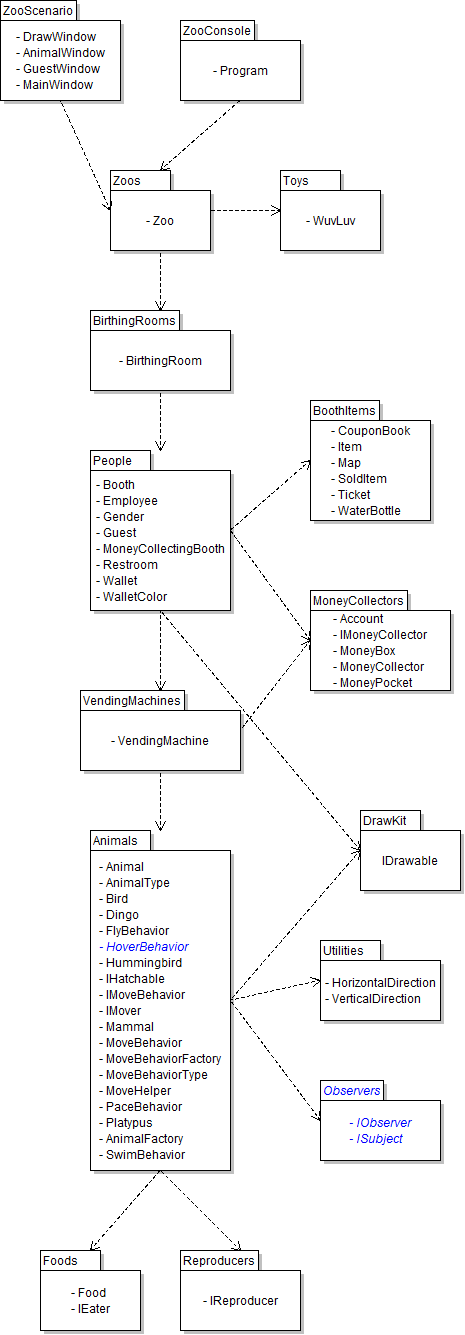
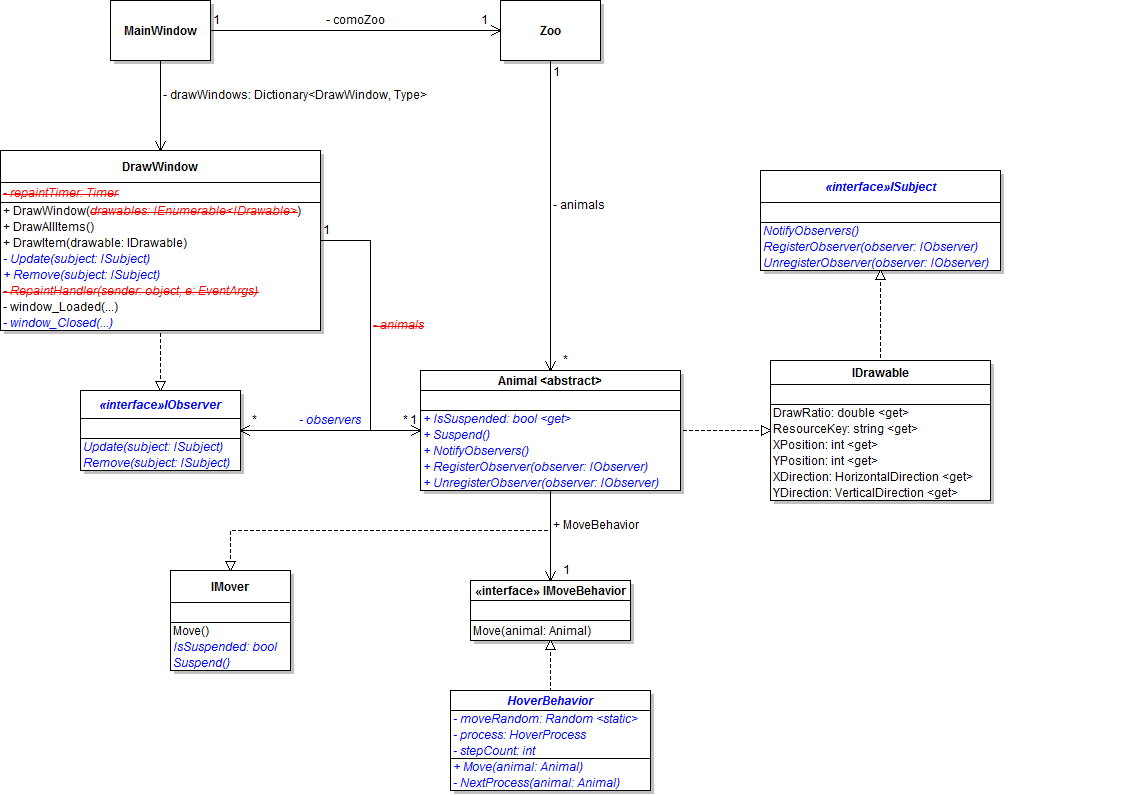
Deserializing the animals' move timer
- Create a private method in Animal called CreateTimers and move the timer instantiation to it from the constructor
- Create a private method called OnDeserialized in Animal
- Pass in a StreamingContext called context
- Add the OnDeserialized attribute
- Call CreateTimers() from it
- Build and run the application
- Create some guests and animals
- Save (or autosave) the zoo
- Close the application
- Restart the application
- Load the saved file (if it is not already)
- Ensure that animals move in their cages
Refactoring the AnimalCageWindow to be generic
- Create a new class library called DrawKit
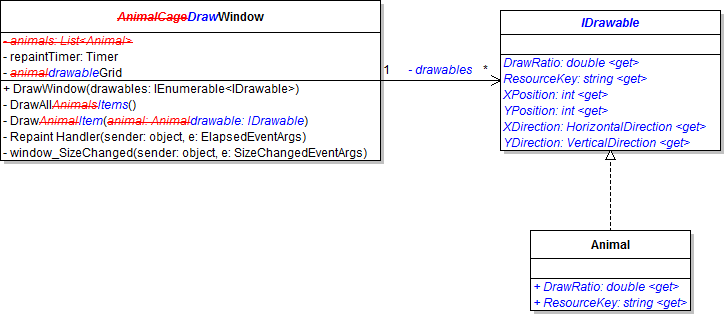
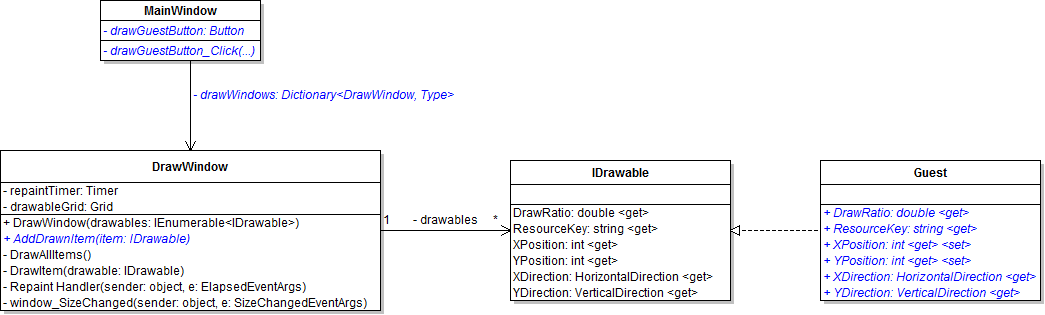
- In the DrawKit package, create the IDrawable interface as shown in the diagram above
- Implement the IDrawable interface in Animal
- For the ResourceKey, return the name of the animal's Type and whether it is a baby or an adult (e.g. "DingoBaby")
- For the DrawRatio, return 0.07 if the animal is a baby; otherwise, return 0.2
- Rename the AnimalCageWindow to DrawWindow
- Rename the animalGrid to drawableGrid
- Instead of an IEnumerable of Animal, pass an IEnumerable of IDrawable called drawables into the window's constructor
- Replace the animals IEnumerable with an IEnumerable of IDrawable called drawables
- Rename DrawAnimal to DrawItem
- Pass in an IDrawable called drawable instead of an Animal
- Rename animalWidth to drawableWidth and animalHeight to drawableHeight
- Instead of creating a resource key in the method, simply get the drawable's ResourceKey
- Use the drawable's DrawRatio when setting the drawableWidth
- Rename DrawAllAnimals to DrawAllItems
- Instead of looping through the animals, loop through the drawables and draw each one
- Build and run the application
- Add references and using directives as necessary
- Animals should still move and draw as they did before
Adding guests to the DrawWindow
- Unzip the starting zip file and add the code for the Guest canvas in the .txt file to App.xaml
- Implement the IDrawable interface in Guest
- For the ResourceKey, return "Guest"
- For the DrawRatio, return 0.45
- Set both XPosition and YPosition to 0 in the constructor
- Change the DrawWindow's IEnumerable of IDrawable to a List
- Add a method to the DrawWindow called AddDrawnItem
- It takes an IDrawable as a parameter and adds it to the list of drawables
- Add a Dictionary called drawWindows to the MainWindow
- Its key is of type DrawWindow
- Its value is of type Type
- Initialize it to a new Dictionary where it is defined
- Every time a new DrawWindow is shown, add it to the drawWindows Dictionary
- Add a button to the MainWindow called drawGuestButton
- The user must choose a guest to draw and an animal in whose cage the guest will be drawn
- If both a guest and animal were chosen:
- Loop through the drawWindows Dictionary
- If the Value matches the animal's Type, add the guest to the Key as a drawn item
- Build and run the application
- Show a cage window
- Choose a guest and an animal and click the drawGuestButton
- The guest should appear in the cage window
Writing the move behavior that mimics flying squirrels
When an animal's behavior is set to the ClimbFallBehavior, it should move horizontally across the bottom of the cage (or wherever it might randomly start). When it hits a vertical wall, it should climb it by moving vertically. When it hits the ceiling of the cage, it should fall diagonally until it hits the bottom of the cage, at which point it should continue moving horizontally in the same direction until it hits a vertical wall and the process begins again.
- Create an enumeration called ClimbFallProcess, which has three items
- Scurrying
- Climbing
- Falling
- Create a class called ClimbFallBehavior that implements IMoveBehavior
- Add a field of type ClimbFallProcess called process
- In the Move method:
- Check if the current process is Scurrying
- If it is, move the animal horizontally
- If the animal's next move will make it hit a vertical wall, switch to the next process
- Otherwise, check if the current process is Climbing
- If it is, make sure the animal is moving up and move it vertically
- If the animal's next move will make it hit the ceiling, make it move down and in the opposite horizontal direction and switch to the next process
- Otherwise, the current process is Falling
- Make the animal move diagonally (it should fall twice as fast as it moves horizontally)
- If the animal's next move will make it hit the floor, switch to the next process
Randomizing the climbing behavior
- Add a Random to the ClimbFallBehavior and set its seed to DateTime.Now.Millisecond
- Add a field of type int called climbHeight
- Just before the animal's process is switched to climbing:
- Set the climb height to a random value between 15 percent and 85 percent of the Animal's PositionMax
- Some conversion between ints and doubles might be necessary
- When the animal is climbing, check to see if the animal will hit the randomly set climb height instead of the cage ceiling