10-152-311 - Object-Oriented Programming 1

1.2 Gradebook Assignment: Overview

Arthur is a student in the Computer Science program. He wants to check to see who his advisor is, look at his calendar to learn when the first day of class is, and look at his class schedule.

This week we will be creating the objects necessary to set up a basic Gradebook system.

1.2 Gradebook Assignment: Directions

  1. Download this 1.2Gradebook zip file.
  2. Extract the contents of the zip file to a location of your choice.
  3. Rename the folder with your last name as indicated .
  4. Within the folder rename the OOP 1Gradebook1.2- LastName as with your last name.
  5. Open the renamed file OOP 1 Gradebook 1.2-Last Name.sln contained within the renamed folder.
  6. Double-click on MainWindow.xaml in the Solution Explorer (if hidden, restore it by clicking View | Solution Explorer).
  7. Select the (first/only) New Gradebook button by single-clicking it.
  8. Navigate to the Properties Window (if hidden, restore it by clicking View | Properties Window).
  9. Change the Properties Window to show events (click on its lightning bolt icon)
  10. Double-click on the Click event. This should open a new tab called MainWindow.xaml.cs and take you to this assignment's button-click event handler.
  11. Write the necessary C# code to instantiate all objects and set all field values per the following UML object diagram:
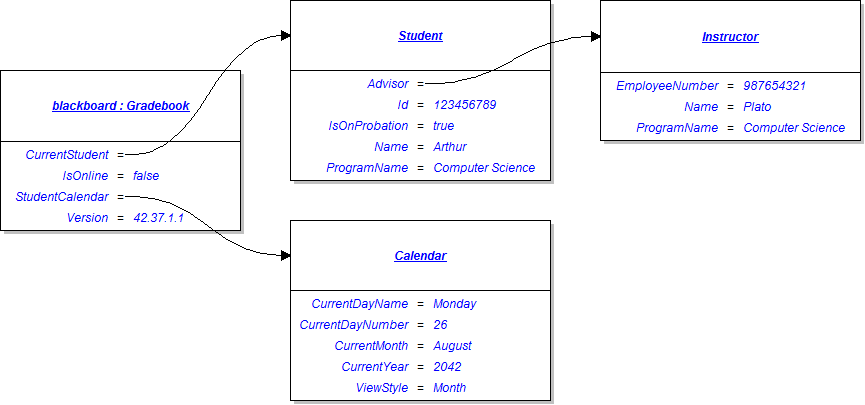
  12. PNG image of the 1.2 Gradebook UML object diagram

Test, Complete and Submit

  1. Build your program - Eliminate compiler errors and warnings
  2. Debug/Test your program - Set breakpoints, step through code, monitor values
  3. Make your code StyleCop-compliant
  4. Close your Visual Studio solution.
  5. Compress your Visual Studio solution to a zip file.
  6. Submit the zip file via Blackboard.

StyleCop Tips:

  1. Insert the following code snippet immediately above any method(s) as the documentation header.

    /// <summary>
    /// Performs the tasks outlined in [name].
    /// </summary>
    /// <param name="sender">The object that initiated the event.</param>
    /// <param name="e">The event arguments for the event.</param>

  2. To address spelling errors:
    1. right click your project
    2. click on StyleCop Settings
    3. select the Spelling tab
    4. type the "misspelled" word to the "Recognized word to add:" field.
    5. click the "Add" button, and repeat as needed.

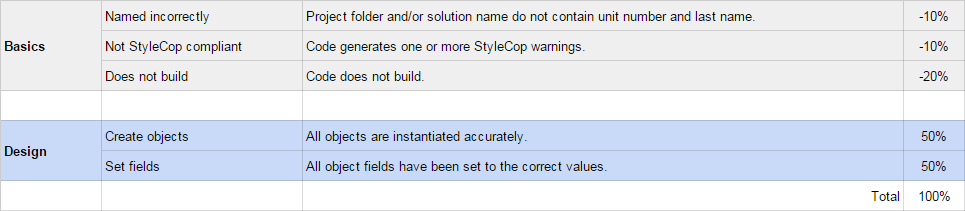
Grading Rubric

PNG image of the 1.2 Gradebook rubric