10-152-311 - Object-Oriented Programming 1

1.2 Airline Activity: Overview

Please write the necessary C# code to instantiate all objects and set all field values using the following UML object diagram.

1.2 Airline Activity: Directions

  1. Download this 1.2Airline zip file.
  2. Extract the contents of the zip file to a location of your choice.
  3. Rename the folder with your last name as indicated .
  4. Within the folder rename the OOP 1Airline1.2- LastName as with your last name.
  5. Open the renamed file OOP 1 Airline 1.2-Last Name.sln contained within the renamed folder.
  6. Double-click on MainWindow.xaml in the Solution Explorer (if hidden, restore it by clicking View | Solution Explorer).
  7. Select the (first/only) New Airline button by single-clicking it.
  8. Navigate to the Properties Window (if hidden, restore it by clicking View | Properties Window).
  9. Change the Properties Window to show events (click on its lightning bolt icon)
  10. Double-click on the Click event. This should open a new tab called MainWindow.xaml.cs and take you to this assignment's button-click event handler.
  11. Write the necessary C# code to instantiate all objects and set all field values per the following UML object diagram:
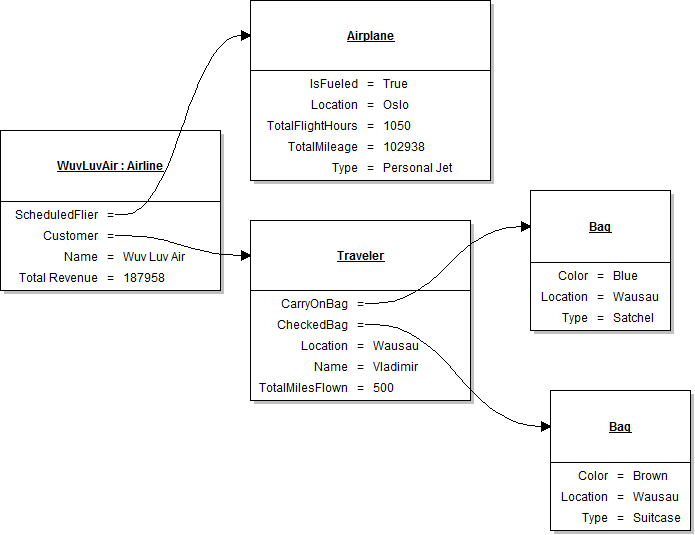
  12. PNG image of the 1.2 Airline UML object diagram

Test, Complete and Submit

  1. Build your program - Eliminate compiler errors and warnings
  2. Debug/Test your program - Set breakpoints, step through code, monitor values
  3. Make your code StyleCop-compliant
  4. Close your Visual Studio solution.
  5. Compress your Visual Studio solution to a zip file.
  6. Submit the zip file via Blackboard.

StyleCop Tips:

  1. Insert the following code snippet immediately above any method(s) as the documentation header.

    /// <summary>
    /// Performs the tasks outlined in [name].
    /// </summary>
    /// <param name="sender">The object that initiated the event.</param>
    /// <param name="e">The event arguments for the event.</param>

  2. To address spelling errors:
    1. right click your project
    2. click on StyleCop Settings
    3. select the Spelling tab
    4. type the "misspelled" word to the "Recognized word to add:" field.
    5. click the "Add" button, and repeat as needed.

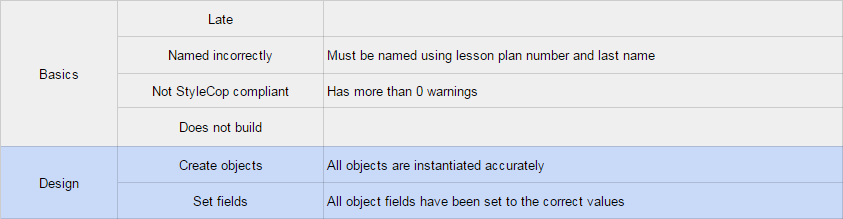
Grading Rubric

PNG image of the 1.2 Airline rubric