
10-152-311 - Object-Oriented Programming 1

2.1 Gradebook Assignment: Overview

Arthur would like to change his color theme in Blackboard.

This week, you will be defining a new class to represent the gradebook's theme, and will be creating an instance of the object and setting its fields.

2.1 Gradebook Assignment: Class Diagram

Implement the changes specified in the following UML class diagram.
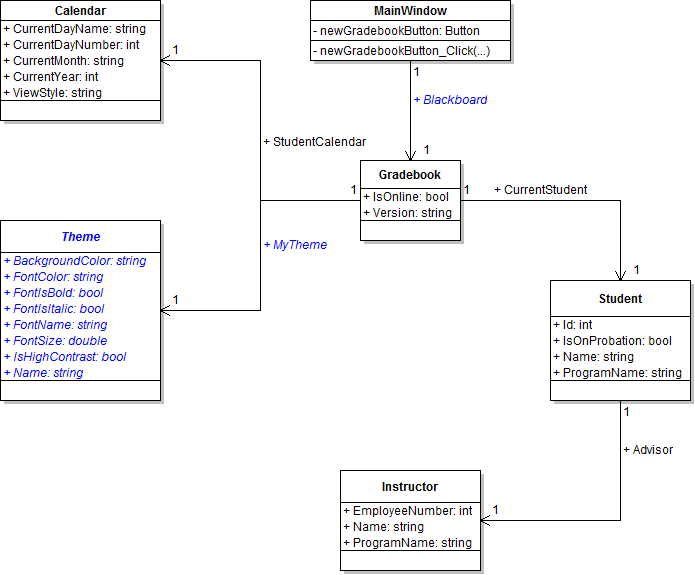
PNG image of 2.1  Gradebook UML class diagram
  1. When creating classes be sure to:
    1. Ensure the class in the root namespace. This can be done in one of two ways. Either by adding the class in the project, i.e. scenario, or by adding the class to the business classes folder and removing the ".Business_Classes" designation from the namespace.
    2. insert the following line of code immediately above the class definition:
      [System.Diagnostics.CodeAnalysis.SuppressMessage("Microsoft.StyleCop.CSharp.MaintainabilityRules", "SA1401:FieldsMustBePrivate", Justification = "Encapsulation not yet taught.")]
  2. Open the main window (MainWindow.xaml) in designer mode (right-click and click "View Designer" or press Shift-F7 to go to designer mode).
2.1 Gradebook Assignment: Object Diagram

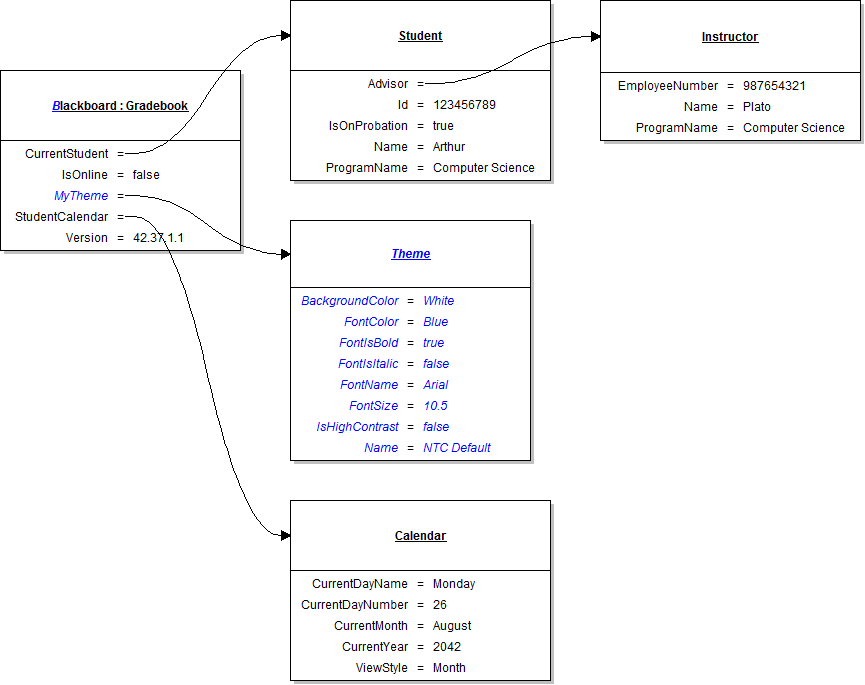
Instantiate the objects and set their field values as specified in the following UML object diagram.

PNG image of 2.1 Gradebook UML object diagram

2.1 Gradebook Assignment: Code Snippet

Within the newGradebookButton click event handler use the following code snippet as your guide to writing the code.

// Create an instance of the Gradebook class.

// Set field values of Blackboard.

// Set field values of the current student.

// Set field values of the advisor.

// Set field values of my theme.

// Set field values of the student calendar.

Test, Complete and Submit

  1. Build your program - Eliminate compiler errors and warnings
  2. Debug/Test your program - Set breakpoints, step through code, monitor values
  3. Make your code StyleCop-compliant
  4. Close your Visual Studio solution.
  5. Compress your Visual Studio solution to a zip file.
  6. Submit the zip file via Blackboard.

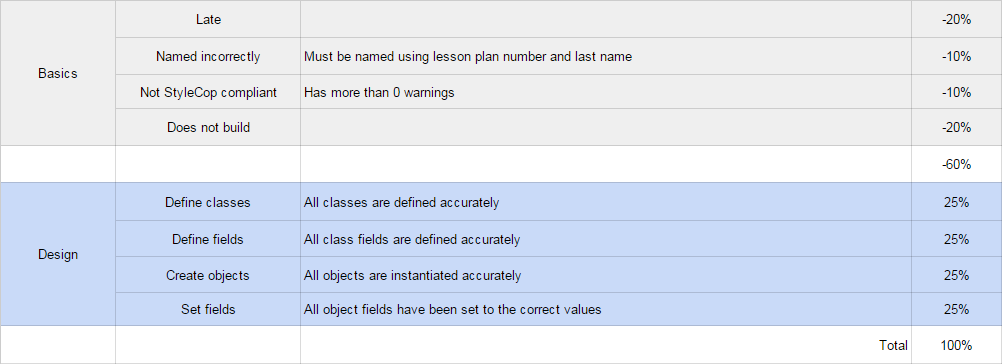
Grading Rubric

PNG image of the 2.1 Gradebook rubric