Points (10)
Database size relates to the maximum amount of space any individual can consume with their emails and email attachments. Let's assume that we will have up to 12 users in our network and that we will have 40 GB of disk space available for email storage - this leaves each user with 3.3 GB.
Configure the database size and storage performance requirements as follows:
Be able to demonstrate how you made these settings.
This video does a quick overview of Microsoft's requirements to run Exchange server on a virtual machine. Some of these requirements are obvious such as using a host dedicated to virtualization such as with Hyper-V, while other requirements may not be so obvious, like the requirement that Exchange Server 2016 must be running on a Windows Server 2012 R2. Make note of the other hardware specific requirements as well.
This capacity and placement video discusses system design based on the messaging profiles; the amount and sizes of attachments, for example, will help you determine the amount of RAM, Processors, and hard drives you will need. Enterprise vs standard, disaster recovery, database resiliency (How long can clients be without email if the server were to go down?), growth, and third-party applications such as Spam filtering and anti-virus are also discussed.
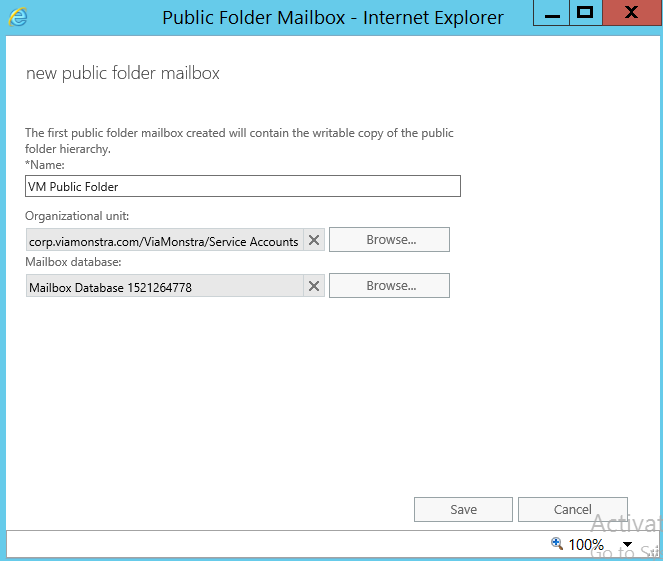
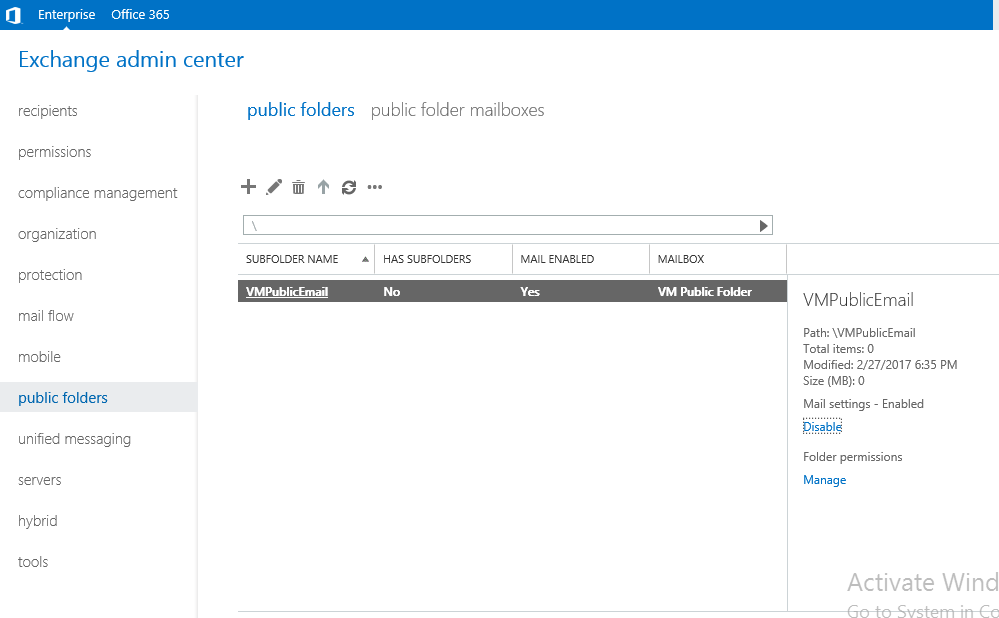
Public folder mailboxes are used to share information with others in your organization. Microsoft Exchange 2016 now uses public mailboxes to accomplish this task, in the past public folders were contained in a database. This video discusses the design characteristics of public folder mailboxes and will step you through the process of creating them.
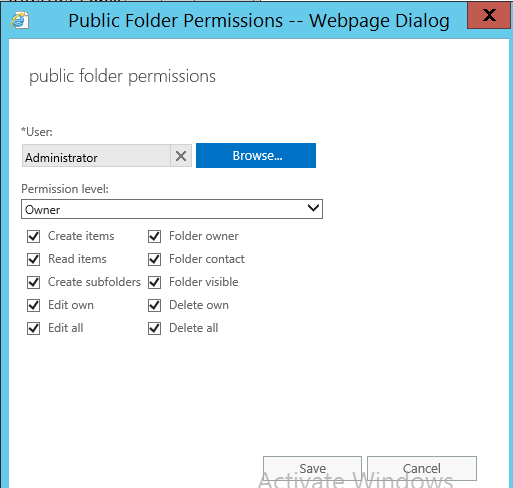
For Viamonstra, create a public folder mailbox called "VM Public Folder" as follows:
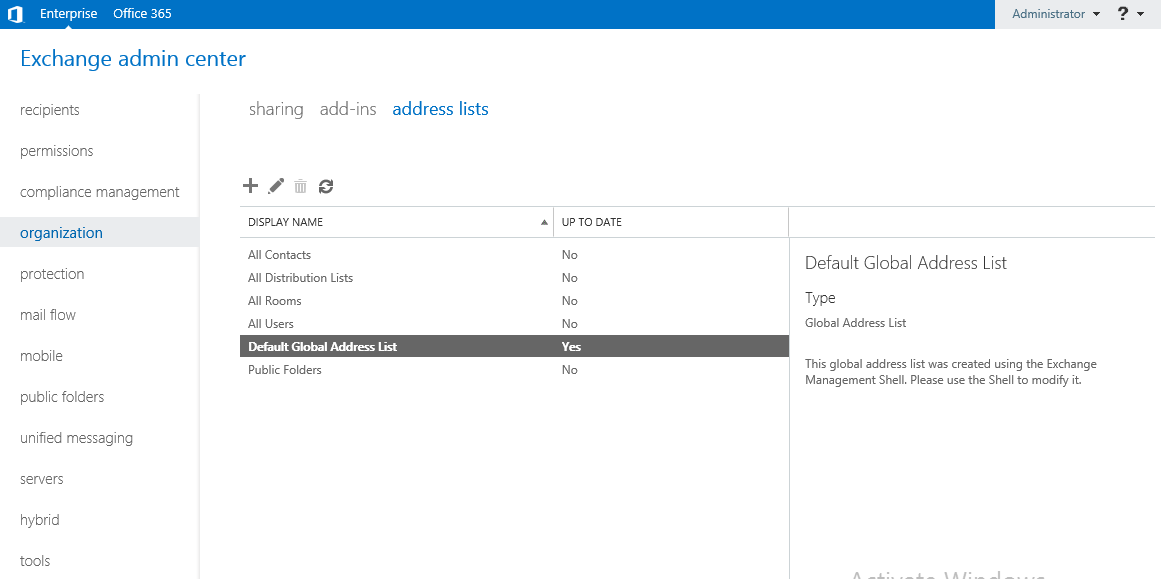
An offline address book (OAB) stores a list of Email users in Outlook so that Outlook does not have to access this information from the Exchange server address book directly from the Exchange server. There is a default address list that is kept up to date with users called the "Default Global Address List". This is the list that is shared with Outlook.
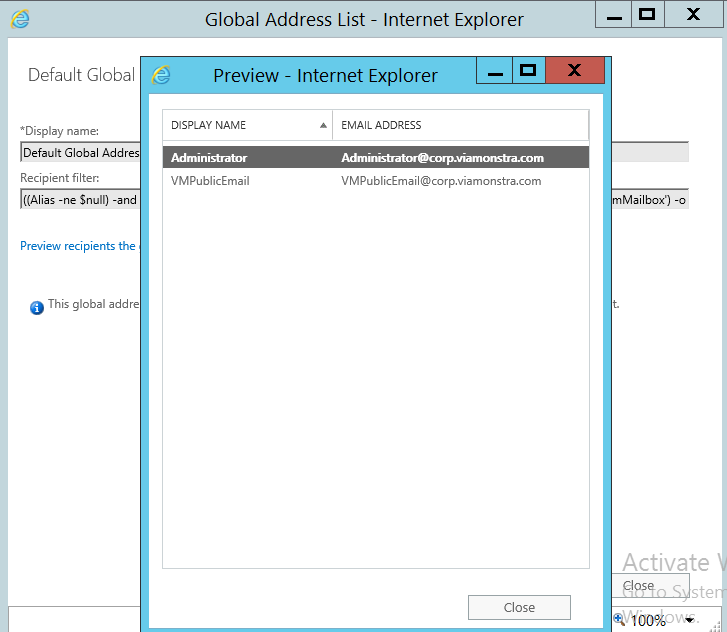
When you open the Default Global Address List and then click Preview recipients, a display similar to the image below will show the outcome of the Recipient filter. You may have additional users.
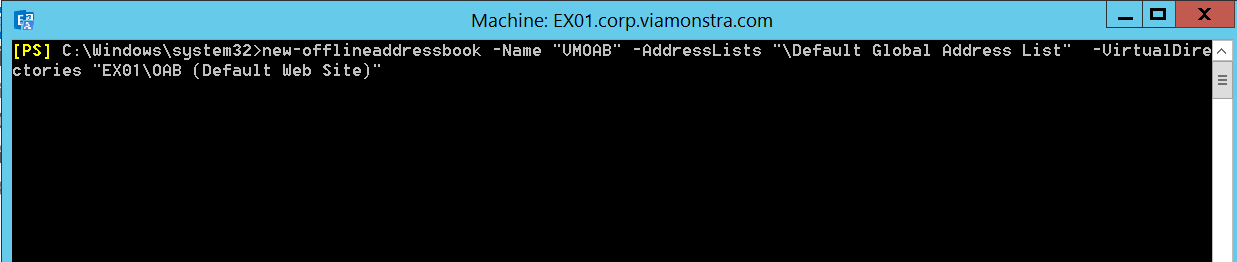
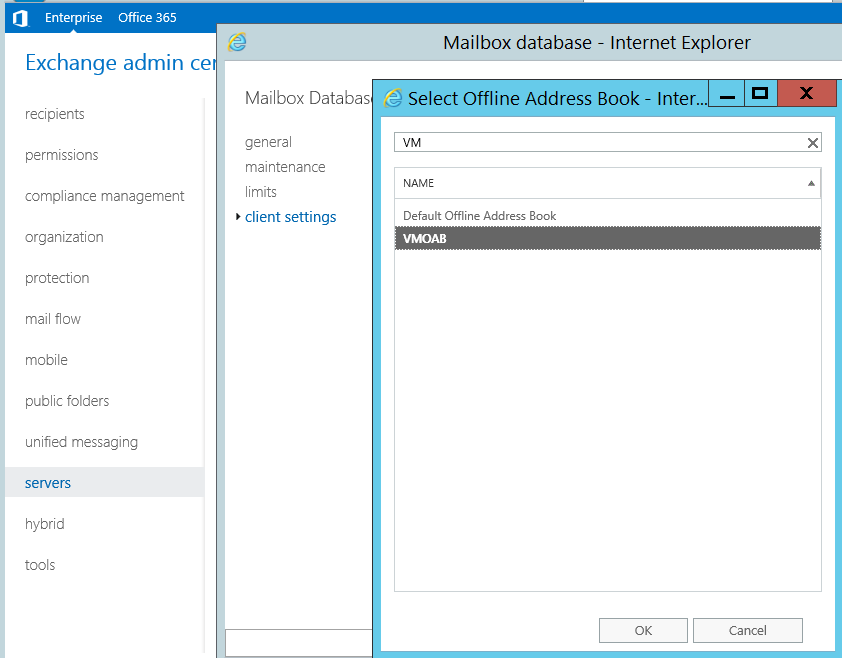
After you learn how to create a new address book using the Exchange Shell, create an address book called VMOAB in a similar fashion as the video describes.
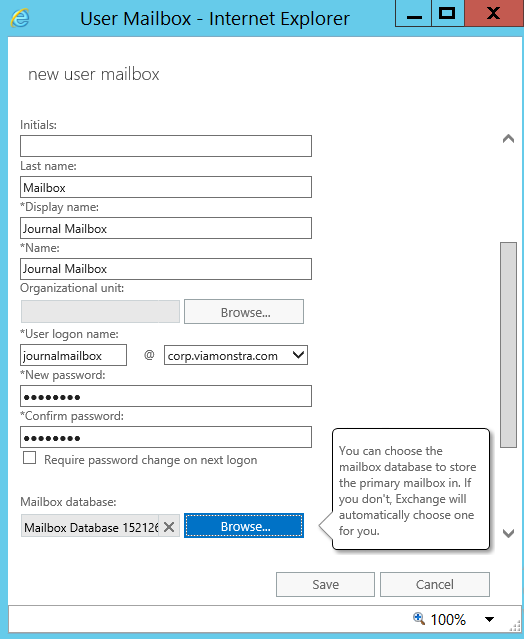
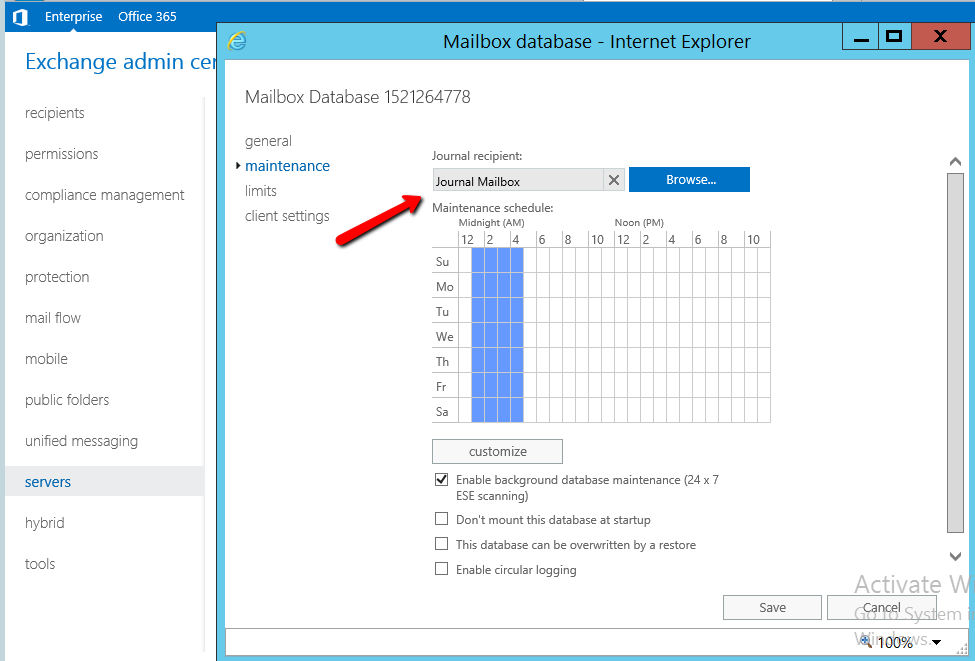
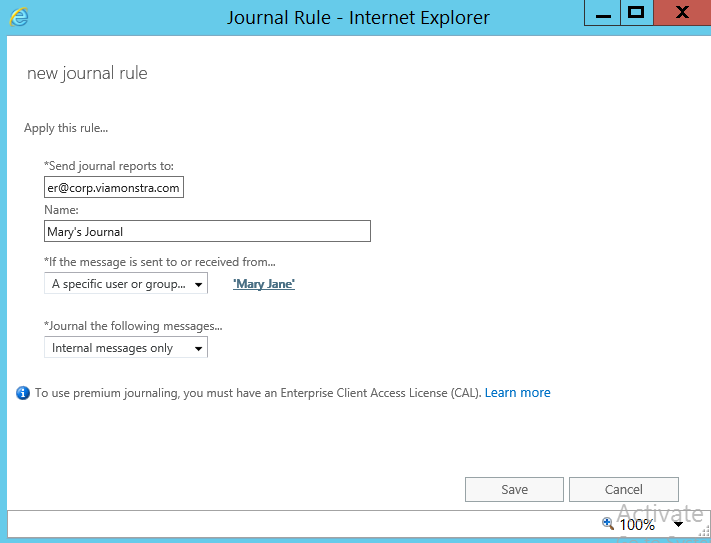
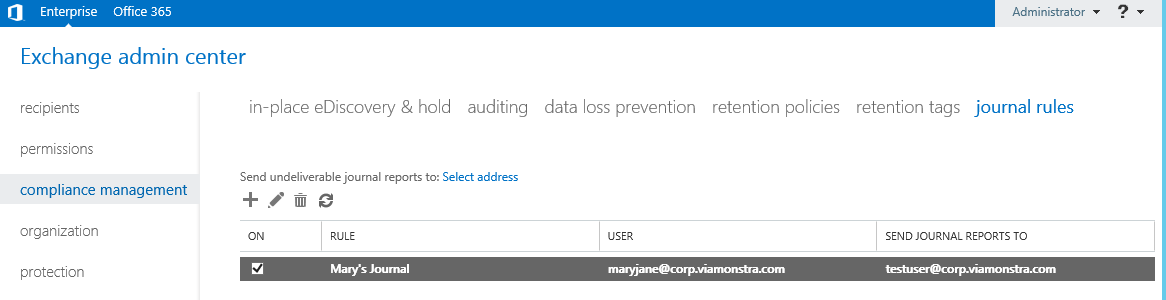
Journaling will allow you to configure Exchange to save a copy of every email that either leaves or comes to the organization. This can be controlled by organization or by individual user. With journaling, if the user deletes an email, there will be another source by which this email can be obtained. The container that stores these journaled emails is just another mailbox.
For ViaMonstra, create the journal mailbox.
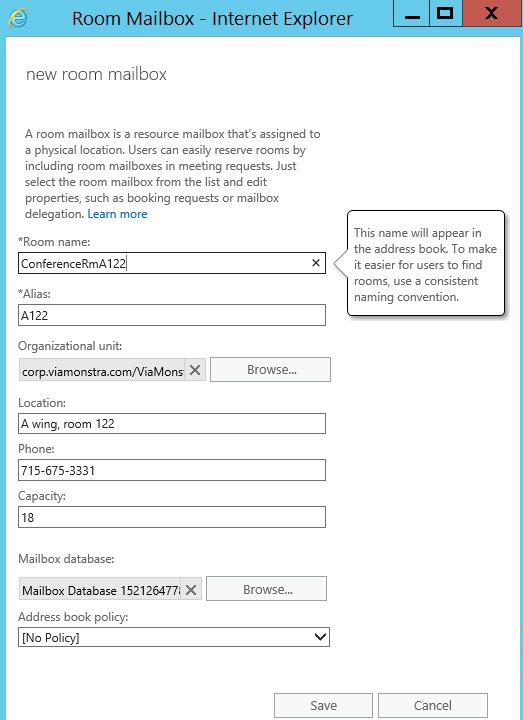
You likely created a couple of normal exchange users to do the previous lab, but make sure you watch how it should actually be done. You will also be shown how to create a resource recipient, which is a special email that calendar invites are sent to for researvation purposes, for example conference rooms, computers, cars, etc.
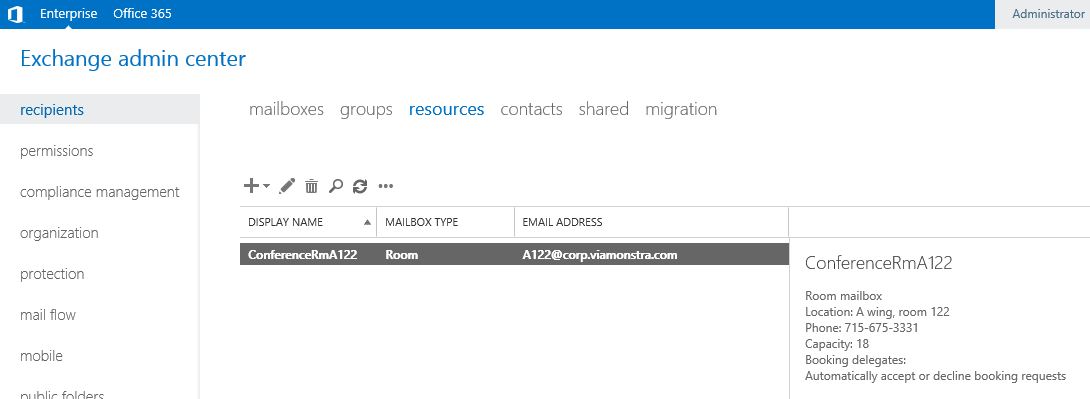
For ViaMonstra, create the following resource recipients:
See example below.