 Explore common breaches and defenses of Internet security
Defenses
Defenses through applications
If you wish to use the Internet safely you could simply control the infiltration of bad code into your system by using the control mechanisms built into your Internet applications. These controls include popup blockers, spam filters and the security settings in your E-mail applications.
Circle your wagons!

Popup/Popunder Blockers
When an advertisement opens in a new window on top of (popup) or under (popunder) your existing web window it is often unwanted and, in the case of a popunder, not noticed until hours later.
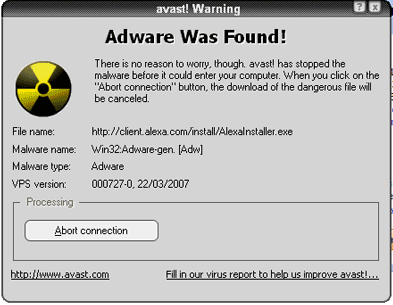
Popups or popunders could contain adware, spyware or viruses and when the popup/popunder is clicked on or even mouse-overed your computer could get infected.
Options:
To prevent infection you have to stop popups. Here are your options:
Option 1: Buy a popup blocker.
Option 2: Change your browser settings to control popups. Click on the image below to see how this is done.

What should you do if you get a popup?
Avoid touching it! Right-click the popup in the taskbar and close it. You can also terminate the process in your Task Manager (recommended).
If you get popups even when you are not on the Internet or when you are on a web site that does not have popups, then you have adware and/or spyware. This will have to be removed by an adware/spyware removal tool.
E-Mail Security Settings
Spam is the most prevalent concern regarding e-mail. Spam can be filtered at a higher level such as the SMTP server that receives your email.
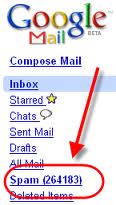 Gmail, for example, is quite good at blocking spam before it reaches your inbox.
The e-mail that you receive, even after filters are enabled, could still contain badware. There are additional settings that can be made to minimize the risk of exposure.
Click on the link below to get more information.
http://coursecontent.ntc.edu/CIT/husband/pois/lp3/m31-emaildefenses.html
Defenses through browser settings
Because of the browser's close proximity to the Internet, it stands to reason that it should have many ways of configuring security and privacy settings to protect you. Some of the browser’s settings that you need to become familiar with are security settings, security zones, and restricting cookies.
Advanced security settings
In Internet Explorer 8.0 there are 19 advanced security settings. Many of these settings are enabled by default.
Click on the image or link below to get more information.

http://coursecontent.ntc.edu/CIT/husband/pois/lp3/m32-AdvancedSecuritySettings.html
Security zones
Security configuration settings are not statically set for all Internet access and to all web sites. You may have a need to restrict certain sites and not restrict others. Internet Explorer 8 gives you 4 zones by which you can fence in general Internet access and even specific sites.
Click on the image or link below to get more information.

http://coursecontent.ntc.edu/CIT/husband/pois/lp3/m32-Zones.html
Restricting Cookies
Restricting cookies is done through Internet Explorer privacy settings. There are six different levels of cookie control.
Click on the image or link below to get more information.

http://coursecontent.ntc.edu/CIT/husband/pois/lp3/m32-cookies.html
Sandbox your browser
The safest way to search the Internet is to Sandbox your browser’s activities. An ideal program that enables this feature is called Sandboxie (www.sandboxie.com).
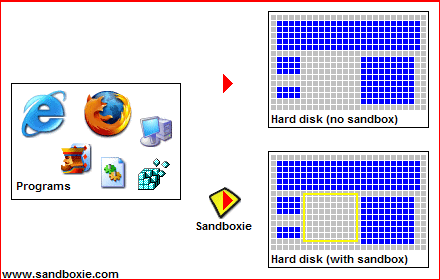
The benefits are numerous (reference: www.sandboxie.com):
- Secure Web Browsing: Running your Web browser under the protection of a sandbox means that all malicious software downloaded by the browser is trapped in the sandbox and can be discarded trivially.
- Enhanced Privacy: Browsing history, cookies, and cached temporary files collected while Web browsing stay in the sandbox and don't leak into Windows.
- Secure E-mail: Viruses and other malicious software that might be hiding in your email can't break out of the sandbox and can't infect your real system.
- Windows Stays Lean: Prevent wear-and-tear in Windows by installing software into an isolated sandbox.
Defenses through Good Practices
E-Mail Defenses through good practices
- When dealing with attachments and embedded hyperlinks, know for sure who it is that sent it and that you are expecting it.
- Use reading panes and previews when possible.
- Never answer an e-mail request for personal information - place a phone call instead.
- Treat E-mail cautiously.
Internet Defense Summary
When accessing information on the Internet you have to be very careful and use common sense. However, sometimes this is not enough and you have to incorporate the security and privacy settings that are part of your browser.
Click on the image below to view an interactive summary of this segment.